
Have you ever felt that your WordPress theme font color just doesn’t match the vibe you’re aiming for? Maybe it feels too bland, too bright, or simply not in line with your brand’s personality.
Changing the font color can breathe new life into your website and help you make a stronger impression on your visitors. Imagine your site looking just the way you want, with every element reflecting your vision perfectly. This guide is here to make that a reality.
Stick with us, and you’ll learn the simple steps to change your WordPress theme font color, ensuring your site is as unique and vibrant as you are. Ready to transform your site’s look? Let’s dive in!
Choosing The Right Theme
Picking a theme is very important. It sets the look of your site. Choose a theme that suits your style and content. Some themes allow easy color changes. Others might need extra steps. Always check theme settings. Look for color options. Many themes have a customizer tool. It helps change colors quickly. Check for a preview option. It shows changes before saving. This way, you can try different looks. Always remember to save your changes. Otherwise, they will not show on your site. Picking the right theme makes changes easier. It also ensures your site looks great.

Credit: wcanvas.com
Accessing The WordPress Dashboard
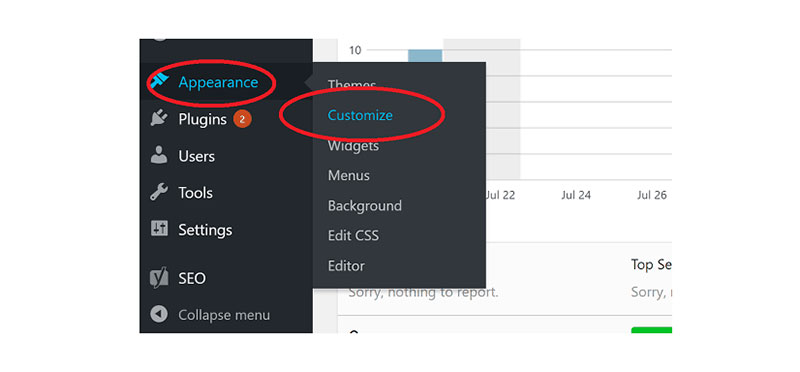
The WordPress Dashboard is where changes begin. To start, log in using your username and password. You will see the main menu on the left. This menu has many options. Click on Appearance to open the theme options. Here, you can find customize. Click it to change your theme settings.
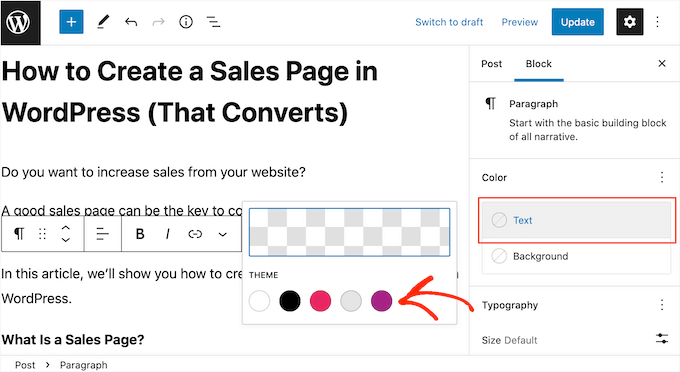
Inside the customizer, look for Typography or Colors. These options allow font color changes. Select the text you want to change. Choose a new color from the palette. Preview your changes before saving. Press Publish to apply the new color. Your website will now show the updated font color.
Navigating To The Theme Customizer
Start by logging into your WordPress dashboard. Once inside, look for the Appearance section on the left menu. Click on it. You’ll see an option labeled Customizer. Click on this to open the Theme Customizer.
In the Customizer, look for the Colors option. This might be under a section like Typography or Advanced Settings, depending on your theme. Click on it to see the font color settings.
Use the color picker to choose a new font color. You can see changes live in the preview window. Once satisfied, click the Publish button to save your changes. Your website will now have the new font color visible to all visitors.
Credit: wpdatatables.com
Exploring Typography Options
Discover the simplicity of changing font color in WordPress themes. Navigate to the customization panel and select typography settings. Choose a new color to enhance your site’s visual appeal effortlessly.
Finding Font Color Settings
Changing the font color in WordPress can be simple. First, go to your WordPress dashboard. Look for the Appearance section. Click on Customize. This opens the Customizer tool. Here, you can see many options. Look for Typography or Colors. Click it. Now, find the Font Color option. You can choose your favorite color. Remember, some themes may not have this option.
Understanding Color Schemes
Colors can change how your site looks. Bright colors make things stand out. Soft colors are calm. Choose colors that match your brand. Use a color wheel to help pick colors. It shows which colors go well together. Always test colors before using them. Make sure the text is easy to read. This keeps visitors happy.
Using Additional Css
Changing font color in WordPress is easy. Locate the CSS editor first. Go to your WordPress dashboard. Find the “Appearance” tab. Click on “Customize”. This opens the customizer screen. Look for the “Additional CSS” option. This is where you will add your custom code.
Locating Css Editor
The CSS editor is inside the customizer. It is on the left side panel. The panel shows different options. Find “Additional CSS” there. Click to open it. Now you see a blank space. This space is for writing your CSS code.
Writing Custom Css
Writing CSS code is simple. Use the right syntax. For changing font color, use “color” property. Example: h1 { color: blue; }. This changes the font color to blue. You can choose any color. Use color names or codes. Save your changes after writing. Your site font color will update.
Credit: www.wpbeginner.com
Installing A Plugin
To change WordPress theme font color, first install a plugin. This tool helps modify colors without coding. Navigate to the plugin settings and select your preferred color for easy customization.
Popular Plugins For Font Color
Many plugins can change font color in WordPress. Easy Google Fonts is a popular choice. Yellow Pencil is great for beginners. WP Font Customizer offers more options. Each plugin helps you style text easily. You can find these plugins in the WordPress Plugin Directory. Always choose plugins with good reviews. They should be updated often. This ensures better performance.
Plugin Installation Steps
- Go to your WordPress dashboard.
- Click on Plugins in the menu.
- Select Add New.
- Type the plugin name in the search box.
- Click Install Now next to the plugin.
- After installation, click Activate.
Testing Changes On Different Devices
Check your website on a phone and a tablet. This helps to see how fonts look. Devices show fonts differently. Make sure fonts are easy to read. Check both portrait and landscape modes. This helps catch any layout issues.
Open your browser’s developer tools. Right-click on your website and select “Inspect”. This tool shows how your site looks on different devices. Check the “Responsive” mode. Change the screen size and see the results. Make sure font colors look good.
Troubleshooting Common Issues
Changing the font color of a WordPress theme often involves navigating to the theme customizer. Here, select the ‘Colors’ option to adjust the font settings. Save changes to see immediate updates on your site.
Font Color Not Changing
Sometimes, the font color doesn’t change. This can be confusing. The most common reason is a cache issue. Clear your browser’s cache. Check if the color changes. Another reason could be theme settings. Make sure you saved changes in the theme options. Double-check the settings. Some themes may override your changes. Check for custom CSS in the theme. The CSS might not be correct. Ensure you have the right CSS code. Finally, ensure your WordPress version is updated. Older versions might not work well with new themes.
Reverting To Default Settings
Accidentally changed settings? You can go back to default. Most themes have a reset option. Look for it in the theme settings. This will return all settings to default. Be careful, it will undo all changes. Another way is to reinstall the theme. This will also reset the settings. Backup your data before doing this. You don’t want to lose important changes.
Frequently Asked Questions
How Can I Change Font Color In WordPress?
To change the font color in WordPress, navigate to your theme’s customizer. Go to Appearance > Customize > Colors. Look for the option to change text or font color. Adjust the color using the color picker tool and publish the changes.
What Plugins Help Change Font Color?
Several plugins can help change font color in WordPress. Popular ones include “YellowPencil” and “WPBakery Page Builder”. They offer user-friendly interfaces for customizing fonts. These plugins provide advanced styling options without needing coding skills.
Can I Change Font Color Without Coding?
Yes, you can change the font color without coding. Use the WordPress customizer or a page builder plugin. These tools provide simple interfaces for customization. Choose your desired color using a color picker and apply it with ease.
Is Changing Theme Font Color Easy?
Yes, changing the theme font color is easy in WordPress. Use the built-in customizer or plugins. These tools provide intuitive options for styling. You can make changes with just a few clicks and see real-time previews.
Conclusion
Changing your WordPress theme font color is simple. Follow these steps to enhance your site’s look. Start by accessing the WordPress dashboard. Navigate to the Appearance section and select Customize. Choose the Fonts option and adjust the color settings. Save your changes to see the effect.
It’s an easy way to personalize your website. Experiment with different colors to find the perfect match. Remember, consistency in design enhances user experience. Keep colors readable and appealing. This quick customization can make your site more engaging. Now, enjoy a fresh and vibrant look for your WordPress site.


