
Have you ever felt the need to give your WordPress site a fresh new look? Maybe you’re tired of the current theme or you’ve discovered a theme that perfectly aligns with your vision.
Whatever the reason, changing your WordPress theme directory might seem daunting at first. But don’t worry, it’s easier than you think! Imagine transforming your website into a more engaging and visually appealing space for your visitors. This simple change can boost your site’s performance and keep your audience coming back for more.
In this guide, we’ll walk you through the steps to change your WordPress theme directory without breaking a sweat. By the end of this article, you’ll not only have the knowledge to switch themes effortlessly, but you’ll also gain insights into optimizing your site’s aesthetics to captivate and convert your audience. Let’s dive in and unlock the potential of your WordPress site together!
Understanding WordPress Theme Directory
The WordPress theme directory has a special structure. It helps in organizing files. This directory is found in the wp-content/themes folder. Each theme gets its own folder here. Inside, there are many files. The most important ones are style.css and index.php. These files control how your site looks. Other files include functions.php and template files. They add features and layouts to your theme.
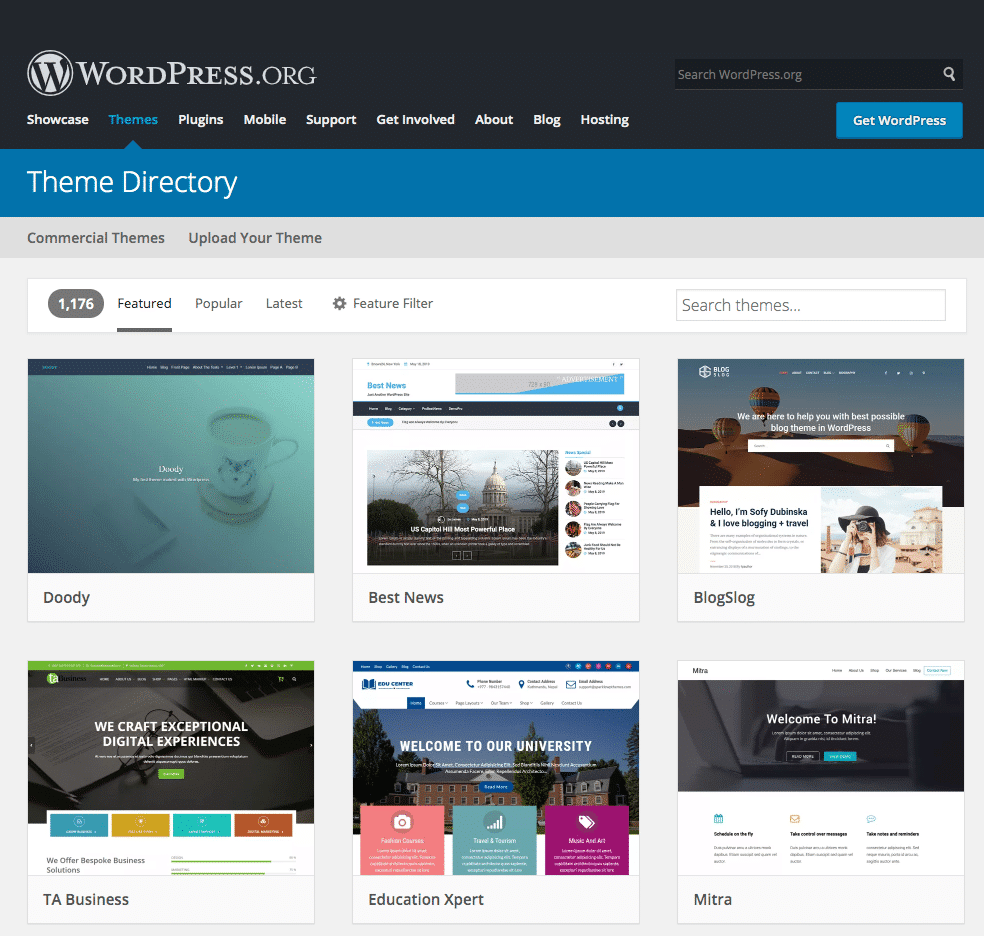
Themes change the look of a website. They affect colors, fonts, and layouts. Each theme gives a different style. The theme directory stores these themes. It makes switching styles easy. A new theme can make a site look new. Choose a theme that fits your brand. A good theme improves the user experience. It can also help with site speed.
Reasons To Change Theme Directory
Changing the theme directory lets you add personal touches. Themes may not fit your style. You might want different colors or fonts. Some themes limit what you can change. A new directory gives more freedom. You can make your site unique. It’s like dressing up your website with new clothes.
Security is vital for websites. Some themes might have security holes. This could allow bad people to attack. By changing the directory, you can use safer themes. You can also update them easily. Regular updates keep your site secure. Protecting your site is like locking your house door. You want it to be safe.
A slow website can be frustrating. Performance matters a lot. Some themes are heavy and slow down your site. Changing the theme directory can speed things up. A faster site keeps visitors happy. It also helps with search rankings. Quick loading pages are like fast cars. Everyone prefers them.
Preparing For The Change
Always create a backup before making changes. It keeps your site safe. Use a plugin like UpdraftPlus to save your themes. You can also do this through FTP. Download the theme files to your computer. This way, you have a copy if anything breaks.
Ensure your new theme works with your site. Check the theme’s requirements. Look for the right WordPress version. Some themes need specific plugins. Make sure your plugins are supported. Check the theme’s reviews for issues. This helps you avoid problems later.

Credit: webkul.com
Changing The Theme Directory
First, open your FTP client. Connect to your server. Find the WordPress root folder. It is usually called public_html or www. Inside, look for the wp-content/themes folder. This is where your themes live. You can upload or remove themes here.
Open the wp-config.php file. It is in the root folder. Add this line of code: define('WP_DEFAULT_THEME', 'your-theme-folder');. Replace your-theme-folder with your theme’s name. This sets your theme as the default. Save and upload the file back.
Check your theme’s path settings. Some themes have custom paths. Open the theme’s main files. Look for any path settings. Update them if necessary. This ensures your theme works well. Always back up files before changes.
Updating Database References
Changing the theme directory can break your site. Database references need updates. Theme paths must be correct. Check paths in the database. Use tools to find and replace paths. This keeps your site working. Small errors can cause big problems. Media files might not load if paths are wrong.
Correcting Theme Paths
Theme paths are vital for site function. Incorrect paths lead to errors. Check the paths in the WordPress admin panel. Use FTP to change paths manually. Ensure all paths match the new directory. Test the site after changes. Look for broken links or missing images.
Ensuring Media File Links
Media files need correct links. Broken links mean missing images. Check all media file links. Use a plugin to find broken links. Update links in the database. Keep media files accessible. Check galleries and sliders. Ensure images display properly.
Credit: kinsta.com
Testing New Setup
Verifying theme functionality is important. Ensure your theme works well. Check the layout. Look at colors and fonts. See if they match your style. Test the site speed. Fast loading is crucial. Check if all links work. Broken links frustrate users. Make sure images show correctly. They should not be blurry. Click buttons to see if they work. Buttons should perform actions smoothly.
Checking plugin integrations is vital. Plugins enhance site features. Test if plugins work with your new theme. Check for plugin conflicts. Some plugins may not be compatible. Ensure all plugins are updated. Outdated plugins may cause issues. Look at plugin settings. Make sure settings are correct. Test each plugin feature. Features should work as expected.
Troubleshooting Common Issues
Path errors often confuse users. They happen when the theme path is wrong. Always check the directory path in your WordPress settings. It should point to the right folder. Double-check the folder name for any spelling mistakes. Look for any extra spaces or slashes. These small errors cause big problems. Use the correct path to avoid issues.
Broken links appear when a theme change happens. They make your site look bad. First, find all broken links using a tool. Many free tools are available online. Once found, update each link. Make sure they point to the right place. Sometimes, you need to refresh the permalinks. Go to the settings, and click ‘Save Changes’. This often fixes many link issues.
Best Practices
Switching the WordPress theme directory involves accessing your site’s files through FTP or a hosting panel. Backup your site first. Next, locate the wp-content/themes folder, then upload the new theme folder. Activate the theme in your WordPress dashboard.
Maintaining Theme Updates
WordPress themes get updates often. These updates keep your site safe. They also add new features. Always update themes regularly. Check for updates weekly. Use a child theme for custom changes. This way, updates won’t erase your work. Update plugins too. This keeps everything running smoothly.
Regular Backup Procedures
Backups are very important. They save your work. Make backups before any change. Use tools like UpdraftPlus. Store backups in different places. Cloud storage is a good choice. Also, keep a local copy. Set automatic backups if possible. Regular backups protect your site. They can save you from data loss.
Credit: colorlib.com
Frequently Asked Questions
How Do I Locate The Theme Directory In WordPress?
To find your theme directory, access your WordPress installation via FTP or cPanel. Navigate to `wp-content/themes`, where you’ll see folders for each installed theme. The folder name corresponds to the theme’s name. This directory contains all files related to the theme.
Can I Safely Change My WordPress Theme Directory?
Yes, you can change your WordPress theme directory safely by updating the `stylesheet` and `template` paths in the `wp-config. php` file. Ensure all paths are correct to avoid errors. Back up your site before making changes to prevent data loss.
What Steps Are Needed To Switch Theme Directories?
Switching theme directories involves accessing your server, moving theme files, and updating paths in the `wp-config. php` file. Use FTP or a file manager for moving files. Make sure to update all references to the new directory to avoid broken links or functionality.
Will Changing Theme Directories Affect My Site’s Performance?
Changing theme directories should not impact site performance if done correctly. Ensure all paths are updated accurately to maintain functionality. Test your site thoroughly after changes to confirm everything works as expected, focusing on speed and responsiveness.
Conclusion
Changing your WordPress theme directory is simple. Start by backing up your site. Then access your server through FTP. Navigate to the themes folder. Drag and drop the new theme folder. Activate it in the WordPress dashboard. Customizing your theme enhances your website’s appearance.
It can improve user experience. A fresh look can engage your visitors more. Make sure to keep your plugins updated. Regular updates prevent security risks. Follow these steps, and enjoy your new WordPress theme. Happy blogging!


