
Are you looking to change your WordPress theme directory name? It might seem like a daunting task, but it doesn’t have to be.
Whether you’re aiming to enhance your site’s security or simply want a fresh start, knowing how to change your WordPress theme directory name can make a significant difference. This simple tweak can help you maintain a clean, organized file structure and even protect your site from potential vulnerabilities.
In this guide, we’ll walk you through the straightforward steps to successfully change your theme directory name without disrupting your site’s functionality. Stay with us, and you’ll discover how easy it is to take control of your WordPress environment. Ready to dive in? Let’s get started!
Credit: www.nexgi.com
Why Change Theme Directory Name
Changing your WordPress theme directory name can be very important. Security is a big reason. If hackers know your theme, they might find ways to attack. Renaming the directory makes it harder for them. Customization is another reason. Sometimes, you need to make special changes to your theme. By changing the directory name, you keep your changes safe during updates. Branding is also important. If you have a unique name, it makes your site special. It helps people remember your site better. So, think about changing the theme directory name. It can help in many ways.
Preparation Steps
Renaming a WordPress theme directory involves a few careful steps. Begin by accessing your site’s files through FTP. Locate the theme folder, rename it, and update references in your database to prevent errors.
Backup Your Website
First, make a backup of your website. This keeps your files safe. Use a plugin or manual method. Plugins like UpdraftPlus are easy to use. Download the backup to your computer. This is a smart step before any change.
Deactivate Current Theme
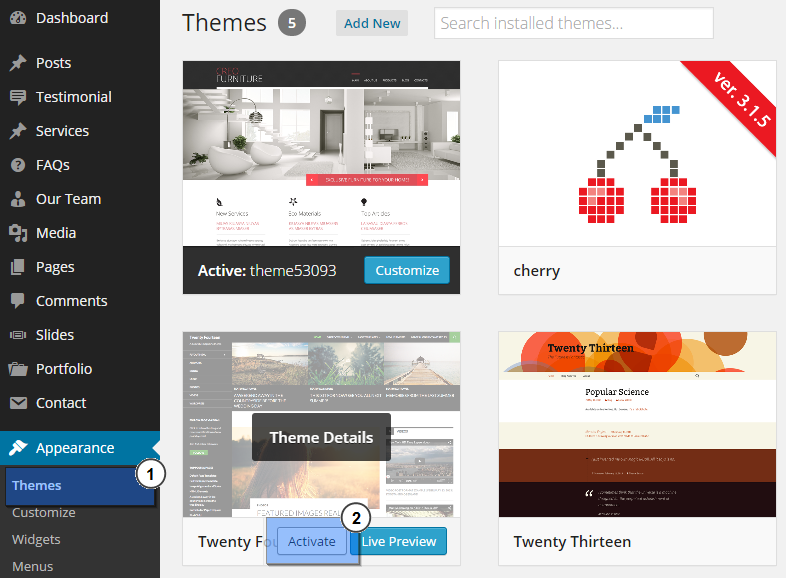
Deactivate the current theme. Go to your WordPress dashboard. Click on Appearance and then Themes. Choose a different theme to activate. This prevents any issues while changing the theme directory name. Remember, it is important to switch themes first.
Accessing File Manager
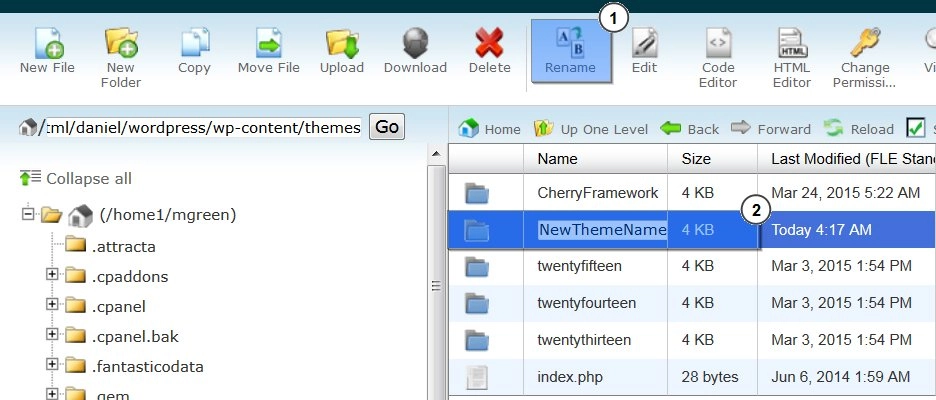
Log into your cPanel account. Find the File Manager tool. It helps you see all your website files. Click the public_html folder. This is where your WordPress files are. Look for the wp-content folder. Inside, find the themes folder. Here are your theme files. Find your theme’s folder. Right-click on it. Choose the rename option. Type the new name you want. Click Save or OK to finish.
Open your FTP client. Use it to connect to your website. Enter your FTP details to login. Find the public_html directory. Look for the wp-content folder. Inside, find the themes directory. This is where your theme folders are. Locate your theme’s folder. Right-click on it. Select the rename option. Enter the new name you want for it. Click OK or Enter to save.

Credit: oceanwp.org
Renaming The Theme Directory
Open your WordPress site using an FTP client. Navigate to the wp-content folder. Inside, you will find a themes folder. This is where all your themes are stored. Each theme has its own folder with a specific name. Check carefully to find the folder of the theme you want to rename.
Rename the theme folder to your desired name. Be careful with spelling. Changing the name will break the theme temporarily. Go to your WordPress dashboard. Reactivate your theme with the new name. This will fix any issues caused by renaming. Always make sure to back up your site before making changes.
Updating Database References
To change the theme directory name, update the wp_options table. Find the option_name that has the old theme name. Replace it with the new theme name. This helps the site recognize the new directory. Be careful not to change other parts of the database. Mistakes can cause errors in your site.
Theme mods are settings for themes. They are stored in the database. Look for the mods_ option in the wp_options table. Change the value to match the new theme directory name. This step ensures your theme settings remain intact. Missing it can lead to lost settings. Always double-check changes before saving.
Credit: www.templatemonster.com
Testing The New Setup
Visit your website after changing the theme name. Make sure all pages load well. Click on links to ensure they work. Check the homepage, posts, and other parts. Look for broken images or missing parts. This helps you see any issues from the change.
Open the WordPress dashboard. Go to the Theme Settings area. Check if your settings are the same as before. Look at colors, fonts, and layouts. Ensure widgets and menus show up correctly. Fix any settings that are wrong. This step ensures your site looks and works right.
Troubleshooting Common Issues
Changing the WordPress theme directory name can lead to unexpected errors. Begin by accessing your site’s files through FTP. Ensure to update the theme folder name and modify references in your database to match the new name.
Handling Missing Styles
Changing the WordPress theme directory name may lead to missing styles. The theme’s stylesheet might not load correctly. Check if the CSS file path is updated. Ensure the new directory name matches the path. Look in the theme’s header file for any old paths. Modify them to reflect the new name. Reload the site to see changes. Update any cached files if needed. Clear browser cache too. Missing styles often relate to incorrect paths. Double-check them for accuracy. This simple check can solve many issues.
Resolving Database Errors
Database errors might occur after renaming the theme directory. The connection may break. Ensure the database settings match the new directory name. Check the wp-config file for any errors. Verify settings and correct them if wrong. Look for any plugin conflicts too. Plugins may not recognize the new directory. Deactivate conflicting plugins and test again. Errors often stem from mismatched settings. Keep settings consistent with the new name. This helps in maintaining site stability.
Best Practices
Keeping your website safe is very important. Always make regular backups of your site. Backups help you when things go wrong. Use a reliable plugin for backups. Some good plugins are UpdraftPlus and BackupBuddy. These tools are easy to use. Set a backup schedule that works for you. Save backups in more than one place. This can be a cloud or a hard drive.
Make sure your backup is complete. Test it regularly. This ensures you can restore your site quickly. A backup is like a safety net. It keeps your data safe. Always remember to backup before you make changes.
Frequently Asked Questions
Can I Rename My WordPress Theme Directory?
Yes, you can rename your WordPress theme directory. First, access your site via FTP or file manager. Locate the `wp-content/themes` folder. Rename the desired theme directory. Update any references in your theme’s functions or settings to the new name. This ensures your site functions smoothly after renaming.
Will Changing The Theme Directory Affect My Site?
Changing the theme directory name can affect your site if not done correctly. Ensure all references in your WordPress settings and files are updated to the new directory name. Test your site thoroughly after renaming to confirm everything works as expected, avoiding potential errors or broken links.
How Do I Safely Change A Theme Directory Name?
To safely change a theme directory name, use FTP or a file manager. Rename the theme folder within `wp-content/themes`. Update all theme references in your WordPress settings or files. Backup your site beforehand to prevent data loss. Test your site after changes to ensure everything functions correctly.
What Precautions Should I Take Before Renaming?
Before renaming a theme directory, backup your site completely. This prevents data loss in case of errors. Double-check all references in your theme settings or functions. Ensure all paths are updated to reflect the new directory name. Testing is crucial to confirm that your site functions well.
Conclusion
Changing your WordPress theme directory name is simple. Follow these steps carefully. First, backup your website files. Next, access your hosting account. Locate the “themes” folder in your WordPress installation. Rename your theme directory. Be cautious to avoid errors. Check the website after renaming.
Ensure everything looks correct. Refresh your site to apply changes. Remember, changes might affect some plugins. Test thoroughly. Ask for help if needed. Changing theme names can enhance organization. Enjoy a tidy and well-managed WordPress site. Keep exploring new ways to improve your site.


