
Are you tired of your current WordPress theme and ready for a fresh look? Changing your WordPress theme can feel like a daunting task, especially if you want to maintain the essence of your existing design.
But what if there was a way to switch things up without losing the familiarity and functionality you’ve come to love? That’s where cloning your WordPress theme comes into play. In this guide, you’ll discover a simple, step-by-step process to change your WordPress theme while creating a perfect clone of your current setup.
This means you can explore new designs while keeping your site’s core intact. Imagine the freedom to experiment with new styles, layouts, and features, all without the fear of losing what you have built. Intrigued? Let’s dive in and unlock the possibilities that await your website.
Choosing The Right Theme
Start by listing what you need. Do you want a blog? Maybe a shop? Think of your goals. What do you want to achieve? A clean look or many features? Write these down. This helps find the best theme.
Browse themes online. Many sites offer free themes. Check WordPress theme store. Look for themes that fit your needs. Read reviews and ratings. They show if a theme is good. Compare several themes before choosing one.
Check if the theme has needed features. Responsive design is key. Your site should look good on phones. Fast loading is important. Slow sites lose visitors. Make sure the theme supports plugins. Plugins add extra functions.
Creating A Backup
Backup plugins make saving your site easy. They protect your data. Popular plugins include UpdraftPlus, BackupBuddy, and Duplicator. These plugins create backups with just a few clicks. They store your data safely. You can restore your site anytime. Install the plugin from the WordPress dashboard. Follow the instructions to set up. Choose where to save your backup. Options include cloud storage or local storage. Regular backups keep your site safe.
Manual methods need more steps. First, access your site files via FTP. Download all files to your computer. Next, export your database. Use phpMyAdmin for this task. Save the database file securely. Keep these files safe. Manual backups take more time. They give you full control. Regular manual backups are important. They ensure no data loss. Always store backups in multiple locations.
Installing A New Theme
Open your web browser. Type your website URL. Add /wp-admin at the end. Press enter. You will see the login screen. Enter your username and password. Click the Log In button. You will reach the WordPress Dashboard. The dashboard is the heart of your website. Here, you can make changes and updates.
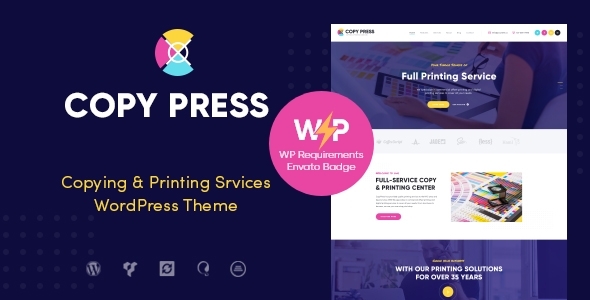
In the dashboard, find the Appearance section. Click on Themes. Then, click Add New. You will see a button called Upload Theme. Click it. Now, choose your theme file. Make sure it’s a .zip file. Click Install Now. Wait for the theme to upload. Once done, click Activate to use the new theme. Your site will look different now.
Credit: themeforest.net
Customizing The Theme
Open the WordPress Customizer from the dashboard. You can find it under “Appearance.” Here, you can change colors, fonts, and more. Make changes and see them live. Save your changes by clicking the “Publish” button. Customizer is easy to use and fun. Explore different options and enjoy your theme.
Menus help users find pages. Go to “Menus” in the dashboard. Add items to your menu. Arrange them by dragging. Widgets are like mini-apps for your site. Find them under “Appearance.” Add widgets to your sidebar or footer. They can show recent posts, search bars, and more. Menus and widgets make your site better.
Layout changes how your site looks. Some themes let you choose layouts. You can adjust header, footer, and sidebar. Use the customizer to change layout. Design is about colors and styles. Pick colors that look nice together. Try different styles until you like them. A good design makes your site look great.
Testing The New Theme
Make sure the theme works well on phones and tablets. A site must look good on all screens. Test it on different devices. Use a responsive design tool to help. Resize your browser window. Check if menus and buttons work. Images should not be cut off. Text must be easy to read. Your site should feel smooth and user-friendly.
Check the theme on different browsers. Firefox, Chrome, and Safari must show your site correctly. Some browsers might show errors. Test each page and section. Look for layout issues or missing elements. Use browser tools to find problems. Make sure your site looks the same everywhere. Consistency is key for a good user experience.

Credit: www.youtube.com
Optimizing For Performance
Faster websites keep users happy. A quick site is very important. Big images can slow your site. Use smaller images for better speed. Also, remove unused plugins. They can make your site slow. Clean code is key. Well-written code makes a big difference. Use a caching plugin. It helps your site load faster. Speed is important for user experience and SEO.
Good SEO makes your site easier to find. Use simple words in your titles. Keywords help people find your site. Use them wisely. Write short and clear descriptions. They help users know your page. Links to other sites are good. They help your site look better to search engines. Update your content often. Fresh content is attractive to users and search engines. Use alt text for images. It helps search engines understand pictures.
Common Issues And Troubleshooting
Broken links can make users upset. They see a page not found error. Check all links after changing the theme. Use a broken link checker tool. It shows which links are broken. Fix them by updating the URLs. Use redirects if the page has moved. This helps users find the right page. Broken links can also affect search rankings. So, it’s important to fix them quickly.
Plugins might stop working with a new theme. Deactivate all plugins first. Then, activate them one by one. This helps find the conflicting plugin. Update that plugin if possible. If not, search for an alternative plugin. Check if the plugin is compatible with the new theme. Plugin issues can cause site errors. Always keep plugins updated.
Credit: www.seoclerk.com
Frequently Asked Questions
How To Safely Change A WordPress Theme?
Changing a WordPress theme safely involves backing up your site first. Use a plugin or manual method for backup. Ensure compatibility with plugins and custom codes. Preview the new theme before activation to check layout and functionality. This prevents potential disruptions and maintains a seamless transition.
Can I Clone A WordPress Theme Easily?
Yes, you can clone a WordPress theme using plugins like Duplicator or WP Clone. These tools streamline the process by copying theme settings and content. Ensure the cloned theme meets your site’s requirements. Always test the clone on a staging environment before deploying it live.
What Should I Check Before Changing Themes?
Before changing themes, check compatibility with existing plugins and custom codes. Ensure the theme is responsive and SEO-friendly. Verify that the design aligns with your branding. Test the theme’s load speed and security features. These checks ensure smooth transitions and maintain site functionality.
Does Changing Themes Affect Seo?
Changing themes can affect SEO if not done carefully. Ensure the new theme is SEO-optimized with clean code and fast load times. Preserve meta tags, alt text, and URL structures. Use SEO plugins to maintain rankings. Properly configured, a new theme should enhance, not hinder, SEO performance.
Conclusion
Changing a WordPress theme clone is straightforward and rewarding. Follow the steps carefully. Ensure backups for safety. Explore different themes to find the best fit. Keep your site’s design fresh and engaging. This enhances user experience and satisfaction. Regular updates keep your site secure and modern.
Stay informed about new theme features. Experiment with styles that suit your brand. A well-chosen theme boosts your site’s appeal. It creates a positive impression on visitors. Always prioritize simplicity and functionality. Your WordPress site will shine with the right theme.


