
Have you ever wondered how to change the author name of your WordPress theme? Maybe you’ve recently acquired a theme and want to give it a personal touch, or perhaps you just want to ensure that everything on your site reflects your brand identity.
Whatever your reason, changing the author name might seem like a daunting task. But what if I told you that with just a few steps, you can easily make this change and take control of your site’s identity? Imagine the satisfaction of seeing your name or your brand’s name proudly displayed on your WordPress theme, adding a layer of professionalism and personal flair to your website.
Stick around, and I’ll guide you through this simple yet impactful change, unlocking a new level of customization for your site.

Credit: www.youtube.com
Reasons To Change Theme Author Name
Changing the theme author name can be important for several reasons. It helps in keeping your website’s branding consistent. If the original author is not relevant, it might confuse visitors. Moreover, it protects your site from unwanted exposure.
Sometimes the original author’s name can be misleading. Users might think your site is run by someone else. This can reduce trust in your brand. By changing the author name, you make the site truly yours. It’s like signing your own painting.
Backup Your WordPress Site
Keeping a backup of your WordPress site is very important. It helps if things go wrong. You can use plugins for this. UpdraftPlus and BackupBuddy are popular choices. These tools save your website data safely. You can restore your site easily.
Make sure you backup both files and database. Files include themes, plugins, and uploads. The database holds your posts and pages. Backing up regularly is smart. Set up automatic backups if possible. This ensures you always have a copy.
Store backups in multiple places. Use external drives or cloud services like Google Drive. This keeps them safe from computer crashes. Remember, backups protect your hard work. They are your safety net.
Locate Theme Files
First, go to your WordPress Dashboard. Use your login details to enter. Look for the Appearance tab on the left side. Click on it to see the list of themes. Find the theme you want to edit. Click on Theme Editor under the theme’s name. Now, you can see all the theme files. Be careful while editing. Small changes can have big effects.
Open your website’s File Manager or use an FTP client. Navigate to the wp-content folder. Inside, find the themes folder. Open the folder of the theme you need to edit. Look for a file named style.css. This file contains author information. Edit the author name. Save the changes and check your site. Make sure everything looks right.
Identify Theme Author Details
The style.css file holds key information. This file is in the theme folder. It tells you about the theme’s author. Open the file and read the top lines. These lines have details like the author’s name and theme version. All themes have this file. It’s like a book cover for your theme.
Open the WordPress dashboard. Go to Appearance, then Theme Editor. Find the style.css file on the right. Click to view its content. Look for lines starting with Author:. The name next to it is the theme creator. This is how you find the author’s name in the code. Simple and quick.
Edit Theme Author Name
To change the author name in a WordPress theme, start with the style.css file. This file holds important details. Open the file in a text editor. Look for the author line near the top. You will see the current name there. Replace the old name with the new one. Save changes to keep the new name.
Another way is through the WordPress Dashboard. Navigate to Appearance. Then click on Editor. Locate the style.css file. Edit the author name in the file. Do not forget to save the changes. This updates the author name for the theme.
Check Changes On WordPress Site
Make sure to review your WordPress site after changes. Look for any broken links or missing images. These can affect how your site looks. Also, check if the theme author name has changed. This is important because it shows who made the theme.
Visit different pages and see if everything looks good. It’s good to ask someone else to check too. They might see something you missed. Use tools like a browser refresh to see updated changes. This helps in viewing the latest modifications clearly.
If things look strange, you might need to adjust settings. Sometimes plugins can cause issues. Disable them one by one to find the problem. Always remember to save any changes you make. This ensures your site stays updated and correct.
Troubleshoot Common Issues
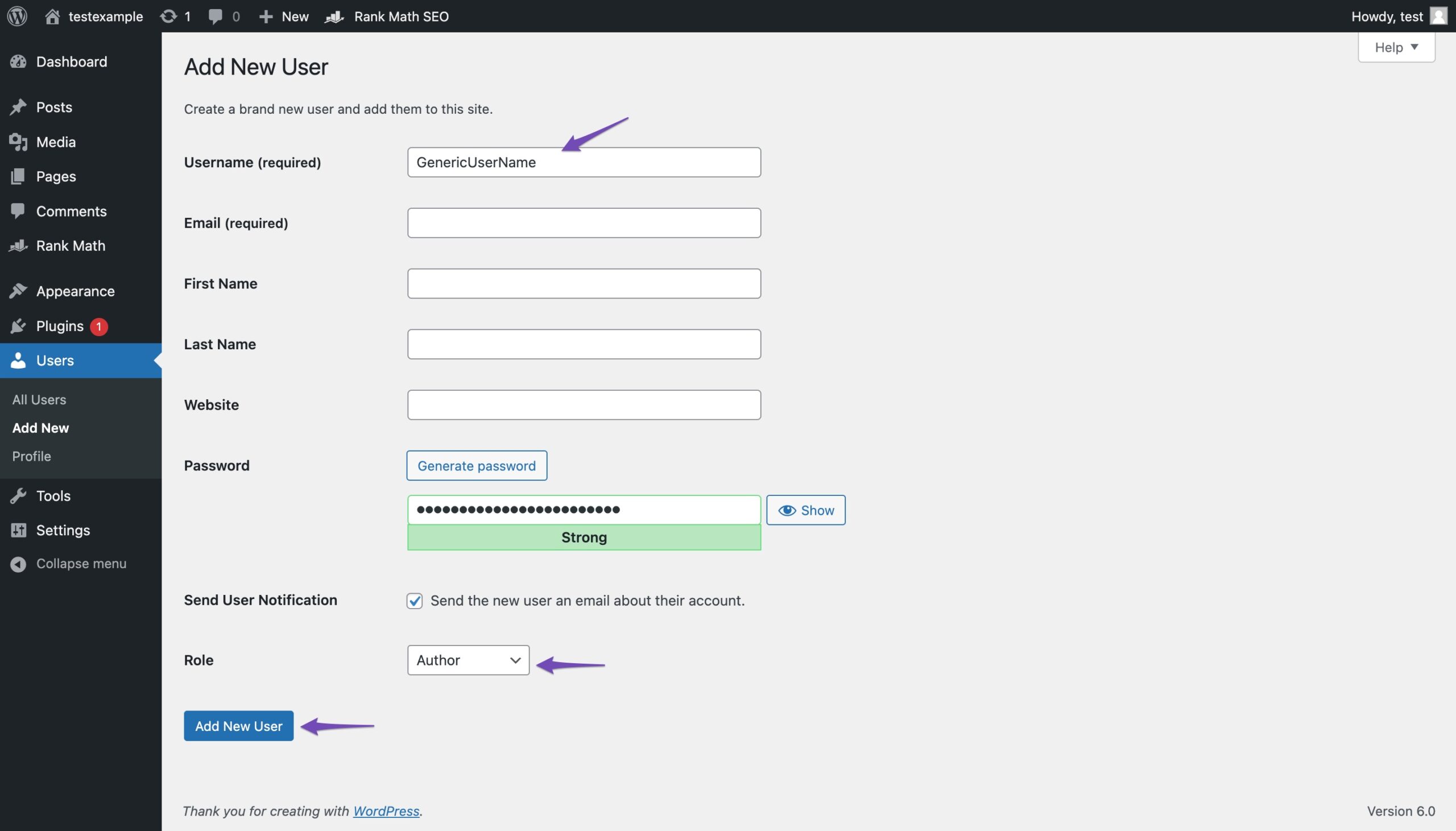
Changing the WordPress theme author name can sometimes be tricky. Start by accessing your theme files via the WordPress dashboard. Locate the specific file where the author name is listed, and edit it to reflect the desired name.
Theme Update Reverting Changes
Changes can revert after a theme update. Check theme settings first. Some updates reset settings. This causes changes to disappear. Backup your theme settings before updating. Use a plugin for backups. Restore settings if needed.
Error Messages Or Site Malfunction
Error messages may show after changing theme author name. Site may malfunction. Clear browser cache first. Check for plugin conflicts next. Disable plugins one by one. Find the faulty plugin. Update or replace it. Contact theme support if problems persist.
Credit: rankmath.com
Best Practices For Customizing Theme
Child themes keep your changes safe. They stay safe from updates. Create a child theme before editing. Copy files into it. Then, make changes in the child theme. This keeps the original theme unchanged. Child themes are like copies. They help you test new ideas. If something goes wrong, your main theme is safe. You can fix errors easily. Child themes are easy to make. They use the same code as the main theme.
Themes need updates to stay secure. Updates fix bugs and add new features. Always back up your site before updating. Use automatic updates if possible. Check your site after each update. Look for errors or problems. Keep plugins updated too. Updated themes work well with updated plugins. This keeps your site fast and safe. Regular updates help your site look fresh. They improve user experience.

Credit: www.geeksforgeeks.org
Frequently Asked Questions
How To Find The Theme Author Name In WordPress?
To find the theme author name, navigate to your WordPress dashboard. Go to Appearance > Themes and click on ‘Theme Details. ‘ The author information is usually listed in the theme description. Alternatively, you can check the style. css file in the theme directory for author details.
Can I Change The Theme Author Name Manually?
Yes, you can change the theme author name manually. Access your WordPress theme files via FTP or File Manager. Locate the style. css file within your theme directory. Edit the author name in the file and save changes. Ensure you have backup before making modifications.
Is It Safe To Edit Theme Files?
Editing theme files can be safe if done correctly. Always back up your files before making changes. Use a child theme to ensure updates don’t overwrite your customizations. Alternatively, consider using a plugin for safer modifications without directly altering core files.
Will Changing Author Affect Theme Functionality?
Changing the theme author name won’t affect functionality. It’s a metadata change, not a code modification. However, ensure the syntax and file structure remain unchanged. Any errors in the file can impact theme performance, so proceed cautiously and verify after edits.
Conclusion
Changing the WordPress theme author name is simple. Follow the steps carefully. You don’t need technical skills. Anyone can do it. Just edit the code or use a plugin. Ensure you save your changes. Check your site for errors afterward.
A unique author name adds personal touch. It helps with branding. Remember, make backups before changes. This protects your site. Keep learning and improving your WordPress skills. Your website will look more professional. Enjoy customizing your WordPress theme. Now, get started and make your site truly yours!


