
Are you feeling like your WordPress site is stuck in a rut? Perhaps you want to refresh its look and feel, or maybe you’re aiming for a more professional vibe to impress your audience.
Changing your WordPress site theme is the perfect solution to breathe new life into your website. But where do you begin? The process can seem daunting, especially if you’re not a tech wizard. Don’t worry, though—it’s easier than you think, and we’re here to guide you every step of the way.
In this post, you’ll discover simple, clear instructions on how to change your WordPress theme without losing your mind or your content. Ready to transform your site and captivate your visitors like never before? Let’s dive in!
Credit: wpengine.com
Choosing The Right Theme
Free themes are easy to find. They cost nothing. But they have limits. Often, they have fewer features. Premium themes cost money. They offer more options. You get better support. This is good if you need help. Choose based on your needs and budget.
Themes must work well. Check for updates. Updates keep your site safe. Make sure it loads fast. Slow sites make users unhappy. Test on phones and tablets. Many people use them now. Make sure it works everywhere.
Your theme must fit your brand. Colors should match your logo. Fonts should be easy to read. Images must look nice. They tell your story. Choose a theme that shows who you are. It helps people remember your site.
Credit: kinsta.com
Preparing For A Theme Change
Changing a WordPress theme involves careful preparation. Start by backing up your site to avoid data loss. Test the new theme in a staging environment to ensure compatibility. Finally, customize settings to maintain the look and feel of your site.
Backing Up Your Site
Always make a backup before changing your theme. Use plugins like UpdraftPlus or BackupBuddy for easy backups. Save your data on a cloud or local drive. Don’t skip this step; it protects your site data.
Testing The New Theme
Try the new theme on a test site first. This helps you see how it looks and works. Check if the theme meets your needs. This step prevents problems later on your real site.
Checklist For Theme Compatibility
| Compatibility Check | Importance |
|---|---|
| Mobile Friendly | High |
| Loading Speed | High |
| Plugin Support | Medium |
| SEO Ready | High |
Installing A New Theme
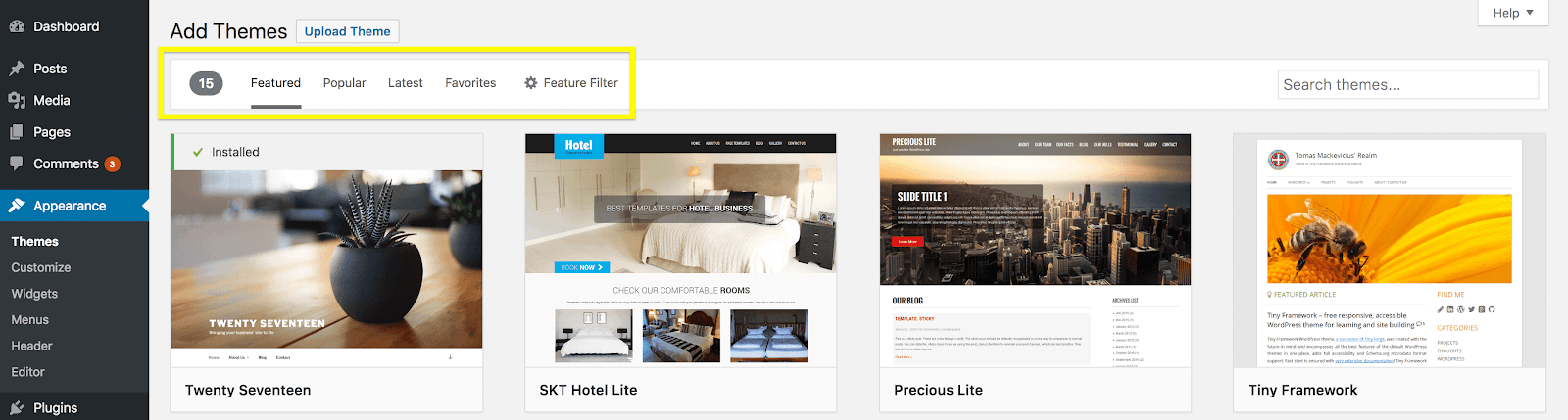
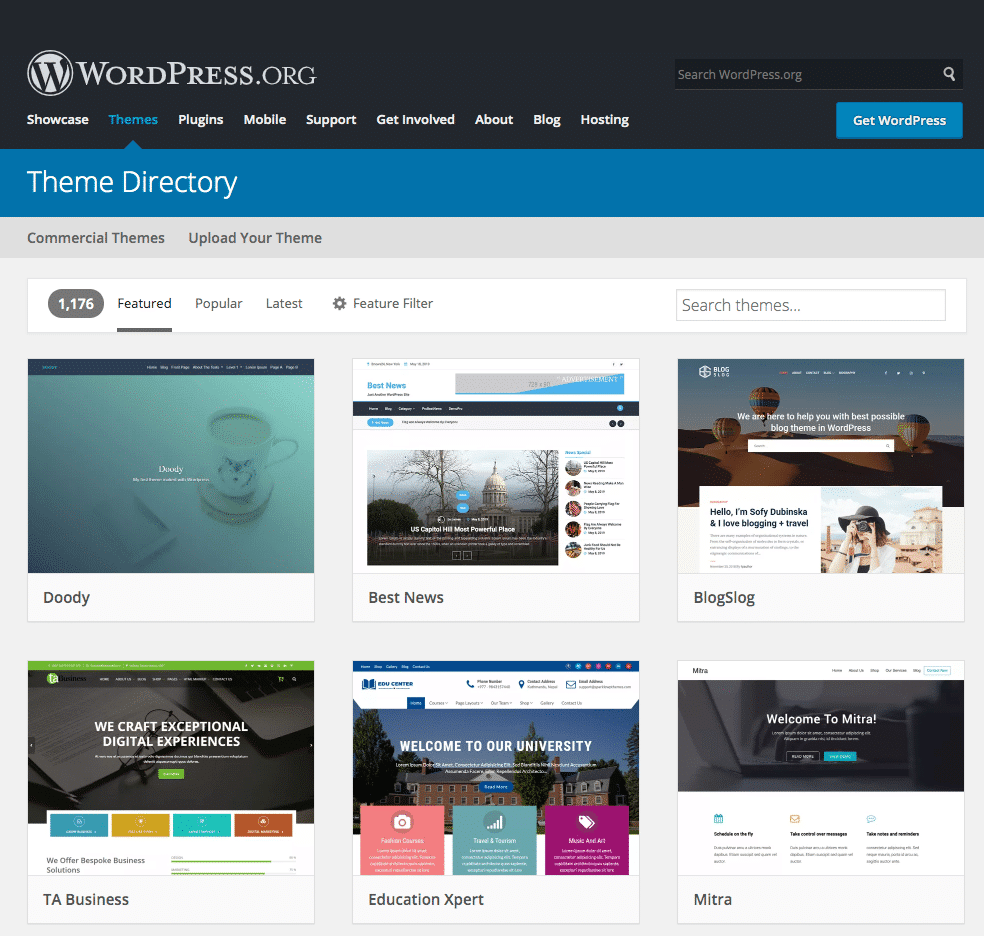
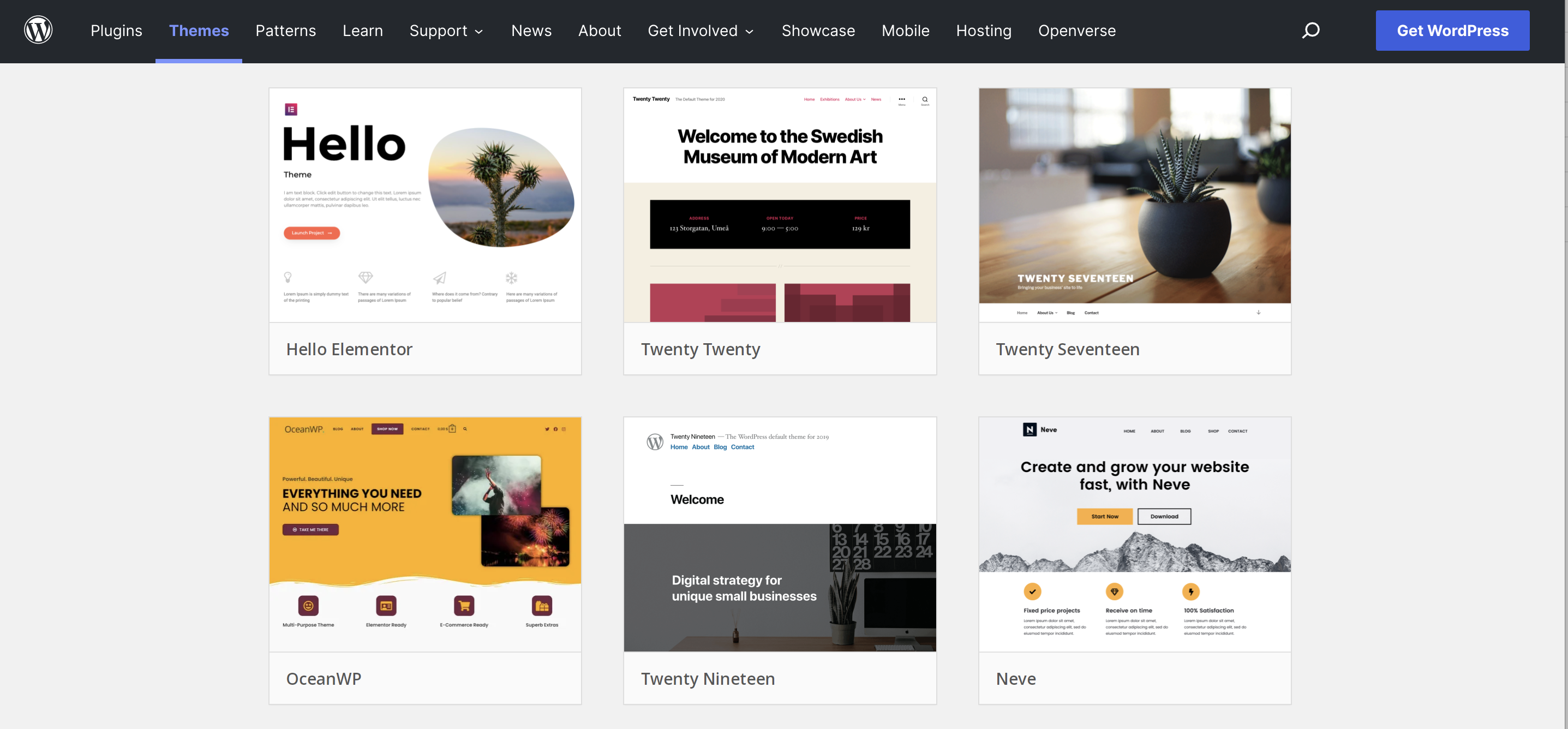
Open your WordPress dashboard. Look for the “Appearance” menu. Click on “Themes”. Find the “Add New” button. This leads to the Theme Directory. Browse through the many themes. You can use filters to narrow choices. Click “Install” on a theme you like.
Download a theme file from the web. It should be in .zip format. Go to the “Themes” section in WordPress. Click “Add New”, then “Upload Theme”. Use the “Choose File” button. Select your .zip file. Click “Install Now”. Wait for the upload to finish.
Go back to the “Themes” page. Find your newly installed theme. Hover over it. You will see an “Activate” button. Click “Activate”. Your new theme is now live. Check your site to see the changes.
Customizing Your Theme
Changing your WordPress site theme is simple. First, log in to your dashboard. Then, navigate to Appearance and click Themes. Choose a new theme from the available options. Click Activate to apply it. This process gives your site a fresh look instantly.
Using The WordPress Customizer
The WordPress Customizer helps you change the look of your site. Open it from your dashboard. You can change colors and fonts easily. These changes show instantly. This makes your work simple and fun. Preview how your site looks before saving. This way, you can be sure of your choices.
Modifying Theme Settings
Theme settings let you control your site’s style. You can change the header and footer. You can also adjust the layout. Each theme has unique options. Explore these to make your site special. Remember to save changes after adjusting settings.
Adding Widgets And Menus
Widgets add extra features to your site. You can add a search bar or calendar. Menus help visitors find pages quickly. Add them from the appearance section. Drag and drop to arrange them. This makes your site easy to use.
Troubleshooting Common Issues
Layout issues can be tricky. Sometimes the theme might not fit right. Adjusting theme settings can help. Check the customizer for layout options. Try resetting the theme settings. A small change can make a big difference. If the layout still looks off, try a different theme.
Plugins might not work well with some themes. Deactivate plugins one by one. Check if the issue goes away. Reactivate the plugins slowly. Avoid using too many plugins. Only keep the ones you need. Some plugins might need updates. Always use the latest version.
Missing features can be annoying. Themes vary in options. Explore theme settings for hidden features. Some themes have premium features. Check if you need an upgrade. Look for documentation from the theme developer. Sometimes features hide in menus. Explore all settings carefully.
Ensuring A Smooth Transition
Always check your site’s speed with the new theme. Use tools like Google PageSpeed Insights. Fast sites keep visitors happy. Slow sites might lose visitors. Check loading times for different pages. Make sure they load quickly. Optimize images if needed. Sometimes themes have extra features. These can slow down your site. Disable unnecessary plugins. This can help improve speed.
Many people use phones to view sites. Check how your site looks on phones. Is the text easy to read? Are buttons easy to click? Responsive themes adjust to different screen sizes. Test on different devices. Use a tablet, a phone, and a computer. Ensure all elements fit well. No part of the site should be cut off.
Ask friends to visit your site. Gather their thoughts. Is it easy to navigate? Do they like the new look? User feedback helps find hidden issues. Encourage honest opinions. Use surveys or simple questions. This can guide further improvements. Happy users mean a successful site.
Credit: jetpack.com
Frequently Asked Questions
How Do I Change My WordPress Theme?
To change your WordPress theme, log into your dashboard. Navigate to Appearance > Themes. Browse available themes and click “Activate” to apply one. Always preview before activating to ensure compatibility and desired look. It’s recommended to backup your site before making changes to prevent data loss.
Can I Switch Themes Without Losing Content?
Yes, changing themes won’t affect your content. Posts, pages, and media remain intact. However, widget areas and customizations might require adjustments. Always backup your site before switching themes. Ensure your new theme supports the features you need to avoid any disruptions.
What Should I Consider Before Changing Themes?
Before changing themes, consider design compatibility with your content. Check plugin support and responsiveness. Ensure the theme aligns with your site’s purpose and audience. Backup your site to safeguard data. Preview the theme to confirm it meets your aesthetic and functional requirements.
Will Changing Themes Affect My Seo?
Changing themes can affect SEO if the new theme alters your site’s structure. Ensure the new theme is SEO-friendly. Check for clean code and fast loading times. Maintain title tags, meta descriptions, and alt text. Regularly monitor your site’s performance post-change to address any SEO issues.
Conclusion
Switching your WordPress theme is straightforward. Choose one that suits your style. Ensure compatibility with your plugins. Backup your site before any changes. This prevents data loss. Explore the theme’s customization options. Adjust colors, fonts, and layouts. Check responsiveness across devices.
This ensures a good user experience. Test every feature before going live. Fix any issues promptly. Regular updates keep themes secure. Stay informed about new design trends. This keeps your site fresh. Changing a theme transforms your website’s look. Keep it simple and user-friendly.
Happy designing!


