
Ever felt like your WordPress admin panel could use a fresh new look? You’re not alone.
Many WordPress users want their backend to reflect their personal style or brand identity. Changing the admin panel theme isn’t just about aesthetics; it can also enhance your productivity and make navigation more intuitive. Imagine logging in to a dashboard that feels just right for you, making every task a little more enjoyable.
You’ll discover simple, step-by-step instructions to transform your WordPress admin panel theme effortlessly. Ready to give your workspace a makeover? Let’s dive in and unlock a whole new visual experience!
Benefits Of Customizing Admin Theme
Changing your WordPress admin theme can be fun. It makes your work area unique. A new look can make tasks easier. Colors and style can help focus.
A fresh design makes it exciting to log in. It creates a good mood. Custom themes help organize your tasks. User-friendly designs can save time.
Choose colors that are easy on the eyes. This helps you work longer. Fonts should be clear and readable. This makes reading easier.
Personalizing themes can help inspire creativity. It adds a personal touch. Your admin panel will feel like home.
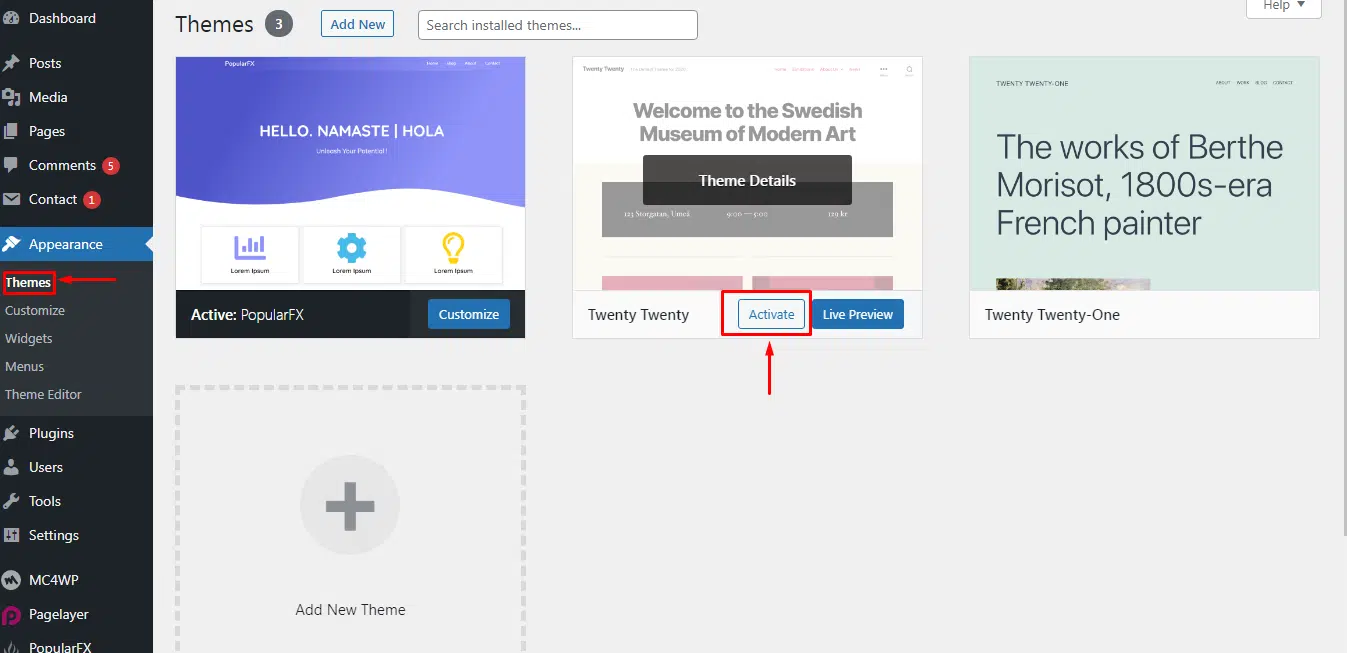
Credit: www.veerotech.net
Choosing The Right Admin Theme
Picking a good admin theme is important. It makes your work easier. It is crucial to ensure the theme is simple and easy to use. The theme should be light and fast. A slow theme wastes time. Make sure the theme is compatible with your plugins. If not, there might be problems. Check reviews before choosing. Good reviews mean people like it. Avoid themes with many negative comments. Try a demo if available. A demo helps you see how it works. Look for themes with support and updates. Support helps fix issues. Updates improve the theme.
Choose colors that are easy on the eyes. Avoid bright colors. Bright colors can hurt eyes. Pick fonts that are easy to read. Simple fonts are best. Complex fonts are hard to read. Make sure the theme is responsive. A responsive theme works on all devices. This is important for mobile users. Avoid themes that look cluttered. Cluttered themes are confusing. Clean themes help find things easily.
Using Built-in Options
First, log into your WordPress admin panel. Find the Settings menu on the left side. Click on it. You will see different options. Choose the General option. This page shows basic settings. The admin color scheme is not here. We need another menu for that.
Go to the Users section. Click on your user profile. Scroll down to see color schemes. WordPress offers several color options. Choose one you like. Click Update Profile at the bottom. Your admin panel color changes. This makes your panel look new.
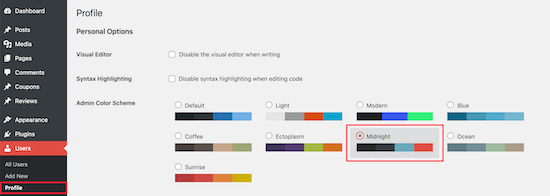
Credit: www.wpbeginner.com
Installing Third-party Plugins
Popular Admin Theme Plugins can make your dashboard look different. Some plugins are White Label CMS, Adminimize, and Slate Admin Theme. These plugins have many styles and colors. They can make your admin panel look cool and new. It’s easy to try them out. Find the one you like best. Make your WordPress fun to use.
Step-by-Step Plugin Installation is easy. First, go to your WordPress dashboard. Click on “Plugins” and then “Add New”. Type the plugin name in the search box. Click “Install Now” next to the plugin. Wait for it to install. After installation, click “Activate”. Now, your admin panel has a new look. Feel free to try more plugins. Change your admin theme anytime.
Custom Css For Advanced Customization
Start by making a new file on your computer. Name it something easy to remember, like custom-style.css. This file will hold your special styles. Use a simple text editor to write your CSS code. Save this file in a safe place. Remember its location.
Go to your WordPress dashboard. Find the Appearance tab. Click on Theme Editor. You will see many files. Locate the style.css file. This file controls your site’s look. Add this line to the file: @import url('path-to-your-custom-style.css');. Replace path-to-your-custom-style.css with your file’s location. Save the changes. Your new styles should show on your site now.
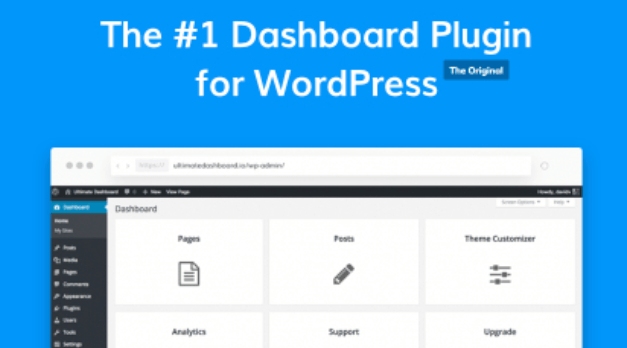
Credit: torquemag.io
Testing The New Admin Theme
Changing the WordPress admin panel theme can refresh your site’s backend look. Navigate to settings and select a new theme to enhance your admin experience. Testing different themes helps in finding the most appealing and functional design for your needs.
Ensuring Compatibility
First, check if the new theme works with your plugins. Some themes may not be compatible with every plugin. You need to ensure that everything runs smoothly. Disable plugins one by one to find any issues. Update them if needed. Also, check the theme with different browsers. This ensures a consistent look everywhere.
Checking Functionality
Test every feature of the new theme. Click buttons and links to see if they work. Make sure the dashboard displays correctly. Look at menus and other elements. Are they easy to read? Is everything in the right place? Fix any issues you find. This makes sure your admin panel works well. Ask others to test it too. Fresh eyes see things you might miss.
Troubleshooting Common Issues
Encountering trouble while changing the WordPress admin panel theme? Start by checking plugin conflicts. Disable them one by one. Ensure you have the correct theme files and settings. Clear your browser cache to see the updates. If issues persist, consult the theme’s documentation for detailed guidance.
Resolving Plugin Conflicts
Plugins can cause problems with your WordPress theme. This is common. First, deactivate all plugins on your site. Check if the issue is gone. If fixed, reactivate plugins one by one. Find the plugin causing the trouble. Update or replace the troublesome plugin. This can solve many problems.
Restoring Default Settings
Sometimes, returning to the original settings helps. Go to your WordPress dashboard. Navigate to the theme settings. Look for a button that says “Restore Defaults” or similar. Click it to reset settings. This can fix many issues. Always back up your site before resetting. It’s a good practice.
Best Practices For Admin Theme Changes
Changing the WordPress admin panel theme can make your dashboard look fresh. Always make sure to backup your website before any changes. This keeps your data safe. Look for themes that are compatible with your WordPress version. Compatibility ensures smooth running.
Choose a theme with a simple design. Simple designs make navigation easy. Avoid themes with too many features. They might slow down your admin panel. Look for themes that are responsive. This means they work well on different devices. Responsive themes provide a better user experience.
Regularly update your theme. Updates fix bugs and improve security. Check user reviews before choosing a theme. Reviews give you a clear idea of its performance. Always have a backup plan. This helps if something goes wrong.
Frequently Asked Questions
How Can I Change My WordPress Admin Theme?
To change your WordPress admin theme, install a plugin like ‘Admin Theme’ or ‘WP Custom Admin Interface’. These plugins allow customization of colors, fonts, and layout. After installation, navigate to the settings to select and apply the desired theme. Always ensure compatibility with your WordPress version.
Is It Safe To Change The Admin Theme?
Changing the admin theme is generally safe, especially when using reputable plugins. Ensure the plugin is updated and compatible with your WordPress version. Backup your site before making changes. This precaution helps avoid potential conflicts or issues, ensuring a smooth transition without affecting your site’s functionality.
Can I Customize The Admin Panel Appearance?
Yes, you can customize the admin panel appearance using plugins. These plugins offer options to modify colors, fonts, and layouts. Some plugins even allow adding custom logos and branding elements. This customization enhances user experience and aligns the admin panel with your site’s style.
Do Admin Themes Affect Site Performance?
Admin themes typically don’t affect your site’s performance. They only alter the appearance of the admin panel, not the front-end. However, ensure your chosen plugin is lightweight and well-coded. This ensures it won’t slow down admin operations, maintaining optimal functionality and speed.
Conclusion
Changing your WordPress admin panel theme is easy. Follow simple steps to customize. Make your dashboard visually appealing. Boost productivity with a personalized look. Choose themes that fit your needs. Try different options for best results. Enjoy a fresh, engaging workspace.
A new theme can inspire creativity. Tweak settings for better functionality. Explore plugins for added features. Customize colors and fonts. Keep your admin panel organized. Simplify navigation for quick access. Enhance user experience with a clean interface. Stay informed with updates.
Regularly review your setup. Keep improving your WordPress experience.


