
Have you ever wondered how some websites have catchy, customized titles on their browser tabs? That little detail can make a big difference in grabbing your visitors’ attention.
The good news is, with WordPress, it’s easy to change what shows on your website tab. Imagine your visitors seeing a unique, attention-grabbing title that intrigues them to click and explore further. This simple tweak can enhance your site’s professionalism and improve your branding.
In this guide, you’ll discover step-by-step how to make your website tab stand out, ensuring you leave a lasting impression on every visitor. Dive in to learn how you can make your site not just a destination, but a compelling experience right from the browser tab.
Customizing Browser Tab Text
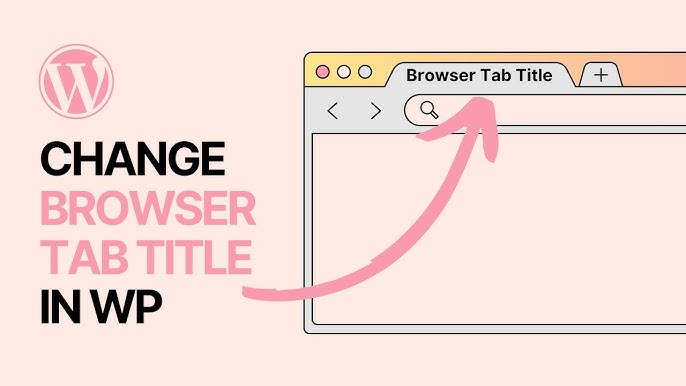
Change what shows on the browser tab. Go to your WordPress dashboard. Find the Settings tab. Click on General. You will see Site Title. Change this title to what you want. This changes what shows on the tab. Easy and quick. Make sure to save changes. Your website tab now shows new text.
SEO plugins help with browser tab text. Yoast SEO is popular. Install and activate it. Go to SEO in the dashboard. Click on Search Appearance. Find Title Settings. Change the title here. Plugins can give more control. All in One SEO is another choice. Each plugin offers unique features. Pick one that suits your needs.
Credit: www.youtube.com
Adding Icons To Browser Tabs
Changing the small icon on your browser tab is easy. This icon is called a favicon. In WordPress, upload your favicon through the dashboard. Go to Appearance and click on Customize. Look for the Site Identity option. Here, you can upload your new icon. Make sure your favicon file is in PNG or ICO format. The size should be 512×512 pixels for best results. A good favicon helps people remember your site. It gives your website a unique look.
Some WordPress themes let you change icons easily. Check your theme settings for this option. Go to the theme panel in your dashboard. Look for a section called Favicon or Site Icon. Upload your new icon here. This method is quick and easy. It saves time if you are using a supported theme. Always preview changes before saving them. This way, you ensure the icon looks good on all devices. A matching icon keeps your site looking professional.
Dynamic Tab Changes With Javascript
JavaScript can change tab titles easily. Add a simple script to your page. Place it in the header section. This script updates the tab title. Use document.title to set the new title. Choose a title that matches your content. Make sure it’s short and clear. Visitors will see the change right away.
Conditional titles can make tabs more interesting. Use JavaScript to check conditions. If a condition is met, change the title. This makes tabs dynamic and fun. For example, show a special title for logged-in users. Or, change the title based on time. This keeps things fresh for users. It’s a great way to engage visitors.

Credit: anitachauhanblog.wordpress.com
Using Page Builders For Tab Modifications
Elementor makes it easy to change tab titles. Open the Elementor editor. Click the page you want to edit. On the left, find the Title field. Type the new title there. Save your changes. The new title will now show on your website tab. It’s simple and fast.
Beaver Builder also helps with changing tab titles. Start by opening the Beaver Builder editor. Select the page to edit. Look for the Title section. Enter your new title here. Make sure to save your edits. Your website tab will now display the new title. Easy steps for everyone.
Common Issues And Fixes
Changing the text on a website tab in WordPress is simple. Access the WordPress dashboard, navigate to “Settings,” then “General,” and adjust the “Site Title” field. Refresh the page to see the updated tab title.
Troubleshooting Title Display Problems
Title not showing? Check the settings. WordPress sometimes hides the title. Look at the General Settings. Is the title there? If not, add it. Plugins can cause issues too. Deactivate them one by one. See if the title appears. Clear your browser cache. It might hold old data. Refresh your page.
Resolving Favicon Upload Errors
Favicon not uploading? Ensure the image is correct. Use .ico format. Some formats don’t work. Go to Appearance and click on Customize. Select Site Identity. Try uploading the favicon again. Check the file size. Too large files fail. Resize if needed. Clear your cache after upload. Refresh the site to see changes.
Credit: kaydee.net
Frequently Asked Questions
How To Change The Tab Title In WordPress?
To change the tab title, navigate to the WordPress dashboard. Go to Settings, then General. Here, you can edit the “Site Title. ” This will update what appears on your website’s tab. Remember to save changes to apply them effectively.
Why Is My WordPress Tab Showing The Wrong Title?
Your tab might show the wrong title due to outdated settings. Check your “Site Title” and “Tagline” under Settings in the dashboard. Plugins or themes can also override these settings. Ensure they’re correctly configured to display the desired title.
Can Plugins Help In Changing Tab Titles?
Yes, plugins like Yoast SEO can help modify tab titles. These plugins offer advanced settings to customize the title and meta descriptions. After installing, navigate to the plugin settings and adjust the title template. This ensures each page has a unique tab title.
Is It Possible To Add Emojis To Tab Titles?
Yes, you can add emojis to tab titles. Edit the “Site Title” under Settings in the WordPress dashboard. Simply copy and paste the desired emoji alongside your text. Emojis can make your tab stand out and attract attention.
Conclusion
Changing the website tab text in WordPress is simple. Follow these steps to improve user experience. Customize your site’s appearance with ease. Unique tab titles can enhance branding. They help visitors recognize your site quickly. This small change can make a big difference.
It reflects your site’s identity. Keep your titles clear and relevant. This ensures they are effective. Remember, details matter in web design. Every element should serve a purpose. Now, apply your new skills. Enhance your website’s tabs today. Enjoy a more personalized browsing experience.
Your site deserves it.


