
Are you looking to give your WordPress website a fresh, new look? Changing your website’s theme can be the perfect way to revitalize your online presence and keep your visitors engaged.
But before you dive in, it’s important to know the right steps to take to ensure a smooth transition. Imagine the thrill of seeing your website transform with just a few clicks, offering your audience a more appealing and user-friendly experience.
In this guide, we’ll walk you through the simple process of changing your WordPress theme, making sure you can confidently update your site without losing any valuable content. Ready to discover how effortless it can be to refresh your website’s appearance? Keep reading to unlock the secrets to a seamless theme change!
Choosing The Right Theme
Think about what your website needs. Is it a blog, a shop, or a gallery? Each type needs a special theme. Choose a theme that fits your purpose. Simple themes are often the best. They load fast and are easy to use. Make a list of must-have features. This helps in picking the right one.
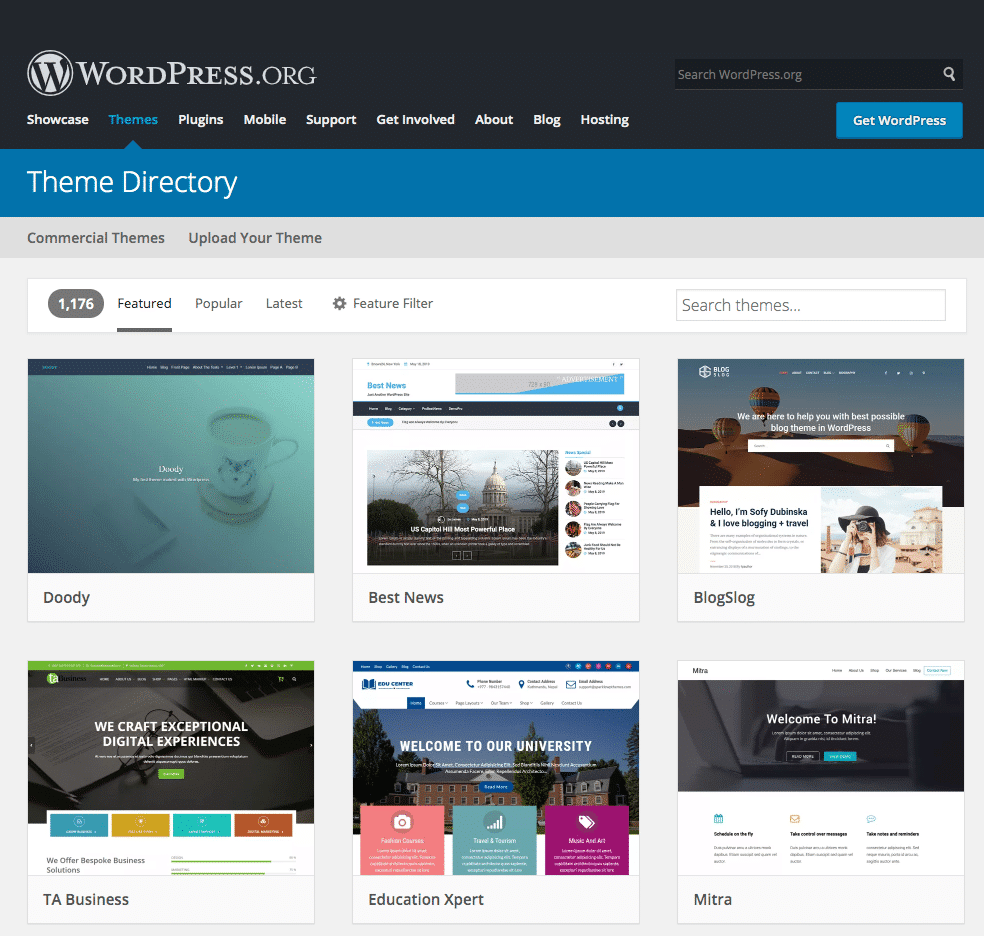
Check the WordPress theme directory. It has many free themes. Look at reviews and ratings. They tell you if a theme is good. Try to find themes with updates. Updated themes work better and are more secure. You can also buy themes. Paid themes often have more features.
Customization is important for a unique look. Some themes let you change colors and fonts. Others let you move parts around. Flexible themes grow with your site. They adapt to new needs. Check if the theme supports plugins. Plugins add extra features easily.

Credit: jetpack.com
Preparing For The Change
Always make a backup before changing themes. This keeps your data safe. Use a backup plugin. Many plugins are free and easy to use. They copy all files and settings. Store the backup in a secure place. You can use cloud storage or external drives. Backing up protects you from losing important information.
A staging environment is like a test site. You make changes here first. This helps to spot mistakes. Use plugins to create staging sites. They work fast and are simple. Make sure your hosting supports staging. Try changes here before going live. This way, your main site stays safe. No visitors see mistakes.
Installing A New Theme
Accessing the WordPress Dashboard is simple. Log into your WordPress site. You’ll see the dashboard. This is where all changes happen.
Navigating to the Themes Section is next. Look for ‘Appearance’ on the left side menu. Click it. The ‘Themes’ option will appear. Click on ‘Themes’. Now you’re in the right place.
Uploading or Searching for a Theme is easy. You can search for themes. Use the search bar at the top. Type a theme name or keyword. Find a theme you like. You can also upload a theme. Click ‘Add New’ at the top. Then click ‘Upload Theme’. Choose a file from your computer. Make sure it’s a .zip file. Click ‘Install Now’. Wait a moment. Now your theme is ready to use.
Activating The Theme
First, go to your WordPress dashboard. Click on “Appearance”. Then choose “Themes”. You will see many themes. Hover over a theme you like. Click on “Live Preview”. This shows how your site will look. You can see if you like it. Make sure everything looks nice. This helps you decide before activating.
Go back to the “Themes” section. Find the theme you want. Click on “Activate”. This makes it your website’s theme. Now, this is your site’s new look. Check your website to see the changes. Everything should look different now. If something is wrong, you can change it back. Your website is ready with a new theme.
Customizing The Theme
WordPress Customizer helps change the look of a website. Access it from the dashboard. Try different settings to see changes live. Theme options include site title, colors, and fonts. It’s simple to use and makes the website unique.
Layouts can be changed by selecting different options. Choose from default settings or create a custom layout. Colors can be adjusted to fit the brand. Pick colors that are easy on the eyes. Save changes to see them on the site.
Widgets add extra features to the site. Use them for a search bar, recent posts, or social links. Menus help visitors navigate the site easily. Create a menu in the Customizer. Drag items to reorder them. Save the menu to update the site.
Testing The New Theme
Changing your website’s theme can be exciting. It’s important to check for compatibility issues. Ensure that all plugins work well with the new theme. Sometimes, themes clash with plugins, causing problems.
Next, ensure mobile responsiveness. Many users browse websites on phones. Use a phone to see if the site looks good. A responsive site adjusts to different screen sizes. This keeps users happy and engaged.
Finally, verify site performance. Check if the site loads fast. A slow site can make users leave. Use online tools to measure speed. Faster sites keep visitors longer.
Finalizing The Theme Change
Backing up the updated site is crucial. Save the new site version. This prevents loss of changes. Use a plugin for easy backup. Choose plugins like UpdraftPlus or BackupBuddy. These tools are reliable. They store your site safely. Always check the backup before proceeding. Ensure all data is secure. This guarantees smooth recovery if needed.
Begin monitoring for user feedback after the theme change. Ask visitors for their thoughts. Their input helps improve the site. Create a feedback form. Make it simple and quick. Listen to your audience. Adjust the theme if necessary. Happy users mean a successful change. Always be open to suggestions. This builds trust and improves user experience.
Credit: kinsta.com

Credit: www.wpzoom.com
Frequently Asked Questions
How Do I Change My WordPress Theme?
To change your WordPress theme, navigate to the dashboard. Click “Appearance” then “Themes. ” Choose a new theme, preview it, and click “Activate. ” Always back up your site before changing themes to prevent data loss. Consider theme compatibility with your plugins and site design.
Can I Revert To My Old Theme?
Yes, you can revert to your old theme anytime. Go to “Appearance” and “Themes” in the dashboard. Find your previous theme and click “Activate. ” Ensure your settings and customizations are saved before switching back to avoid losing important changes.
Will Changing Themes Affect My Site’s Seo?
Changing themes can affect your site’s SEO. Ensure the new theme is SEO-friendly, fast-loading, and mobile-responsive. Check if it supports essential SEO plugins. Review your site’s structure, content, and meta tags after switching to maintain SEO rankings.
How Do I Preview A Theme Before Activating?
To preview a theme, go to “Appearance” then “Themes” in your dashboard. Click the “Live Preview” button on any theme. This lets you see how your site looks without activating it. Use this feature to ensure the theme matches your design preferences.
Conclusion
Changing your WordPress theme is simple and rewarding. It refreshes your site’s look. Follow the steps to ensure a smooth transition. Always preview the theme before activation. This helps spot any issues early. Check your site’s functionality after switching themes.
Sometimes, minor adjustments are needed. Regularly update your theme for security and performance. Choose a theme that fits your site’s purpose and audience. Keep your site fresh and engaging. Your theme reflects your brand. Make it appealing and user-friendly. Enjoy the new look of your website and keep experimenting!


