
Imagine logging into your website analytics and seeing a surge in activity at 3 a.m. You wonder why your visitors are awake at such an odd hour. But then it hits you—your web hosting server is set to a different time zone!
If you’ve ever found yourself puzzled by mismatched timestamps or confused by server logs, you’re not alone. Many website owners face this challenge, and the solution is simpler than you might think. Changing your web hosting server’s time zone can make a world of difference.
Not only does it help you accurately track your site’s performance, but it also aligns your data with your local time, making it easier for you to manage and optimize your website. In this guide, we’ll walk you through the steps to adjust your server’s time zone, ensuring your website operates smoothly and efficiently. By the end of this article, you’ll have the knowledge and confidence to make this change, enhancing your website’s functionality and your peace of mind. Let’s dive in!
Understanding Time Zones In Web Hosting
Time zones help websites show the right time. This is important for scheduled tasks and logs. Wrong time zones may cause confusion. Visitors see the wrong time. This affects user experience. It can impact website data. Correct time zones ensure accuracy. They make tracking easier. They support global operations.
Wrong time zones can cause many issues. Scheduled posts might appear at odd times. This affects audience engagement. Emails may send late or early. Logs show wrong times. This makes troubleshooting harder. Statistics might be inaccurate. Global teams face coordination problems. Fixing time zones helps solve these issues. It improves website functionality.
Checking Current Server Time Zone
First, log into your server control panel. This is where settings are found. Look for a section called Server Settings. Click on it to proceed. You might need to enter a password. Make sure you have it ready. Once inside, explore the menu options. Find the one that says Time Zone. It may be under a different name. But it is usually easy to find.
After accessing the server settings, check the current time zone. It is usually displayed on the screen. Look for a label that says Time Zone. It shows the current setting. Compare it with your local time. If it is different, a change is needed. This ensures accurate server time.
Steps To Change Server Time Zone
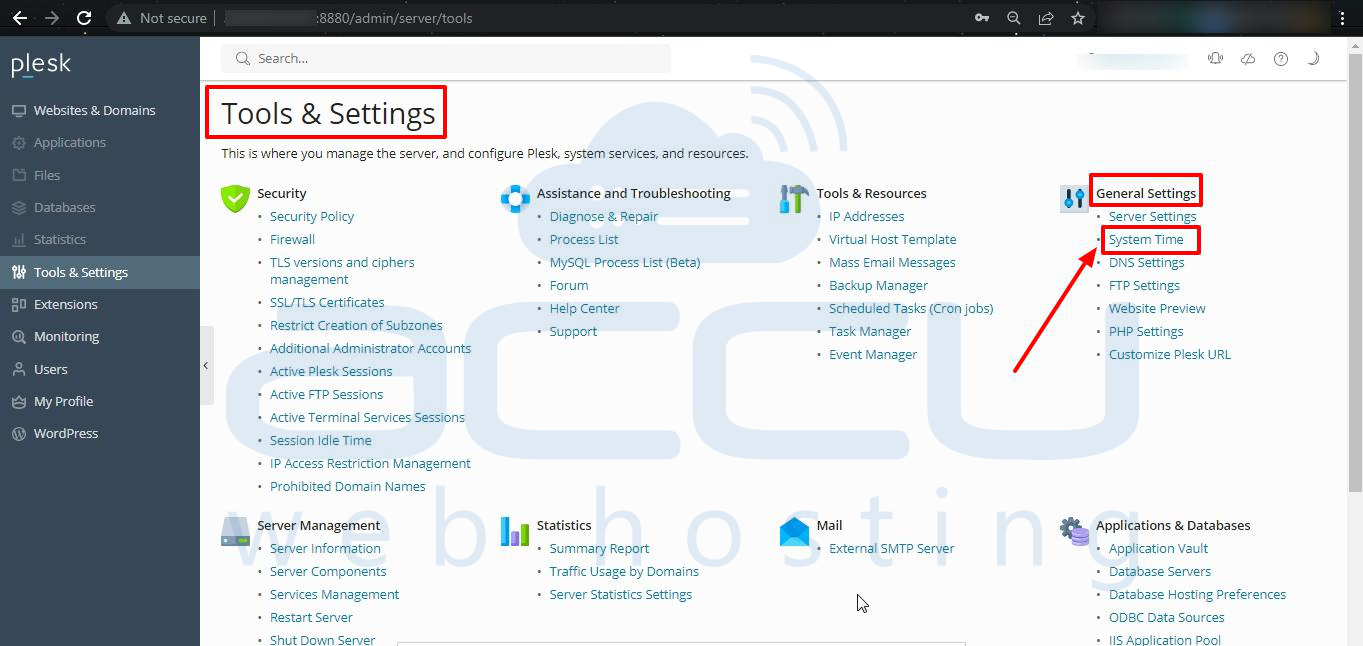
First, log into the control panel of your web host. Look for the section labeled “Time Zone” or something similar. This is where you will change the settings. Some panels might have this under general settings.
Next, select your desired time zone from the drop-down menu. Make sure to double-check your choice. Once selected, click the save button to apply the changes. The server should now reflect the new time zone.
Sometimes, you might need to edit the configuration files directly. Use an FTP client to access these files. Open the file where the time zone is set. Change the value to your new time zone. Save the file and close it. This ensures your changes are applied.
Credit: manage.accuwebhosting.com
Using Command Line For Time Zone Adjustment
SSH is a tool to access your server. You need a username and password. Open the terminal on your computer. Type ssh username@yourserver.com. Press enter. Enter your password when asked. You are now connected to your server.
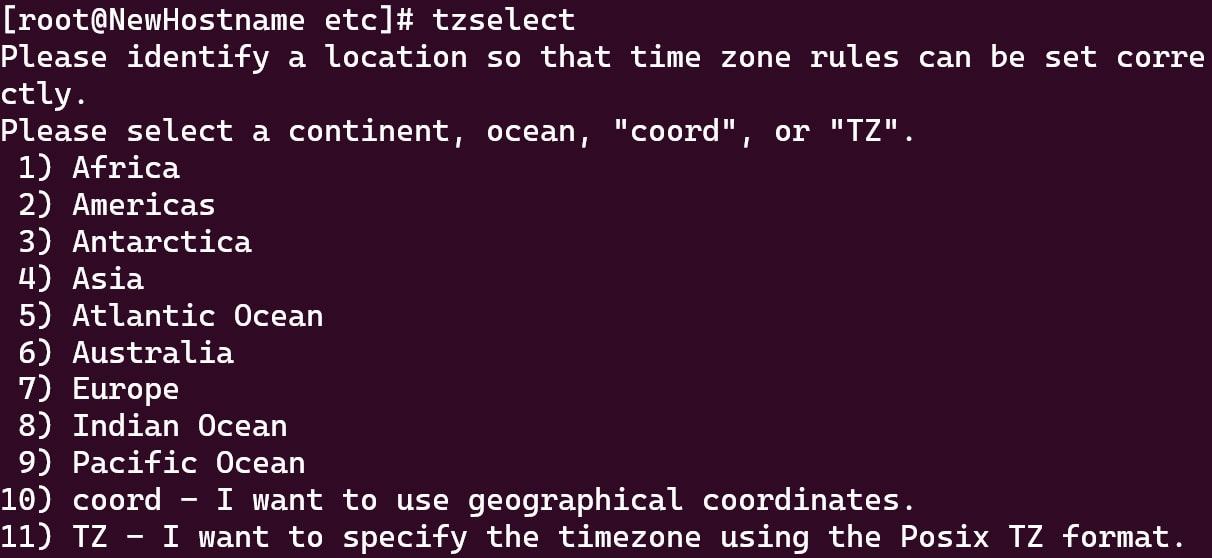
Find the current time zone with timedatectl command. Type timedatectl list-timezones to see all time zones. Choose your desired time zone. Set it by typing sudo timedatectl set-timezone Region/City. Check if the change worked with date command.
Ensuring Server Synchronization
NTP service is vital for servers. It helps keep time right. First, install the NTP software on your server. You can find it in the server’s package manager. Next, configure the NTP settings in the config file. This file is usually named ntp.conf. Choose a reliable NTP server to sync with. Popular ones are pool.ntp.org or time.google.com. After setting up, restart the NTP service. This helps apply the new settings. Use the command ntpdate to check the time sync. A synchronized server works better and avoids errors. It is important for your web hosting.
Testing time sync is easy. Use the date command to check the current time. Compare it with the actual time. If there’s a difference, adjust settings. Use ntpq -p to see NTP server info. This shows if the server is syncing well. If sync fails, recheck the NTP settings. Ensure the server connects to the internet. With proper sync, your server stays accurate. This helps in smooth operations.
Troubleshooting Common Issues
Changing your web hosting server’s time zone can solve scheduling errors and improve accuracy. Access your hosting control panel and navigate to the server settings. Select the correct time zone and save changes.
Resolving Time Zone Conflicts
Time zone conflicts can cause confusion on your website. It might show the wrong time for users. You need to check the server settings. Make sure the time zone is correct. This helps keep everything in sync. Adjust the server settings if needed. Sometimes this can fix the issue quickly. Double-check your web hosting control panel. It often has a time zone setting. Set it to your local time zone.
Checking Server Logs For Errors
Server logs can reveal many things. They show errors and warnings. Check them often for time-related errors. Look for messages about the time zone. This can help you find the problem. Errors often appear in the log files. Look for unusual patterns or messages. Fixing these can solve your issue. Keep logs updated for easy troubleshooting. Logs are important for server health.
Impacts On Web Applications
Setting the correct time zone is vital. It helps keep data accurate. Web applications rely on this data for many tasks. Correct settings ensure timestamps are consistent. This consistency helps with user interactions and records. Sometimes, you might need to change the time zone. Do it carefully to avoid errors. Check the application’s documentation for guidance. Follow steps to adjust time-related settings.
Server time affects application performance. Wrong time zones can cause issues. Users might see incorrect timestamps. Logs and reports might show wrong times. This can confuse users and administrators. Regular checks help maintain performance. Use tools to monitor server time. Ensure that the time zone matches the user’s location. Keeping the correct time zone is key to smooth operations.

Credit: www.inmotionhosting.com
Credit: www.hivelocity.net
Frequently Asked Questions
How Do I Change The Timezone Of My Server?
Access your server via SSH. Use the command `sudo timedatectl set-timezone [Your_Timezone]`. Replace `[Your_Timezone]` with your desired timezone, like `America/New_York`. Verify the change with `timedatectl`. This ensures your server’s timezone is updated effectively.
How Do I Change The Timezone Of A Website?
To change the timezone, access your website’s settings. Look for the timezone option and select your desired timezone. Save the changes to update it. Ensure your server settings match the new timezone for consistency.
How Do I Change The Time Zone In Webmail?
Log into webmail, go to settings, select “Preferences,” then “Time Zone,” choose your preferred time zone, and save changes.
How Do I Change My Cpanel Time Zone?
Access your cPanel account and go to “Server Configuration” or “Preferences. ” Select “Change Time Zone. ” Choose your desired time zone from the dropdown menu and save the changes. Your cPanel time zone is now updated.
Conclusion
Changing your web hosting server’s time zone is simple. Follow the steps carefully. Adjust settings in the control panel. Choose the correct time zone for your location. Save changes to make them take effect. This ensures your website shows accurate time.
Visitors see the correct time on your site. Keep your web experience smooth and reliable. Always check if your time zone settings are correct. Regular updates help maintain accuracy. Your website stays professional and user-friendly. This small step improves your site’s functionality significantly.
Enjoy a hassle-free online presence with correct time settings.


