
Changing themes on WordPress.org can feel like a daunting task, but it doesn’t have to be. Imagine giving your website a fresh, new look without the hassle.
Whether you want to revamp your personal blog or refresh your business site, learning how to change your WordPress theme is a game-changer. This simple tweak can elevate your site’s aesthetics and improve user experience, attracting more visitors and keeping them engaged.
You don’t need to be a tech wizard to do it; just follow these straightforward steps. Ready to transform your website into something truly remarkable? Keep reading to discover how easy it is to switch themes and give your site the makeover it deserves.
Accessing The Dashboard
First, log in to your WordPress account. This takes you to the dashboard. The dashboard is like a control room. It shows all the important options. Look for the Appearance section on the left side. Click on it. This is where you find themes. A theme changes the look of your website. You can see installed themes here.
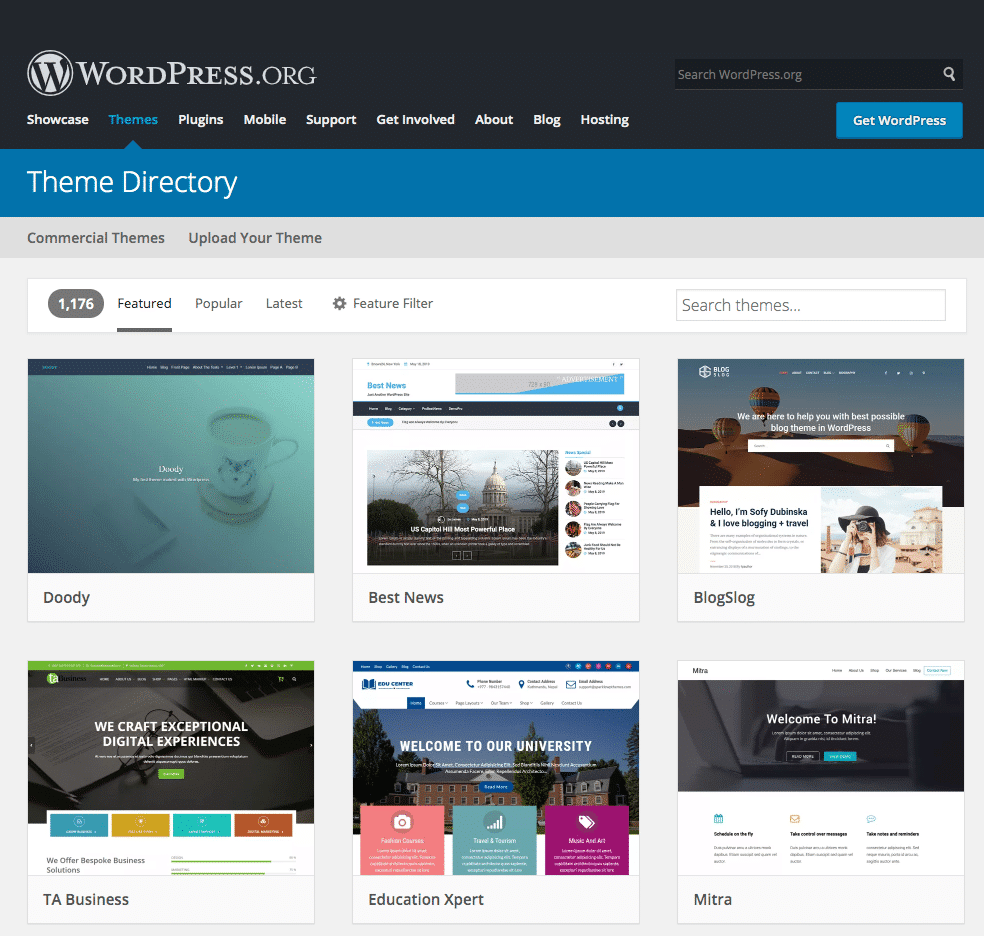
Want a new theme? Click on Add New. Browse through many options. Choose a theme you like. You can also search for specific themes. Use the search bar for this. After selecting a theme, hover over it. You will see the Install button. Click on it. Wait a few seconds. Your theme is now ready to use.
Navigating To Themes
Accessing the theme section is simple. First, log in to your WordPress dashboard. On the left side, find the Appearance tab. Click on it to open more options. Select Themes from the list. This shows all your installed themes. At the top, find the Add New button. Click it to explore new themes. Search for themes using the search box. Filter themes by features or popularity. Preview a theme before installing it. This helps you see how it looks.
Exploring Theme Options
Free themes offer basic features. They are a good start for beginners. Premium themes provide advanced features and support. You pay for extra benefits. Security is often better with premium options. Customization is easier too. Both types have pros and cons. Choose based on your needs. Think about your budget. Understand your site’s purpose.
Themes come in different categories. Blog themes are popular for writers. Business themes suit companies. Portfolio themes show off art and work. E-commerce themes help online stores. Each category has unique designs. Pick a category that matches your site. Look for features that help your goals. Explore many options before deciding.
Credit: wordpress.org
Installing A New Theme
First, go to your WordPress dashboard. Click on Appearance and then Themes. Here, you will find the Add New button at the top. Click on it. You can now see many themes. Use the search bar to find a specific theme. Click Install on the theme you like. After it installs, click Activate. Your new theme is now live.
Download your theme file. It will be a .zip file. Go to your WordPress dashboard. Click on Appearance and then Themes. Click on Add New. Now, click on Upload Theme. Click Choose File and select your .zip file. Click Install Now. After installation, click Activate. Your new theme is ready.
Activating The Theme
Find the theme you like in the dashboard. Click on “Appearance”. Then, choose “Themes”. Here, you will see all available themes. Pick the one you want by clicking on it. You will see a button that says “Activate”. Click on it to make the theme live. Your site will now use this new theme. It’s that simple!
Switching themes can change the look of your site. Make sure to preview the theme first. You can do this by clicking on the “Live Preview” button. It helps you see how your site will look. This way, you can decide if it fits your needs. Happy theming!
Customizing The Theme
The Customizer Tool in WordPress is very handy. It helps you change the look of your site. You can find it in the Appearance menu. Click on Customize to start. A new screen will open. You can see live changes on your site. Change colors, fonts, and more. It’s simple and easy for beginners. Don’t forget to save changes before leaving. Your site will look fresh and new.
Want more control? Editing theme files is another way. You can change how your site looks and works. But be careful! Small mistakes can break your site. Go to Appearance and select Theme Editor. Pick the file you want to edit. Make changes and save them. Always keep a backup before you start. It keeps your site safe. You can fix problems easily if they happen.
Testing Theme Compatibility
Themes should be easy to use on phones and tablets. Check if buttons are big and easy to tap. Text should be clear and readable. Images must fit the screen without cutting off. Try scrolling through pages. Does everything look nice? If not, the theme might not be good for mobile users. Test on different devices. See if it looks good everywhere.
Plugins add features to your site. A theme should work well with many plugins. Test important ones like contact forms and SEO tools. Install a few and see if they function properly. If plugins break, the theme might not be compatible. Contact the theme maker for help. Always check before making a theme live.
Credit: kinsta.com
Backing Up Your Site
Keeping a backup of your site is very important. It protects your work from being lost. There are many ways to back up a WordPress site. You can use plugins like UpdraftPlus or BackWPup. These tools make backups easy and quick. They store your site safely. Choose a plugin that fits your needs. Some plugins offer automatic backups. This means they save your site regularly. Don’t forget to test your backups. Make sure they work well. Backup files should be saved on a separate drive or cloud. This keeps them safe if your computer crashes. Always keep your backup files up to date. This ensures you have the latest version. Backing up is simple and very useful.
Troubleshooting Common Issues
Struggling with theme changes on WordPress. org? Ensure your theme is compatible with your plugins. Check for updates and clear browser cache to resolve display issues quickly. Adjust theme settings in the customization panel for a refreshed look.
Theme Conflicts
Sometimes, themes may not work well with each other. This is called a theme conflict. It can cause your site to look strange. Some parts may not show. Or, buttons may not work. To fix this, try deactivating all plugins. Then, turn them back on one by one. This helps find the problem. If it is a plugin, contact the plugin maker for help.
Performance Concerns
A theme may make your site slow. This is a big problem. Visitors do not like slow sites. To check speed, use tools like Google PageSpeed Insights. They give tips to speed up your site. You can also minimize images and use a caching plugin. This helps your site load faster. If the theme is still slow, think about using a different one.

Credit: wordpress.org
Frequently Asked Questions
How Do I Change My WordPress Theme?
Changing your WordPress theme is simple. Go to your WordPress dashboard, click on ‘Appearance’, then ‘Themes’. Browse available themes or upload a new one. Click ‘Activate’ to apply your chosen theme. Always preview before activating to ensure compatibility and design satisfaction.
Can I Switch Themes Without Losing Content?
Yes, switching themes won’t affect your content. WordPress stores posts, pages, and media separately from theme files. However, some theme-specific settings may need reconfiguration. Always backup your website before changing themes to prevent data loss or disruption in functionality.
Are Free WordPress Themes Reliable?
Free WordPress themes can be reliable if downloaded from trusted sources like WordPress. org. They are often well-coded, secure, and regularly updated. Always check reviews and ratings before installing. Premium themes offer more customization and support but free themes are great for beginners.
How To Customize A WordPress Theme?
To customize a WordPress theme, go to the dashboard, click ‘Appearance’, then ‘Customize’. Use the built-in editor to change colors, fonts, and layouts. For advanced customization, edit theme files using a child theme. Be cautious with code changes to avoid errors.
Conclusion
Changing themes on WordPress. org is simple and fun. Start by exploring different themes. Consider your website’s needs and style. Follow the steps to install and activate. Experiment with colors and layouts. Make your site visually appealing. Remember, themes can enhance user experience.
Regularly update your theme for security. Keep your site fresh and engaging. With a few clicks, transform your website. Customize it to reflect your brand. Enjoy the creative process. Your WordPress site can look amazing. Make changes as needed. Keep learning and experimenting.
Your website is your digital space. Let it shine with the perfect theme.


