
Are you tired of the same old look of your WordPress blog? Maybe you’re eager to give your site a fresh new vibe but aren’t sure where to start.
Changing your theme can instantly transform your blog’s appearance and even improve user experience. But here’s the thing: it’s not just about picking a pretty design. The right theme can captivate your audience, reflect your brand, and even boost your site’s performance.
Imagine your blog standing out like a beacon in the crowded digital space, catching the eye of every visitor. Intrigued? Let’s dive in and discover how you can easily change themes in WordPress and make your blog truly shine.
Choosing The Right Theme
A good theme makes your blog look nice. Think about your blog’s purpose. Is it for fun or business? Check how the theme looks on phones. This is important. A simple design is often best. It should be easy to read. Make sure the theme loads fast. Slow sites lose visitors. Read reviews from others. Feedback helps you decide. Check if the theme gets updates. Updated themes have fewer bugs.
Free themes are a good start. They cost nothing. But, they may lack features. Premium themes have more options. They often look better. Support is usually better with paid themes. They often come with updates. Free themes might not update often. Consider your budget. Choose what fits your needs best. A premium theme can be a good investment. But free can work too. Think about what you need most.

Credit: www.wpzoom.com
Backing Up Your Blog
Backing up your blog is very important. It keeps your content safe. Losing data is scary. Backups help you avoid losing data. They save your content. If something goes wrong, you can restore it. Without a backup, you risk losing everything. Regular backups give peace of mind. You don’t have to worry about mistakes. Technology can fail. Websites can crash. Backups protect against these issues.
Several tools help with backing up your blog. UpdraftPlus is popular. It is easy to use. BackupBuddy is another option. It offers many features. Jetpack also helps with backups. It has a simple setup. VaultPress is created by WordPress. It provides real-time backups. Choose a tool that suits your needs. Make sure it is reliable. Automatic backups are best. You won’t forget to do them.
Installing A New Theme
Accessing the Theme Directory is simple in WordPress. First, log into your WordPress dashboard. Then, find the “Appearance” tab on the left menu. Click on “Themes.” This will take you to the Theme Directory. Here, you can see many free themes. Use the search bar to find a theme you like. Select your theme and click “Install.” After installation, click “Activate” to use the theme. This changes the look of your blog.
Sometimes, you may want to upload themes manually. First, download your theme as a .zip file. Go to your dashboard, click “Appearance,” then “Themes.” Click “Add New” at the top. Choose “Upload Theme.” Find your .zip file and click “Install Now.” After it’s done, click “Activate.” Now, your theme is live. Enjoy your new blog design!
Customizing The Theme
Switching themes in a WordPress blog is simple. Navigate to the dashboard, click on “Appearance,” then “Themes. ” Choose a new theme and activate it to give your blog a fresh look.
Using The WordPress Customizer
The WordPress Customizer helps change your blog look. Access it from the dashboard. Click on “Appearance” and then “Customize.” Here, you can change colors, fonts, and layouts. Watch changes live as you make them. Save changes after you finish. It’s easy and fun.
Editing Css And Html
CSS and HTML make your blog unique. They are codes that control the design. Use the “Additional CSS” section in Customizer. Here, add your own styles. Be careful. Wrong codes can break your site. Always make a backup first. Ask for help if needed.
Testing The New Theme
Responsiveness means the theme looks good on all devices. Try it on a phone. Then use a tablet and a computer. Look at the text and images. They should fit well. If things are too big or small, it is not responsive. Fixing this is important. Everyone should see your blog nicely.
Plugins help your blog do more things. Check if they work with the new theme. Some might break. Test each plugin one by one. Make sure they load correctly. Update them if needed. Broken plugins can make the blog slow. Keep them updated to ensure smooth performance.
Activating The Theme
See how the new theme looks. Go to the WordPress dashboard. Click on “Appearance”, then “Themes”. Find the theme you like. Click on the “Live Preview” button. This shows your site with the new theme. Check if everything looks right. Make sure it fits your content well. If it does not, pick another theme to preview.
Happy with the preview? Time to activate it. Go back to the Themes page. Find the theme again. Click on the “Activate” button. This makes the theme live on your site. Check your site to see the changes. Make sure everything is working fine. All done! Your theme is now active.
Troubleshooting Common Issues
Changing themes in a WordPress blog can sometimes cause issues. Common problems include broken layouts or missing widgets. Solutions often involve resetting plugins or checking theme compatibility.
Dealing With Theme Conflicts
Theme conflicts can make your blog look odd. Sometimes, two themes fight with each other. One theme may block another. This can cause errors. Look for errors in settings. Check for broken links or missing images. Try deactivating unused themes. This helps clear conflicts. Always keep themes updated. Updates fix bugs and improve compatibility.
Resolving Display Problems
Display problems can upset your blog’s look. This may happen after theme changes. Check if widgets are out of place. Go to customize settings. Adjust layout and colors. Sometimes, CSS codes mess up the display. Use simple codes to fix this. You can use the preview feature. This helps you see changes before saving. Keep your browser updated. Old browsers may not show themes well. Clear browser cache regularly. This helps with display issues.
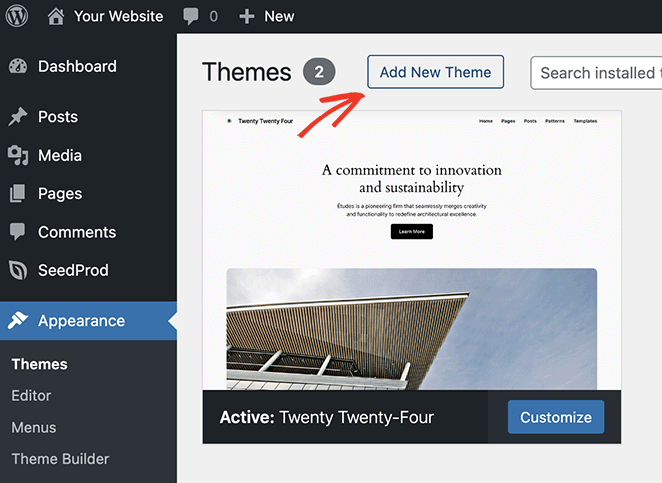
Credit: www.seedprod.com

Credit: jetpack.com
Frequently Asked Questions
How Do I Install A New Theme In WordPress?
To install a new theme, go to your WordPress dashboard. Click on “Appearance,” then “Themes. ” Search for a theme or upload one. Click “Install,” then “Activate” to set it live. Ensure your theme is compatible with your WordPress version for smooth functionality.
Can I Customize My WordPress Theme?
Yes, you can customize your WordPress theme. Use the built-in “Customizer” under “Appearance” in your dashboard. You can change colors, fonts, and layouts. Some themes offer more customization options, so choose one that fits your needs.
Is Changing Themes Safe For My Blog?
Changing themes is generally safe. However, always back up your site before making changes. Some customizations may not transfer to the new theme. Test your site thoroughly after changing themes to ensure everything works correctly.
Do WordPress Themes Affect Site Speed?
Yes, WordPress themes can affect site speed. Choose a theme optimized for performance. Look for lightweight themes with clean code. Fast-loading themes improve user experience and SEO. Regularly test your site’s speed using tools like Google PageSpeed Insights.
Conclusion
Changing themes in WordPress is simple and rewarding. Start by exploring different theme options. Find one that suits your blog’s style and purpose. Always preview before activating to ensure it looks right. Customize settings to match your brand. Don’t forget to back up your site before changes.
This keeps your content safe. With the right theme, your blog will look fresh and engaging. Enjoy the process and make your blog shine.


