
Are you ready to give your WordPress website a fresh new look but feeling a bit overwhelmed by the idea of diving into the database? Changing your WordPress theme through the database might seem daunting at first, but it’s easier than you think.
Imagine the satisfaction of transforming your website’s appearance in just a few simple steps, all while gaining a deeper understanding of how your site functions behind the scenes. This guide is crafted to walk you through the process seamlessly, ensuring you feel confident and empowered every step of the way.
By the end, you’ll not only have a brand-new theme but also the skills to manage your site more effectively. Let’s unlock the potential of your WordPress site together!
Credit: help.one.com
Understanding WordPress Themes
WordPress themes change the look of a website. Each theme has a different style. Some are colorful, others are simple. Themes can have different fonts and layouts. Changing a theme can make a site look fresh. It’s like giving your site a new dress. Themes are stored in the WordPress database. This database holds all the theme information. It’s like a big library for your site. Choosing the right theme is important. A good theme helps users find information easily. Always pick a theme that suits your content. Bold colors are good for kids’ sites. Simple themes are good for business sites.
Accessing WordPress Database
phpMyAdmin helps you see your WordPress database. First, find your hosting account. Log in using your username and password. Look for the phpMyAdmin option in the control panel. Click it to enter. You will see a list of databases. Choose the one for WordPress. Now, you can see different tables. Look for the wp_options table. Click it to open. Search for the theme option. Change the theme name to a new one. Save changes. Be careful. Wrong changes can break your site.
The command line can also help you access the database. Open the terminal on your computer. Type the command to connect. You need your database username and password. Enter them carefully. Once connected, choose the WordPress database. Type the right command to view the tables. Find the wp_options table. Look for the theme option inside. Change the name to update the theme. Make sure to type commands correctly. Mistakes can cause problems. Always double-check your work.
Identifying Theme Details
First, open your WordPress dashboard. Go to the Appearance section. Here, you will find the active theme name. Check the theme version too. This helps if you need to update later. Always note down the theme’s exact name. It helps in database changes.
All themes are in the wp-content/themes folder. Each theme has its own folder. Inside, you will find files like style.css. This file has important theme details. Check for the functions.php file too. It’s used for theme functions. Always back up these files. This keeps your data safe.
Credit: docs.appthemes.com
Modifying Theme In Database
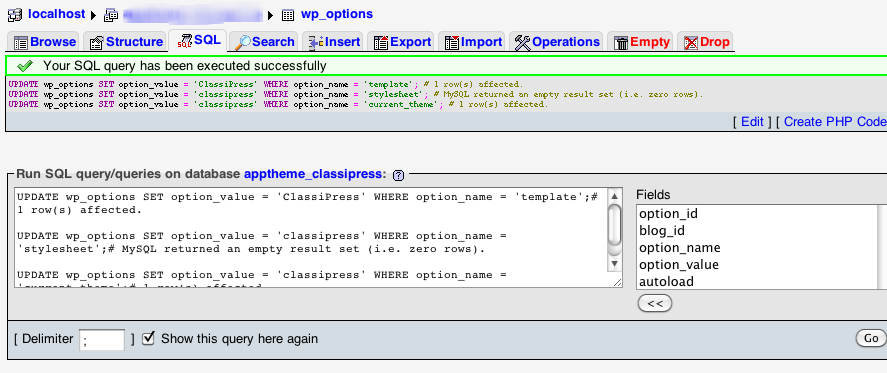
To change your WordPress theme, you need the database. The theme data is in the wp_options table. First, access your WordPress database. Use a tool like phpMyAdmin. Find the wp_options table. It holds many settings.
Locate the table named wp_options. Open it to see a list. Find the rows for template and stylesheet. These rows store theme names. You can change them to switch themes.
In the template row, type the new theme’s name. Do the same in the stylesheet row. Save your changes. This updates the theme in the database. Now, visit your site to see the new theme in action.
Verifying Changes
Checking Theme Activation in WordPress is simple. First, log into your WordPress dashboard. Navigate to the Appearance section. Click on Themes. Ensure the desired theme is marked as Active. If not, click Activate on the chosen theme.
Troubleshooting Common Issues involves a few steps. Sometimes themes may not load properly. Check your theme’s compatibility with your WordPress version. Update WordPress if needed. Ensure all plugins are updated. Disable plugins one by one to find conflicts. If issues persist, consider reaching out to your theme’s support.
Best Practices
Always backup your database before changes. This step is very important. Use tools like phpMyAdmin for this task. Export your database to a safe place. This way, you keep your data safe. If something goes wrong, you can restore it. Never skip this step to avoid losing data.
First, create a staging site. It’s a copy of your real site. Use this site to test new themes. This keeps your main site safe. If problems happen, they won’t affect real users. Make sure everything works well. Then, apply changes to the main site. Testing helps avoid big errors.
Advanced Tips
Change your WordPress theme with SQL queries. First, access your WordPress database. Use tools like phpMyAdmin. You find your database there. Look for the “wp_options” table. This table stores many settings. Locate the “template” and “stylesheet” rows. Change their values. Use your new theme’s name here. Make sure both rows match. This step is important. After changing, save your changes. Finally, check your site. Your new theme should appear.
Automate theme changes with plugins. Some plugins help switch themes. They work on a schedule. You set the time. The plugin changes the theme for you. This saves effort. You can also use cron jobs. They run tasks at set times. Set up a cron job to change themes. It uses the WP CLI tool. This needs some coding skills. But it’s powerful. You can change themes without logging in. Automating makes life easier.

Credit: melapress.com
Frequently Asked Questions
How Do I Change A WordPress Theme Using The Database?
To change a WordPress theme via the database, access your hosting’s phpMyAdmin. Navigate to the “wp_options” table. Locate “template” and “stylesheet” rows, and update their values with your desired theme’s name. Save changes and check your website to confirm the theme update.
Can I Switch Themes Without Accessing WordPress Admin?
Yes, you can switch themes using phpMyAdmin. Access your database through your hosting account. Update the “template” and “stylesheet” values in the “wp_options” table. Ensure the theme name matches the one installed in your WordPress themes directory.
What Precautions Should I Take Before Changing Themes?
Before changing themes, back up your WordPress database and files. This ensures you can restore your site if issues arise. Also, check the new theme’s compatibility with your plugins and widgets. This prevents functionality loss or display issues after switching themes.
Is It Safe To Change Themes Via Database?
Changing themes via the database is safe if done correctly. Always back up your database first. Ensure you enter the correct theme name in the “wp_options” table. Errors may cause your site to display improperly, so double-check your inputs before saving changes.
Conclusion
Changing your WordPress theme through the database is straightforward. First, access your hosting control panel. Then, navigate to phpMyAdmin and select your database. Locate the wp_options table and find the “template” and “stylesheet” rows. Update them with your new theme’s name.
Remember, always back up your database before making changes. This ensures you can restore it if needed. Follow these steps carefully to avoid errors. Your site’s appearance will change without using the WordPress dashboard. Now, your WordPress theme update is complete and seamless.
Enjoy your refreshed site look!


