
Have you ever felt like your WordPress site doesn’t quite match your vision? Perhaps the colors aren’t vibrant enough, or the layout doesn’t highlight your content the way you imagined.
You’re not alone. Many WordPress users, like yourself, are eager to tweak their themes for a personalized touch that truly stands out. Changing theme settings in WordPress might seem daunting, but it’s simpler than you think. Imagine the satisfaction of transforming your site into something that not only looks great but also captivates your audience.
In this guide, we’ll walk you through each step, ensuring you can effortlessly tailor your site to reflect your unique style. Get ready to unlock the potential of your WordPress theme and make it work for you. Let’s dive into how you can make your website as unique as your ideas.
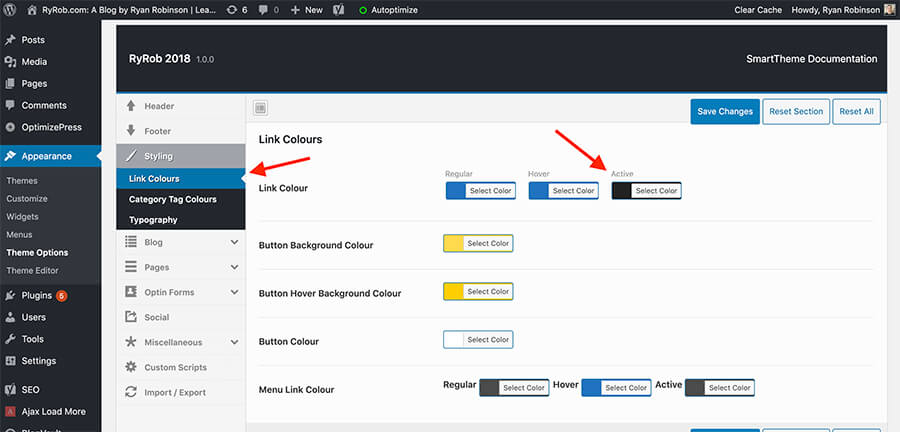
Credit: www.ryrob.com
Accessing WordPress Dashboard
To change your theme, first log into your WordPress Dashboard. The dashboard is like a control room for your site. On the left, you’ll see a menu. This menu helps you find different settings. Click on the option labeled “Appearance”. This is where you can change how your site looks.
After clicking, a list of options appears. These options let you customize themes. You can also add new themes. Choose “Themes” to view all available themes. You can also click “Customize” to adjust the current theme settings. Remember, the dashboard is easy to use. Each option has a clear name.
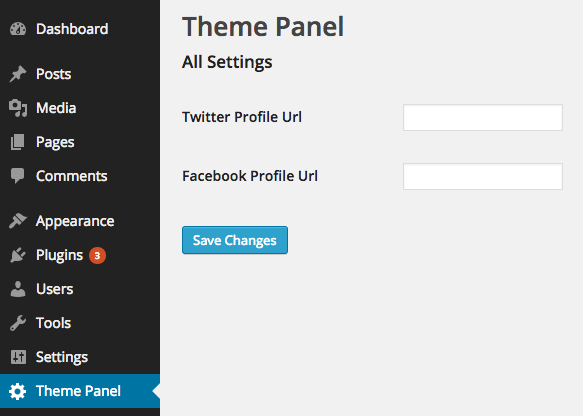
Credit: www.sitepoint.com
Navigating To Appearance Settings
WordPress offers a variety of themes. To change the theme, go to your dashboard. Look for the Appearance tab on the left menu. Click on it. This opens the theme options.
Here, you’ll see all installed themes. You can preview themes by clicking on them. Choose the one you like. Click Activate to use it. It’s simple and quick.
Want to add a new theme? Click Add New. Browse through the available themes. You can search by keyword, feature, or color. Once you find one, click Install. Then activate it. Your site gets a new look.
Exploring Theme Options
Change the look of your website by adjusting the header and footer. Access the theme options in your WordPress dashboard. Find the section for header and footer settings. You can add or remove items. Include logos, text, or navigation menus. Make sure to save your changes. This will update your site instantly.
Colors and fonts make your site unique. Go to the theme options. Look for the colors and fonts section. Choose colors that match your brand. Select fonts that are easy to read. Apply changes to headings and paragraphs. Don’t forget to save your settings. Your site will look fresh and new.
A good background can enhance your site. Open the theme options. Find the background settings. You can choose a solid color or image. Upload your own image for a personal touch. Adjust its position and size. Make sure it looks good on all devices. Save your changes to see the update.

Credit: wordpress.stackexchange.com
Using The WordPress Customizer
The WordPress Customizer is a simple tool. It helps you change your site’s look. You can see changes live. This is called Live Preview Features. It means you see changes before saving. You can change colors and fonts. You can also adjust layouts and menus. This makes your site unique. Everyone wants a special site. You can do this easily with the Customizer.
Responsive design is very important. It makes your site look good on all devices. Adjustments help your site fit screens of all sizes. You can change text size and image placement. This ensures a great view on phones and tablets. Visitors will like your site more. Happy visitors stay longer. This helps your site grow.
Installing New Themes
WordPress has a huge theme library. Open the WordPress dashboard. Click on “Appearance“. Choose “Themes“. Click “Add New” to explore themes. Search or filter themes. Look for themes by category, popularity, or latest updates. Preview themes before installing. Click “Install” when you find a theme you like. Once installed, activate it. A new theme changes your site’s look.
Custom themes offer unique designs. Download the theme zip file to your computer. Go to the WordPress dashboard. Click “Appearance“. Select “Themes“. Click “Add New“. Choose “Upload Theme“. Select the theme zip file. Click “Install Now“. Activate the theme once installed. Custom themes can make your site stand out.
Activating And Switching Themes
Themes make your site look different. Changing them is easy. Go to your WordPress dashboard. Look for the “Appearance” tab. Click on it. You will see “Themes”. Click on that. A list of themes will appear. Choose one you like. Click “Activate” to use it.
Want to try a new theme? It’s simple. Find a theme you like. Click “Preview” to see how it looks. If you like it, click “Activate”. Your site will have a new look. Repeat these steps to switch themes anytime.
Resetting To Default Theme Settings
Themes sometimes get messy. You might want to start fresh. Go to your WordPress dashboard. Click on Appearance and then Themes. Find your active theme. Look for the Reset button or option. This brings back the original settings. Be careful, as you might lose changes. Always back up important settings. Some themes do not have a reset option. You may have to install a plugin. Plugins can help reset themes easily. Search for a reset plugin in the plugins section. Install and activate it. Follow the instructions to reset. Now, your theme is like new. Enjoy the clean look of default settings!
Troubleshooting Common Issues
Changing theme settings in WordPress can be simple and stress-free. Navigate to the “Appearance” tab in the dashboard. Explore customization options to adjust colors, fonts, and layouts effortlessly.
Theme Compatibility Problems
Sometimes, a new theme does not work well. This is called compatibility problems. Plugins might not work. The website may look strange. Check if the theme is up-to-date. An old theme can cause issues. Look for theme updates. If updates are not available, consider another theme.
Plugins can also be a problem. Deactivate one plugin at a time. Check the website after each. This helps find which plugin causes trouble. Always keep a backup of your website. Backups protect your work.
Restoring Previous Theme Settings
Sometimes, you need to go back. Maybe the new theme is not good. Restoring previous settings can help. Start by going to the WordPress dashboard. Click on “Appearance”. Then, click on “Themes”. Find your old theme. Click “Activate” to switch back.
Check your site to make sure everything is fine. Settings and widgets might need fixing. If you have a backup, use it. Backups bring back old settings. Always make a backup before big changes.
Utilizing Plugins For Extended Customization
Plugins help make your WordPress site unique. They add new features. Some plugins are very popular. They are also easy to use. These plugins improve your theme’s look and feel.
Popular Theme Enhancement Plugins
Some plugins are loved by many users. Elementor lets you design pages easily. Beaver Builder is another great tool. It helps build pages fast. WPForms adds forms to your site. These plugins make your site better.
Plugin Installation Steps
| Step | Action |
|---|---|
| 1 | Go to WordPress dashboard. |
| 2 | Click on “Plugins”. |
| 3 | Select “Add New”. |
| 4 | Search for a plugin. |
| 5 | Click “Install Now”. |
| 6 | Press “Activate”. |
Following these steps will add a plugin. Then your theme gets better features. This makes your site more fun and useful.
Frequently Asked Questions
How Do I Access Theme Settings In WordPress?
To access theme settings, log into your WordPress dashboard. Navigate to “Appearance” and select “Customize. ” This will open the theme customizer, where you can adjust various settings, including colors, fonts, and layout options, to personalize your site.
Can I Change WordPress Theme Without Losing Content?
Yes, changing your WordPress theme won’t affect your content. Your posts, pages, and media remain intact. However, some theme-specific settings or widgets may need reconfiguration. Always back up your site before making changes to ensure no data is lost.
How Do I Preview Theme Changes In WordPress?
In the WordPress customizer, click “Customize” under “Appearance. ” As you make adjustments, changes are displayed in a live preview. This feature allows you to see how your site will look before publishing the updates.
Are WordPress Theme Settings Customizable?
Yes, WordPress theme settings are highly customizable. Themes offer options to modify colors, fonts, and layouts. You can personalize settings to match your brand style. Use the theme customizer or additional plugins for extended customization options.
Conclusion
Changing theme settings in WordPress is simple and rewarding. Customize your site to match your vision. Explore different options to find what suits your needs. Play with colors, fonts, and layouts. Adjust settings until your site feels just right. Remember, each change can enhance user experience.
Keep your audience in mind when making adjustments. Small tweaks can make a big difference. With practice, you’ll get better and faster. Don’t hesitate to experiment. Enjoy the creative process as you personalize your WordPress theme. Your website is your canvas.
Make it reflect your unique style.


