
Are you tired of the same old look on your WordPress blog? Craving a fresh new vibe that better reflects your unique style or brand?
Changing your WordPress theme can feel like a daunting task, especially if you’re using the free version. But don’t worry—you’re not alone, and it’s not as complicated as it seems. Imagine giving your blog a makeover that captivates your readers and keeps them coming back for more.
In this guide, you’ll discover how simple it is to transform your blog’s appearance with just a few clicks. So, if you’re ready to learn how to change your WordPress theme effortlessly, keep reading. Your blog’s new look is just a few steps away!
Access WordPress Dashboard
First, log in to your WordPress account. Enter your username and password. After logging in, you will see the dashboard. This is the control panel for your blog. The dashboard shows many options. You can manage posts, pages, and themes here.
To change the theme, look at the left side. Find the Appearance option. Click on it. A menu will appear. Select Themes from the menu. You will see many free themes. Choose a theme you like. Click on the Activate button. Now, your new theme is live.
Navigate To Appearance
Find the Appearance tab on your dashboard. Click on it. You will see many options. Select Themes from these options. This opens a new page.
Browse through the themes. Click on Preview to see how it looks. If you like it, choose Install. Wait for the installation to finish. Then, click on Activate.
Go back to the Appearance tab. Select Customize. You can change colors and fonts here. Make your blog unique. Save changes when done.
Select Themes Option
Click on the Dashboard of your WordPress blog. Find the Appearance section on the left side. Click on Themes. A new page will open. This page shows the current theme. It also shows other available themes. You can browse through these themes. Look for a theme you like. Each theme has a Preview button. Click it to see how the theme looks. If you like the theme, click on the Activate button. This will change the theme of your blog. It’s that simple!
If you want more themes, click on Add New. This option is at the top. Explore more themes from there. You can filter themes by features or colors. Choose what suits your style. Remember, your theme reflects your blog’s personality. Make sure to pick a theme that fits well.
Explore Available Themes
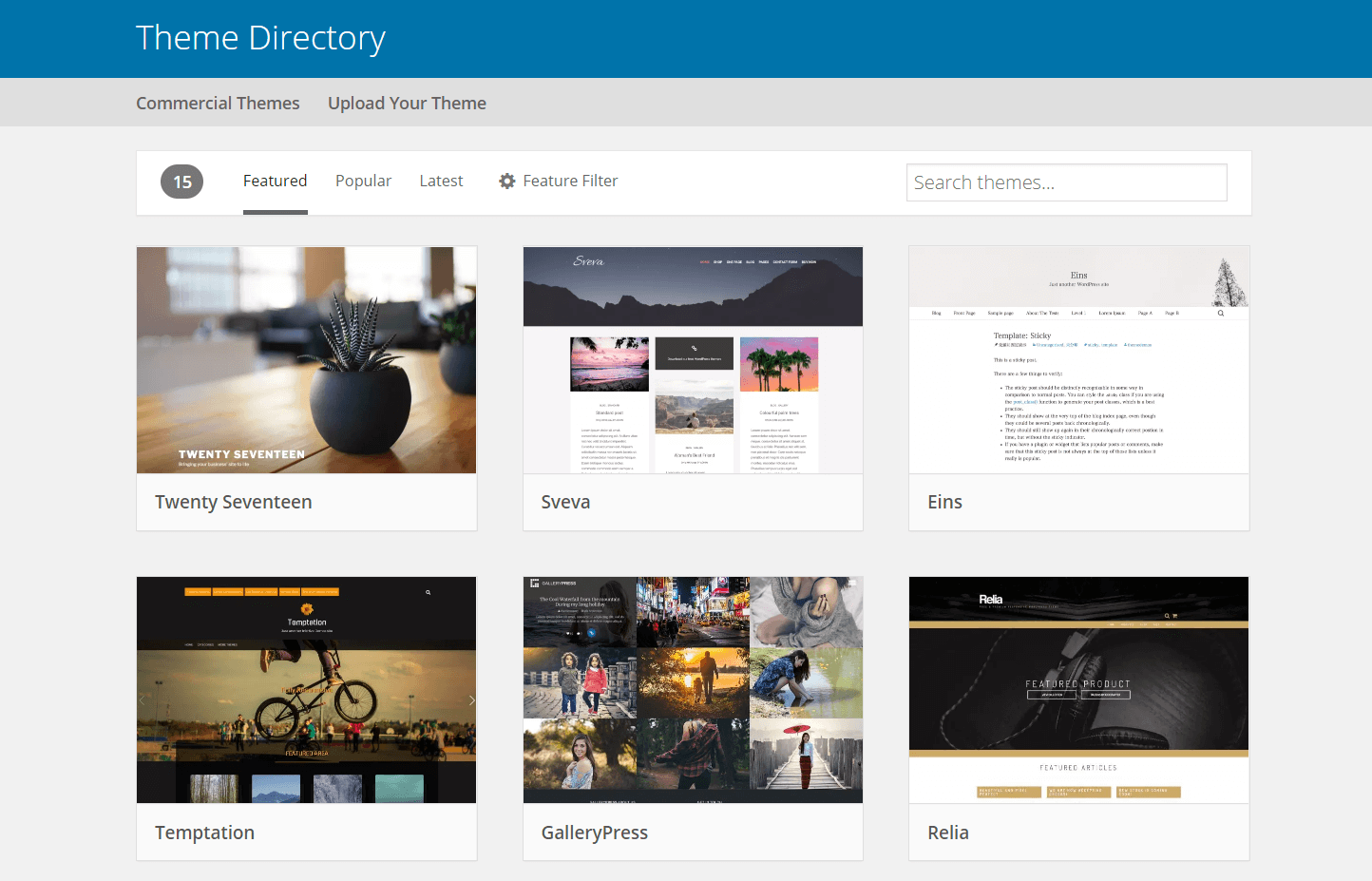
WordPress offers a wide range of free themes. These themes can be found in the WordPress theme library. You can browse them easily. Each theme has a unique style and design. This makes it fun to find the right one for your blog.
To access the library, log into your WordPress dashboard. Then, click on the “Appearance” option. Next, select “Themes” from the menu. You will see many themes ready to use. Try different themes to see what fits best.
You can view theme details before choosing. This helps you understand what the theme offers. Each theme has a preview option. This allows you to see how it looks on your blog. Checking themes is simple. Just hover over a theme and click “Details & Preview.”
Reading the details helps you know about features. Look for special options like custom colors. This can make your blog unique. Take your time exploring themes. The right theme will make your blog look great!
Install A New Theme
To install a new theme, start by searching with a keyword. Type the theme name or a related word in the search box. This helps find themes that match your ideas.
Use filters to narrow down choices. You can filter by features like color, layout, or style. This helps find a theme that fits your needs.
Once you find a theme, preview it. Check if it looks good on your blog. Make sure it works well with your content. If you like it, click install to add it.
Installing a theme changes your blog’s look. Make sure it is easy to read. This keeps readers engaged and happy.
Activate The Chosen Theme
Log into your WordPress dashboard. Go to the Appearance section on the sidebar. Click on the Themes option. A list of available themes will appear. Browse the themes and find your favorite. Click on the Activate button under your chosen theme. Your blog will have a new look instantly.
Check your blog’s home page. Make sure everything looks good. If not, you can switch back. Choose another theme, and click Activate again.
Customize Your Theme
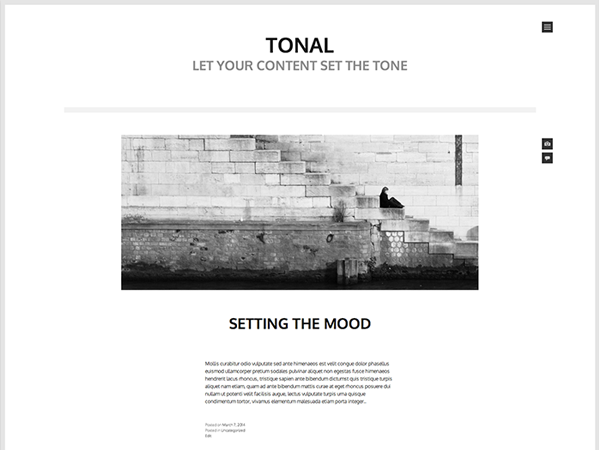
Themes make your blog look nice. Choose a theme you like. You can change the layout and colors. It’s easy to do. Go to the theme settings. Pick colors that match your style. You can also adjust the layout. Make sure it is easy to read. A good layout helps readers find things. Try different settings. Find what looks best.
Add widgets and menus to your blog. Widgets show extra info. You can add a search bar or a calendar. Menus help people move around your blog. Create a menu with different pages. Put important pages in the menu. This helps readers find what they need. It makes your blog better.
Credit: tariquesani.net
Test Theme Functionality
Check on Different Devices. View your theme on a phone and a computer. Make sure it looks nice everywhere. Try to read the text. See if the buttons are easy to click. The theme should fit well on every screen. Some themes might not work on all devices. Always check before keeping it.
Ensure Plugin Compatibility. Plugins help your blog do more things. They add special features. Sometimes, themes and plugins don’t work together. This can cause problems. Test your plugins with the new theme. Make sure everything works as it should. If a plugin breaks, look for help online. Or try a different theme.
Backup And Save Changes
Before changing your theme, export your current theme settings. This saves your layout and preferences. Go to the dashboard and find the settings. Click on export to save them. It’s like saving your favorite game progress. If something goes wrong, you can load it back.
Make a restore point before changing the theme. It’s a snapshot of your blog. Like taking a photo before changing your room. If you don’t like the new look, you can restore it back. Your blog will look like before. This keeps your work safe and sound.
Credit: wpengine.com
Troubleshoot Common Issues
Easily switch your WordPress blog’s theme using the dashboard. Navigate to “Appearance,” then click “Themes. ” Choose a new theme and activate it. If any issues arise, ensure your theme is compatible with the latest WordPress version.
Theme Not Displaying Correctly
Sometimes, themes might not show as expected. Check if your theme is activated. Go to your dashboard. Navigate to “Appearance” and select “Themes”. Ensure the correct theme is active. Clear browser cache. This might solve display issues. Update your theme. Older versions may cause problems. Plugins can conflict with themes. Deactivate plugins one by one. Check if the theme displays correctly. Contact theme support if problems persist. They can help.
Slow Loading Times
Slow sites can be annoying. Check your images. Large files slow down loading. Compress them to smaller sizes. Use a caching plugin. This speeds up your site. Deactivate unnecessary plugins. Too many can slow your site. Optimize your database. Keep it clean and fast. Choose a lightweight theme. Heavy themes load slower. Test your site speed. Use online tools for this. Improve your hosting plan if needed. Faster hosting helps.
Credit: www.elegantthemes.com
Frequently Asked Questions
How Do I Change My WordPress Blog Theme?
To change your WordPress theme, log in to your dashboard. Navigate to Appearance > Themes. Click on ‘Add New’ to browse themes. Choose a theme, click ‘Install’, and then ‘Activate’. Ensure compatibility with your existing plugins and content before making the switch to avoid issues.
Can I Use Free Themes On WordPress?
Yes, WordPress offers a variety of free themes. You can find these in the WordPress theme repository. Free themes are accessible via the dashboard under Appearance > Themes. They are customizable and suitable for various blog types, providing flexibility for beginners and experienced users alike.
How To Preview A WordPress Theme Before Activating?
You can preview a WordPress theme by navigating to Appearance > Themes. Hover over the theme you want to try and click ‘Live Preview’. This allows you to see how your blog will look with the new theme without making it live, ensuring compatibility and design preferences.
Is Changing WordPress Themes Safe For Seo?
Changing WordPress themes can impact SEO if not done carefully. Ensure the new theme is SEO-friendly. Check for mobile responsiveness, fast loading times, and proper HTML structure. Before activating, preview the theme to ensure it maintains your site’s SEO integrity and user experience.
Conclusion
Changing your WordPress theme is simple and fun. It refreshes your blog’s look. A new theme can attract more visitors. Focus on choosing a design that fits your style. Always check theme compatibility before installation. Backup your blog to avoid data loss.
Experiment and see what works best for you. Your blog reflects your personality. So, keep it unique and inviting. Regularly update your theme for the best performance. Enjoy the process and watch your blog grow. Remember, your theme sets the first impression.
Make it count!


