
Changing the theme name in your WordPress admin might seem like a small tweak, but it can make a significant difference in how you manage your website. Whether you’re customizing a theme for personal branding or preparing a site for a client, having the right theme name can streamline your workflow and enhance your site’s professionalism.
You might be wondering how to do this without getting tangled in technical jargon or risking your site’s functionality. Don’t worry, you’re not alone, and this guide is here to help you step-by-step. By the end of this article, you’ll not only know how to change your theme name but also understand why it’s a smart move.
Let’s dive in and give your WordPress site the personal touch it deserves.
Credit: www.templatemonster.com
Why Change Theme Name?
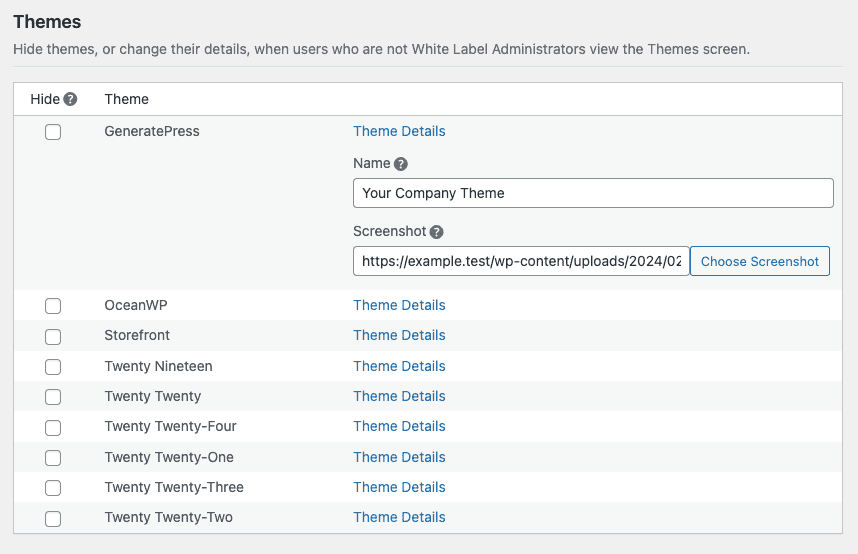
Changing the theme name can be important. It helps you to maintain privacy. Others won’t easily know which theme you’re using. This can be useful if you want a unique look. It can also be helpful for branding purposes. You can use your own brand name for the theme. This makes your website feel more personal.
Sometimes, theme updates can cause issues. Renaming the theme can prevent this. It’s a simple way to keep your website stable. Just remember, changing the theme name is not hard. But you need to be careful. Always make a backup before you start. This keeps your site safe from mistakes.
Credit: whitewp.com
Preparing For The Change
Backup Your Website before making changes. This keeps your data safe. Use plugins like UpdraftPlus or BackWPup. They help in saving your site files. You can also use the hosting service backup feature. This creates a copy of your website. Store this backup in a safe place. It’s best to keep it off-site. This prevents loss in case of a problem.
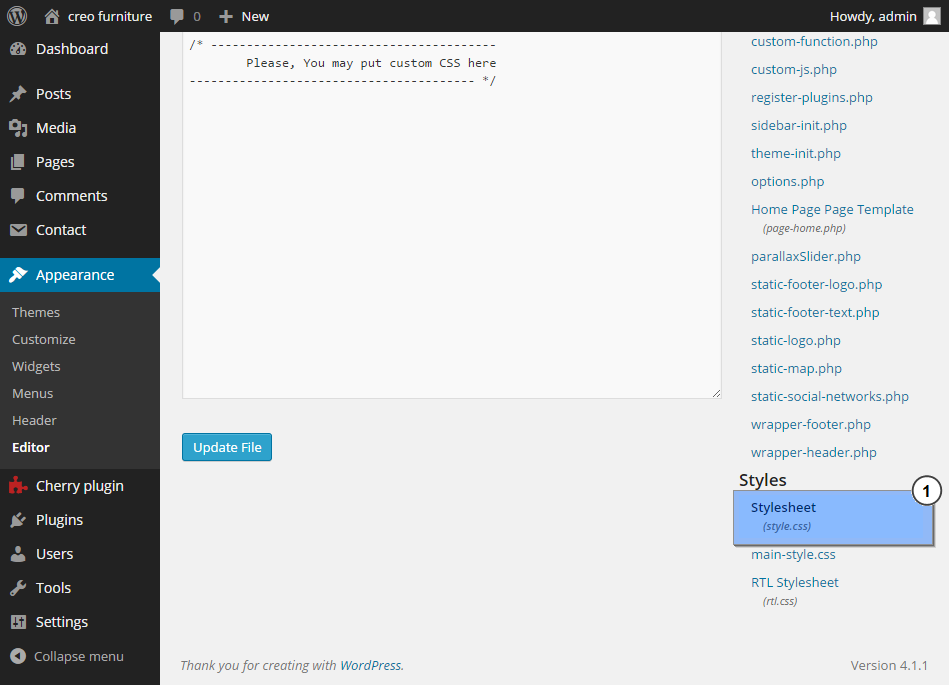
Create a Child Theme to protect your site design. A child theme uses the main theme’s style. It keeps your changes even if the main theme updates. First, make a new folder in the theme directory. Name it as you like. Add a new style.css file. This file holds your custom styles. Link the child theme to the main theme. Use the @import rule in the style.css file. This ensures both themes work together.
Locating Theme Files
Start by opening your hosting control panel. Look for the File Manager option. Click it to access your website files. It is the place where all your website files live.
You will see a list of folders. Each folder has different files. They are important for your website to work.
In the File Manager, find the wp-content folder. Open it to see other folders inside. Look for the themes folder. This is where your theme files are kept.
Inside the themes folder, you will see folders with different names. Each folder is a different theme. Look for the folder with your current theme name. That is the one you need to change.

Credit: make.wordpress.org
Editing Theme Files
The style.css file holds important theme details. Open this file in your theme folder. Look for the Theme Name at the top. Change it to your new theme name. Save the file. Changes should reflect in the WordPress admin. It is important to not alter other parts of this file.
The functions.php file might reference the old theme name. Open this file in your theme folder. Search for the old theme name. Replace it with the new theme name. Save your changes. This helps WordPress recognize the new name. Be cautious when editing this file. Avoid altering unrelated code.
Testing The Changes
Changing the theme name in WordPress admin involves accessing the theme folder via FTP. Locate the theme’s style. css file and modify the theme name. Refresh the WordPress admin area to see the new theme name displayed.
Check For Errors
Look for error messages after changing the theme name. Errors can break your site. Check the WordPress dashboard. Ensure it loads without problems. If errors appear, undo changes quickly. Fix problems before continuing. Ensure plugins work correctly. Sometimes they cause issues. Check the site on different devices. Errors might show up on phones or tablets.
Verify Appearance
Visit your site after changing the theme name. Notice if anything looks strange. Check if the layout is correct. Text and images should appear as before. Click around your site. Ensure all links work properly. Check the site speed. Pages should load quickly. If something seems wrong, go back to the WordPress admin. Double-check all settings and options. Fix any appearance issues immediately.
Common Issues And Fixes
Changing the theme name in WordPress admin is common. Access your WordPress files via FTP. Locate the theme folder under wp-content/themes. Rename it carefully. Update the theme details in style. css. This ensures the new name displays correctly.
Theme Not Displaying Correctly
Sometimes, themes might not show up as expected. This can confuse users. Always check if the theme is activated. Ensure all theme files are there. Missing files often cause issues. Verify your WordPress version. Older versions may not support new themes. Refresh the page and clear your browser’s cache. This step often solves display problems.
Restoring The Original Name
Did you change the theme name and now regret it? You can easily return to the original. Go to the theme folder on your server. Find the style.css file. Open it and locate the Theme Name line. Replace the current name with the original. Save the file. Refresh your WordPress admin page. The original name should be back.
Best Practices
Changing a theme name in WordPress admin involves accessing the theme folder via FTP or hosting panel. Open the theme’s style. css file, find the “Theme Name” line, and replace it with your desired name. Save changes, and the new theme name will appear in your WordPress admin panel.
Regular Backups
Always create a backup before making changes. Backups keep your data safe. If something goes wrong, you can restore it. Use tools like UpdraftPlus or BackupBuddy. They are easy to use. They save your time and effort. Set your backups to happen regularly. This way, you always have a recent copy of your site. Remember, safety first. Your website is important. Treat it with care.
Using A Staging Environment
A staging environment is like a test site. Changes happen there first. This helps avoid problems on your real site. Use it to test changes safely. Tools like WP Staging or Local by Flywheel can help. They make it simple. After testing, apply changes to your live site. This keeps your site safe and running smoothly.
Frequently Asked Questions
How Can I Change My WordPress Theme Name?
To change your WordPress theme name, access your theme’s folder via FTP or a file manager. Locate the style. css file and edit the “Theme Name” line. Save changes and refresh your admin panel. Always back up your files before making any edits to avoid potential issues.
Is It Safe To Rename A WordPress Theme?
Renaming a theme can be safe if done correctly. Ensure you back up your theme files and database. Be cautious of hard-coded references in the theme that might break functionality. Test thoroughly after renaming to prevent issues with plugins or customizations that rely on the original name.
Will Changing Theme Name Affect Seo?
Changing the theme name does not directly impact SEO. SEO is influenced by content, structure, and backlinks, not theme names. However, ensure that your theme functions correctly after renaming to avoid any technical issues that might indirectly affect your site’s performance and user experience.
Can I Change Theme Name Via WordPress Admin?
WordPress admin does not offer an option to directly change theme names. You need to access your server files through FTP or hosting panel. Locate the theme’s style. css file and edit the “Theme Name” section. Always back up before making changes to ensure safety.
Conclusion
Changing your WordPress theme name is straightforward and beneficial. It helps personalize your website. Plus, it keeps things organized. You now know the steps to change a theme name. Remember, always back up your site before making changes. This protects your hard work.
With your theme renamed, managing it becomes easier. Your site looks more professional too. Follow the steps carefully to avoid errors. Enjoy the new look and feel of your WordPress admin. Explore more customization options as you grow. Keep learning and improving your website skills.
Happy blogging!


