
Are you looking to personalize your WordPress website just a bit more by changing your theme’s name? Maybe you want to give it a unique twist or keep your site’s details under wraps for a project you’re working on.
Whatever your reason, you’re in the right place. Changing a theme name in the WordPress admin panel might sound complicated, but it’s actually quite straightforward once you know the steps. Imagine the satisfaction of seeing your custom theme name every time you log in.
In this guide, we’ll walk you through the process, making it simple and hassle-free. Stick around, and you’ll soon have your theme sporting a brand-new name, just the way you want it.
Credit: www.elegantthemes.com
Accessing WordPress Files
Changing the theme name in the WordPress admin panel involves accessing WordPress files through FTP. First, connect to your server and locate the ‘wp-content/themes’ directory. Find the folder of the theme you want to rename and edit the ‘style. css’ file, changing the ‘Theme Name’ line.
Using File Manager
Accessing your WordPress files is easy with a File Manager. Log in to your hosting account. Find the File Manager in the control panel. Open it to see your website’s files. Look for the folder named wp-content. Inside, find the themes folder. This is where all your theme files are. Click on the theme you want to change. Look for the style.css file. Open it, and you will see the theme name at the top. Change the name to what you want. Save the file. You’ve changed the theme name!
Using Ftp Client
An FTP Client can also help. Download a program like FileZilla. Enter your FTP credentials to connect. Navigate to the public_html or www folder. Find wp-content, then go to themes. Locate your theme folder and open the style.css file. Change the theme name at the top of the file. Save your changes. Your theme name is updated. It’s simple and quick.
Locating Theme Folder
Changing the theme name in the WordPress admin panel starts with locating the theme folder. Navigate to the WordPress installation directory, then find the ‘wp-content’ folder. Inside, you’ll discover the ‘themes’ folder where all themes are stored.
Understanding WordPress Directory Structure
WordPress keeps files neat and organized. All files sit inside a main folder. This folder is called the WordPress root directory. Inside, you find many important folders. These folders hold themes, plugins, and more. Each folder has its job. Themes live in the wp-content/themes folder. Knowing this helps you find your theme easily. It’s like a map to your theme’s home.
Navigating To Wp-content/themes
To find your theme, follow these steps. First, open your website files. Look for the wp-content folder. Click to open it. Inside, you’ll see another folder called themes. Click it to enter. Now, you see all theme folders. Each folder is a separate theme. Find your theme’s folder. Inside, you’ll see many files. These files make your theme work. Names matter here. So, make sure you find the right folder.
Editing Theme Name
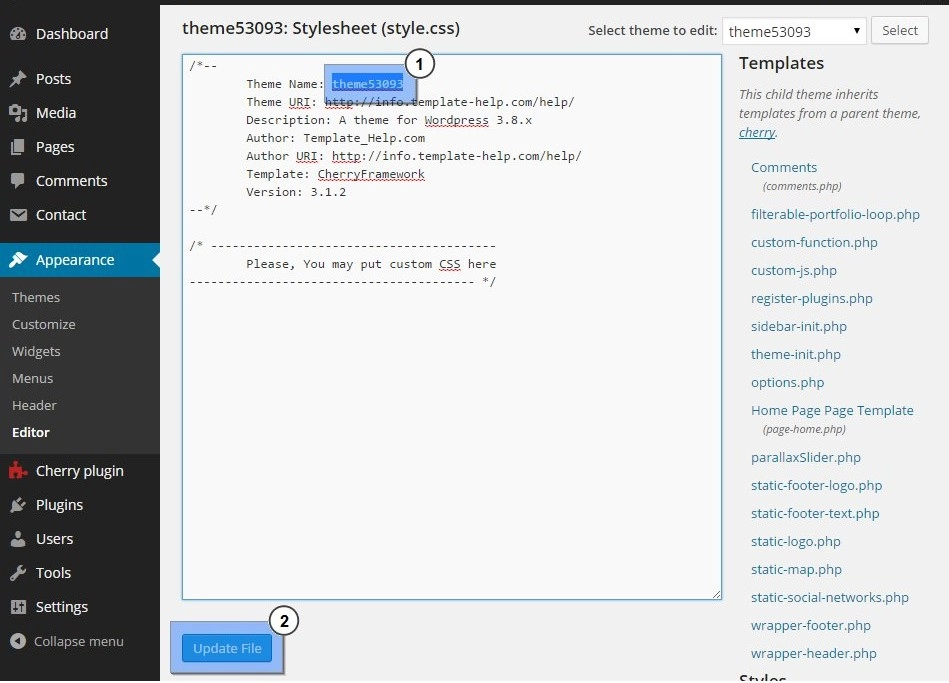
Open the style.css file in your theme folder. This file holds important details about your theme. Locate the section at the top where the theme name is written. Change the name to your desired new name. Save the file after editing. This change updates the name in the admin panel. Your theme will now show the new name.
Navigate to the functions.php file. Search for the line that mentions your theme name. Replace the current name with your new name. Save the file once you’re done. Check your WordPress dashboard. The theme name should now appear updated.
Updating Database Records
Changing the theme name in the WordPress admin panel requires updating database records. Navigate to the database using phpMyAdmin, locate the ‘wp_options’ table, and modify the ‘template’ and ‘stylesheet’ values. Ensure the new theme name matches the folder name in the ‘wp-content/themes’ directory for a smooth transition.
Accessing WordPress Database
Begin by accessing your WordPress database using phpMyAdmin. This tool helps manage databases. Find it in your hosting control panel. Log in with your database credentials. Once inside, locate the database used by your WordPress site. Look for the table named wp_options. This table holds many site settings, including themes. Click on wp_options to open it.
Changing Theme Name In Database
Within wp_options, search for the option name stylesheet and template. These entries store your theme’s name. Click on the edit option next to them. Change the value to your new theme name. Make sure to match the exact folder name. Save your changes once done. Check your site to ensure changes reflect properly. This method updates the theme name without breaking your site.
Verifying Changes
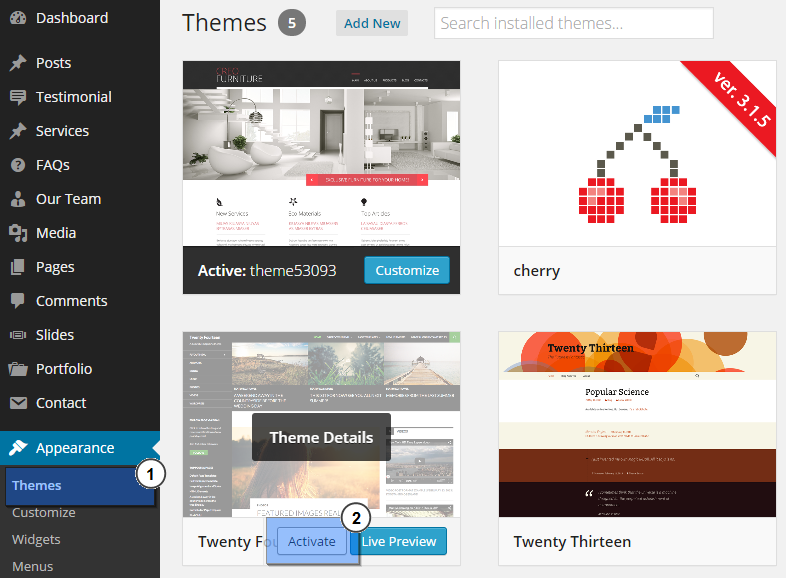
Visit the admin panel. Navigate to the “Appearance” section. Here, you will see the theme’s name. Check if the new name appears. Ensure everything looks correct. If you see the old name, refresh the page. Sometimes changes need a refresh.
Visit your site. Look at the design. Is it displaying correctly? Click around to test links. Ensure everything works. A theme change might affect site parts. Check widgets and menus. Ensure they are in place. Test the site’s speed. Slow loading means issues. Fix them quickly.
Credit: www.nexgi.com
Troubleshooting Common Issues
Sometimes, themes can go missing in WordPress. This might happen after updates or changes. To fix this, check the theme folder first. Ensure the theme files are in the right place. Go to the WordPress admin dashboard. Then, visit the Appearance section. Look for the theme you want. Activate it if it is there. If not, you might need to reinstall the theme from your backup or download it again. Always keep a backup of your themes. It helps in restoring lost themes quickly.
Broken links can cause issues. They lead to pages that don’t exist. Start by checking all the links on your site. Use a broken link checker tool. These tools find broken links quickly. Once you find a broken link, update it. Or remove it if not needed. Always test links after changes. This ensures they work properly. Fixing links improves user experience. It also helps with SEO rankings.
Best Practices
Always make a backup before changing your theme. This keeps your work safe. Use a plugin to save everything. You can find many free options online. Keep your backup file in a safe place. If something goes wrong, you can restore your site easily. A backup helps avoid losing your content.
Updating your theme is very important. It keeps your site secure and fast. Check for updates regularly in your admin panel. Always update your theme after making a backup. This ensures that any changes you made are safe. New updates often fix bugs and add new features. Keeping your theme updated is the best way to protect your website.
Credit: www.templatemonster.com
Frequently Asked Questions
How Can I Change Theme Name In WordPress?
To change a theme name in WordPress, access your site’s files via FTP or cPanel. Navigate to the wp-content/themes directory. Locate the folder of the theme you want to rename. Change the folder name and update the Theme Name in the style.
css file. This ensures consistency and avoids errors.
Is Changing Theme Name Safe In WordPress?
Yes, changing the theme name is generally safe. However, ensure you update references in your theme’s files. Incorrect updates can lead to broken links or styling issues. Always back up your theme before making changes. This precaution helps restore your site if any issues arise during the renaming process.
Does Changing Theme Name Affect Seo?
Changing the theme name does not directly impact SEO. SEO is influenced by content, site structure, and performance. Ensure your site’s functionality remains intact after the change. Broken links or missing files can indirectly affect SEO by hindering user experience and site accessibility.
Can I Revert Theme Name Changes?
Yes, you can revert theme name changes. Simply rename the theme folder and update the style. css file back to its original name. Ensure all references are corrected to avoid functionality issues. Always keep a backup of your site to facilitate easy restoration if needed.
Conclusion
Changing a theme name in WordPress is straightforward. Follow the steps carefully. Start by accessing your WordPress admin panel. Navigate to ‘Themes’ under ‘Appearance. ‘ Select the theme to rename. Click ‘Edit’ and change the name in the stylesheet. Save changes and refresh your site.
The new name should appear in the admin panel. Remember to backup before editing. This prevents data loss. Renaming themes helps organize your dashboard. It also aids in theme identification. With practice, you can easily rename themes. Enjoy a more personalized WordPress experience.


