
Are you tired of your current WordPress theme layout and eager to give your site a fresh, new look? Changing the theme layout on WordPress can feel like a daunting task, especially if you’re not tech-savvy.
But don’t worry, you’re not alone, and it’s easier than you think! Imagine transforming your website into something that not only looks stunning but also captivates your audience and keeps them coming back for more. In this guide, we’ll walk you through the simple steps to change your WordPress theme layout effectively.
By the end, you’ll have the confidence and know-how to switch things up and make your website truly stand out. So, are you ready to revamp your website and make it more appealing to your visitors? Let’s dive in!
Choosing The Right Theme
Themes should fit your website’s needs. Some themes are good for blogs. Others work best for shops. Make a list of your website needs. Choose a theme that matches these needs. This makes your site work well for visitors.
Everyone has a unique style. Think about colors and layouts you like. Find themes that match your style. Websites look better with a consistent design. This helps keep visitors interested and engaged.
Many people use phones to browse. Your theme must look good on all devices. Responsive themes adjust to different screens. This keeps your site user-friendly. Test the theme on a phone and tablet. Ensure it works well everywhere.
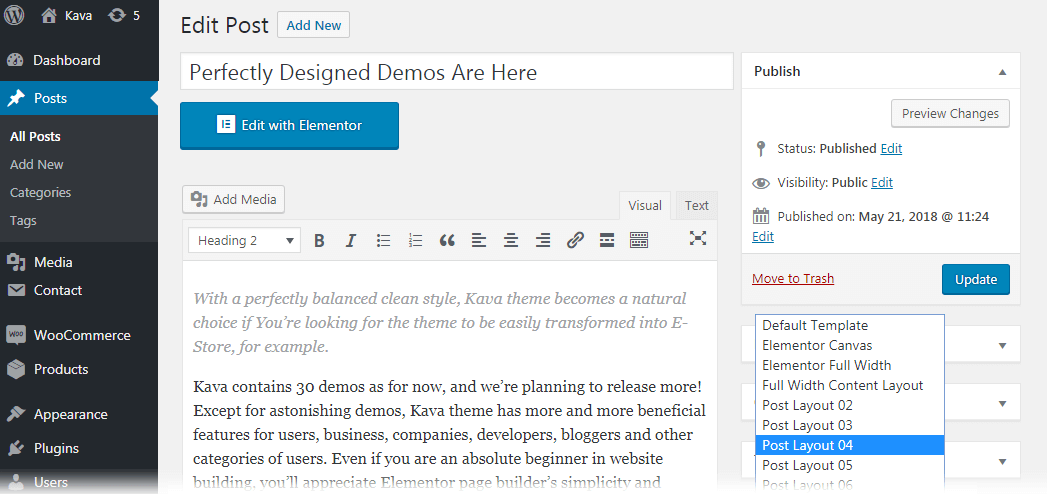
Credit: crocoblock.com
Installing A New Theme
Log into your WordPress dashboard. Click on Appearance in the left menu. Choose Themes from the options. Here you find many themes. Use the search bar to find a theme. You can sort themes by popularity or features. Preview themes before selecting one.
Download the theme file from a trusted source. It is usually a .zip file. Return to the WordPress dashboard. Click on Appearance again. Choose Themes and then select Add New. Click on Upload Theme. Choose your downloaded file and click Install Now.
After installation, you must activate the theme. Go back to the Theme section. Find your new theme in the list. Click Activate to make it your site’s theme. Visit your site to see the changes. Customize it further using the Customize option under Appearance.
Customizing Theme Settings
The WordPress Customizer is a powerful tool. It lets you change your theme. First, go to your dashboard. Find the “Customize” option under “Appearance”. You can see live changes as you make them. This makes it easy to use. Save your changes before leaving. This keeps your hard work safe.
Colors make your site look nice. Choose colors that match your brand. Use the Customizer to adjust them. You can find a section for colors. Try different shades to see what looks best. Bright colors stand out. But soft colors are calming. Pick the right ones for your site.
Fonts are important for readability. Choose a font that is easy to read. The Customizer lets you change fonts too. Look for the “Typography” section. You can make fonts bigger or smaller. Choose bold or regular styles. Make sure your text is clear and easy to read.
Managing Widgets And Menus
Widgets make your site look cool. They add features like calendars or search bars. You can find them in your WordPress dashboard. Just drag and drop them into your sidebar. Some widgets let you add text or pictures. Move them up or down to change the order. It’s fun to try different widgets. You can always remove them if you want. Keep your site neat and tidy.
Menus help people find stuff on your site. You can make custom menus for this. Go to the Appearance section in the dashboard. Click on Menus. Add pages or links to your menu. Drag items to rearrange them. You can make drop-down menus too. This helps keep things organized. Menus make your site easier to use.
Sidebars hold your widgets. You can change how they look. Go to the Widgets section in the dashboard. Try different layouts and see what fits. Some themes have multiple sidebars. You can have a sidebar on the left or right. Sidebars can even be at the bottom. Make sure your sidebar matches your theme. This keeps your site looking nice and clean.
Testing And Previewing Changes
Try your site on different browsers like Chrome, Firefox, and Safari. Each browser may show your theme a bit differently. Look at the layout and colors. Make sure everything is in the right spot. This helps you catch any errors early. It’s important for your site to look good everywhere.
Most people use phones to browse the web. Check how your theme looks on a phone or tablet. Use your fingers to scroll and click. Make sure buttons and links are easy to press. The site should look nice and work well. This makes visitors happy and keeps them coming back.
Everyone should be able to use your site. Check for accessibility features like alt text for images. Make sure text is easy to read. Use colors that contrast well. This helps people with disabilities use your site easily. It’s not just good practice; it’s the right thing to do.

Credit: www.youtube.com
Common Issues And Troubleshooting
Themes may conflict with each other. This can cause issues. First, check for updates. Themes need updates to fix bugs. Next, try deactivating other themes. Activate one theme at a time. This can identify the problem theme. If the issue persists, contact theme support. They can provide expert help.
Sometimes layout breaks. This could be a coding issue. Always backup your site first. Then check theme settings. Adjust layout settings as needed. Use custom CSS to tweak styles. For major problems, consider using a child theme. This keeps changes safe during updates.
Plugins can cause layout issues. Deactivate all plugins first. Then activate them one by one. This helps find the problematic plugin. Ensure plugins are updated. Old plugins may not work with new themes. Check plugin documentation for compatibility. Choose plugins known for compatibility with your theme.
Tips For Maintaining Your Theme
Always keep your theme updated. Updates fix bugs. They add new features. They make your site safer. Check for updates often. Update when needed. Use the latest version always.
Backing up your theme is vital. Use tools to back up your site. Save copies of your theme files. Store backups in safe places. Do backups before major changes. This ensures no data loss.
Keep an eye on your site’s performance. Slow sites lose visitors. Use tools to check speed. Monitor load times often. Optimize for faster loading. Keep your theme running smoothly.
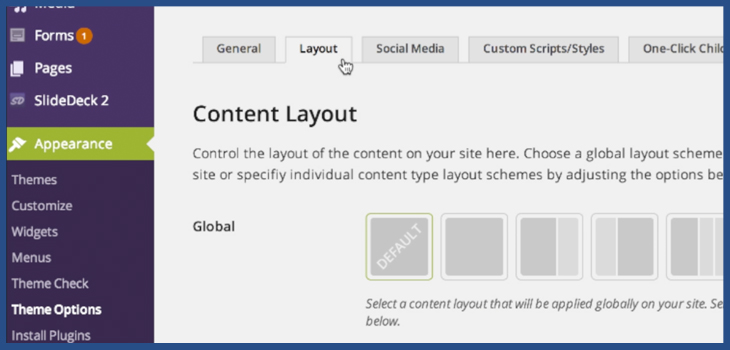
Credit: slocumthemes.com
Frequently Asked Questions
How To Switch WordPress Theme Layout?
To switch your WordPress theme layout, navigate to the WordPress dashboard. Select “Appearance” and then “Themes. ” Choose your desired theme and click “Activate. ” Ensure to preview changes before activating to maintain site aesthetics.
Can I Customize WordPress Theme Layout?
Yes, you can customize your WordPress theme layout. Use the built-in Customizer under “Appearance. ” You can adjust colors, fonts, and layouts. Ensure your changes enhance user experience and maintain brand consistency.
Is It Free To Change WordPress Theme Layout?
Changing the layout is free if you use a free WordPress theme. However, premium themes might charge for additional features. Always check the theme details for costs before switching.
Will Changing Theme Layout Affect Seo?
Yes, changing your theme layout can affect SEO. Ensure the new theme is SEO-friendly and maintains fast loading speeds. Check for mobile responsiveness and proper use of heading tags to minimize SEO impacts.
Conclusion
Changing your WordPress theme layout is easy and rewarding. It gives your site a fresh look. Customize to match your style and needs. Experiment with different layouts. Find what suits your content best. Stay creative and keep your audience engaged.
Remember, your website reflects your brand. Adjusting your layout can improve user experience. It helps visitors navigate smoothly. Always back up your site before making changes. This ensures you can restore if needed. Enjoy the process of making your site unique and personal.
Your design choices can enhance your online presence. Happy customizing!


