
Are you ready to give your WordPress website a fresh look? Changing the theme can be an exciting way to revamp your site and attract more visitors.
But what if you can’t access the WordPress dashboard? That’s where FTP comes in handy. You might feel a bit intimidated by the technicalities, but don’t worry! This guide will walk you through the process, step-by-step, ensuring you feel confident and in control.
By the end of this article, you’ll be equipped with the knowledge to effortlessly change your WordPress theme using FTP, unlocking new design possibilities and enhancing user experience. Let’s dive in and get your website looking its best!
WordPress And Ftp Basics
Changing a WordPress theme through FTP involves accessing your site’s files directly. Connect via FTP, navigate to the ‘wp-content/themes’ directory, and upload your new theme folder. Ensure correct permissions are set, then activate the theme from your WordPress dashboard.
What Is WordPress?
WordPress is a tool to make websites. It is easy to use. Many people use it. With WordPress, you can create blogs and online shops. You do not need to know coding. It is free and open-source. This means anyone can use it and make changes. It is like a giant toolbox for websites. You can pick and choose what you need.
Understanding Ftp
FTP stands for File Transfer Protocol. It helps move files from one place to another. Think of it like a bridge. It connects your computer to a server. With FTP, you can upload or download files. It is useful for websites. Sometimes, you need to change website files. FTP makes this easy. You need an FTP client to use FTP. Popular ones are FileZilla and Cyberduck. They are like helpers for moving files.
Why Change Themes Via Ftp?
FTP lets you access files directly. This is very useful. Especially when WordPress dashboard is not accessible. It’s a powerful tool. You can fix errors without logging in. Also, you can upload or delete files easily. This makes troubleshooting efficient. FTP helps when themes conflict. It avoids website crashes. This is why many developers prefer FTP. It’s safe and fast.
FTP has many benefits. First, it’s secure. You can control who accesses the files. Second, it’s reliable. No worry about losing data. Third, it’s flexible. You can access files from anywhere. Fourth, FTP is simple to use. It’s like managing files on your computer. Finally, FTP is efficient. You can change files quickly.
Use FTP when WordPress dashboard fails. It’s useful during theme conflicts. Also, when needing direct file access. FTP is ideal for fixing errors. Use it when updating themes manually. It’s helpful when themes don’t update automatically. FTP is great for beginners. It’s simple and clear to use.
Preparing For Theme Change
Backing up your website is very important. It protects your data. Use a reliable plugin to back up. Save your files and database. Store them in a safe place. This ensures you can restore your site if needed. Check if your backup is complete. You may need it later. Always keep a recent backup handy. It is better to be safe.
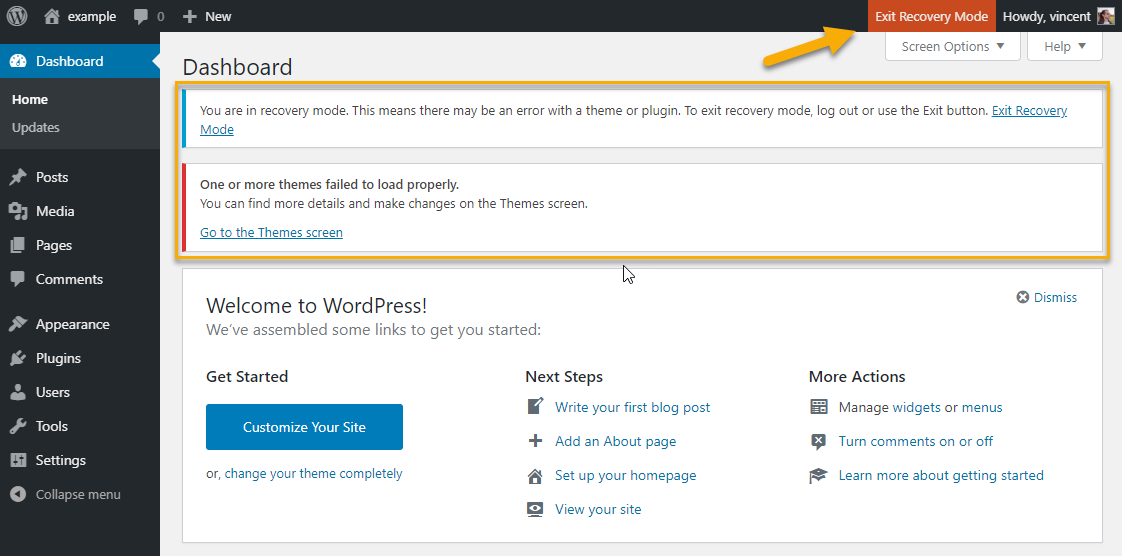
Choosing a new theme can be exciting. First, think about your website’s goal. Choose a theme that fits your needs. Look for themes with good reviews. Check if it is compatible with your plugins. Make sure it is responsive. A responsive theme works on all devices. Consider the design and layout. Make sure it is easy to navigate. A good theme improves user experience.
Credit: wpmarmite.com
Accessing Your Site Via Ftp
First, download an FTP client. Popular choices include FileZilla and Cyberduck. These programs help you connect to your website. They are easy to use and free. Install the program on your computer. Follow the instructions on the screen.
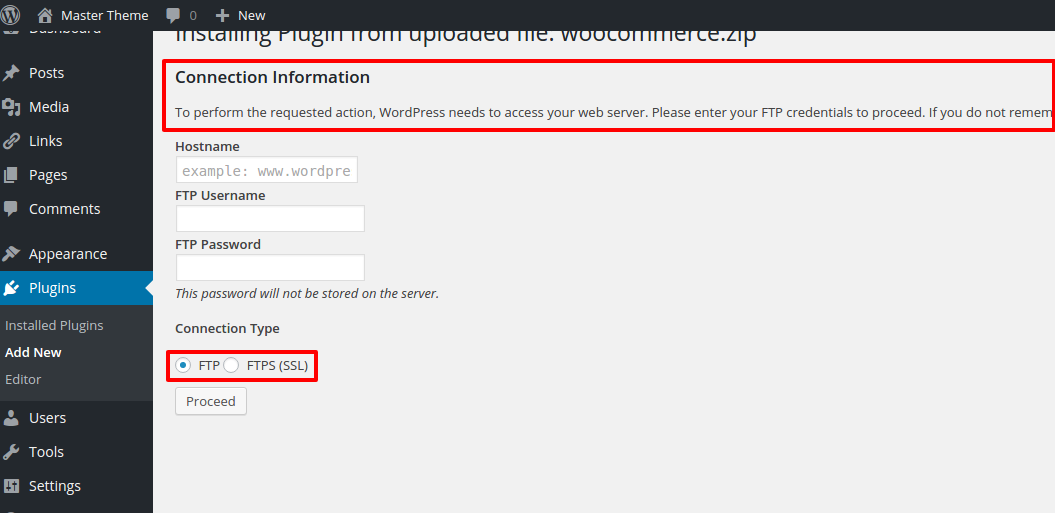
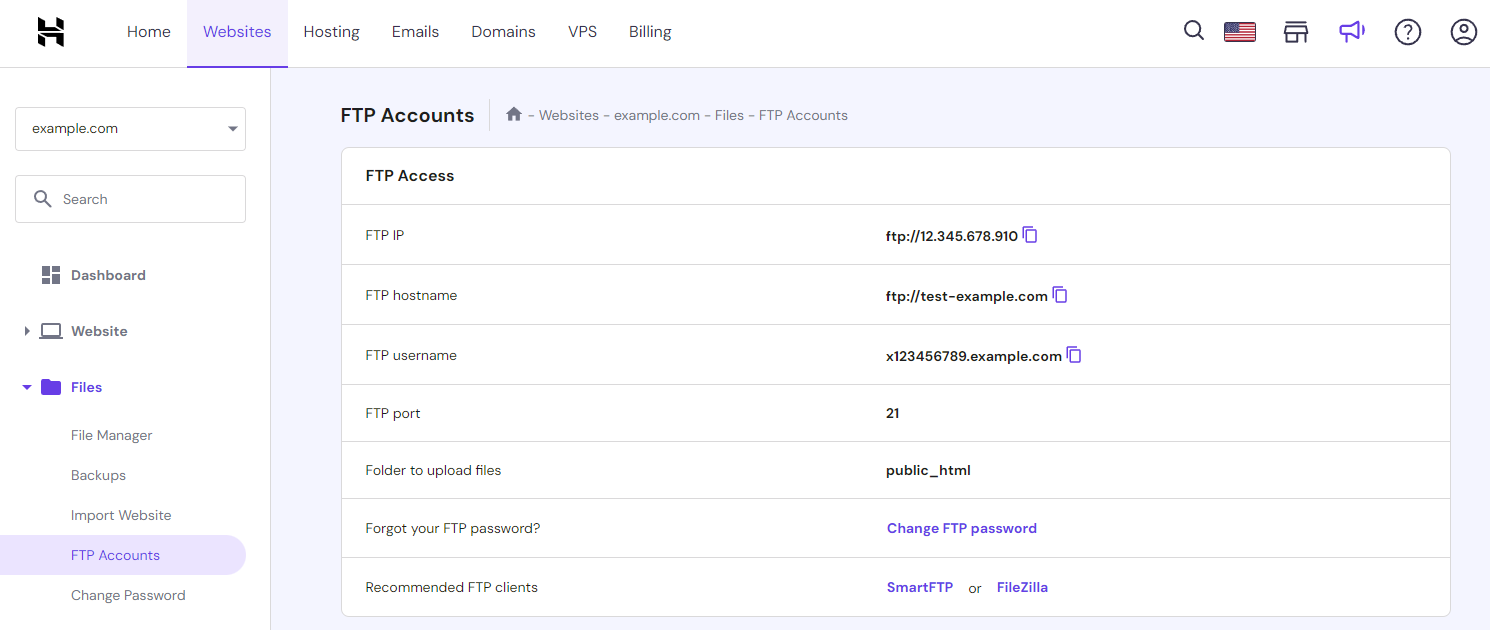
Open your FTP client. Enter your server details. You need a host name, username, and password. You can get these from your web host. Once entered, click “connect”. Wait for the connection to establish. You will see your website files. Be careful while changing files.
Locating Theme Files
Changing a WordPress theme via FTP involves finding the theme files in the wp-content/themes directory. Access your hosting server using an FTP client to locate and modify these files. Ensure you select the correct theme folder to avoid errors.
Navigating WordPress Directory
WordPress stores its files in folders. Finding these folders is easy. First, access your FTP client. You need login details for it. Once logged in, look for the public_html or www folder. This is where WordPress keeps its files. Inside, you will see many folders and files.
Finding The Themes Folder
Inside the WordPress folder, find the wp-content folder. This folder is important. It contains themes, plugins, and uploads. Open wp-content folder. You will see the themes folder. This folder has all your installed themes. Each theme has its own folder. Look for the theme you want to change. Open its folder to view theme files. You can edit these files to change your theme.
Credit: warptheme.com
Uploading The New Theme
Open your FTP client and connect to your WordPress site. Navigate to the wp-content/themes folder. This is where your theme files should go. On your computer, find the theme folder you want to upload. Drag and drop this folder into the themes folder on your FTP client. Wait for the upload to finish. Make sure all files are uploaded. Sometimes, files might be missing. Check and upload any missing files again.
After uploading, check the file structure in the themes folder. It should contain a folder with the name of your theme. Inside, you should see files like style.css and index.php. If these files are missing, your theme won’t work. Double-check that everything is in the right place. This ensures your theme will function correctly on your site.
Activating The New Theme
Changing a theme in WordPress via FTP is easy. First, connect to your server using FTP. Navigate to the wp-content/themes directory. Upload the new theme folder here. After uploading, go to your WordPress dashboard. Find the Appearance section. Select Themes. You will see the new theme listed. Click Activate to use it.
Switching Themes In WordPress
Switching themes is simple. Go to your WordPress dashboard. Click on Appearance. Choose Themes. Find the theme you want. Click Activate to switch. Your site will now use the new theme. Ensure the theme works well. Check your site’s pages. Verify all parts look good.
Troubleshooting Activation Issues
Problems activating a theme? Try these steps. Ensure the theme folder is complete. Check all files are present. Make sure the theme is compatible. Some themes need extra plugins. Install these plugins if needed. Clear your browser cache. Refresh your page. Contact theme support if issues persist.
Credit: www.hostinger.com
Testing And Customizing
Checking Theme Functionality is important. Make sure all theme parts work. Click on menus, buttons, and links. Check for broken links. Look for missing images. These can make your site look bad. If something does not work, fix it quickly. Check on different devices too. Phones and tablets matter. This helps your visitors stay happy.
Customizing Theme Settings makes your site unique. Change colors and fonts to match your style. Add your logo to the header. This helps people know they are on your site. Adjust the layout if you need. This can help make things clear. Some themes have extra features. Use them wisely. Make sure they help your site. Avoid using too many. This can slow down your site.
Handling Common Issues
Changing your WordPress theme via FTP is a straightforward process. First, access your server using an FTP client. Then, navigate to the ‘themes’ folder, upload your new theme, and activate it through the WordPress dashboard. This method helps resolve issues when you can’t access the admin panel.
Resolving Upload Errors
Upload errors can be frustrating. First, check your file size. It should not be too big. Use FTP software to upload your theme. Ensure the file permissions are correct. They should be set to 755. If you see an error, try again. Sometimes it takes a few tries. Also, check your internet connection. A slow connection can cause errors.
If the problem continues, contact your hosting provider. They can help. They may increase your upload limit. This often solves the issue.
Dealing With Theme Conflicts
Theme conflicts can break your site. First, backup your site. This keeps your data safe. Then, deactivate all plugins. Activate your new theme. Check if the problem persists. If the issue is gone, reactivate plugins one by one. This helps find the conflicting plugin.
Sometimes themes conflict with each other. Make sure only one theme is active. If the problem continues, contact the theme developer. They can offer support.
Frequently Asked Questions
What Is Ftp In WordPress?
FTP, or File Transfer Protocol, is a method used to transfer files between your computer and your WordPress server. It’s essential for accessing and modifying your site files directly. This can be particularly useful when you need to change themes or troubleshoot issues without accessing the WordPress dashboard.
How Can I Access WordPress Ftp?
To access WordPress FTP, you’ll need an FTP client like FileZilla. Enter your server’s credentials, including host address, username, and password. Once connected, you can navigate through your site’s files. This allows you to download, upload, or edit files directly on the server.
Can I Change Themes Via Ftp?
Yes, you can change themes via FTP by accessing your WordPress files. Navigate to the ‘wp-content/themes’ directory. Upload your new theme folder there. Then, activate the theme from your WordPress dashboard. This method is useful if the dashboard is inaccessible.
Why Use Ftp To Change Themes?
Using FTP to change themes is beneficial when you can’t access the WordPress dashboard. It allows direct file management, ensuring you can switch themes even if you’re locked out or facing technical issues. This method provides a manual backup option for troubleshooting theme-related problems.
Conclusion
Changing your WordPress theme via FTP is straightforward. Follow the steps carefully. First, connect to your server. Locate the themes folder. Upload your new theme files. Activate the theme from your WordPress dashboard. This method is useful when access is limited.
It can help restore your site quickly. Always back up your current theme before changes. Regular updates keep your site running smoothly. Troubleshooting becomes easier with practice. Explore different themes to enhance your site’s appearance. Keep learning to manage your website efficiently.
Your skills improve with each task you complete.


