
Are you looking to give your WordPress website a fresh, new look? Changing your theme in WordPress 5.0.3 is a great way to revamp your site and make it more visually appealing.
Whether you’re a seasoned WordPress user or a beginner, switching themes can seem daunting. You might worry about losing your content or breaking your site. Don’t worry! This guide is here to help you easily navigate the process. By the end of this article, you’ll have the confidence and knowledge to change your theme without any hassle.
Let’s dive in and transform your website into something truly special!
Accessing The Admin Dashboard
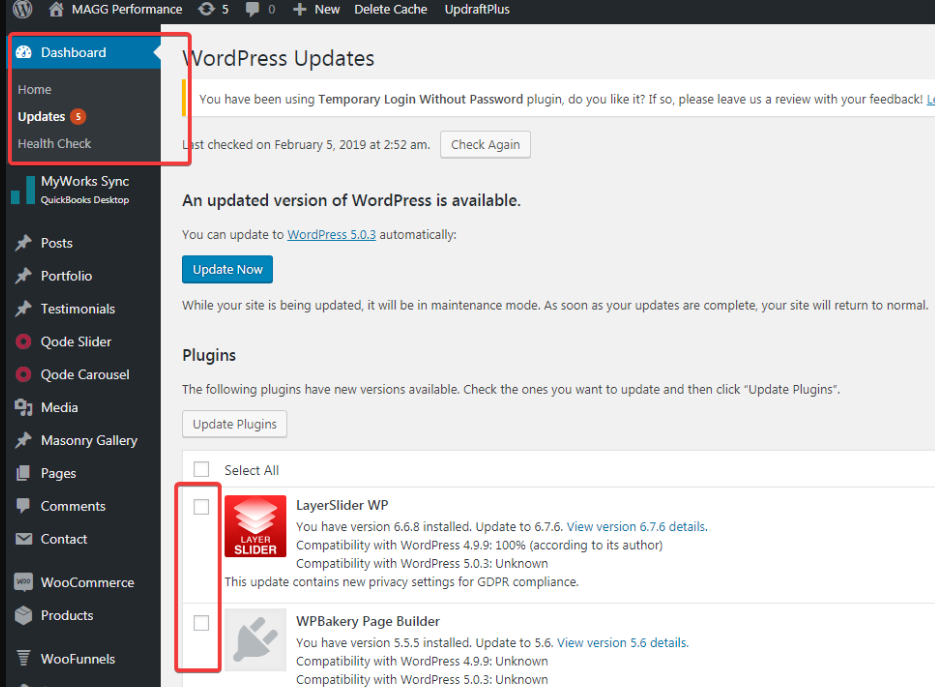
First, you need to log in to your WordPress site. Use your username and password. Look for the login page URL. It usually looks like yourwebsite.com/wp-admin. Enter your details and press the login button. Once logged in, you will see the admin dashboard. This is where you can make changes.
On the left side, find the menu. It has many options. Click on the “Appearance” option. This will open a new menu. Look for the “Themes” option. Clicking on it shows all your installed themes. You can now choose a new theme. Remember, the dashboard is the control center for your site.
Credit: funnelkit.com
Navigating To Appearance
Start by logging into your WordPress dashboard. Find the menu on the left side. Click on Appearance. This opens the Appearance section. Here, you will see various options. Choose Themes from the list. You can now view all available themes. Click on a theme to preview. If you like it, click Activate. Your site will change the theme.
Sometimes, new themes need customization. Look for a Customize button. Use it to tweak settings. Change colors, fonts, and layouts. Always save changes. This ensures your site looks great. If unsure, ask for help. WordPress has support forums. Experts there can guide you.
Exploring Theme Options
Your current theme decides how your site looks. It sets the style and layout. Themes control the font and color too. Each theme is unique. Some are simple, others are fancy. Check the theme settings to see its features. Customizing themes can help your site stand out. Themes also affect site speed. A lightweight theme loads faster. Always choose a theme that fits your site’s purpose.
WordPress offers many themes. Some are free, others are paid. Free themes have limited features. Paid themes offer more options. Choose a theme from the WordPress dashboard. Go to “Appearance” and then “Themes”. Browse the list to find a new theme. You can preview a theme before using it. This helps you see how it will look. Always install themes from trusted sources. This keeps your site safe.
Installing A New Theme
First, log in to your WordPress dashboard. Click on Appearance, then Themes. Next, click the Add New button at the top. Browse through the themes available. Use the search bar to find a theme you like. Once you find it, click Install. Wait a few seconds for the installation. After that, click Activate to use your new theme. Your site now has a new look!
Download the theme’s zip file to your computer. Go to the WordPress dashboard. Click on Appearance, then Themes. Click the Add New button. Now, click Upload Theme at the top. Choose the zip file from your computer. Click Install Now. Wait for the upload to finish. Finally, click Activate to use the theme. Your website looks different now!
Activating The Chosen Theme
Start by going to your WordPress dashboard. On the left side, find Appearance and click it. Next, select Themes. You will see a list of themes. Pick the theme you like the most. Once you choose, click the Activate button. This will make the theme live on your site.
If you want to try a new theme, repeat the steps. Make sure to save your changes. Check your website to see the new look. Remember, some themes have extra settings. Explore these settings to make your site unique. Always keep your theme updated for the best performance. Enjoy your new design!
Customizing The New Theme
The WordPress Customizer is a great tool. It helps you make changes easily. You can see changes in real time. Start by opening the Customizer. Choose Appearance and then Customize. You will find many options here. Change colors, fonts, and more. Make your site look just right. Play around and see what you like best.
Widgets and menus add structure to your site. Go to the Widgets section in the Customizer. Add or remove widgets as you need. Drag them to the right spot. Next, adjust your Menus. Go to the Menus section. Add new menu items or change the order. Make sure everything is easy to find. This will help visitors navigate your site.
Previewing Theme Changes
Changing the theme in WordPress is simple. Previewing the theme is important. It helps you see how your site looks. Go to the WordPress dashboard. Click on Appearance. Then click Themes. Find a theme you like. Click Live Preview under the theme. The preview shows changes without applying them. You can check the layout and colors. Make sure everything looks good. If you like it, click Activate. If not, choose another theme. Preview again. Repeat until satisfied. This helps keep your site looking nice. No surprises for visitors. Easy and safe way to change themes.

Credit: pro.radio
Troubleshooting Common Issues
Changing themes in WordPress 5. 0. 3 can sometimes lead to common issues. Navigate to the admin dashboard and select “Appearance,” then “Themes. ” Activate the desired theme, ensuring compatibility with plugins and settings to prevent glitches.
Theme Compatibility Problems
Changing a theme can cause compatibility issues. Some themes may not work well with plugins. This can break your site. Test your new theme first. Use a staging site for testing. This helps avoid live site problems. Check the theme’s documentation for guidance. It often lists compatible plugins. Always update your plugins and themes. This can fix many issues.
Restoring The Previous Theme
If the new theme causes trouble, go back to the old one. To do this, go to the WordPress dashboard. Click on “Appearance” and then “Themes”. Find your previous theme. Click “Activate” to restore it. Your old settings should return. This process is simple and quick. It helps keep your site stable.
Maintaining Your Theme
Updating your theme is very important. It keeps your site safe and smooth. New updates fix bugs and add new features. Always check for updates on the theme page. Click “update” when you see a new version.
Updates can make your website better. They can make it faster too. Your visitors will have a good time on your site. They will come back for more.
Backing up your theme is smart. You will not lose your work. Use a plugin to make backups easy. Save them on your computer or in the cloud.
If something goes wrong, you can restore your site. Backups help you fix problems fast. Your website will be safe and sound.
Credit: wooninjas.com
Frequently Asked Questions
How Do I Switch Themes In WordPress 5.0.3?
To switch themes in WordPress 5. 0. 3, navigate to ‘Appearance’ in the dashboard. Click ‘Themes’ to view available options. Select the theme you want and click ‘Activate’. Your site will automatically update to the new theme. Always preview before activating to ensure it fits your site’s needs.
Can I Preview A Theme Before Changing?
Yes, WordPress allows theme previews. Go to ‘Appearance’ and click ‘Themes’. Hover over the theme you want and select ‘Live Preview’. This feature lets you see how your site will look before activating the new theme. It helps in making an informed decision about the switch.
Are There Free Themes Available In WordPress?
WordPress offers many free themes. Access them by going to ‘Appearance’ and selecting ‘Themes’. Click ‘Add New’ to browse free options. The WordPress repository is updated regularly with new designs. Free themes provide basic functionality and are great for small projects or blogs.
What Should I Consider Before Changing Themes?
Before changing themes, consider design compatibility, functionality, and responsiveness. Ensure the new theme supports your current plugins and widgets. Check mobile responsiveness and SEO features. Preview the theme to ensure it meets your site’s requirements. Backup your site to prevent data loss during the switch.
Conclusion
Changing themes in WordPress 5. 0. 3 is simple and straightforward. Follow the steps above for a smooth process. Remember to preview before activating a new theme. This ensures everything looks right. Back up your site before making changes. It’s a safe practice.
Explore different themes to find the perfect fit. Themes affect how users experience your site. Choose one that matches your brand. Themes also impact site speed. Opt for a lightweight theme for faster load times. Regular updates keep themes secure and functional.
Enjoy customizing your WordPress site with ease!


