
Are you tired of your WordPress site looking just like everyone else’s? Do you want to give your blog or business page a unique touch that stands out?
Changing your theme fonts can make a big difference! It’s one of the easiest ways to refresh your site’s look and enhance readability. Imagine the impact of a sleek, modern font that reflects your brand’s personality. The best part? You don’t need to be a tech wizard to do it.
In this guide, you’ll discover simple steps to customize your WordPress fonts, making your site more appealing and engaging. Stick around to learn how a font change can transform your online presence and captivate your audience’s attention.
Choosing The Right Font
Fonts should be easy to read. Choose fonts with simple shapes. Avoid fancy or very thin fonts. Your text should be clear on all screens. Small fonts can be hard to read.
Make sure your font size is big enough. Use contrast between text and background. This helps in reading easily. Remember, your readers should not struggle.
Your font should match your website’s style. For a modern look, choose clean fonts. For a classic feel, choose serif fonts. Balance is key.
Ensure fonts do not clash with your theme. They should blend well. Fonts should enhance your site’s look. Not distract from it. Test different fonts. Find the best fit.
Always check font licenses. Some fonts are free. Others need payment. Using fonts without permission can cause issues. It’s important to respect licensing terms.
Many fonts have restrictions. Make sure you follow them. This is especially true for commercial sites. Always read font guidelines. Ensure compliance.
Accessing WordPress Customizer
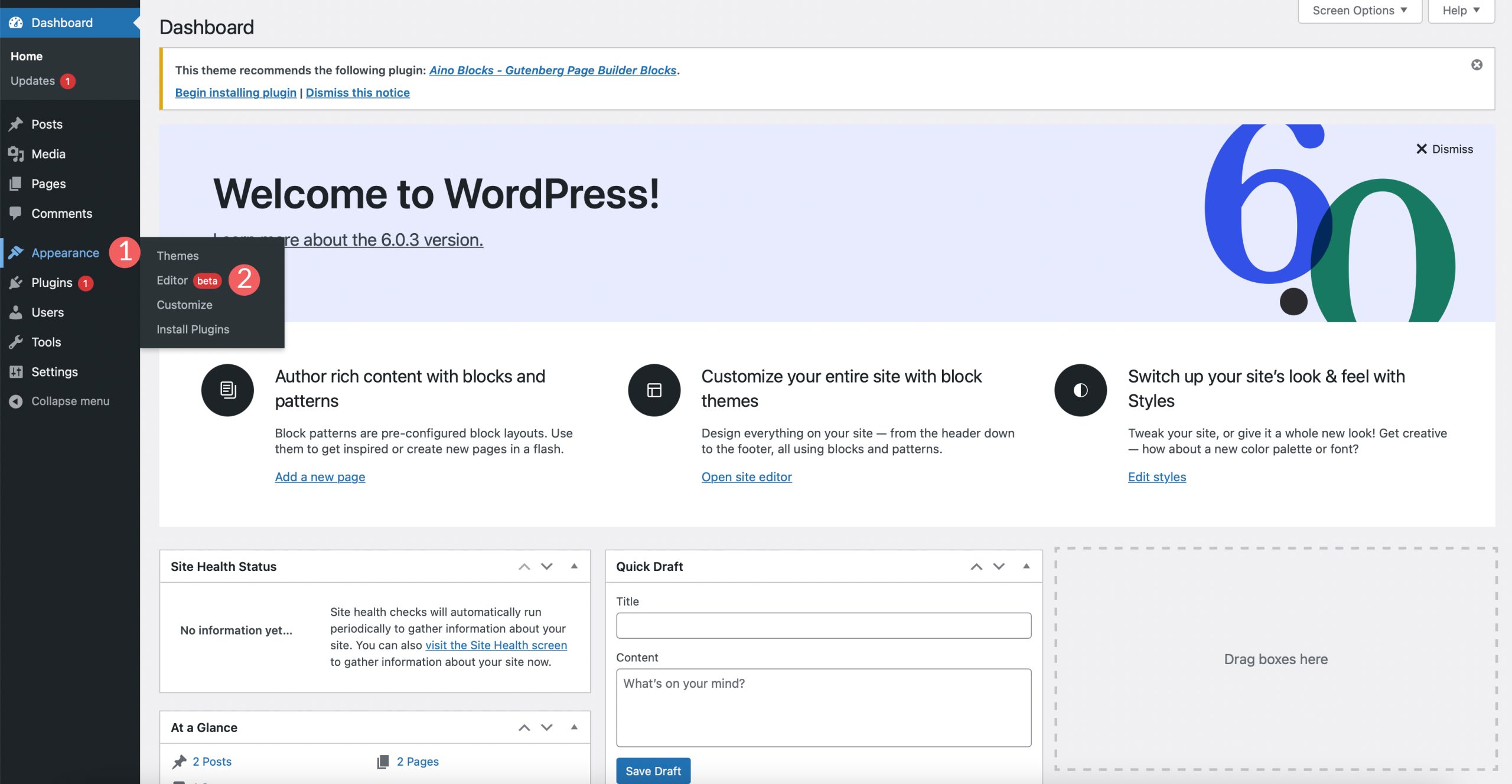
First, open your WordPress dashboard. Look for the Appearance option on the left. Click on it. A menu will appear. Select Customizer. The Customizer helps change your site’s look. You can change colors, fonts, and more.
Navigating To The Customizer
Find the Appearance tab. It’s in the left menu. Click on it. You will see the Customizer option. Click it to open. The Customizer screen will load. It shows options to change your site.
Finding Typography Settings
Once in the Customizer, look for Typography. This section lets you change fonts. Click on Typography. You will see different font settings. Change sizes, styles, and colors. Preview changes before saving.
Using Theme Options For Fonts
WordPress themes often come with many built-in font options. You can find these in the theme settings. Look for a section named “Typography” or “Font Options”. Here, you may see a list of different fonts. Select the font that you like. Some themes even let you change the font size or color. This makes your site look unique.
After picking a font, apply the changes. Click on the “Save” or “Publish” button. This will update your website with the new font. Always preview your changes before saving. This ensures your text looks good. If not, you can choose another font. Keep experimenting until you find the perfect one.
Installing And Using Font Plugins
Many WordPress users choose plugins to change fonts. These plugins are easy to use. Some popular ones are Easy Google Fonts and WP Google Fonts. They offer a big font library. Users can pick from many styles. Another choice is Use Any Font. This plugin allows uploading any font file. It gives more control over typography. This is important for unique designs.
Go to the WordPress dashboard. Click on Plugins, then Add New. Search for the desired font plugin. Click Install Now. After installation, click Activate. The plugin is now ready to use. Follow any setup instructions. These can vary by plugin. Usually, they are simple and clear.
Once activated, find the plugin settings. These are often in the dashboard menu. Here, users can choose fonts. Adjust sizes and styles too. The changes show on the site instantly. Some plugins offer live previews. This helps in making decisions. Always save changes after editing. Check the website to see the new look.
Custom Css For Font Changes
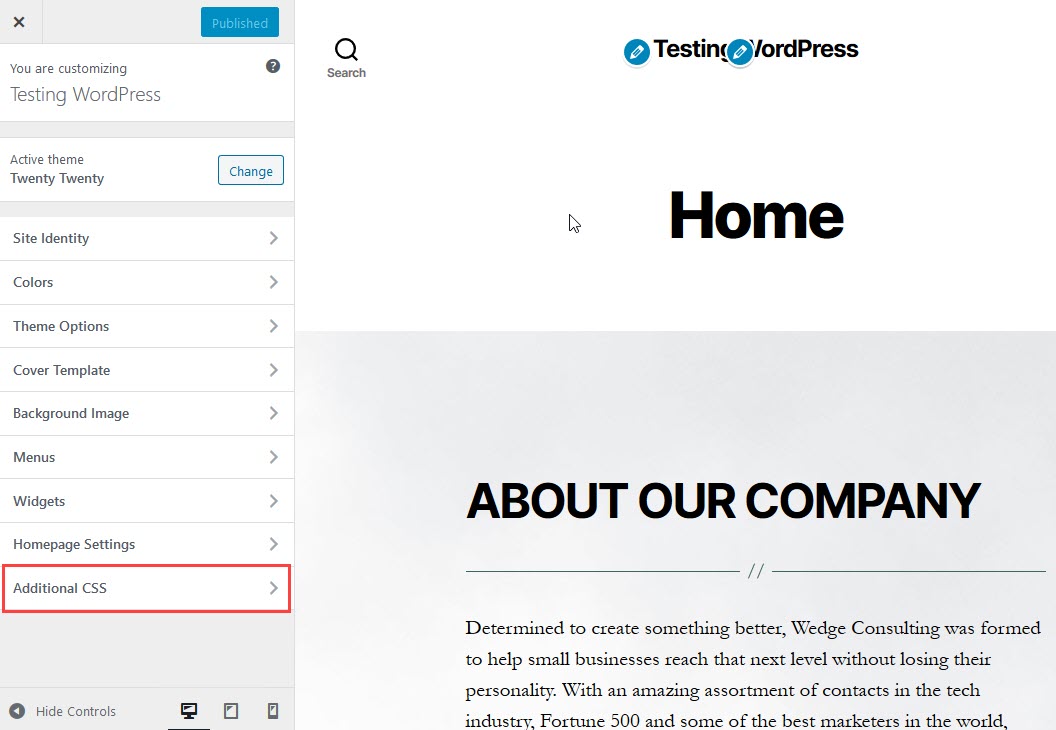
Enhance your WordPress site by customizing theme fonts using CSS. Access the WordPress customizer and navigate to “Additional CSS. ” Insert your desired CSS code to adjust font styles, sizes, and families, creating a unique look for your website.
Locating The Additional Css Section
Start by opening your WordPress dashboard. Look for Appearance in the menu. Click on Customize. In the new screen, find the Additional CSS section. This is where you can add custom CSS. It’s easy to locate. Just scroll down. It’s usually at the bottom.
Writing Custom Css For Fonts
To change fonts, you need custom CSS. Use the font-family property. This controls the font style. You can select different fonts. For example, font-family: Arial, sans-serif;. This changes the font to Arial. You can adjust font-size as well. For instance, font-size: 16px;. This sets the text size.
Testing And Saving Css Changes
After writing your CSS, test it. Check if the fonts change. Look at different pages. Make sure everything looks good. If happy, click Publish to save. This makes your changes live. You can always edit later. Just go back to the CSS section.
Credit: www.elegantthemes.com
Utilizing Google Fonts
Google Fonts offer a wide range of free fonts. You can find styles that fit your website’s theme. Start by visiting the Google Fonts library. Browse through the categories. Pick a font that matches your design. Ensure the font is readable. This is very important for user experience. After selecting, you will see a code snippet. This will help you add the font to your site.
Adding the font to WordPress is simple. Copy the code snippet from Google Fonts. Go to your WordPress dashboard. Find the Appearance section. Click on Customize. Navigate to the Additional CSS area. Paste the code snippet there. Save your changes. Now, your site uses the new font. Enjoy the new look!
Troubleshooting Font Issues
Changing theme fonts in WordPress can resolve font issues effortlessly. Navigate to Appearance, then Customize to access font settings. Experiment with different fonts and see the changes instantly.
Common Font Display Problems
Sometimes, fonts look different on the website. Fonts may appear too small or too big. Some letters might not display correctly. This can make the website hard to read. Often, the problem is in the theme settings. Check if the font files are missing or not loaded. Also, look for errors in the CSS. These can cause font display issues. Using web-safe fonts can help fix the problem. Ensure that the theme supports the fonts you want to use.
Clearing Cache And Refreshing
The browser cache can cause font problems. It holds old data, like fonts. Clear the cache to fix display problems. Refresh the browser after clearing. This helps load the latest changes. Sometimes, the server cache needs clearing too. Use a plugin for this. Always back up your site before making changes. This keeps your site safe.
Credit: themeisle.com
Best Practices For Font Customization
Changing theme fonts in WordPress enhances your site’s appeal. Access the WordPress dashboard, navigate to ‘Appearance,’ then ‘Customize. ‘ Choose ‘Fonts’ to explore options. Experiment with styles to match your brand’s voice. Ensure font readability for all devices.
Maintaining Consistency
Choosing a font style is important. It helps to keep a theme’s look neat. Sticking to one or two font types is best. Too many fonts can make a site look messy. Visitors like simple and clean designs. Consistent fonts are easy to read. They also help users feel comfortable.
Avoiding Overloading With Fonts
Using too many different fonts is confusing. This can distract visitors from the main message. Focus on readability. Pick fonts that are easy on the eyes. Use bold or italic styles to highlight key points. Keep body text simple. Save fancy fonts for headings or special parts.
Credit: www.inmotionhosting.com
Frequently Asked Questions
How Do I Change Fonts In WordPress?
To change fonts in WordPress, navigate to Appearance > Customize. Then, select the Typography section. Here, you can choose different fonts for various elements. If your theme doesn’t support this, use a plugin like Easy Google Fonts. Always preview changes before saving to ensure they fit your design.
Can I Use Google Fonts In WordPress?
Yes, you can use Google Fonts in WordPress. Install a plugin like Easy Google Fonts. After activation, access it via Appearance > Customize. Select Typography, then choose Google Fonts for your site elements. This plugin allows easy integration without coding.
Always preview your changes to see how they look.
Do All Themes Support Custom Fonts?
Not all themes support custom fonts directly. Premium themes often offer typography options. If your theme lacks this feature, use plugins like Easy Google Fonts. Alternatively, custom CSS can be added for font changes. Always check your theme documentation for specific font customization options.
Are Font Changes Mobile-friendly In WordPress?
Most WordPress themes ensure font changes are mobile-friendly. Responsive design is key to user experience. When adjusting fonts, preview changes on various devices. Ensure readability on smartphones and tablets. If issues arise, consider using media queries in custom CSS for mobile-specific adjustments.
Conclusion
Changing fonts in WordPress is a straightforward process. It enhances your site’s appeal. Choose fonts that reflect your brand. Use WordPress themes or plugins for easy customization. Always preview changes before saving. This ensures your design looks consistent. Regularly update your site for a fresh look.
Keep your audience engaged with readable fonts. Simple changes make a big impact. Experiment with different styles to find the best fit. Your site’s appearance should align with your content. A good font choice boosts user experience. Improve readability and attract more visitors with thoughtful design.


