
Are you looking to give your WordPress site a fresh identity by changing the theme folder name? You might think it’s just a small tweak, but it can have a big impact on your website’s branding and security.
Perhaps you want to hide your theme from prying eyes or simply organize your files better. Whatever your reason, knowing how to properly change the theme folder name is crucial. In this guide, you’ll discover a step-by-step process that’s easy to follow, ensuring you avoid any pitfalls that could disrupt your site.
Don’t worry about breaking your website or losing your customizations—you’re in the right place to learn how to safely make this change. Ready to take control of your WordPress theme? Let’s dive in!
Credit: rankmath.com
Why Change Theme Folder Name
Changing the theme folder name can be very useful. It helps to avoid theme conflicts. Sometimes, two themes have the same name. This can cause issues. Renaming the folder makes your site unique. It also helps with security. Hackers often look for common theme names. A different name makes it harder for them. Another reason is branding. You might want your brand name in the folder. This can make it look more professional. Always make sure to backup your site first. Backing up keeps your site safe. It avoids losing data during changes. Remember, changing the folder name is not hard. But be careful and follow steps correctly. This keeps your site running smoothly.

Credit: oceanwp.org
Pre-renaming Preparations
Always create a backup before making changes. It saves your data. Use plugins like UpdraftPlus or BackupBuddy. They help store everything safely. You won’t lose important parts. Your content stays intact. Backup plugins are easy to use. Follow simple steps. Click and save. Now, you can make changes without fear. Your site is safe. Backups are your safety net.
Ensure your theme supports renaming the folder. Some themes have restrictions. Check the documentation. Read user reviews. They share experiences. Compatibility is key. A change may cause errors. Ensure plugins work with the new name. Test on a local server first. Make sure everything runs smoothly. No glitches. No errors. Compatibility checks prevent issues later. Your site stays functional and neat.
Locating The Theme Folder
Start by opening your WordPress dashboard. Find the left menu and click on “Appearance”. This will lead you to the themes section. Here, you can see the themes installed on your site. The active theme is usually at the top. To change the folder name, you need access to the theme files.
Use an FTP client like FileZilla or the File Manager in your hosting panel. Connect to your website files. Once connected, locate the “wp-content” folder. Inside, you’ll see the “themes” folder. Click on it to find the folders of all installed themes. Choose the folder of the theme you wish to rename. Be careful with this process to avoid errors.
Renaming The Theme Folder
Open cPanel on your web host. Go to the File Manager. Find the public_html directory. Locate the wp-content folder. Click on the themes folder. Right-click on the theme folder you want to rename. Choose Rename from the menu. Enter the new name. Click Confirm to save changes.
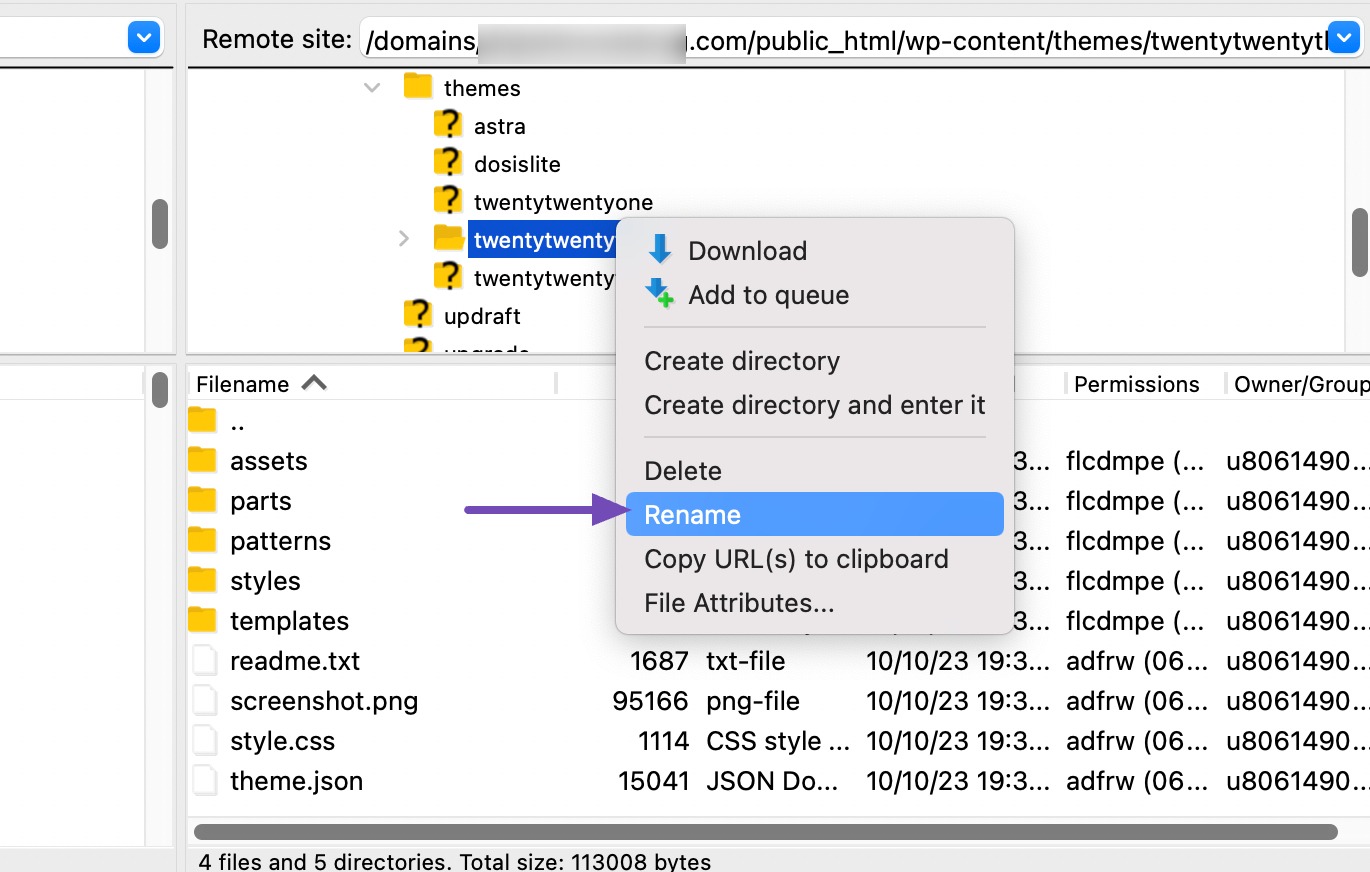
Download and install an FTP Client. Connect to your website. Use your server details for login. Find the wp-content/themes folder. Right-click on the theme folder. Select Rename. Type the new folder name. Press Enter to apply changes.
Access your server using SSH. Navigate to the wp-content/themes directory. Type mv oldfoldername newfoldername. Press Enter to execute. Check the folder name again. Ensure the theme works on your site.
Updating WordPress Database
Changing the theme folder name in WordPress requires updating the database. First, access the WordPress files via FTP. Locate your theme folder, rename it, and then update the database entry to reflect this change. This ensures WordPress recognizes the new folder name and functions seamlessly.
Modifying The Wp_options Table
Change the theme folder name in the database. First, access the wp_options table. Look for the ‘template’ and ‘stylesheet’ options. These hold the current theme name. Update them with the new theme folder name. Be careful while editing. Mistakes can break your site.
Adjusting Theme_mods And Sidebars_widgets
After changing the folder name, check theme_mods in the database. Find the old theme name and change it. Also, update sidebars_widgets for widget settings. This step ensures everything works smoothly. Always backup your database before making changes.
Testing The New Theme Name
First, go to your website’s main page. Look at the appearance of your site. Does it seem the same or different? Ensure the colors and fonts look right. Check if all images are showing properly. If something looks off, the theme name change might not be complete.
Checking Website Appearance
Visit different pages on your site. Observe if each page looks consistent. Make sure the layout is correct everywhere. A consistent look means the theme name change is successful. Confirm that the menu is visible and working on all pages.
Verifying Functionality
Try clicking on buttons and links. Ensure they work and lead to the right pages. This step is vital to confirm the website’s functionality. Test forms to check if they are submitting data correctly. A working site means the theme change did not break anything.
Troubleshooting Common Issues
Changing the theme folder name can break links. Links in your theme might stop working. Check all links on your site. Use a tool to find broken links. Fix these links by updating them. Make sure each link points to the new folder name. Check your menu links too. They might need updates.
After changing the theme folder name, styles might go missing. Styles make your site look good. Scripts might not work. This breaks features on your site. Check your theme’s CSS and JS files. Update the paths in your theme files. Use the correct folder name. This will fix the missing styles and scripts.

Credit: oceanwp.org
Best Practices For Renaming
Renaming a theme folder can break updates. Themes need to stay connected to their updates. Updates fix bugs and add features. If the name changes, updates might not work. It’s important to follow steps carefully. This keeps the theme working well. Always backup before renaming.
Names should be clear and simple. Consistent naming helps you remember. Use lowercase letters for names. Spaces can cause problems. Use dashes instead of spaces. Keep names short but meaningful. This helps when you look for files later. Stick to one style for naming.
Frequently Asked Questions
Can I Rename My WordPress Theme Folder?
Yes, you can rename your WordPress theme folder by accessing your site’s file manager or FTP. Navigate to the wp-content/themes directory, locate your theme folder, and rename it. Ensure to update any hard-coded paths in your theme files to avoid errors.
Will Changing Theme Folder Name Affect My Site?
Changing the theme folder name can affect your site if not done carefully. Ensure to update paths in theme files and plugins. Also, clear your site’s cache and check for broken links. This will help maintain site functionality and avoid downtime.
How Do I Access My WordPress Theme Files?
Access your WordPress theme files via your hosting provider’s file manager or FTP client. Navigate to the wp-content/themes directory. Here, you can view and edit theme files. Ensure you back up files before making any changes to prevent data loss.
Is It Safe To Edit Theme Folder Name?
Editing the theme folder name is safe if done correctly. Back up your site before making changes. Ensure all file paths are updated to reflect the new folder name. This minimizes errors and preserves site functionality.
Conclusion
Changing your theme folder name in WordPress is simple. Follow the steps carefully for a smooth process. Ensure you back up your files before starting. Renaming the folder helps with organization. It can also prevent conflicts with plugins. Always check your site after making changes.
This ensures everything works correctly. If issues arise, retrace your steps. Double-check every detail for accuracy. Enjoy a cleaner, more organized WordPress experience. A little effort makes a big difference. Your site will run smoothly with the right tweaks. Happy blogging!


