
Are you looking to refresh your WordPress site with a new look and feel? Changing your theme content is one of the quickest ways to give your site a fresh start.
But if you’re worried about losing your existing content or unsure how to make the switch smoothly, you’re in the right place. This guide will walk you through the process step-by-step, ensuring your site transitions seamlessly without any hiccups. Imagine captivating your audience with a stunning design that reflects your brand perfectly.
Don’t let the fear of change hold you back; instead, embrace the opportunity to elevate your site. Ready to transform your WordPress theme content and dazzle your visitors? Let’s dive in and make your vision a reality.
Choosing A New Theme
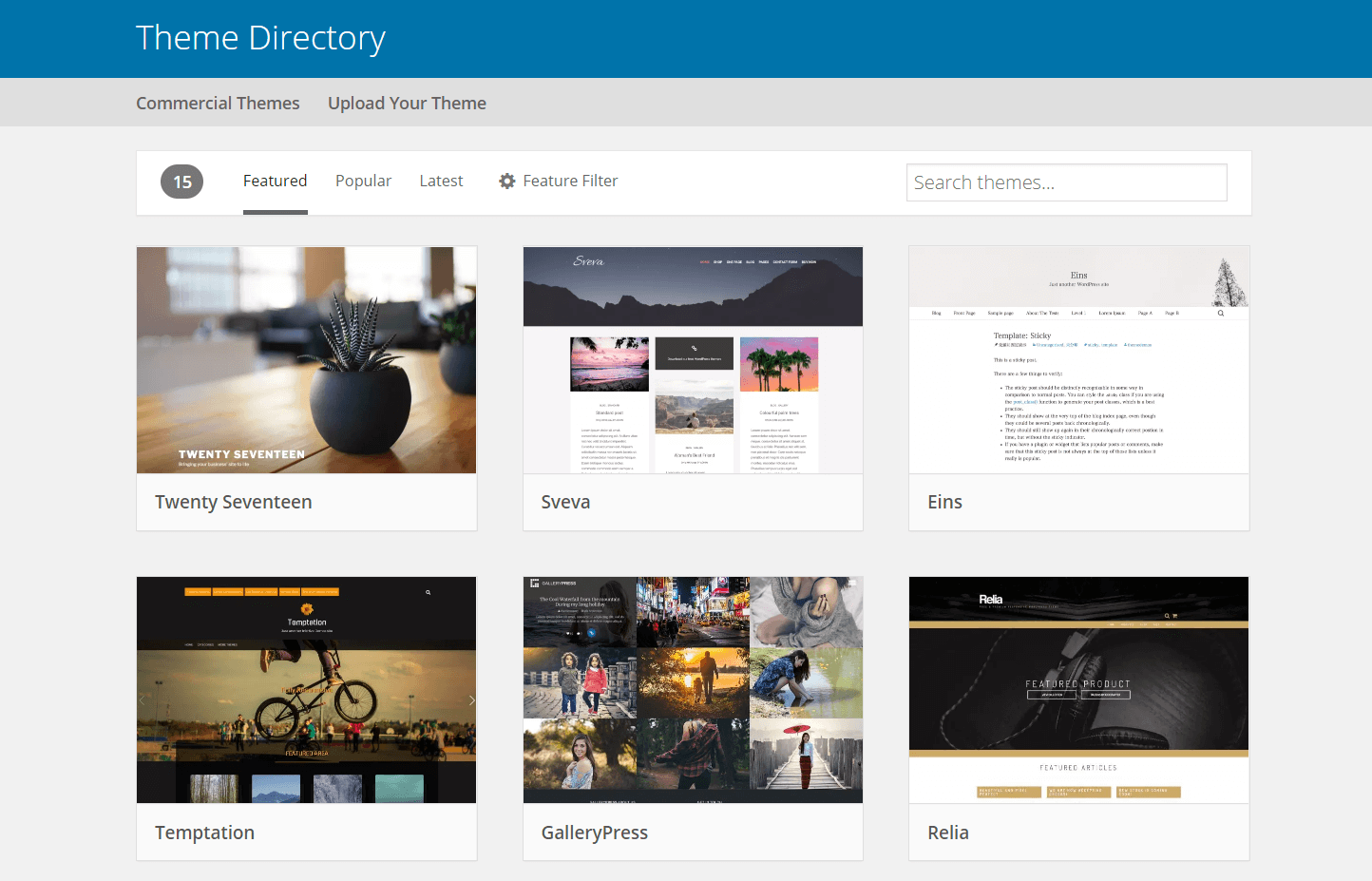
Many themes are available in WordPress. Some are free, some are paid. Each theme has different styles. They can change how your site looks. You can browse these themes in the WordPress theme library. There are many categories to choose from. Each one offers unique designs and features.
Think about what you need. Do you want a simple look? Or maybe something colorful? A good theme matches your site’s purpose. Check if it is responsive. This means it looks good on all devices. Make sure the theme is easy to use. You should be able to change things easily. Also, read the theme’s reviews. Good reviews mean happy users. A well-rated theme is often reliable.
Installing A New Theme
Changing theme content in WordPress enhances your website’s look and feel. Navigate to “Appearance” in the dashboard, then select “Themes. ” Choose your new theme and click “Activate” to update your site’s design seamlessly.
Using The WordPress Repository
Choose a new theme from the WordPress repository. Open your WordPress admin panel. Go to Appearance and then select Themes. Click Add New for more options. Search for themes using keywords. Preview themes before installing them. Click Install to add the theme to your site. After installation, click Activate to use the theme. Your site now has a new look. Explore different themes for unique designs. Each theme changes your site’s appearance. Always check the theme’s ratings and reviews. Good themes have high ratings.
Uploading A Custom Theme
Download your custom theme to your computer. Go to the Appearance section in WordPress. Click on Add New. Select Upload Theme at the top. Click Choose File to find your theme. Pick the theme file from your computer. Press Install Now to upload the theme. Wait for the upload to finish. Click Activate to use your theme. Your site now uses the custom theme. Custom themes offer unique features. Make sure the theme is compatible with WordPress. Check for theme updates regularly. Updates improve security and performance.
Customizing Theme Settings
First, go to your WordPress dashboard. Look for Appearance in the menu. Click on it. Then, select Customize. This opens the theme customizer. You can change many things here. The customizer is easy to use. It helps you make your website look unique. You can see changes live.
Inside the customizer, find Layout settings. You can change the header and footer styles. Pick colors that match your brand. Use the color picker for easy selection. Bright colors make your site lively. Dark colors add elegance. Try different combinations. See what looks best. Remember to save your changes.
Editing Theme Files
Child themes let you change your site safely. They use the main theme but allow your unique changes. This means your customizations are safe during updates. First, create a new folder in your theme directory. Add a new style.css file. This file must have special header information. Then, include the main theme’s CSS. Lastly, activate your child theme in the WordPress dashboard.
CSS changes how your site looks. You can add or change colors, fonts, and layouts. Open your child theme’s style.css file. Make your changes there. PHP changes how your site works. Be careful with PHP edits. Mistakes can break your site. Use a code editor to make changes. Always keep a backup of your files. This way, you can restore them if needed.
Utilizing Page Builders
Changing theme content in WordPress is simple with page builders. Drag-and-drop tools let you edit headers, footers, and layouts easily. Customize your site without coding knowledge, making it accessible for everyone.
Introduction To Page Builders
Page builders help you design websites easily. They offer drag-and-drop tools. You can change layouts without coding. Widgets add new features like sliders and galleries. Page builders save time. They make website design fun and simple.
Popular Page Builder Plugins
Many plugins are popular with users. Elementor is user-friendly with many templates. Beaver Builder is great for beginners. Divi offers a wide range of designs. WPBakery is flexible for advanced users. Each plugin has unique features. Choose one that suits your needs.

Credit: www.wpzoom.com
Managing Widgets And Menus
Widgets are small blocks. They add more functions to your site. You can find them in the WordPress dashboard. Go to Appearance and then Widgets. Drag and drop the widget you want. Place it in the sidebars or footers. Arrange them as you like. Try different places.
Some themes have more widget areas. Check your theme options. You can add text, images, or videos. They enhance your website. Make your site look good and work well.
Menus help visitors navigate your site. Visit the Appearance section. Then click on Menus. Create a new menu. Add pages or links. Arrange them in order. Use drag and drop.
Customize menu names. Make them simple and clear. Save your menu when done. Assign it to a location. Usually, it’s the header or footer. Now your visitors can find things easily.
Testing Theme Changes
Previewing changes is very important. Check your theme on several devices. Use a computer, tablet, and phone. Themes look different on each. Make sure the theme looks good everywhere. Pay attention to fonts and colors. They should be clear and readable. Test buttons and links. Ensure they work properly.
Broken links can be frustrating. They confuse visitors. Check every link in your theme. Use online tools to find broken links. Fix them as soon as possible. Broken links can hurt your website’s SEO. They make it harder for people to find your site. Avoid broken links for a better user experience.

Credit: jetpack.com
Backup And Restore Options
Backing up your WordPress theme is vital. A backup keeps your data safe. Use plugins like UpdraftPlus for easy backup. Save your backup on cloud storage or external drives. This ensures safety in case of errors. Regular backups protect against data loss. Set a schedule for automatic backups. This way, you won’t forget. Backups help if updates break your site.
Restoring old versions is simple with backups. Access your backup files. Use your plugin to restore them. This fixes broken themes quickly. Restoring helps recover lost content. It saves time and hassle. Always keep multiple backups. This way, you have options. Restoring is a safety net for your site.
Credit: wpengine.com
Frequently Asked Questions
How Do I Customize WordPress Theme Content?
To customize your WordPress theme content, use the WordPress Customizer. Navigate to Appearance > Customize in your dashboard. Here, you can adjust various theme settings, such as colors, fonts, and layouts. Don’t forget to save your changes to ensure they’re applied to your site.
Can I Change WordPress Theme Without Losing Content?
Yes, you can change your WordPress theme without losing content. WordPress content like posts, pages, and media files are stored separately from themes. Always back up your site before switching themes to prevent data loss. Use a staging site to preview changes before making them live.
What Are WordPress Theme Template Files?
WordPress theme template files define the layout and design of your site. They are PHP files that control specific pages like header, footer, or posts. Common templates include index. php, single. php, and page. php. Editing these files allows you to customize the look and feel of your site.
How To Safely Edit WordPress Theme Code?
To safely edit WordPress theme code, use a child theme. Child themes protect your modifications during theme updates. Create a child theme by duplicating your parent theme’s style. css and functions. php. Make changes in these files, ensuring your customizations remain intact even after updates.
Conclusion
Changing your WordPress theme content is straightforward. Follow steps, and you’ll succeed. Customize layouts to suit your style. Tweak fonts for better readability. Adjust colors for your brand’s tone. Use plugins to enhance functionality. Always preview changes before going live.
Regular updates keep your site fresh. Your personal touch makes your site unique. Experiment with different themes. Find what works best for your audience. Remember, practice makes perfect. Keep learning and exploring. Happy customizing your WordPress site!


