
Are you looking to give your WordPress site a fresh new look but aren’t sure how to change your theme via FTP? Don’t worry; you’re in the right place!
Changing a WordPress theme using FTP might sound technical, but it’s actually a straightforward process that you can easily master. By the end of this article, you’ll have the skills to seamlessly switch themes and give your site the makeover it deserves.
Imagine the satisfaction of having complete control over your website’s appearance, all achieved with just a few simple steps. You’ll not only learn how to change your WordPress theme through FTP but also gain confidence in managing your site’s backend like a pro. So, if you’re ready to take your WordPress skills to the next level and unlock new design possibilities, keep reading!
Credit: www.hostinger.com
Preparing For Theme Change
Always save your website before changes. Use a plugin for easy backups. Or, download files through FTP. Don’t forget the database. Use phpMyAdmin for database backups. Safe backups protect your work. Mistakes happen, so be prepared.
Choose a theme that matches your style. Think about your website’s purpose. Themes should load quickly. Ensure the theme works on mobile devices. Check for updates from the theme creator. Updated themes are safe and secure. Read reviews from other users. Make sure support is available.
Credit: helpcenter.qodeinteractive.com
Accessing Your Ftp
Install an FTP Client on your computer. This software helps you connect to your website files. Popular options include FileZilla and Cyberduck. Download and install the client by following simple steps. These clients are user-friendly and perfect for beginners.
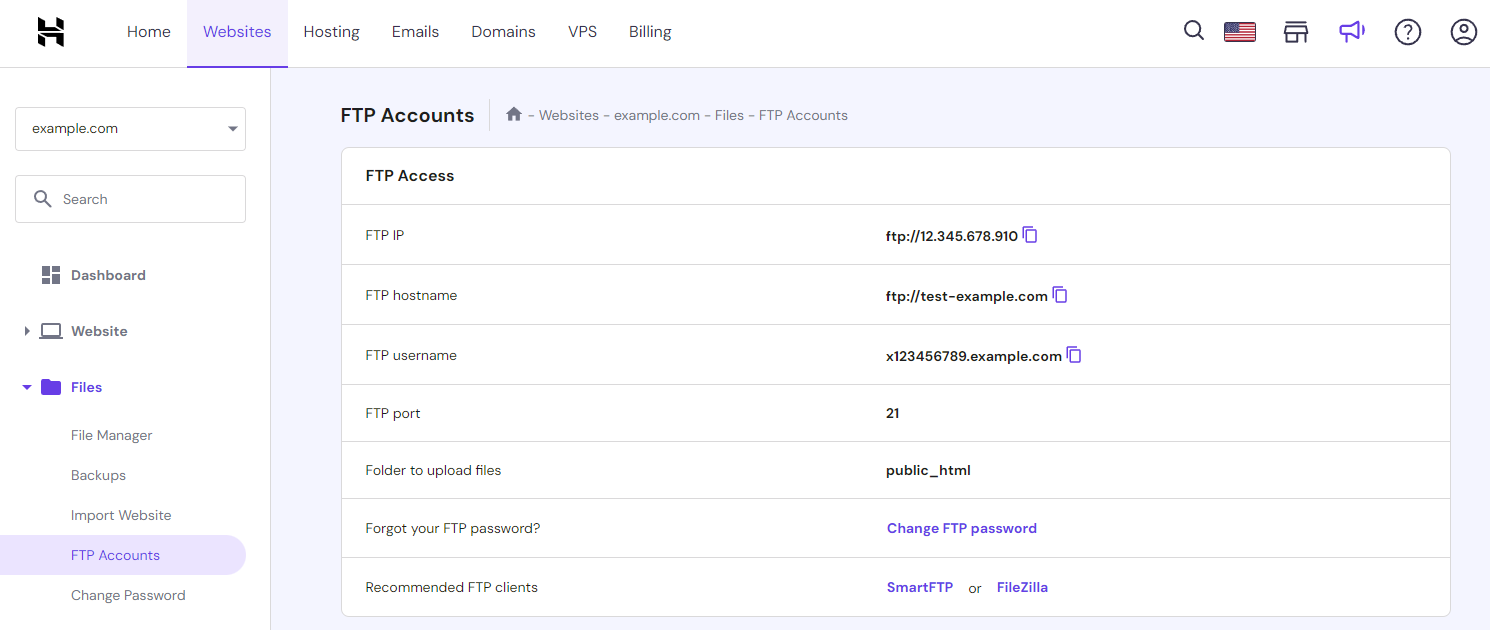
Retrieve FTP Credentials from your hosting account. You need these to connect to the server. Look for them in your hosting dashboard. Common details include the server address, username, and password. Keep this information safe. Without it, you cannot access your files.
Connecting To Your Server
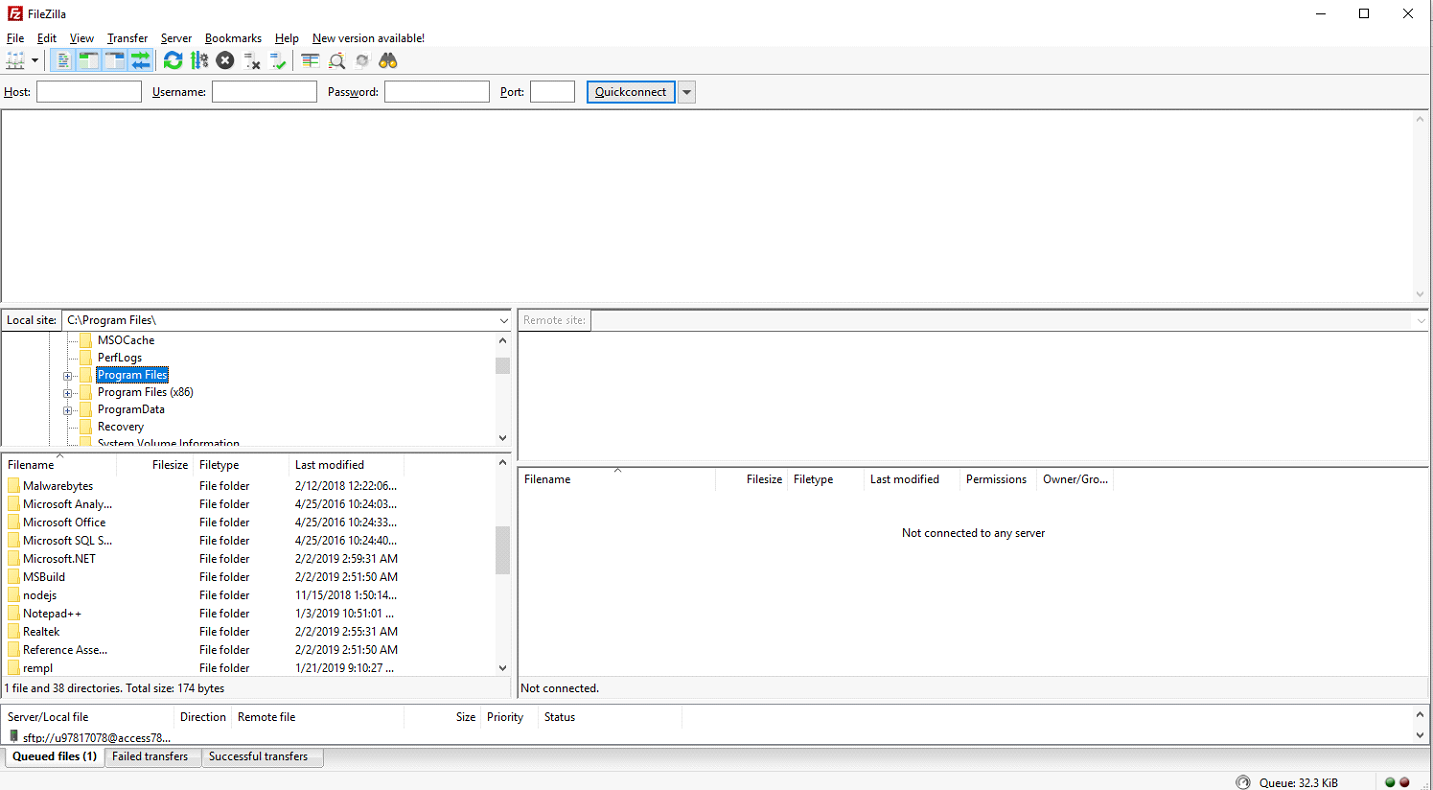
First, open your FTP client. This helps you connect to your server. You need to enter your FTP login details. These include the host, username, and password. You might find these details in your hosting account.
After entering the details, click “Connect.” Your client will link to your server. It may take a few seconds. Once connected, you can see your server files.
Now, find the public_html folder. This folder holds your website files. Inside, look for the wp-content folder. Click to open it. Here, you’ll see folders named themes, plugins, and more.
Open the themes folder. This is where your WordPress themes live. Now, you can add or change themes as needed.
Uploading The New Theme
First, open your FTP client. Log into your server using your credentials. In the root directory, find the wp-content folder. Inside this folder, locate the themes directory. This is where all your themes are stored. Ensure you are in the right place before proceeding.
Download the theme file from the source. It is usually a .zip file. Extract this file on your computer. You will see a folder with the theme name. Use the FTP client to upload this folder. Drag and drop it into the themes directory. Wait for the upload to finish.
Activating The New Theme
To change the theme, find the wp-config.php file. It is in the main folder. Open the file using a text editor. Look for the line that has define(‘WP_DEFAULT_THEME’). Change the theme name in quotes to your new theme’s name. Save the file after editing. This helps WordPress know which theme to use. Ensure you spell the theme name correctly. Mistakes can cause errors. It is simple to fix by rechecking your spelling.
Verify Theme Activation
Visit your WordPress site in a browser. Check if the new theme shows. If it does not, go back and check your steps. Ensure the theme name matches exactly. Check the wp-content/themes folder. See if the new theme is there. If it is missing, upload it again. A correct upload is necessary for activation. Sometimes you need to refresh or clear browser cache. Refreshing helps see the changes clearly.
Testing The New Theme
After changing the theme, look at your website. Does it look nice? Make sure everything is in place. The colors and fonts should look good. Pictures should show up right. If something seems odd, you might need to fix it.
Click on buttons and links. Do they work well? Test the contact forms. You want them to send messages. Check if the menu opens and closes. Ensure that your website is fast. If pages are slow, ask for help. Ensure users can enjoy your site without trouble.
Troubleshooting Common Issues
Changing your WordPress theme via FTP can solve issues like theme conflicts or errors. Access your server, navigate to the themes folder, and upload the desired theme files to replace the current ones. Ensure compatibility to prevent further problems.
Resolve Upload Errors
Changing a WordPress theme via FTP can lead to upload errors. Check if the theme folder is complete. Ensure all files are present. Verify your FTP connection is stable. Sometimes, large files cause problems. Split them into smaller parts if needed. Check your server’s file size limit. Ensure it matches the theme’s requirements. Contact your hosting provider for help if errors persist.
Fix Compatibility Problems
Themes may have compatibility issues with plugins. Disable all plugins first. Activate them one by one. Check for errors after each activation. Update your plugins and WordPress version. Ensure they are compatible with the new theme. Look for theme documentation. Find solutions to known issues. Reach out to theme support if problems continue.
Credit: docs.presscustomizr.com
Frequently Asked Questions
How Can I Access WordPress Files Via Ftp?
To access WordPress files via FTP, use an FTP client like FileZilla. Enter your website’s FTP credentials, which are usually provided by your hosting provider. Connect to the server, navigate to the ‘wp-content’ folder, and locate your themes. This allows you to make changes or upload new themes directly.
What Should I Do Before Changing Themes Via Ftp?
Before changing themes via FTP, back up your website. This ensures you have a copy of your site in case something goes wrong. Ensure you have a reliable FTP client installed. Familiarize yourself with your website structure to avoid accidental deletions or modifications.
Can Changing Themes Via Ftp Break My Site?
Yes, changing themes via FTP can break your site if not done correctly. Ensure compatibility between your new theme and existing plugins. Double-check your theme files are complete. Always have a backup of your site. Follow instructions carefully to prevent issues during the theme switch.
Is Ftp The Best Method To Change Themes?
FTP is useful for changing themes if the WordPress dashboard is inaccessible. It provides direct access to files, allowing manual uploads. However, using the WordPress dashboard is easier and safer for most users. Choose FTP when necessary or if you prefer manual control.
Conclusion
Changing your WordPress theme via FTP is straightforward. First, connect to your server using an FTP client. Navigate to the themes folder. Upload the new theme files there. Ensure the folder name matches the theme name. After uploading, check your WordPress dashboard.
Activate the new theme. Make sure everything looks correct. Customize as needed. Use this method when you face dashboard issues. It’s reliable. A bit technical, but effective. Now, you know how to change themes using FTP. Always back up your site first.
Stay creative with your WordPress designs!


