
Are you tired of the same old look on your WordPress site? Craving a fresh design that matches your brand or personality?
You’re in the right place. Changing the theme on your WordPress site is easier than you might think, and it can completely transform the way visitors experience your content. Imagine your site with a sleek, modern design or perhaps a vibrant, eye-catching layout that keeps visitors clicking.
The visual appeal of your website can capture attention, evoke emotions, and even influence how your audience perceives your content. In this guide, we’ll walk you through the simple steps to change your WordPress theme, ensuring your site not only looks stunning but also functions smoothly. By the end of this article, you’ll have the confidence and knowledge to give your site a makeover that truly reflects your vision. Keep reading to unlock the secrets to a visually compelling and engaging WordPress site!
Choosing The Right Theme
Think about what your website will do. Is it a blog, a shop, or a portfolio? Different themes fit different needs. Themes for blogs focus on reading. Shop themes help sell things. Portfolio themes show off work. Pick a theme that matches your site’s purpose.
Look at the features each theme offers. Some themes have built-in galleries. Others have special layouts for products. Check for customization options like colors and fonts. Pick a theme with features you need.
A good theme works on all devices. Responsive themes look good on phones and computers. Test the theme on different screens. Make sure texts and images adjust properly. This keeps users happy and engaged.
Locating The Theme Section
Finding the theme section on WordPress is simple. Navigate to your dashboard and click on “Appearance. ” Here, you can select “Themes” to view and change your site’s theme effortlessly.
Accessing The Dashboard
First, log into your WordPress account. Use your username and password. After logging in, you will see the dashboard. The dashboard is the main control panel. You can manage your site from here. Look for the left sidebar. This sidebar has many options.
Navigating To Appearance
Find the Appearance option in the sidebar. It is below the Plugins option. Click on it. A menu will appear. This menu has several choices. Click on Themes. Now, you are in the theme section. You can see all installed themes here. Choose your favorite theme. Click Activate to change the theme. Your site will now use the new theme.
Exploring Available Themes
Finding a new theme is fun. The WordPress Theme Directory is a great place. It has many themes. You can search by style, layout, or features. Use the search bar for quick results. Each theme has a preview button. Click it to see how it looks. This helps in picking the right one. It is important to pick a theme that fits your site.
Previewing lets you see the theme in action. Look at the layout and colors. Check the fonts too. Make sure it matches your style. If you like it, you can choose it. If not, try another theme. This way, you get the best look for your site. Always preview before deciding.
Credit: kinsta.com
Installing A New Theme
Start by logging into your WordPress dashboard. Look for the Appearance menu on the left. Click on Themes to open the theme page. You will see a Add New button at the top. Click it. Now, you can see many themes. Use the search bar to find a specific theme. Type the theme name or keywords. Browse through the results. Click on the theme you like. Hit the Install button to add it. Then, click Activate to use it.
First, download your theme from a reliable source. The theme file should be a .zip format. Go to your WordPress dashboard. Find the Appearance menu. Click on Themes. Then, select Add New. You will see an Upload Theme button. Click it. Now, choose your downloaded theme file. Click on Install Now. Wait for the upload to complete. Finally, click Activate to set the theme.
Activating Your Selected Theme
Preview your theme before making it live. This helps you see how your site looks. Go to your WordPress dashboard. Click on Appearance, then Themes. Choose your theme. Click on Live Preview. You will see your site with the new theme. Check every part of your site. Make sure it looks nice.
Once you like the preview, make the theme live. Go back to your dashboard. Click on Appearance, then Themes. Find your theme. Click on Activate. Your site now uses the new theme. Refresh your site to see changes. Tell your friends about your new look.

Credit: www.wpzoom.com
Customizing Your Theme
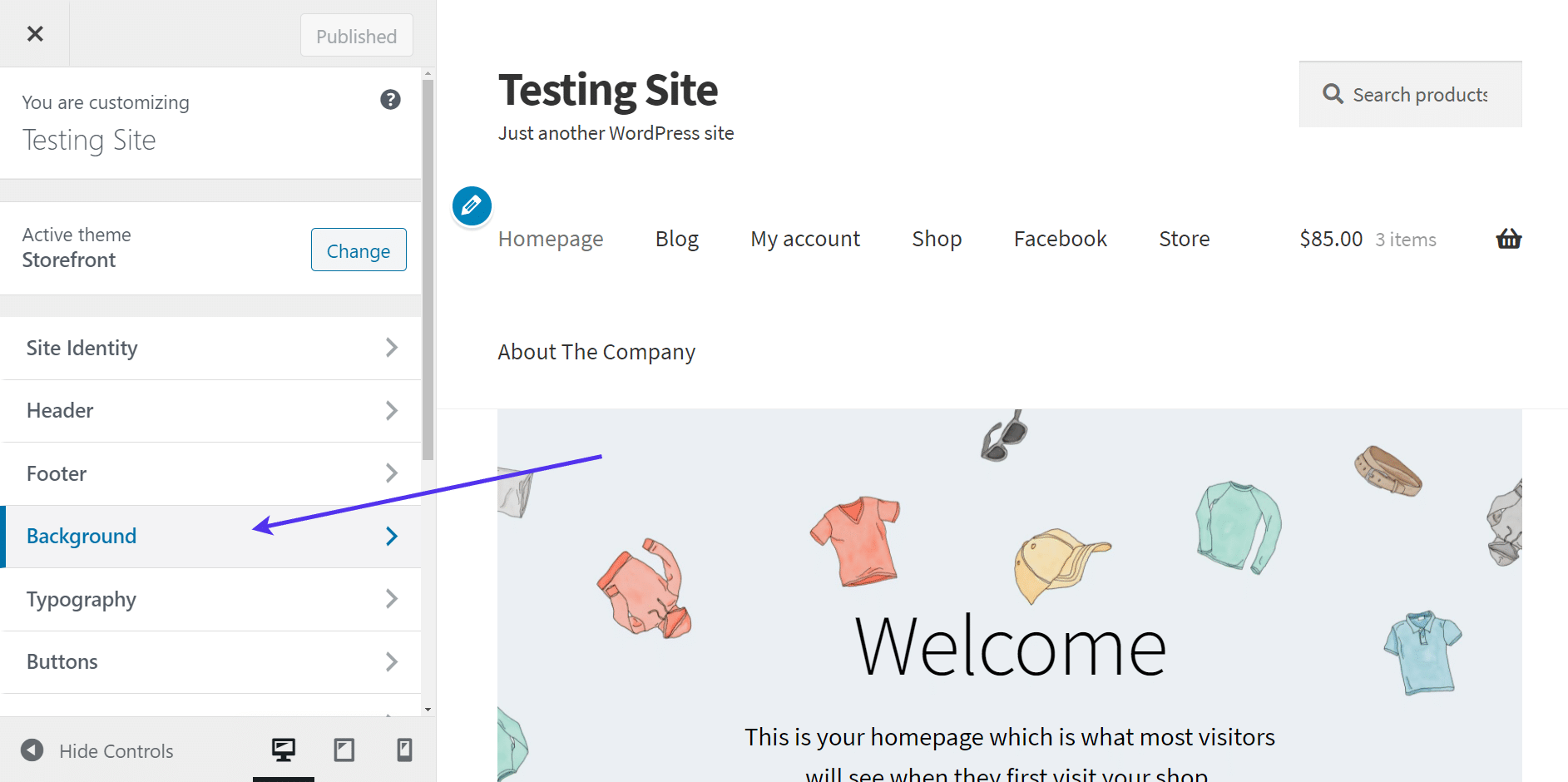
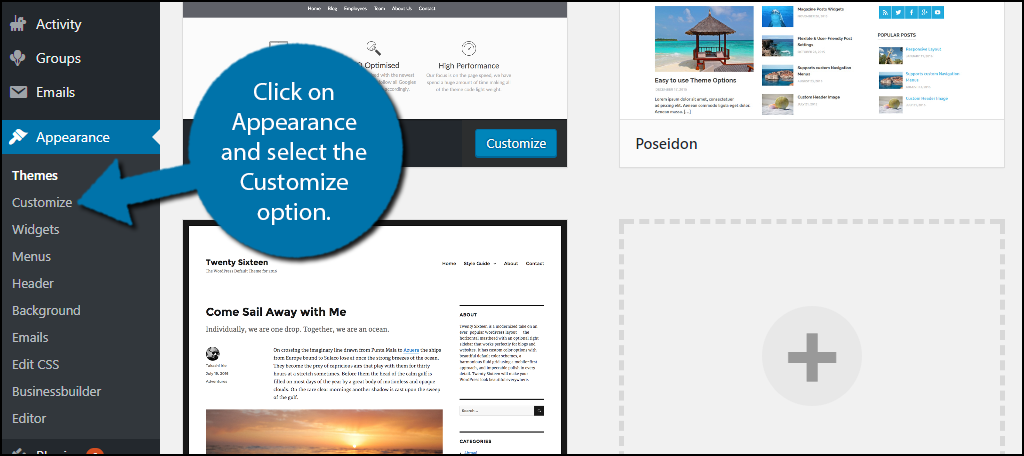
The WordPress Customizer is a useful tool. It allows you to change your theme. You can see changes live. This means you see changes as you make them. You can access it from your WordPress dashboard. Click on Appearance and then Customize. Here, you can adjust many settings. You can change colors, fonts, and layout options. This tool helps you personalize your site easily.
Colors and fonts give your site a unique look. You can change these in the Customizer. Go to the Colors section. Pick colors that match your style. Next, go to the Fonts section. Choose a font that is easy to read. Make sure it fits your site’s theme. Changing these can make your site look better.
Layout options help organize your site. You can change them in the Customizer. Look for the Layout section. Here, you can change the header, footer, and sidebar. You can also adjust the width of your content. Make sure your layout is easy to navigate. This helps visitors find what they need. A good layout improves user experience.
Testing Theme Compatibility
Explore changing the theme on your WordPress site to enhance its look and functionality. Ensure theme compatibility by checking plugin support and responsive design. Test changes in a staging environment to avoid disrupting your live site.
Checking Mobile Responsiveness
Your website should work on phones and tablets. A responsive theme is very important. It makes the site look good on any device. Check if the theme adjusts well on small screens. Resize your browser window to see this. Use online tools to check mobile views. This helps you ensure the theme is mobile-friendly. Most visitors use phones. So, this step is crucial.
Ensuring Plugin Compatibility
Plugins add more features to your website. Some themes may not work with certain plugins. Test your theme with all your important plugins. This helps to avoid problems later. Check if each plugin works well. If a plugin breaks, you may need a different theme. Always use themes that are compatible with your plugins. This ensures smooth functioning of your site.
Troubleshooting Common Issues
Changing your WordPress theme can cause issues like layout problems or missing elements. Ensure your theme is compatible with the latest WordPress version. Always back up your site before making changes to prevent data loss.
Addressing Theme Conflicts
Sometimes, new themes may not work well. This is called a theme conflict. Plugins can also cause problems. They might not fit well with the new theme. To fix this, try disabling plugins one by one. See which one is causing the issue. If a plugin is the problem, find a different one. Or, contact the plugin support team for help. Testing themes on a staging site can prevent issues. This way, you keep the main site safe.
Restoring Previous Themes
Sometimes, a new theme is not what you want. You can switch back to the old one. Go to your WordPress dashboard. Click on “Themes”. Find your old theme in the list. Click “Activate” to use it again. Always keep a backup of your site before making changes. This way, you can restore your site if something goes wrong. If you do not have a backup, use a plugin to help you. Some plugins can restore your site easily.
Maintaining Your Theme
Changing themes on your WordPress site is simple. Start by navigating to your dashboard and clicking “Appearance. ” From there, select “Themes” and choose a new one to activate. Explore different themes to find the perfect look for your site.
Customize your theme to match your style and content needs.
Keeping Your Theme Updated
Always keep your WordPress theme updated. Updates fix bugs and add new features. They also keep your site safe. Hackers can attack sites with old themes. To update, go to your WordPress dashboard. Click on the Updates tab. Check if your theme has an update. Click the Update Now button to begin. The update takes a few minutes. Do not close your browser during the update.
Regular Backups
Make backups of your site often. Backups save your site data. If anything goes wrong, you can restore it. Use plugins like UpdraftPlus or BackWPup. They make backups easy. Choose where to store your backups. Options include cloud, email, or local drives. Set a schedule for automatic backups. Daily or weekly is best. This keeps your content safe from loss.
Credit: www.greengeeks.com
Frequently Asked Questions
How Do I Change My WordPress Theme?
To change your WordPress theme, go to the dashboard. Navigate to ‘Appearance’, then ‘Themes’. Browse available themes, select one, and click ‘Activate’. Ensure the new theme is compatible with your website’s content and plugins to prevent issues.
Can I Preview A WordPress Theme Before Activating?
Yes, you can preview a WordPress theme before activating it. In the ‘Themes’ section, click ‘Live Preview’ on your chosen theme. This allows you to see how your website will look with the new theme without making it live.
Are WordPress Themes Free To Use?
Many WordPress themes are free. You can find free themes in the WordPress theme repository. Premium themes, offering advanced features and designs, are also available. Choose a theme based on your budget and website needs.
Will Changing Themes Affect My Site’s Seo?
Changing themes can affect SEO if the new theme alters site structure or content visibility. Ensure the new theme is SEO-friendly. Check for fast loading times, mobile responsiveness, and proper heading structures to maintain SEO performance.
Conclusion
Changing your WordPress theme is simple. It enhances your site’s look. First, explore the themes library. Choose one that fits your style. Next, install the theme. Follow the prompts. Finally, activate the theme. Check your site’s appearance. Ensure everything works smoothly.
Customization options are available. Adjust colors and fonts. Make it unique. Remember, a new theme can refresh your site. Keep it user-friendly and visually appealing. Regular updates help maintain functionality. Your WordPress site deserves the best look. Enjoy the new theme experience.
Your visitors will appreciate the change. Keep exploring new design possibilities.


