
Are you tired of your WordPress website’s current look? Want to give it a fresh makeover?
Changing your theme can breathe new life into your online presence. It’s like giving your website a brand-new outfit that reflects your style and appeals to your audience. But how do you do it without getting lost in technical jargon or complicated steps?
Don’t worry, we’ve got you covered! In this guide, you’ll discover a simple, step-by-step process to change your WordPress theme effortlessly. You’ll learn how to choose the perfect theme that aligns with your brand and enhances user experience. Stick with us, and by the end of this article, you’ll be ready to transform your website’s look and feel, making it more engaging and visually stunning. Ready to get started? Let’s dive in!
Choosing The Right Theme
Think about your website’s purpose. Is it a blog, shop, or portfolio? Different needs require different themes. Make a list of what you need. Do you want a photo gallery? Or maybe an online store? Knowing your needs helps choose the right theme. Your site’s look and feel matter. Ensure it matches your brand.
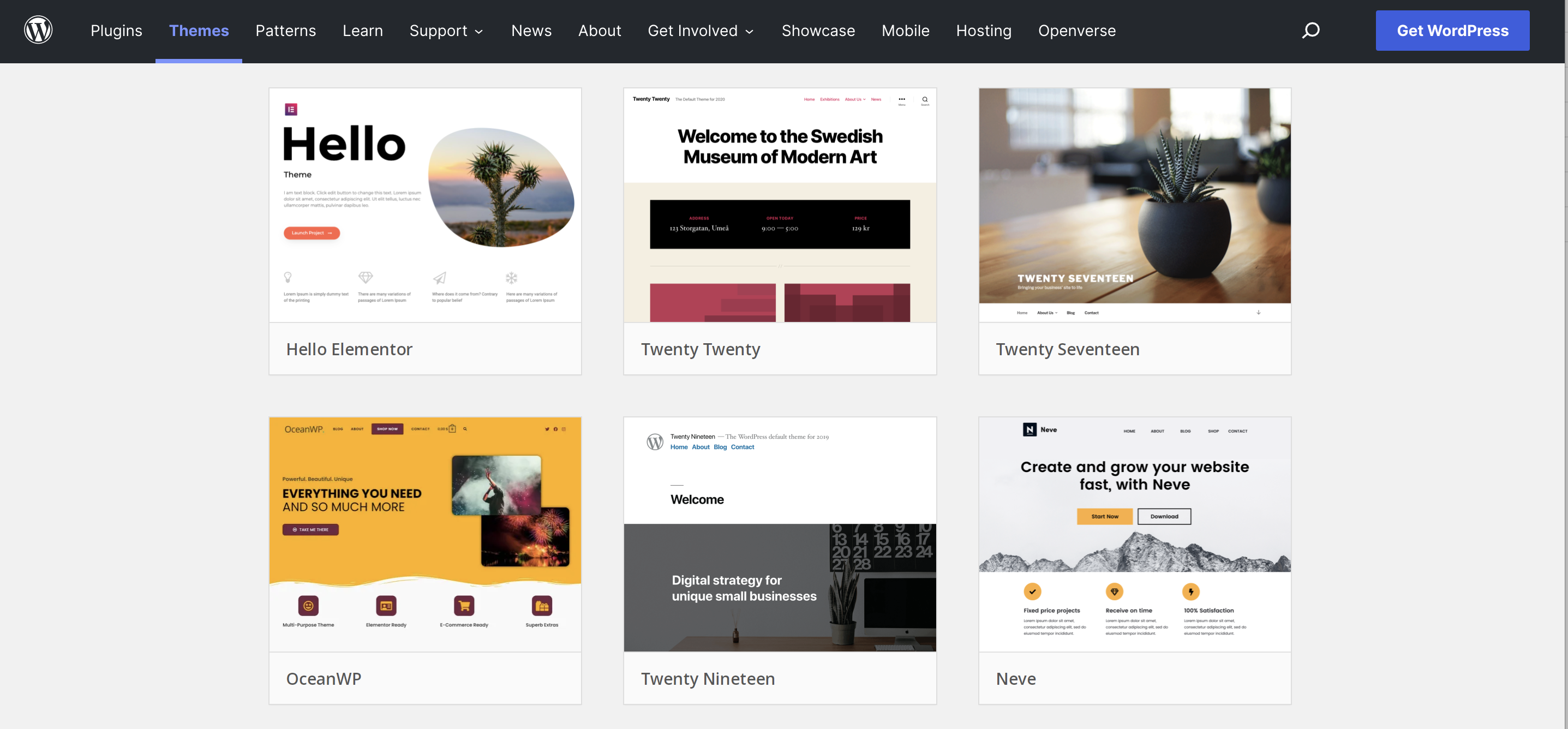
WordPress offers many themes. Some are free, others cost money. Check the ratings and reviews. User feedback is important. It shows how well the theme works. Look for themes that update often. This ensures they are secure and bug-free. Try demos before choosing. This helps you see how the theme looks live.
Look at the theme’s features. Does it support plugins? Plugins can add extra functions. Check if it’s mobile-friendly. Many people use phones to browse. Fast loading is crucial. Slow sites lose visitors. Choose a theme that loads quickly. Customization options are important. Can you change colors or fonts easily? These features help you make a unique site.
Credit: jetpack.com
Installing A New Theme
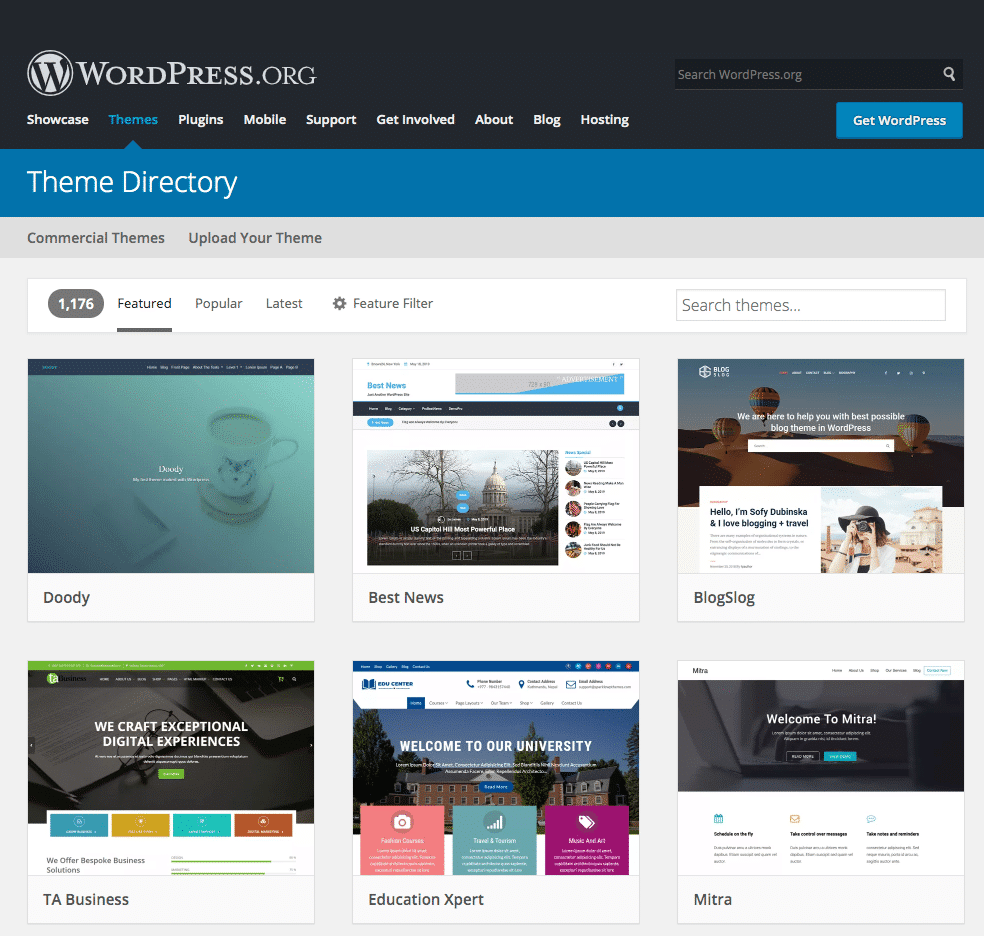
First, open your WordPress dashboard. Click on Appearance on the left sidebar. You’ll see the Theme Directory option. Browse through different themes. Each theme has its own features. Choose a theme you like.
Accessing The Theme Directory
Accessing the directory is simple. Go to your dashboard. Click on Appearance. Then, click on Themes. This opens the theme directory. Look for themes by name or feature. Preview themes before installing.
Uploading A Theme
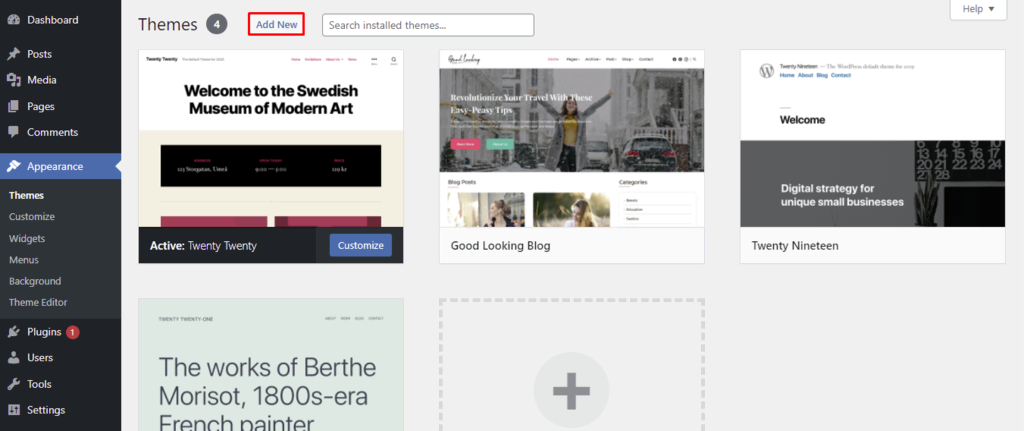
Sometimes you download themes from other sites. You need to upload them. Go to the theme section. Click Add New. Then, click Upload Theme. Choose the file from your computer. Click Install Now.
Installing From A Zip File
Have a theme in a zip file? It’s easy to install. Navigate to the themes page. Click on Add New. Select Upload Theme. Choose the zip file. Click Install Now. Activate the theme once installed.
Activating The Theme
Visit the WordPress dashboard and click on Appearance. Choose Themes from the menu. A list of available themes will appear. Hover over a theme you like. Click on the Preview button. This shows how the theme looks on your site. Check if the colors and layout fit your style. Make sure you like the fonts too. You can change the theme later if needed.
Once you find a theme you like, click on Activate. This will apply the theme to your site. Visit the Customizer to make changes. You can adjust colors and fonts. Add a logo if you have one. Make sure to save your changes. Keep checking how your site looks. Make small changes until you are happy. Your site is now ready with a new look.
Credit: kinsta.com
Customizing Your Theme
Open your WordPress dashboard. Look for the Appearance tab. Click on Customizer. You can now see many options. Change colors and fonts here. Preview your changes before saving. This keeps your website fresh and appealing.
Find the Settings under Appearance. Each theme has its own settings. Adjust the layout and sidebar positions. You can change the header image here. Don’t forget to save your changes. This makes your site unique and personal.
Sometimes, you need special styles. Go to Customizer. Find Additional CSS at the bottom. Type your CSS code here. You can change the look of your site. Be careful with the code. Mistakes can affect your site’s design.
Testing Your Website
Themes may look different on various browsers. It’s important to check compatibility. Use different browsers like Chrome, Firefox, or Safari. See how your website appears. This helps find any problems early.
Many people use phones to browse. Ensure your site is mobile responsive. Resize your browser window. See if elements adjust properly. Your theme should look good on small screens. This keeps users happy.
Test all buttons and links. Ensure everything works smoothly. Navigate through pages. Check the contact form. Make sure you can send messages. Functionality is key for a good user experience.
Backing Up Your Website
Backing up your website is very important. It saves your data. Imagine losing your content. That would be bad. A backup helps you restore your website. It is like a safety net. You can feel safe with a backup. It protects you from data loss.
Website errors can happen anytime. A backup is there to help. It makes things easy. You won’t lose your hard work. Keep your site safe with regular backups.
Plugins make backups easy. They do the hard work for you. Many plugins are free to use. Some are paid. Choose one that fits your needs. Install the plugin on your site. Set it up to run backups regularly. This keeps your site safe. Your data stays secure.
Plugins save time. They are simple to use. No need for technical skills. Follow the steps in the plugin. Your website will be safe and sound.
Troubleshooting Common Issues
Changing your WordPress theme involves a few simple steps. First, log into your dashboard. Navigate to the “Appearance” tab. Choose “Themes” to view available options. Select and activate your preferred theme. Ensure all plugins and widgets are compatible. Troubleshoot any display issues that arise.
Handling Theme Conflicts
Changing themes can cause conflicts with plugins. Some features may not work. To fix this, try deactivating plugins one by one. Check your site after each step. This helps find the problem. Update both the theme and plugins to their latest versions. Sometimes, old versions cause issues. Use a child theme to prevent changes from breaking the site. It keeps the original theme safe.
Resolving Display Problems
After changing a theme, display issues can appear. Elements might look odd. Start by clearing your browser’s cache. This ensures new changes show up. If the problem persists, check the theme’s customization settings. Adjust colors and fonts to match your needs. Sometimes, the problem is due to incorrect widget placement. Move widgets to the right areas. If all else fails, consider reaching out to theme support. They can provide specific guidance.
Credit: www.hostinger.com
Seeking Professional Help
Changing your WordPress theme can be tricky. Professional help ensures a smooth transition without losing content or functionality. Experts handle technical issues, saving time and preventing stress.
When To Hire A Developer
Changing a theme can be hard. If it feels too complex, think about hiring a developer. They know how to make themes fit your needs. A developer can also help when your site has many custom features. This keeps everything running smoothly. It’s also smart to hire help if you have a large audience. This way, your site will stay fast and look great.
Finding Reliable Experts
Finding a good expert is key. Check their past work and reviews. Look for developers with positive feedback. Ask friends or online groups for suggestions. A reliable expert will explain things clearly. They will also be open about costs and time. Make sure to discuss your needs and budget before starting. This helps avoid surprises later.
Frequently Asked Questions
How Do I Change My WordPress Theme?
To change your WordPress theme, navigate to your dashboard. Click on “Appearance,” then “Themes. ” Browse available themes or upload a new one. Select your desired theme and click “Activate” to apply it. Ensure compatibility with your plugins and backup your site before making changes.
Can I Preview A Theme Before Activating It?
Yes, WordPress allows you to preview themes before activating. Go to “Appearance,” then “Themes. ” Hover over a theme and click “Live Preview. ” This lets you see how it looks on your site. Make adjustments if needed, ensuring it aligns with your design preferences.
Will Changing Themes Affect My Content?
Changing themes usually won’t affect your content. Your posts, pages, and media will remain intact. However, some theme-specific settings may change. Check compatibility and backup your site before switching themes. This ensures a smooth transition without losing important information.
How Can I Customize My New Theme?
To customize your new theme, use the WordPress Customizer. Go to “Appearance,” then “Customize. ” You can adjust colors, fonts, headers, and more. Make sure your customizations enhance your site’s branding and user experience. Preview changes live before saving them.
Conclusion
Changing your WordPress theme is simple yet impactful. Start by choosing a theme that fits your brand. Ensure it is responsive and user-friendly. Check for compatibility with your plugins. Preview your theme before activating it. Back up your site to avoid data loss.
Customize your new theme to match your style. Adjust colors, fonts, and layout. Test your site on different devices. Confirm that everything works smoothly. Your new theme can refresh your website’s look and feel. Keep your audience engaged with a new design.
Enjoy your updated WordPress site.


