
Imagine transforming your WordPress site with just a few clicks. Whether you’re looking to freshen up your blog’s appearance or revamp your business website, changing your theme can breathe new life into your online presence.
You don’t need to be a tech wizard or spend hours diving into complex coding. With WordPress, updating your site’s look is straightforward and satisfying. This guide will show you how to change your WordPress theme effortlessly, allowing your site to stand out and captivate your visitors.
Curious about the secrets behind a visually stunning website? Read on, and you’ll discover how simple tweaks can make a big impact on how your audience perceives your brand.
Credit: wpengine.com
Choosing A New Theme
Decide what you want. A simple look or a complex design? Think about your website’s purpose. Is it a blog, a shop, or a portfolio? Each need different themes. Colors matter too. Choose colors that match your brand. Don’t forget features. Some themes have sliders, galleries, or custom widgets. Make a list. Write what you need and want.
Explore themes on WordPress. You can find free and paid options. Free themes are good for simple sites. Paid themes often offer more features and support. Preview themes before choosing. Check their reviews and ratings. See if others like them. Compare features and styles. Pick one that fits your needs. Always check if it’s responsive. A responsive theme works on phones and tablets.
Installing A New Theme
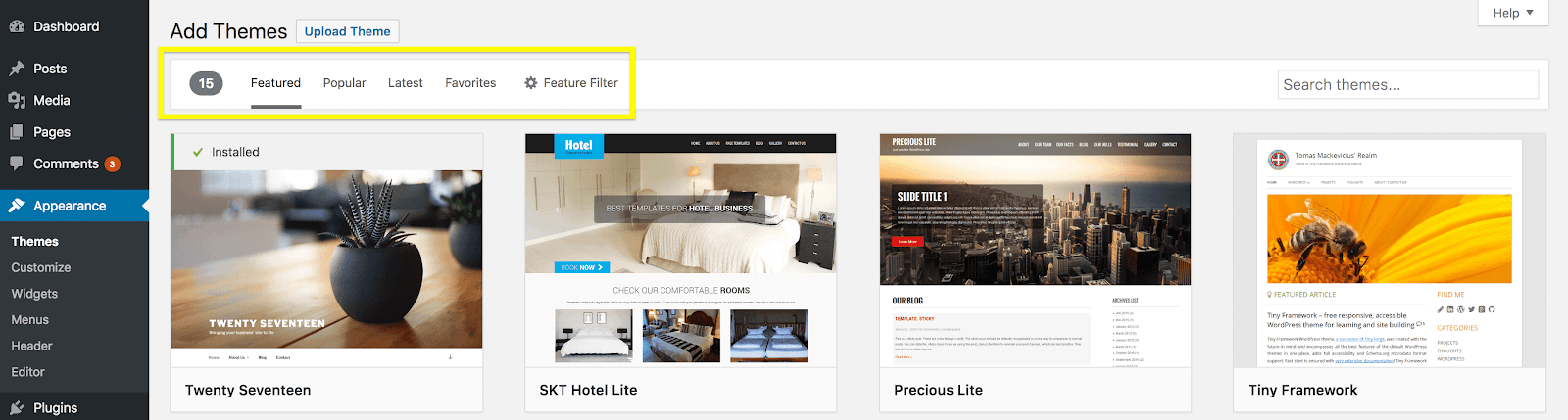
Log into your WordPress dashboard first. Then, click on the “Appearance” tab. Find and click on “Themes”. Now, you will see many themes. Browse through them. Choose one you like. Click on “Install” to add it. Then, click “Activate” to use it. It is easy and fun.
First, download the theme file to your computer. Go to the WordPress dashboard. Click on “Appearance” then “Themes”. Next, click on “Add New”. Choose “Upload Theme” at the top. Click “Choose File”. Find your downloaded theme file. Then, click “Install Now”. Finally, click “Activate” to start using the theme. Simple steps make it easy.
Activating Your Theme
Before using a new theme, check how it looks. Go to the WordPress dashboard. Click on “Appearance” and then “Themes”. Choose a theme and click “Live Preview”. This shows how your site will look. Make sure everything fits well. Look at the colors and layout. Does it look nice? If not, try another theme. Previewing helps you decide without changing anything yet.
After previewing, it’s time to set your theme. Find the theme you like. Click on the “Activate” button. Your site now has the new look. Check all pages to make sure they look good. Sometimes, small things change. Fix any problems you see. Enjoy your fresh site design!
Customizing Your Theme
The WordPress Customizer is an easy tool. It helps change your theme. You can find it in the dashboard. Click on “Appearance” and then “Customize”. This opens the Customizer. Here, you can change colors, fonts, and layouts. Each change updates live. You see changes right away. Make your site look unique. Try different settings until happy.
Widgets are small tools. They add features to your site. Find them in “Appearance” under “Widgets”. Drag and drop them into your site. Menus organize your pages. They help visitors find things. Edit them in “Appearance” under “Menus”. Choose which pages show up. Arrange them in order. Make your site easy to navigate.
Testing Theme Functionality
Make sure your website looks good on all devices. This is called responsiveness. Use different screen sizes to test. Phones, tablets, and computers. Check if text is easy to read. Images should fit the screen. Buttons need to be easy to click. Visitors like sites that are easy to use.
Plugins add features to your website. Compatibility is crucial. Install plugins to test with the new theme. Make sure they work well together. Check if they cause errors. Update plugins if needed. Some plugins may not fit all themes. Choose plugins wisely. Your site should run smoothly without problems.

Credit: www.templatemonster.com
Troubleshooting Common Issues
Changing a WordPress theme involves navigating to ‘Appearance’ and selecting ‘Themes’ from the dashboard. It’s essential to preview themes before activating to ensure compatibility with existing plugins and content. Troubleshooting common issues may require checking for theme updates or reinstalling if errors persist.
Resolving Display Problems
Themes might not display as expected. This can frustrate users. First, check your browser’s cache. Clear it and refresh the page. This often solves display issues. Next, ensure all plugins are updated. Some plugins can clash with themes. Deactivate them one by one to find the culprit. Another step is to check the theme’s settings. Sometimes, settings need adjustments to fit your content.
Fixing Broken Links
Broken links are common with new themes. These can confuse visitors. Start by using a link checker tool. This tool identifies broken links quickly. Update the links to the correct URLs. Make sure all internal links are right. Sometimes, themes change link structures. Update your menu links as needed. Always test your links after changes. This ensures they work for everyone.
Backing Up Your Site
Backup plugins make saving your site easy. They help keep your data safe. Many plugins offer automatic backups. This means they save your site without you doing anything. Some popular plugins are UpdraftPlus and BackWPup. These plugins store backups on cloud services. Services like Dropbox and Google Drive. This keeps your files secure and easy to access. Installing a plugin is simple. Just find one in the WordPress Plugin Directory. Then, click install and activate it.
Manual backups need a bit more work. First, go to your hosting account. Look for the File Manager. This is where your site files are stored. Download all these files to your computer. Next, backup your database. Use phpMyAdmin for this task. Click on your database and select export. Save this file on your computer too. Doing manual backups regularly is important. It keeps your website safe from data loss.

Credit: jetpack.com
Frequently Asked Questions
How Do I Change The Theme Of My WordPress Website?
Log into your WordPress dashboard. Navigate to “Appearance,” then select “Themes. ” Click “Add New” to browse available themes. Choose a theme and click “Install. ” After installation, click “Activate” to apply the new theme to your website. Always preview changes to ensure compatibility with your site’s content.
How Do I Change The Style Of My WordPress Theme?
Change your WordPress theme style by accessing the WordPress dashboard. Navigate to Appearance, select Customize, and modify your theme’s settings. You can adjust colors, fonts, and layouts. For deeper customization, use custom CSS or child themes. Always preview changes before saving to ensure the desired look.
How Do I Change The Template Of My WordPress Site?
To change your WordPress template, go to your admin dashboard. Click on ‘Appearance’, then ‘Themes’. Browse and select a new theme, click ‘Activate’ to apply. Make sure to customize settings to fit your design needs. Always back up your site before making changes.
Why Can’t I Customize My WordPress Theme?
Your WordPress theme may lack customization options due to its design limitations or restrictions. Ensure you have the correct permissions and theme version. Consider using a child theme or a plugin to add more customization features. Always back up your site before making changes to avoid issues.
Conclusion
Changing your WordPress theme is simple and fun. It gives your site a fresh look. New themes can improve your site’s appeal and functionality. Follow the steps to change themes easily. Always backup your data before switching. This keeps your work safe.
Explore different themes to find the best fit. Test the new theme for responsiveness and speed. Ensure it looks good on all devices. A well-chosen theme makes your site attractive and user-friendly. Enjoy customizing your WordPress site with a theme that matches your style.


