
Are you looking to give your WordPress site a fresh new look? Changing your theme can be a game-changer, boosting your site’s appeal and functionality.
But what if you can’t access the WordPress dashboard? Don’t worry; you can still easily change your theme using FTP, and we’re here to guide you through it. Imagine your website standing out with a unique style that captures your brand’s essence.
With the right theme, you can improve user experience and keep your visitors engaged. But changing themes can be tricky if you’re unfamiliar with FTP. That’s why it’s crucial to learn how to navigate this process smoothly. You’ll discover step-by-step instructions to change your WordPress theme using FTP. We’ll simplify technical jargon, ensuring you feel confident and in control. By the end, you’ll be ready to transform your site effortlessly. Keep reading to unlock the secrets of seamless theme changing and unleash your website’s full potential!
Credit: www.hostinger.com
Preparing For The Theme Change
Always create a backup of your website. This keeps your data safe. Use plugins like UpdraftPlus or BackWPup. These plugins are easy to use. They save your site data to the cloud. You can also save it to your computer. A backup helps if things go wrong. You can restore your website easily. Never skip this step.
Choose a theme that fits your website’s style. Check if the theme is responsive. This means it looks good on phones and computers. Make sure it’s compatible with your plugins. Read reviews from other users. This gives you an idea of any issues. You can find themes on the WordPress repository. There are free and paid options. Choose what suits your needs best.
Accessing Your Website Via Ftp
Download an FTP client to your computer. FileZilla is a popular choice. Open the program after installing it. The interface is simple. You will see two panels. One for your computer and one for the server. This helps you manage files easily. You can drag and drop files between them.
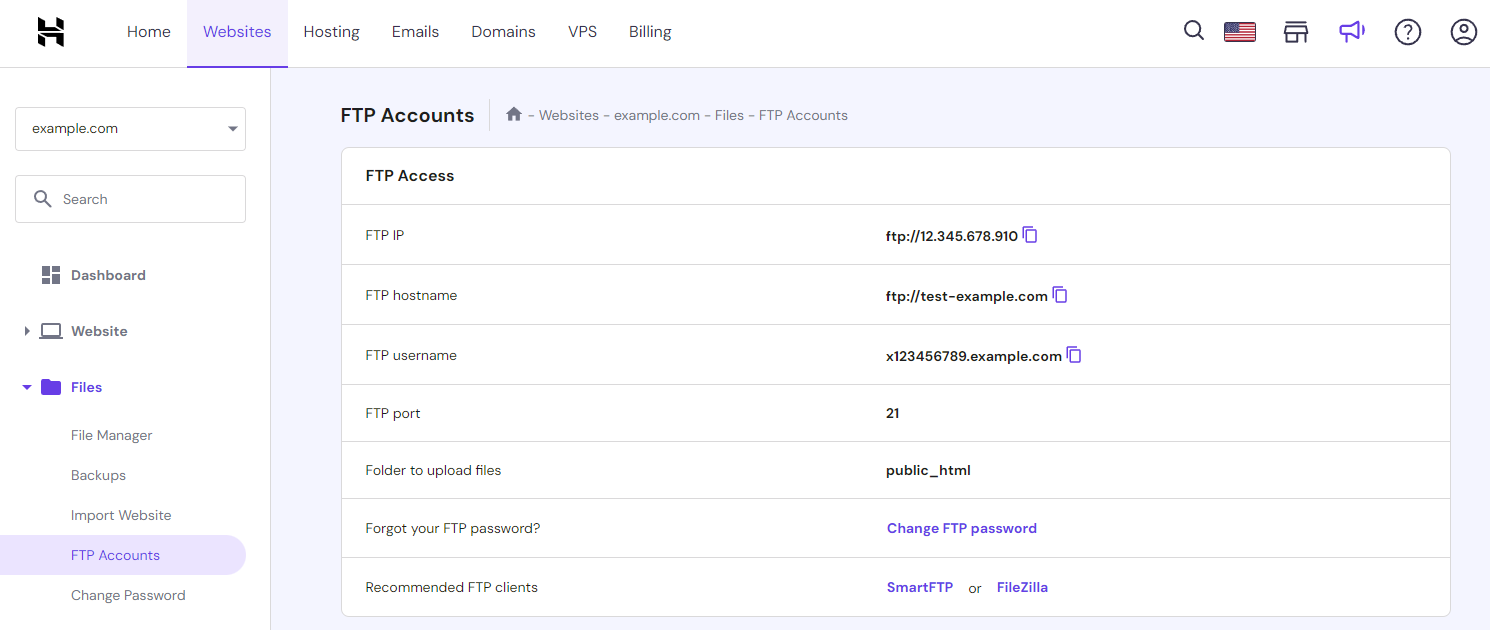
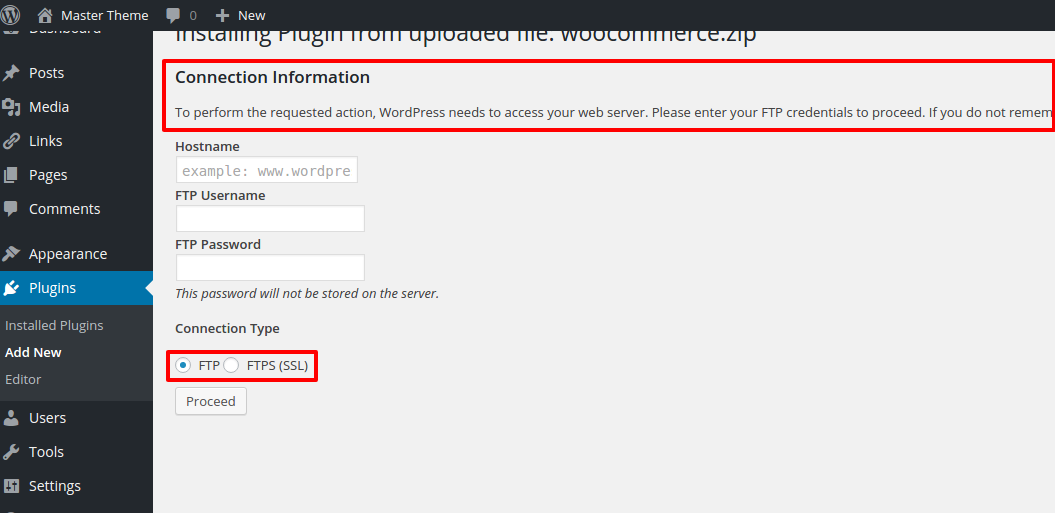
Enter your server login details. You need a username, password, and host address. These details are provided by your hosting service. Click the “Connect” button. Wait for the connection to establish. Once connected, you can see your website files. They are in the right panel. Navigate to the “wp-content” folder. This is where themes are stored. Choose the theme folder you want to change.
Navigating To The Theme Directory
Access the theme directory via FTP to change your WordPress theme effortlessly. Navigate through folders to locate your desired theme. Upload it to the ‘themes’ folder for instant changes.
Locate Wp-content Folder
First, log in to your FTP client. Look for your website files. Find the public_html folder. Inside, you will see a folder named wp-content. This folder holds important files. It contains themes, plugins, and uploads. Double-click to open it. Be careful not to delete anything.
Open The Themes Folder
Inside the wp-content folder, locate the themes folder. This is where all your themes live. Click to open it. You will see folders named after your themes. Each folder is a theme. Choose the theme you want to change. Make sure you know the theme name. This makes it easier to find.
Credit: warptheme.com
Uploading The New Theme
First, find the theme you want. Go to the theme website. Download the theme files to your computer. They will be in a .zip format. Extract the files to a folder. Make sure you remember where you saved them. You will need these files soon.
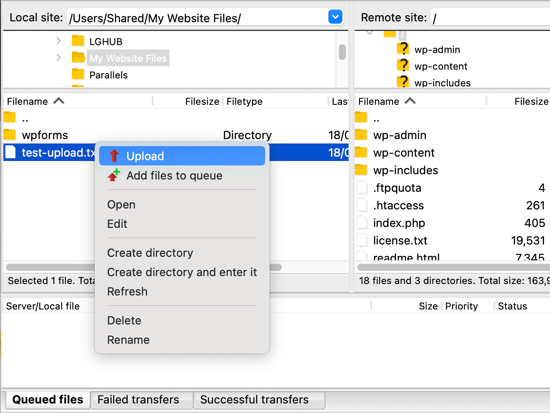
Open your FTP client. Connect to your website’s server. Use your FTP login details. Once connected, go to the wp-content/themes directory. You will see other theme folders here. Upload the extracted theme folder to this directory. Wait for the files to finish uploading. Once done, go to your WordPress dashboard. Check if the new theme is there.
Activating The New Theme
Changing the WordPress theme via FTP involves accessing your server files. Download and unzip the new theme. Then, upload it to the ‘wp-content/themes’ directory. Activate the theme in the WordPress admin panel.
Access WordPress Dashboard
First, log into your WordPress Dashboard. Use your username and password. Find the Appearance tab on the left side. Click on it. You will see a list of themes. The new theme should be there. If not, check your FTP upload.
Switch To The New Theme
Click on the new theme. You will see a preview button. Click it to see your site with the new theme. Happy with the look? Click Activate. Your site now uses the new theme. Make sure everything looks good. Adjust settings if needed.
Credit: www.wpbeginner.com
Troubleshooting Common Issues
Changing a WordPress theme using FTP solves many common issues. Access your server, upload the new theme folder, and replace the old one. Simple steps ensure a smooth transition without disrupting your website.
Resolve Upload Errors
Sometimes, theme files won’t upload. This can be frustrating. First, check your file size. Files over 2MB might not upload. Use an FTP client to fix this. You can also check file permissions. They should be set to 644 or 755. Wrong settings can stop uploads. Adjust them using your FTP client. Sometimes the internet connection is slow. Try uploading again later.
Fix Compatibility Problems
Themes may not work with plugins. Check if your WordPress version is up-to-date. An old version causes issues. Update it through the dashboard. Some themes need specific plugins to work. Install them if needed. Your website might use custom code. This can cause theme problems. Remove or adjust the code. Always keep a backup of your site. This helps if things go wrong.
Testing The New Theme
Change your WordPress theme using FTP easily. Access your server, navigate to the theme directory, and upload the new theme files. Refresh your dashboard to see the changes instantly.
Check Website Functionality
After activating the theme, check if everything works. Ensure all buttons and links work fine. Visit different pages on your site. Make sure they load properly. Look for any missing images or text. If you find issues, fix them quickly. Plugins might not work well with the new theme. Test them to see if they still function.
Verify Responsive Design
Open your website on a phone or tablet. Check if it looks good. The text should be clear and easy to read. Images should fit the screen. Try clicking on the menu. See if it opens smoothly. If you find any problems, adjust your theme settings. Responsive design is important for a good user experience.
Frequently Asked Questions
How Do I Access Ftp For WordPress?
Access FTP by using software like FileZilla. Enter your website’s host, username, and password in the FTP client. Connect to your server, then navigate to the WordPress directory. This allows you to manage files directly, including changing themes.
Can I Change WordPress Theme Via Ftp?
Yes, you can change your WordPress theme using FTP. Connect to your server, navigate to the ‘wp-content/themes’ directory, and upload your new theme folder. Ensure the folder contains all necessary theme files. Finally, activate the theme from your WordPress dashboard.
What Are The Risks Of Using Ftp?
Using FTP can pose security risks. FTP is not encrypted, making data vulnerable to interception. Ensure you use SFTP for a secure connection. Additionally, incorrect file modifications can break your site. Always back up files before making changes.
Why Use Ftp Over WordPress Dashboard?
FTP is useful when the WordPress dashboard is inaccessible due to errors. It allows direct file management, letting you troubleshoot issues or upload themes manually. FTP provides more control, but requires technical knowledge to avoid mishaps.
Conclusion
Changing your WordPress theme via FTP is straightforward. First, connect your FTP client. Next, find the ‘themes’ folder in ‘wp-content’. Upload the new theme folder. Ensure all files transfer correctly. Then, visit your WordPress dashboard. Activate the new theme. Check your site for any issues.
This method helps when themes break or lock you out. Always backup your site before changes. This ensures safety and recovery options. Follow these steps with care. Enjoy your site’s fresh look.


