
Are you tired of looking at the same old theme image on your WordPress site? Do you want to give your website a fresh new look without diving into complicated coding?
You’re in the right place. Changing the theme image in WordPress is a simple yet powerful way to revamp your site’s appearance, and it can be done in just a few easy steps. Imagine the impact a stunning image can have on your visitors—it grabs attention, sets the tone, and enhances your brand’s identity.
In this guide, we’ll walk you through the process of updating your theme image, making sure your website reflects your unique style and keeps your audience engaged. Ready to transform your site and captivate your readers? Let’s get started!
Credit: jetpack.com
Theme Image Basics
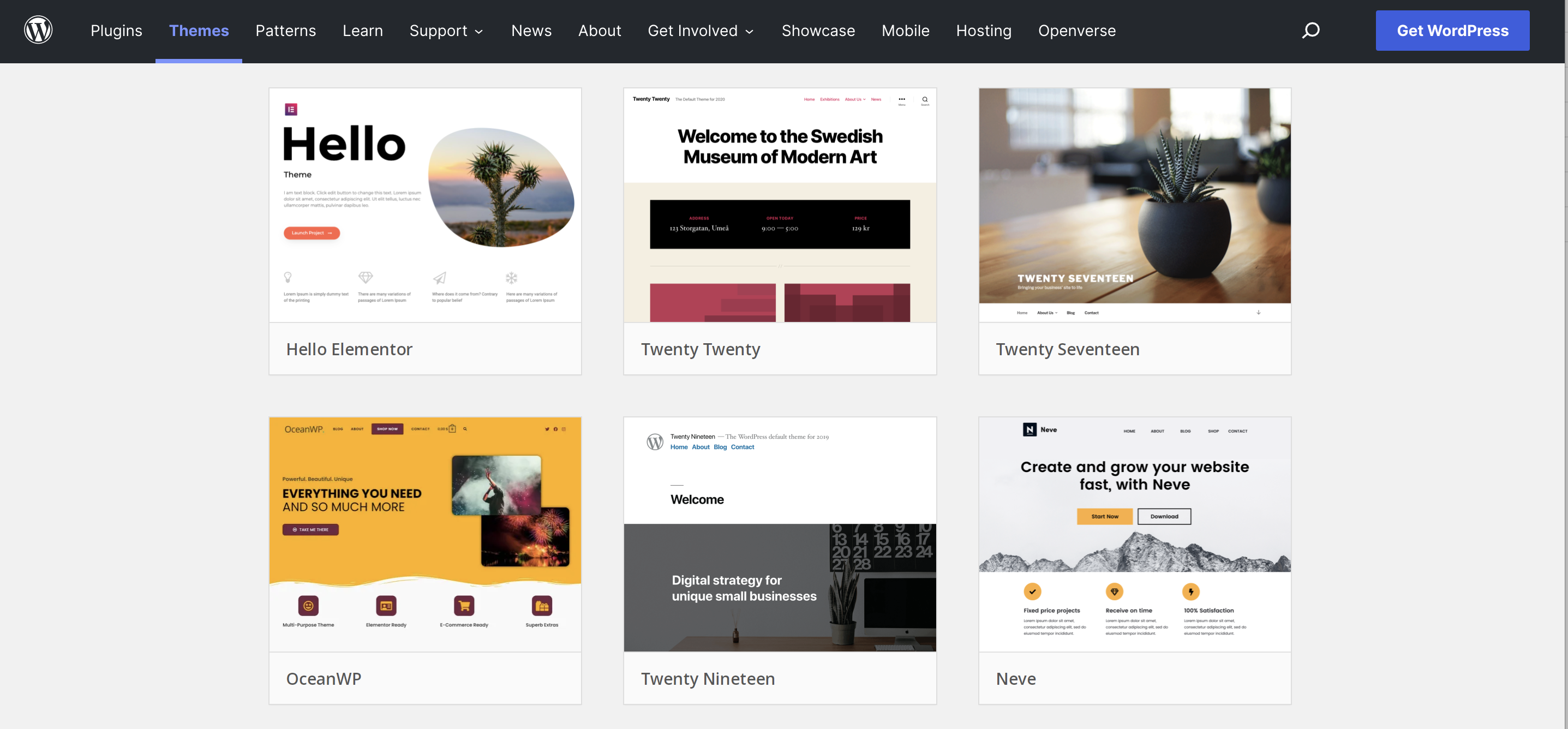
Theme images shape the look of your WordPress site. They add color and style. People notice them first. A good image can make your site look better. It gives a strong first impression.
Images can tell a story. They show what your site is about. They can grab attention quickly. A good theme image can keep visitors on your site. It can make them curious. They might want to see more.
Pick an image that fits your site’s theme. Make sure it is clear. It should not be blurry. The image should be in good quality. It should match your site’s colors. Check the size too. It must fit well on your page. A good image can make your site stand out.
Credit: wpengine.com
Accessing WordPress Dashboard
Open your browser. Go to your WordPress site. Look for the login page. Enter your username. Type your password. Click the login button. You are now inside the dashboard.
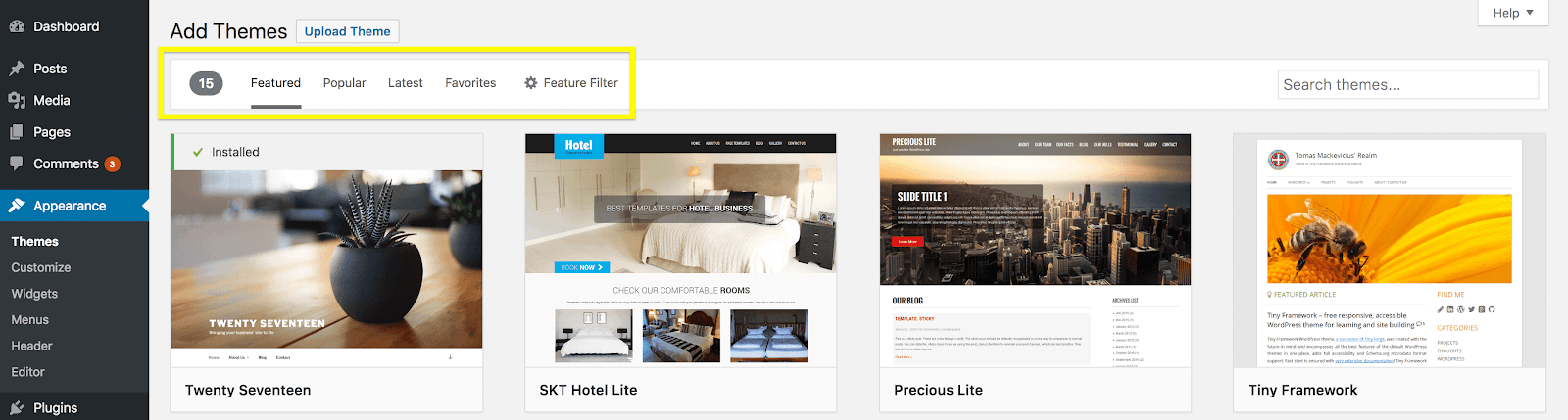
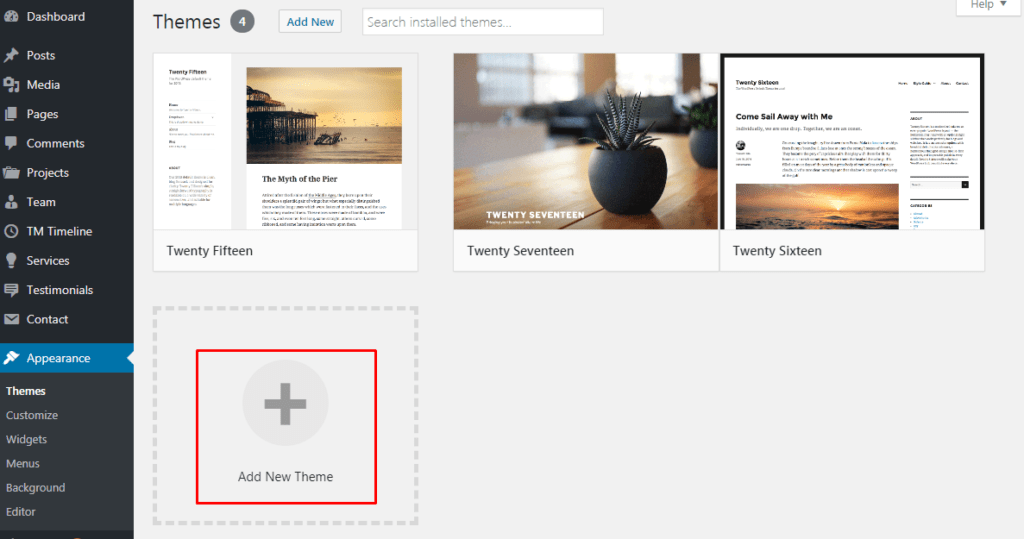
Find the Appearance tab. It’s on the left menu. Click on it. A list will open. Choose Themes. Themes show the site’s look. You can change the theme image here. Pick a new image. Save changes. Your site looks different now.
Selecting The Theme
First, find the active theme on your WordPress site. Go to the dashboard. Click on Appearance. Then click on Themes. The active theme is the one highlighted. Knowing this helps in changing the theme image.
Next, explore the theme options. Some themes have a section called Customize. You can find it under Appearance. Here, you can change images. You can also adjust other settings. Look for options like Header Image or Background. These allow you to change images quickly.
Changing The Header Image
First, go to your WordPress dashboard. Find the Appearance tab. Click on it. Then select Customize. Look for Header Image. Click on it. Here, you will see an Add New Image button. Click on this button. Choose your new image from your computer. Make sure your image is of good quality. Also, it should match your website’s theme.
After uploading, you can adjust the image settings. Check if the image fits well. You can also crop it. Make sure the image looks nice and clear. Choose the best alignment. This will make your website look neat. Save your changes. Now, your new header image will show up. It’s easy and quick to change.
Updating Background Image
Selecting a background is simple in WordPress. First, go to the dashboard. Find the Appearance tab. Click on it to see more options. Choose Customize. This opens the theme settings. Look for the Background Image option. Click on it to see current images. Choose a new image from your library. Or upload one from your computer. Click Save to keep changes.
Customizing display settings allows more control. You can change the size of the image. Adjust its position. Make it fixed or scrollable. Some themes offer different display types. Experiment with these settings. See what looks best. Preview changes before saving. This helps decide the final look.
Customizing Other Theme Images
Sidebar images are easy to change in WordPress. First, go to your dashboard. Find the “Appearance” section. Click on “Widgets”. Look for the sidebar widget. There, you can add or remove images. Use the “Add Media” button to upload a new image. Make sure the image size is right. Large images can slow your site. Always save your changes.
Footer images can also be changed. Go to the “Appearance” menu. Click on “Customize”. Then, select “Footer”. Look for options to upload images. Choose an image that fits well. A good image makes your site look nice. Remember to save any changes you make.
Saving And Previewing Changes
After changing the theme image, it’s important to save your work. Click the save button to keep changes. This way, your new image stays on the site. Forgetting to save means losing your edits. Always double-check before leaving the page.
Before making changes live, preview them. Click the preview button to see the new image. Check if it fits well with the site design. This helps avoid any surprises. If it looks right, you can make it public. If not, you can tweak it until perfect.
Troubleshooting Common Issues
Changing the theme image in WordPress often involves navigating the dashboard. Locate ‘Appearance’ and select ‘Customize’. Find the ‘Header Image’ section, choose a new image, and save.
Image Not Displaying
Many face issues with images not showing. Check if the image is uploaded. If not, upload it again. Verify the theme settings. Sometimes, a wrong setting hides images. Clear your browser cache. This helps refresh the page. Ensure the image link is correct. A broken link stops images from displaying. Update your theme. Some themes need updates to work well.
Resolving Upload Errors
Upload errors are common. Ensure your image file is not too big. Resize if needed. Check your internet connection. A weak connection causes upload problems. Verify your file type. Use formats like JPEG or PNG. Increase your WordPress memory limit. This helps with bigger files. Disable plugins that might interfere. Some plugins cause conflicts during uploads.
Utilizing Plugins For Image Management
Plugins make image management easy. Some plugins are very helpful. Envira Gallery is a good choice. It helps to organize images. Another plugin is Imagify. It makes images smaller without losing quality. Smush is also popular. It optimizes images well. NextGEN Gallery is great for galleries. It provides many options. Choose a plugin that fits your needs.
Installing a plugin is simple. Go to the WordPress dashboard. Click on “Plugins” in the menu. Then, click “Add New”. Type the plugin name in the search bar. Click “Install Now” next to your chosen plugin. After installation, click “Activate”. Your plugin is now ready to use. Follow these steps for any plugin.
Credit: www.templatemonster.com
Frequently Asked Questions
How Do I Change My WordPress Theme Image?
To change your WordPress theme image, navigate to the Appearance section in your dashboard. Select ‘Customize,’ then find the ‘Header Image’ or ‘Background’ options. Upload your desired image, adjust settings, and save changes. Ensure the image is optimized for web use to maintain site speed.
Can I Use Any Image For My Theme?
You can use any image, but ensure it’s high-quality and relevant. The image should fit the theme’s design and enhance user experience. Optimize image size to avoid slow loading times. Use formats like JPEG or PNG for best results, and consider the image’s impact on your site’s aesthetics.
Why Is My Theme Image Not Displaying?
If your theme image isn’t displaying, check image settings in the theme customizer. Ensure the image is properly uploaded and not corrupted. Verify your theme supports image customization. Clear your browser cache and refresh the page. Consider consulting your theme documentation or support for specific troubleshooting.
How To Optimize Theme Images For Seo?
Optimizing theme images involves using descriptive filenames and alt text. Compress images to reduce file size without compromising quality. Choose appropriate image formats like JPEG or PNG. Ensure images are responsive across devices. These steps improve page load times and enhance SEO, boosting your site’s visibility.
Conclusion
Changing your WordPress theme image is simple. Start by accessing your dashboard. Navigate to Appearance and select Themes. Choose the theme you want to edit. Click Customize. Find the option to change the image. Upload your new picture. Hit Save.
Refresh your site to see changes. Remember to choose a high-quality image. It should reflect your brand. With these steps, you can easily update your theme image. Keep experimenting for the best look. Enjoy making your site unique and engaging.
Happy blogging!


