
Are you tired of the same old look on your WordPress site? The navbar is one of the first things your visitors see, and refreshing its appearance can make a big difference.
If you’re using the Twenty Ten theme, you’re in luck! Changing the navbar is easier than you might think, and you don’t need to be a coding wizard to do it. Imagine your website with a sleek, new navigation bar that not only catches the eye but also improves the user experience.
This guide will show you how to transform your navbar step by step, ensuring your site stands out and keeps your visitors engaged. Ready to give your site a fresh look? Let’s dive in!
Credit: ca.wordpress.org
Understanding The Twenty Ten Theme
The Twenty Ten theme is a classic WordPress theme. It is simple and clean. Many people use it for blogs and websites. The theme has a basic look. Yet, it is very customizable. You can change many things. One key feature is the navbar. The navbar helps users find pages on your site. Changing it can improve your site’s look. It can make the site easier to use. This theme is a good choice for beginners. It is easy to understand and use. You can start with it and change things as you learn more.
Credit: cs.wordpress.org
Accessing WordPress Dashboard
First, you need to log into your WordPress site. Use your username and password. Look for the left sidebar. It has many options. Click on Appearance. It is usually near the top. Next, choose Editor. This lets you change your theme. Be careful. Changes can affect your site. Always backup your files first.
Navigating To The Appearance Section
Open your WordPress dashboard. Look for the Appearance section in the menu. It’s on the left side. Click on it. A drop-down menu appears. Select Menus. Now, you see the menu page. Here, you can change the navbar.
On this page, add new items to your menu. Use the Add Menu Items section. You can add pages or links. Make sure to save your changes. Click the Save Menu button. It’s at the top or bottom of the page.
To change the navbar location, find the Theme Locations section. Choose where you want the menu to show. Pick the Primary Menu option. Save changes again to update the navbar.
Locating The Menu Options
Start by logging into your WordPress dashboard. Look on the left side for the Appearance tab. Click on it to see more options. Next, find the Menus section and click on it. This is where you will change the navbar. The Menu Settings will show you different options. You can add, remove, or change menu items here. Feel free to explore these options. It’s easy to make changes. Remember to save your changes when done. Your navbar will now look different. Try refreshing your website to see the changes.
Creating A Custom Menu
Begin by visiting the WordPress dashboard. Look for the Appearance tab. Click it. Find Menus. This section lets you add pages to your menu. Pick the pages you want. Select them. Then, add them to your menu. Your menu is ready now.
Custom links are easy. Look for the Custom Links option under Menus. Type the URL. Add a label. This label names your link. Click Add to Menu. The link is now part of your menu. Easy as pie!
Menu items need order. Drag them into place. Click and hold the menu item. Move it up or down. Create sub-menus by dragging right. This builds a neat menu structure. Your menu is now organized. Simple and clean.
Credit: blog.teamtreehouse.com
Assigning The Menu To Navbar
Open your WordPress dashboard. Find the Appearance tab on the left. Click on it. Then, choose Menus. You will see a list of menus. Select the menu you want. Now, look for the Theme Locations section. You will find a dropdown menu. Choose Primary Navigation from the list. This will assign your menu to the navbar.
Remember to click Save. This keeps your changes. Check your site to see the new navbar. If it looks good, you are all set. If not, repeat the steps. Make sure you choose the right menu.
Customizing Navbar Style
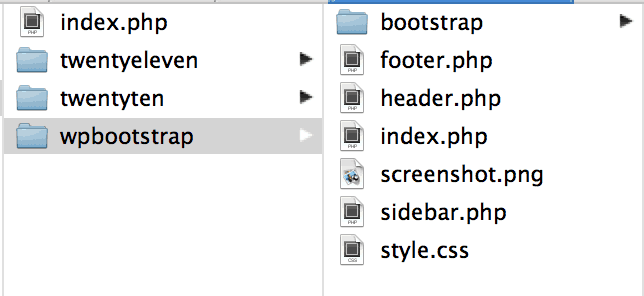
CSS is great for changing navbar looks. Add new styles in your theme. Open the style.css file. Look for navbar styles. Add your code below the existing styles. Play with colors and fonts. Use color for text colors. Use background-color for background colors. Change font with font-family. Make text bigger with font-size. Try different styles and see changes on your site.
Changing Font And Colors
Choose fonts that are easy to read. Arial or Verdana are good options. Pick colors that match your site’s theme. Light colors work well on dark backgrounds. Dark colors are better on light backgrounds. Test different colors. See what looks best for your site. Make sure text is clear and easy to read.
Testing The New Navbar
Testing the new navbar is important. It shows if it works well. Start by clicking each link. Make sure they go to the right page. Check the design. Does it look good? Try using it on a phone or tablet. Is it easy to use?
Ask friends to test it too. Get their feedback. They might find problems you missed. Make changes if needed. A good navbar helps users find things fast. It makes your site better.
Troubleshooting Common Issues
Changing the navbar in the Twenty Ten theme can solve many design issues. Navigate to the Appearance menu, select Menus, and customize your menu to fit your needs. Always remember to save changes to see the updated navbar.
Menu Not Displaying
The menu might not display due to theme settings. Check if the menu is assigned to the correct location in the menu settings. Sometimes, a plugin conflict can cause this issue. Deactivate plugins one by one to find the culprit. Ensure your WordPress and theme are up-to-date.
Styling Not Applied
Custom CSS might not apply if there are caching issues. Clear your browser’s cache and try again. Sometimes, conflicting CSS from plugins can cause this. Inspect your site with browser tools to find conflicts. Ensure you have the correct CSS selectors for your theme.
Exploring Additional Plugins
Discover how to change the navbar in WordPress Twenty Ten Theme by exploring additional plugins. These plugins offer customization options for a unique navigation bar design. Enhance your site’s appearance with simple steps and tools.
Recommended Plugins
Many plugins can help change the navbar in the Twenty Ten theme. Custom menus allow you to design and manage menus easily. Nav Menu Roles lets you show or hide menu items based on user roles. Max Mega Menu offers a way to create beautiful and responsive menus. Elementor helps you drag and drop elements to customize your site.
Installing And Activating Plugins
Installing plugins is simple. Go to your WordPress dashboard. Click on Plugins. Choose Add New. Search for the plugin name you want. Click Install Now to start installing. After installation, click Activate to use the plugin. Some plugins need settings changes. Check the plugin instructions for details. Plugins make customizing your navbar easy.
Frequently Asked Questions
How Do I Customize The Twenty Ten Navbar?
To customize the Twenty Ten navbar, go to your WordPress dashboard. Navigate to Appearance > Menus. You can add, remove, or rearrange menu items here. Save changes when done. For advanced customization, use custom CSS under Appearance > Customize > Additional CSS.
Always preview changes before publishing.
Can I Change Navbar Color In Twenty Ten Theme?
Yes, you can change the navbar color in the Twenty Ten theme. Go to Appearance > Customize. Select Colors or Additional CSS. Use custom CSS to specify the new navbar color. Save changes and preview before publishing. Ensure your color choice complements your website’s overall design.
Is Twenty Ten Theme Mobile Responsive?
Yes, the Twenty Ten theme is mobile responsive. It automatically adjusts to different screen sizes for optimal viewing. However, customizations may affect responsiveness. Always test changes on various devices. Use responsive design tools to ensure the navbar adapts well across all devices.
How To Add Social Links To Twenty Ten Navbar?
To add social links to the Twenty Ten navbar, use a plugin like Social Icons. Install and activate the plugin. Configure it to display icons in the menu. Alternatively, use custom menu items with link URLs. Ensure icons are styled consistently with your site’s design.
Conclusion
Changing the navbar in the Twenty Ten theme is straightforward. With the right steps, you can customize it easily. Follow the instructions carefully, and your site will look great. It’s important to keep your design consistent. A well-organized navbar improves user experience.
Regular updates keep your theme fresh. Practice makes perfect, so don’t hesitate to experiment. Explore different styles and layouts. This enhances your site’s appeal to visitors. Remember, a good navbar guides users effortlessly. Happy customizing your WordPress site!


