
Are you looking to personalize your WordPress website by changing the name of your theme? Imagine the satisfaction of seeing your unique branding reflected right from the foundation of your site.
Whether you’re a business owner aiming to enhance your brand identity or a blogger wanting a personalized touch, renaming your WordPress theme can be a powerful move. But how do you do it without breaking your site or losing important settings?
You’ll discover a simple, step-by-step guide to safely changing your theme’s name, ensuring your website remains seamless and professional. Stay with us, and you’ll learn how to make your WordPress site truly your own.

Credit: www.youtube.com
Why Change A Theme Name?
Changing a theme’s name can help make your site unique. It helps in branding. A custom name can also protect your theme from updates. Updates can overwrite changes you made. A new name keeps your tweaks safe.
It also helps if you work with clients. They see the theme name in the dashboard. A custom name makes your work look professional. It shows you care about details. It can also prevent confusion. You and your client know which theme you are using.
Pre-renaming Preparations
Before changing a theme’s name in WordPress, back up your site and files. Check for theme compatibility and update your documentation. This ensures a smooth transition and prevents data loss.
Backup Your Site
Ensure your site is safe. Create a backup before changing anything. This helps if things go wrong. You need a reliable backup plugin. Use plugins like UpdraftPlus or BackupBuddy. These tools save your data. Check the backup files. Make sure they are complete. Store backups in a safe place. Cloud storage is a good option. Backups protect your work. They save you from losing content.
Understand Theme Structure
Knowing the theme structure is crucial. Themes have folders and files. Each file has a purpose. Style.css controls design. Functions.php adds features. Other files manage content layout. Identify main files. Understand their role. This helps when renaming. Make a list of important files. Keep it handy for reference. This knowledge aids in smooth changes.
Using Ftp For Theme Renaming
Renaming a WordPress theme using FTP involves accessing your site’s files. Connect to your server with an FTP client. Locate the theme folder and rename it directly. This method updates the theme name without affecting the website’s functionality. Ensure you back up your data before making changes.
Accessing Your Site Via Ftp
Use an FTP client like FileZilla to connect. Enter your site’s FTP credentials. Find these details from your hosting provider. Click connect to access your site.
Locating The Theme Folder
Once connected, look for a folder named wp-content. Inside it, find the themes directory. This folder contains all your WordPress themes. Pick the theme folder you wish to rename.
Renaming The Theme Directory
Right-click the theme folder. Choose the rename option. Change the folder’s name to your desired name. Ensure the new name is simple and clear. After renaming, refresh your WordPress dashboard.

Credit: www.youtube.com
Updating Theme Details In Style.css
To change a theme name, first locate the style.css file. This file is inside the theme folder. Use a file manager or FTP to find it. Open the file in a text editor. Look for the section at the top. This section has theme information.
Inside the style.css file, find the line with Theme Name:. This line tells the current theme name. Change it to your new theme name. Save the changes. Remember to keep the format the same.
You might want to update other details too. Check lines like Author and Description. These lines tell more about the theme. Make sure all information is correct. Save all changes before closing the file.
Database Modifications
Changing a theme’s name in WordPress involves editing files. Start by accessing your WordPress directory. Locate and open the style. css file within the theme folder. Modify the “Theme Name” line to your desired name. Save the changes, ensuring that you maintain the original file structure and format.
Accessing The WordPress Database
Begin with entering the WordPress database. Use a tool like phpMyAdmin. Find your database name. It is crucial to know your database name.
Locating Theme Options Table
Inside the database, locate the table named wp_options. This table holds theme details. Scroll down to find theme-related entries.
Updating Database Entries
Change the theme name by updating entries. Find the row with the current theme name. Replace it with your desired name. Save changes after updating.
Testing The Renamed Theme
Activating the New Theme Name is an important step. First, go to your WordPress dashboard. Click on the “Appearance” option. Then select “Themes”. You will see your renamed theme there. Click on “Activate”. This will make the new name live. Now, your site uses this name.
Checking Site Functionality is crucial. Visit your website in a browser. Look for any errors or problems. Make sure everything works well. Check pages, images, and links. Ensure the site looks correct. Test on different devices. Your site should be smooth on phones and computers. This keeps your visitors happy.
Common Issues And Fixes
Changing a theme’s name in WordPress may cause broken links or design issues. Fix these by updating the theme folder name and details in style. css. Check for any hardcoded paths in your theme files to ensure everything works smoothly.
Theme Not Appearing
Sometimes, themes might not show up. This can happen if the theme is not installed correctly. Always check the theme folder. Make sure it is in the right place. The folder should be in wp-content/themes. Double-check the theme files. They should not be missing. If the theme is still missing, try re-installing it. Use the WordPress dashboard for this. It is easy to use. Also, check for any file permission issues. Proper permissions are needed for the theme to work. Ensure the theme is activated. Activation makes it visible.
Broken Layouts Or Styles
Broken layouts can be frustrating. A theme update might cause this. Always backup before updating. Restore if layouts break. Check for CSS conflicts. CSS issues can mess up styles. Use browser tools to find errors. Fixing small CSS errors can help. Verify the theme settings. Settings might change after updates. Reset them if needed. Missing images can break layouts too. Ensure all images are uploaded. Check image paths. Fix broken paths for a better look.
Tips For A Smooth Transition
Changing a theme name in WordPress requires careful planning. First, access your theme files using a file manager or FTP. Locate the style. css file and update the theme name. This ensures proper functionality and a seamless transition on your website.
Keeping A Log Of Changes
Always keep a log of changes made. This helps track every step. Write down each change. Note the time and date. Record what was done and why. This log can be a lifesaver. It helps if something goes wrong. You can easily find the mistake. Also, sharing with teammates becomes easy. Everyone stays updated.
Consulting Online Resources
The internet has many resources for help. Look for guides on forums. YouTube has video tutorials. Bloggers share their experiences. Use these to learn more. Always check the resource’s reliability. Some might give wrong advice. Cross-check with other sources. This ensures accurate information. Remember, learning from others is helpful. It saves time and effort.
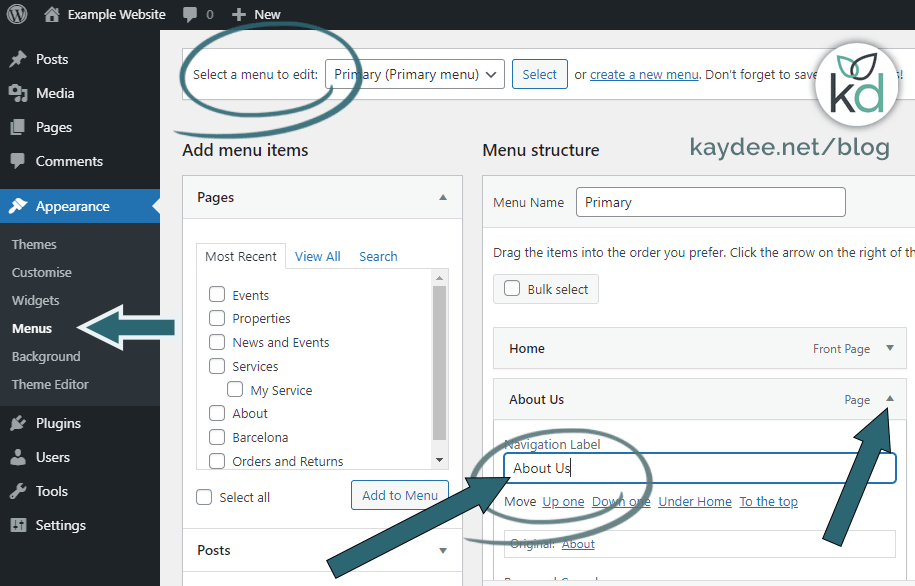
Credit: kaydee.net
Frequently Asked Questions
How To Rename A WordPress Theme Safely?
Renaming a WordPress theme safely involves editing the theme folder name via FTP and updating the theme details in the style. css file. Ensure you back up your site first. This prevents potential errors or issues with the theme’s functionality after renaming.
Will Changing A Theme Name Affect Seo?
Changing a theme’s name doesn’t directly affect SEO. However, ensure theme settings and plugins remain intact. Broken links or missing content can impact SEO. Always check your site’s functionality and analytics after renaming to maintain its SEO performance.
Can I Rename A Theme Using WordPress Dashboard?
Renaming a theme directly from the WordPress dashboard isn’t possible. You must access the theme files via FTP or a file manager. Update the theme name in the style. css file, then reflect changes in the WordPress admin panel.
What Precautions Should I Take Before Renaming?
Before renaming a theme, back up your site data. Ensure you have FTP access or a file manager. Verify that all theme settings and customizations are intact. Double-check compatibility with plugins and widgets to avoid functionality issues.
Conclusion
Changing your WordPress theme name can be simple. Follow the steps carefully. Use clear instructions for each stage. Backup your files before starting. This prevents data loss. Always check the theme’s compatibility. Ensure it works with plugins. Test your site after renaming the theme.
Fix any errors immediately. This keeps your site running smoothly. Remember, a unique theme name helps with branding. It makes your site stand out. Be patient during the process. Enjoy the new look of your WordPress site. Engage your visitors with fresh content.
Keep your site updated regularly. Happy blogging!


