
Are you struggling to make your WordPress site more accessible and appealing to right-to-left (RTL) language speakers? You’re not alone.
Many website owners face this challenge, especially when trying to reach audiences who read in languages like Arabic, Hebrew, or Persian. The good news is, changing your WordPress theme layout to RTL is simpler than you might think. Imagine your website seamlessly catering to a broader audience, enhancing user experience, and boosting engagement.
Intrigued? In this guide, we’ll walk you through the steps to transform your theme, ensuring your content resonates effectively with every visitor. Ready to unlock the potential of your website? Let’s get started!
Credit: themeforest.net
Understanding Rtl Layout
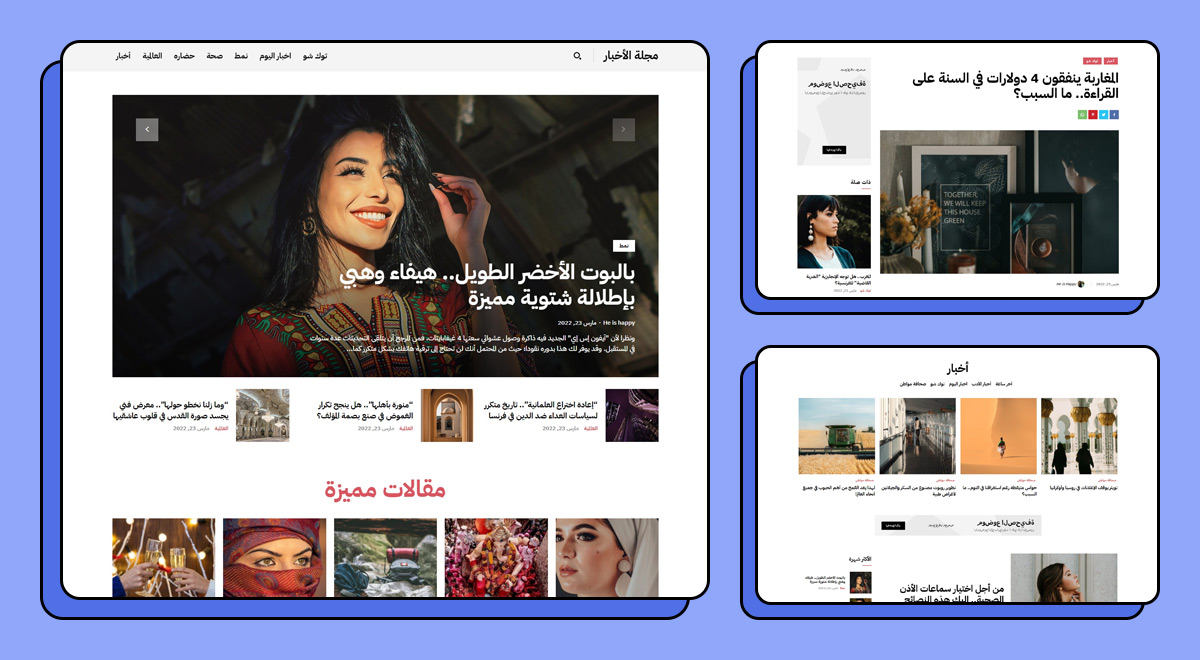
RTL stands for Right-to-Left. It is a writing direction. Languages like Arabic and Hebrew use this. Words start from the right and go to the left. This is the opposite of the usual English way. Websites must support RTL for these languages. It ensures the text looks correct. Without RTL, the text might be hard to read.
Many people read in RTL languages. Supporting RTL is crucial for them. It makes websites accessible. This support means everyone can read your site. It also shows respect for all languages. Websites with RTL support reach more people. This can improve user experience. It can also expand your audience. Supporting RTL can help your site grow.
Credit: tagdiv.com
Choosing An Rtl-compatible Theme
Themes should support right-to-left text. Check for language support. Responsive design is important. Mobile-friendly layouts improve user experience. Customizable options make changes easier. Font support for different languages matters. Look for reliable customer reviews. Theme speed can affect performance. SEO optimization is beneficial. Choose a theme with ongoing updates. Ensure compatibility with popular plugins. Accessibility features are a plus.
Astra offers speed and flexibility. GeneratePress is lightweight and fast. OceanWP supports multiple languages. Neve provides easy customization. Hestia is known for its modern design. Zakra offers many layout options. Sahifa is popular for news sites. Newspaper theme suits bloggers. Kalium has creative designs. Avada is highly customizable. Bridge offers versatile templates. Enfold is user-friendly.
Adjusting Theme Settings
Switching a WordPress theme to RTL layout is simple. Access the theme settings. Then, enable the RTL option. This adjusts the layout for right-to-left languages. Ensure compatibility with your chosen theme for a smooth transition.
Accessing Theme Customizer
Open your WordPress dashboard. Click on Appearance. Then, select Customize. The Theme Customizer will open. It shows a live preview of your site. You can see all options on the left side. These options help you change the look of your site. Explore them to find the best fit for your needs. Make sure to save changes. This ensures your site looks as you want it to.
Enabling Rtl Mode
Check if your theme supports RTL. Go to the dashboard. Click on Appearance. Then click on Customize. Look for the RTL option. Enable it if available. This will flip the text direction. Your site will now display in right-to-left format. Test your site to confirm changes.
Customizing Css For Rtl
Switching a WordPress theme to RTL involves customizing CSS. Adjust float, margin, and text alignment for right-to-left languages. Ensure seamless user experience by testing layout changes across various devices.
Modifying Stylesheets
To change your theme to RTL, start with the stylesheets. Open the stylesheet file. Look for directional properties. Swap left with right. Change margin-left to margin-right. Do the same for padding. This makes the text flow from right to left. It’s important to check all CSS files. Ensure all styles are correct. Save changes. Refresh your page. Check the layout. It should now be RTL.
Using Rtl Css Plugins
Plugins can help with RTL. They automate many changes. Find a plugin for RTL support. Install it on WordPress. Activate the plugin. It will adjust the theme. Most plugins update the CSS. They make it RTL-ready. This saves time. It’s an easy way to change the layout. Explore plugin settings. Make sure everything looks right. Check your website. The layout should be set to RTL.
Testing And Troubleshooting
Changing a WordPress theme layout to RTL involves adjusting CSS. This ensures correct text alignment for right-to-left languages. Troubleshooting may be needed to fix layout issues.
Common Rtl Issues
Switching a theme to RTL can cause problems. Text may not align correctly. Some elements might still show in LTR. Images can be misaligned. Menus might not function as expected. Headers might appear out of place. Check for mixed language support issues. Font styles may change unexpectedly.
Tools For Testing
Use tools to test your RTL layout. Browser Developer Tools help view code. RTL Tester plugins are useful. They show how themes handle RTL. Check your site on different browsers. Each may show unique problems. Use WordPress Debugging for error messages. It finds hidden issues. Online validators help ensure clean code.
Optimizing User Experience
Change your WordPress theme layout to RTL for better user experience. Start by accessing theme settings. Adjust style sheets to support right-to-left text, ensuring seamless navigation for users.
Enhancing Readability
Right-to-left (RTL) layout improves how users read content. This style suits languages like Arabic or Hebrew. Easy reading makes users happy. They stay longer on your site. Clear text is important. It helps users understand what they see. Fonts should be big and bold. This makes reading simpler.
Ensuring Consistency Across Devices
Responsive design is key. It keeps your site looking good everywhere. Phones and tablets need special care. The layout must adjust automatically. Websites should work on all screens. Images and text need to stay in place. This helps users on the go. Consistent design builds trust. Users feel comfortable on your site.
Credit: torquemag.io
Frequently Asked Questions
How Do I Make WordPress Theme Rtl?
To make a WordPress theme RTL, edit the CSS file. Add `direction: rtl;` to the body element. This changes the text direction. Ensure your theme supports RTL. Some themes have built-in RTL support. You can check theme settings for RTL options.
Is Rtl Support Available In All WordPress Themes?
Not all WordPress themes support RTL. Check theme documentation for RTL compatibility. Some themes offer built-in RTL support. You can modify CSS for RTL manually if needed. Look for themes specifically supporting RTL for best results.
Can I Switch WordPress To Rtl Without Coding?
Yes, you can switch to RTL without coding. Use RTL plugins available in WordPress. These plugins automatically adjust text direction. Choose a theme supporting RTL for easy transition. Some themes offer admin settings for RTL configuration.
What Plugins Help With Rtl Layout In WordPress?
Several plugins help with RTL layout. WP RTL, RTL Tester, and WPML are popular options. These plugins adjust text direction to RTL. They offer easy-to-use interfaces. Some plugins provide additional customization options for RTL. Check plugin compatibility with your theme.
Conclusion
Changing your WordPress theme to RTL is simple. Start by choosing a compatible theme. Ensure it supports RTL formats. Install and activate your theme. Check your site’s appearance. Use plugins if needed. They help adjust RTL settings. Customize your site with CSS for finer control.
Test your site’s functionality. Make sure everything looks right. Fix any layout issues. Enjoy your new RTL design. Your site now caters to different readers. Enhance user experience with this setup. Your WordPress site is ready for global audiences. Keep updating and improving your design.


