
Have you ever found yourself staring at your WordPress site, wishing you could switch its language to better suit your audience? You’re not alone.
Whether you’re running a blog, an online store, or a business portfolio, having your theme in the right language is crucial. It not only enhances user experience but also helps in connecting with your audience on a deeper level. Imagine the satisfaction of seeing your website come alive in the language your visitors are most comfortable with.
Changing the language of your WordPress theme might seem complex, but it’s easier than you think. This guide will walk you through the process step-by-step. We’ll simplify the technical jargon and make sure you feel confident at every stage. By the end of this article, you’ll have the tools to make your website truly global or perfectly local, depending on your needs. Dive in and discover how effortless it can be to speak the language of your audience right from your WordPress site.
Accessing WordPress Dashboard
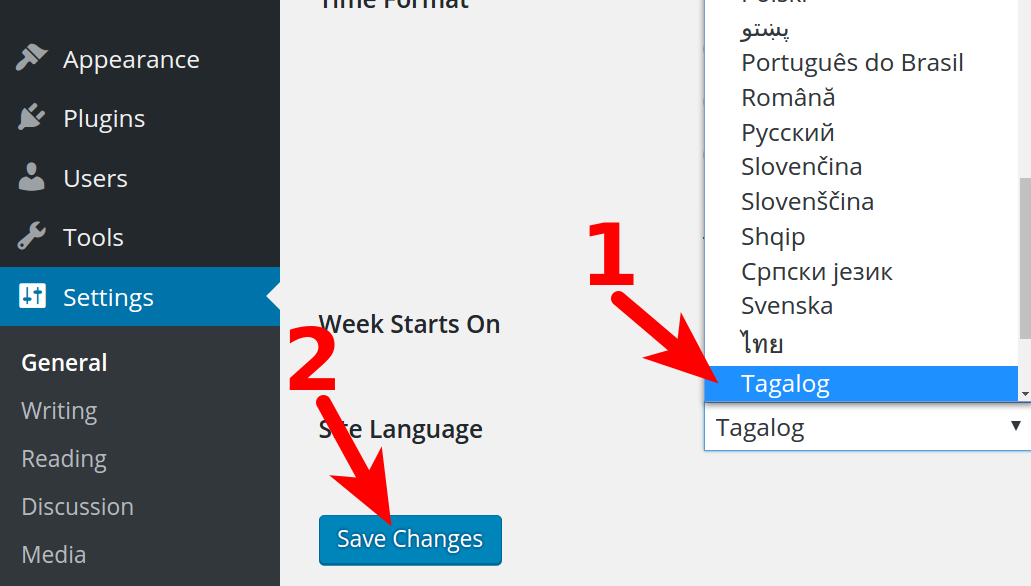
First, log into your WordPress account. The dashboard is the main area. This is where you can manage your site. Look on the left side. Here you will see many options. Find the Settings tab. Click on it. Next, choose General. You will see a list of settings. Find the Site Language option. This lets you change the language. Select the language you want. Click Save Changes.
Now your theme will update. It will show in the new language. This change affects menus and widgets. It does not change your posts. They stay in the original language. You can change them one by one. Use a plugin if needed. Plugins help with translations. Many are free and easy to use.
Credit: www.inmotionhosting.com
Locating Theme Settings
Find your theme settings in the WordPress dashboard. Click on Appearance in the menu. Then click Customize. You will see many options here. Look for Language settings. Not all themes have this option. Some themes use the site’s language settings. If you cannot find language settings, check the theme documentation. It can guide you. WordPress settings also have language options. Go to Settings in the dashboard. Click on General. Here, you can change the site language. This may change your theme language too.
Changing Language In General Settings
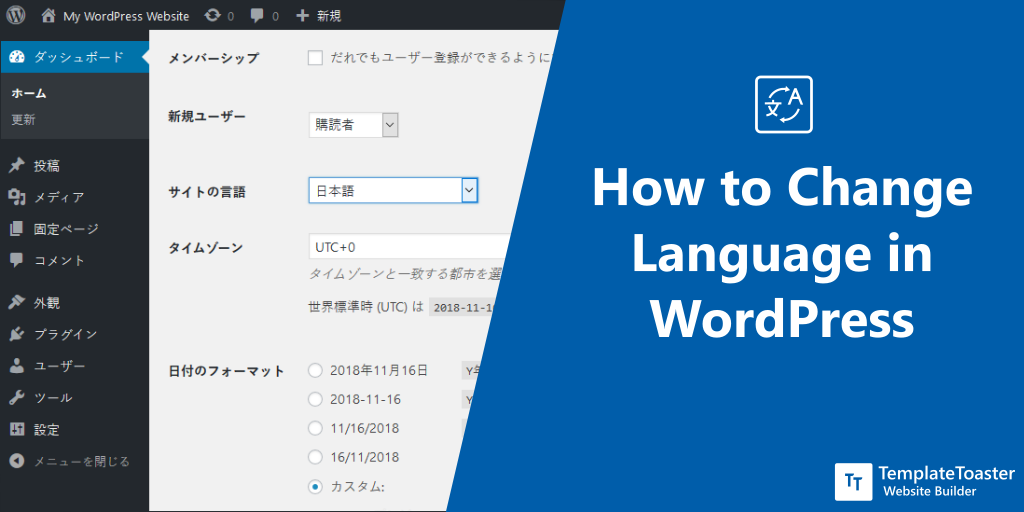
Start by opening your WordPress dashboard. Find the menu on the left. Click on Settings. You will see different options. Choose General. There is an option for Site Language. This lets you change the language.
Choose your preferred language. Save changes by clicking the button at the bottom. Now your theme will use the new language. This is simple and quick. Enjoy browsing your site in the chosen language.
Credit: blog.templatetoaster.com
Using Language Plugins
Many plugins can change your theme’s language. Some popular ones are Polylang and WPML. Consider user reviews and support when choosing. Also, check if it supports your desired language. This ensures smooth functioning and compatibility.
First, go to your WordPress dashboard. Click on Plugins and then Add New. Type the plugin name into the search bar. Click Install Now next to the plugin. After installing, click Activate to start using it.
Once activated, you need to configure settings. Go to the plugin’s settings page. Choose your preferred language. Adjust other settings as needed. Save changes to apply them. This will change your theme’s language smoothly.
Editing Language Files Manually
Find your theme’s language files. They are usually in the languages folder. You can access them through FTP or your site’s file manager. Look for files ending in .po or .mo. These files contain translations for your theme.
Use a tool like Poedit to edit .po files. Open the file with Poedit. You will see original text and translations. Change the translations to your desired language. After editing, save the file. Poedit will generate a new .mo file. Upload both files to the languages folder. Refresh your site to see changes.
Credit: blog.templatetoaster.com
Updating Theme And Language Files
Always check if your theme supports the new language. Some themes may not be compatible. This could cause errors. Compatibility is very important. It ensures your theme works well.
Use a plugin to help with translations. Plugins can make the process easy. Choose a plugin that matches your needs. Make sure it is updated and trusted.
Test your site after changes. Look for any issues or errors. Check if the text displays correctly. Ask a friend to help if needed. They can give feedback on what they see.
If problems occur, contact the theme developer. They can provide support. They might offer a solution or update.
Backup your site before making any changes. This protects your data. Use a reliable backup plugin. Save the backup in a safe place. You can restore your site if something goes wrong.
Regular backups are a good habit. They keep your site safe. Always have a recent backup available.
Troubleshooting Common Issues
Changing your WordPress theme’s language can solve display issues. Access the WordPress dashboard. Navigate to Settings, then General. Here, select your desired language. Save changes. Your theme should now display in the new language.
Missing Translations
Many themes have language files. These files might be incomplete. This causes missing translations. Check the theme settings for language options. Some themes need manual updates. Find the language file for your theme. It may be called a .po file or a .mo file. Use a text editor to open the file. Look for untranslated strings. You can add translations manually. This ensures your theme is fully translated. Always save changes after editing. Refresh your page to see updates.
Plugin Conflicts
Plugins sometimes cause language issues. Each plugin has its own settings. Check if a plugin is blocking translations. Some plugins override theme settings. Disable suspicious plugins one by one. Refresh your site each time. This helps find the conflicting plugin. Update all plugins regularly. This avoids many problems. Some plugins need language files too. Make sure they are complete. Plugin conflicts can be tricky. Patience is key. Always backup before making changes.
Best Practices For Multilingual Sites
Create a smooth experience for all users. Use reliable plugins for translations. They help keep language consistent. Check translations often. Errors confuse visitors. Aim for easy reading in every language. Test pages regularly. This ensures words appear correctly. A good user experience keeps people on your site longer.
Language updates are crucial. They keep your site fresh. Regular checks find outdated phrases. Update them quickly. Stay informed about new words and phrases. This keeps content relevant. Review feedback from users. It helps improve translations. Keeping language current builds trust with visitors.
Frequently Asked Questions
How Do I Change My WordPress Theme Language?
To change your theme language, navigate to Settings in your WordPress dashboard. Select General, then scroll to Site Language. Choose your desired language from the dropdown menu and save changes. This will apply the selected language to your theme interface.
Can I Use Plugins For Language Change?
Yes, plugins like WPML or Polylang allow easy language changes. These plugins offer multilingual capabilities, translating your website content and theme. Simply install and activate the plugin, then follow its setup instructions to select and manage languages.
Does Changing Language Affect Seo?
Changing your site language can impact SEO if not handled properly. Ensure correct hreflang tags for multilingual sites. Use language-specific URLs and optimize content for each language. This helps maintain search engine visibility across different languages.
Is Theme Translation Automatic In WordPress?
WordPress doesn’t automatically translate themes. You may need to edit theme files or use translation-ready themes. Some themes support translation plugins, allowing easier language changes. Always check theme documentation for translation options before making changes.
Conclusion
Changing your WordPress theme language is simple. Follow the steps shared. Adjusting the settings takes just a few minutes. This helps in reaching a wider audience. Language customization improves user experience. Visitors feel more connected. This is key for growing your site.
Explore your theme options carefully. Make sure everything displays correctly. Consistency is important. Regularly check for updates. These can impact language settings. Stay informed for smooth operation. With these tips, you can easily manage language settings. Enjoy creating a multilingual site that welcomes everyone!


