
Are you tired of looking at the same old image every time you visit your WordPress site? Changing the image on your WordPress theme can refresh your site and give it a whole new look.
Whether you want to update your brand logo, showcase a new product, or simply add some personal flair, swapping out images is easier than you might think. In this guide, we’ll walk you through the steps to effortlessly update your theme’s visuals.
Imagine how a new image could engage your visitors and make your site stand out. Ready to dive in and give your WordPress site a fresh face? Let’s get started!
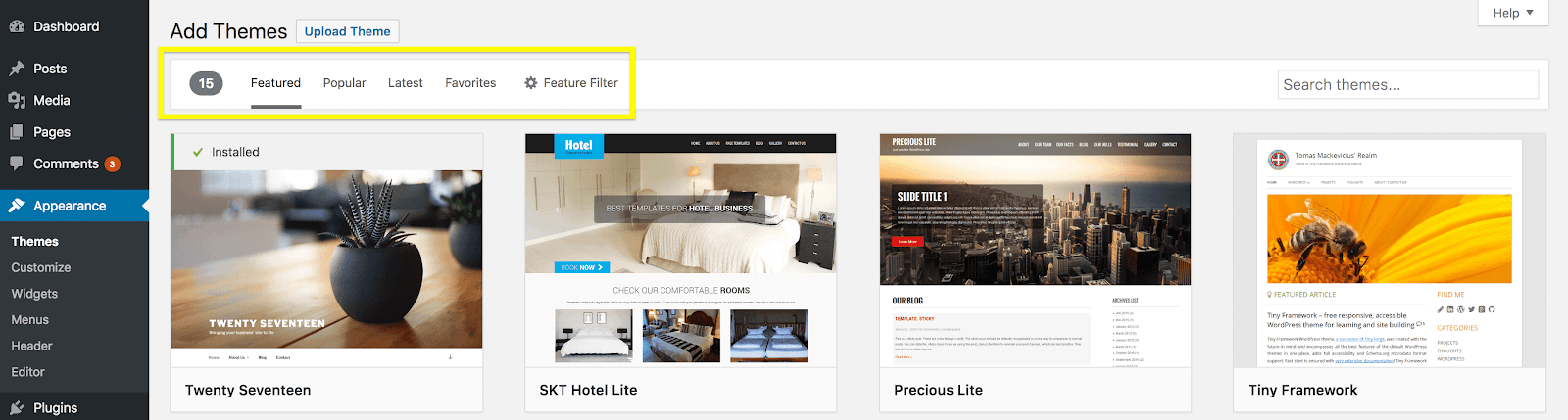
Choosing The Right Image
The image should match your website’s message. Think about why you need it. Does it tell your story? Images can show feelings or ideas. They make your site look better. They should fit with what you want to say. Make sure it is not confusing. It should be clear and easy to understand.
Always pick high-quality images. They look nice and clear. Blurry images do not look good. Visitors will like your site more with clear pictures. A good image can make people stay longer. It shows you care about your site. Quality matters a lot for first impressions.
Images should not be too big. Big images can make sites slow. Fast sites are better for visitors. Check the dimensions too. The image should fit well. It should not be too wide or too tall. It must fit in the space you have.
Credit: wpengine.com
Locating The Image In WordPress
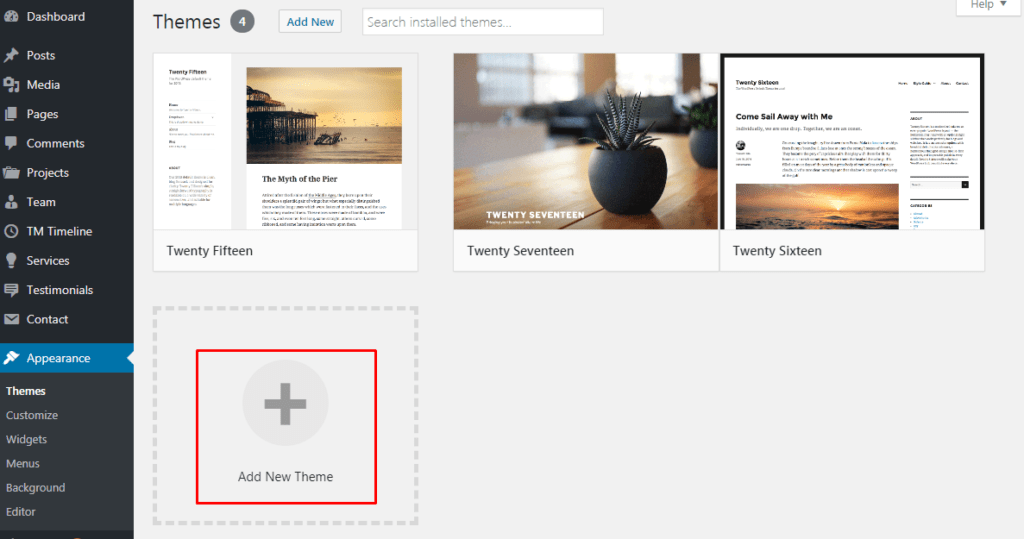
Find the image you want to change in the WordPress theme’s dashboard. Navigate to the media library. Select a new image to replace the existing one. Save your changes to update the theme.
Accessing The WordPress Dashboard
First, log into your WordPress account. Use your username and password. Once logged in, you will see the dashboard. This is your control center. Here, you can manage your site. You can change settings and add content. Look for the menu on the left side. This menu has all the options you need.
Finding Theme Customization Options
In the dashboard menu, find “Appearance.” Click on it. This will show more options. Choose “Customize” to change your theme. This opens the theme customization page. Here, you can change colors and fonts. You can also change images. Look for the “Header” or “Background” section. These sections usually contain images.
Identifying Image Locations
Images are often found in the header. They can also be in the background. Some themes have a section for featured images. Featured images are usually on the homepage. Check each section for image settings. Click on them to see image details. You can change or upload new images easily.
Uploading A New Image
The WordPress Media Library is easy to use. Click on “Media” in the dashboard. Then, click “Add New.” Choose your image from your computer. Wait for the upload to finish. You will see the image in the library. Now, use it in your theme.
FTP stands for File Transfer Protocol. It helps upload files to your site. Use an FTP client like FileZilla. Connect to your server. Navigate to the “wp-content” folder. Find the “uploads” folder. Drag your image file here. The image is now on your site.
Use the right image format for your site. JPEG is good for photos. PNG is great for graphics. Avoid using GIFs. They can slow down your site. Keep file size small. This helps your site load fast.
Credit: www.templatemonster.com
Replacing The Existing Image
Open your WordPress dashboard. Find the Appearance tab. Click on Customize. Look for the Header Image or Background Image options. Click to change the image. Upload a new picture from your computer. Choose the image size and position. Save changes. Your theme will now show the new image.
Go to your WordPress dashboard. Click on Appearance and then Theme Editor. Find the file with image settings. Usually named header.php or style.css. Locate the code for the current image. Replace with new image URL. Save your changes. Be careful with code. It can break your site.
Install a page builder plugin. Popular ones are Elementor and WPBakery. Open your page in the builder. Click on the image you want to change. Use the replace option. Upload a new image. Adjust size and style. Save your changes. Page builders make this process easy.
Adjusting Image Settings
Changing images on a WordPress theme can be simple. First, make sure your image fits well. Use cropping to cut out extra parts. Resizing makes the image the right size. A small image loads fast. Bigger images can slow down your site. Keep images clear and sharp. Blurry images look bad. Use the WordPress editor for cropping and resizing. It’s easy and quick.
Positioning images changes how your site looks. Put images in the right spot. Top, bottom, or side. Different spots give different feelings. Use the WordPress editor to move images. Drag images where you want them. Make sure images fit with text. Well-placed images make your site look good. Bad placement can confuse people.
Many people use phones to visit sites. Images must look good on all screens. Mobile responsiveness is key. Check if images resize on phones. Test on different devices. Responsive images keep your site neat. Use WordPress tools to check responsiveness. Fix any problems you find. This makes sure everyone sees your images clearly.
Testing And Reviewing Changes
Changing the image on a WordPress theme involves accessing the theme settings. Navigate to the Appearance section and select Customize. Look for the header image or background option to upload your new picture. Test and review changes to ensure the image displays correctly across devices.
Previewing On Different Devices
Check your website on phones, tablets, and computers. Different devices can show images differently. Make sure the image looks good everywhere. Use tools that show how your site looks on different screens. This helps find any problems early.
Checking For Performance Impact
Images can slow down websites. Test the site speed after changing images. Use online tools to measure loading time. A slower site can make visitors leave. Compress images to improve speed without losing quality.
Ensuring Browser Compatibility
Websites can look different on each browser. Check your site on Chrome, Firefox, and Safari. Ensure the image appears correctly on all browsers. Fix any issues found during testing. This ensures everyone sees the image as intended.
Troubleshooting Common Issues
Check if your image file is in the correct format. Formats like JPEG or PNG work best. Ensure the image is uploaded to the right media library. Refresh the page if changes don’t show. Sometimes, the image URL might be wrong. Double-check it to ensure accuracy.
Use the theme’s settings to adjust image alignment. Look for options like left, center, or right. Sometimes, a small tweak can fix the problem. Clear your browser’s cache to see changes. If the problem persists, consider checking the CSS code.
Caching can stop new images from showing. Use a caching plugin to clear the cache. Refresh your browser after clearing the cache. Sometimes, changes take time to show. Patience is key. Ensure your cache plugin is up to date. This helps avoid bugs.
Credit: jetpack.com
Frequently Asked Questions
How Do I Change A Theme Image?
To change a theme image, go to your WordPress Dashboard. Navigate to Appearance, then click Customize. Find the section for images or header images. Upload your desired image, then save the changes. Always ensure the image is optimized for web use to maintain site speed.
Can I Change Images Without Coding?
Yes, you can change images without coding. Use the WordPress Customizer tool. Navigate to Appearance, select Customize, then find the image section. Upload and replace images easily. No coding skills are required. This tool is user-friendly and efficient for quick changes.
Are Image Dimensions Important In Themes?
Image dimensions are crucial for maintaining a theme’s layout. Correct dimensions ensure images fit well and look professional. Check your theme’s documentation for recommended dimensions. Optimized dimensions improve loading speed and user experience. Always resize images before uploading them to WordPress.
How Do I Optimize Images For WordPress?
Optimize images by resizing and compressing them before upload. Use tools like TinyPNG or ImageOptim for compression. Smaller file sizes enhance site speed. Maintain quality while reducing size. Optimized images improve SEO and user experience. Ensure images are responsive for different devices.
Conclusion
Changing images on a WordPress theme is simple. Just follow the steps mentioned. You’ll have a fresh look in no time. Remember to choose images that fit your brand. High-quality visuals make a big impact. Keep your theme updated for best results.
Experiment with different images. Find what works best for your audience. This can boost engagement on your site. Don’t hesitate to explore different styles. Enjoy the process of customizing your site. With practice, it gets easier. Your site will reflect your unique style.
Happy customizing!


