
Have you ever felt that your website’s header just doesn’t capture the essence of your brand? You’re not alone.
With the Avada WordPress theme, changing your header can seem daunting, but it doesn’t have to be. Imagine the difference a personalized header could make, instantly captivating visitors and setting the tone for your entire site. In this guide, you’ll discover simple, step-by-step instructions to transform your header into something uniquely yours.
You’ll gain the confidence to customize it with ease, making your site not only look professional but also stand out from the crowd. Keep reading, and you’ll soon unlock the potential to make your website truly unforgettable.
Credit: avada.com
Accessing Theme Options
Changing the header in the Avada WordPress theme involves accessing theme options. Navigate to the Avada dashboard, choose ‘Options,’ then select ‘Header’ to customize styles and layouts. Save changes to see the updated header instantly.
Navigating The Dashboard
First, open your WordPress dashboard. Find the Avada icon on the left. Click it. This will open the Avada Options panel. Here, you can change many settings. Look for the options to change the header. It’s usually in a section labeled “Header” or “Layout”. This is where you can start making changes.
Locating Avada Theme Options
In the Avada panel, you will see many settings. These are called Theme Options. Scroll through the list. Find the section named “Header”. Click on it. You will see more options there. Each setting is simple to understand. Just read and click to make changes. Save your changes before you leave. This will update your website’s header.
Customizing The Header
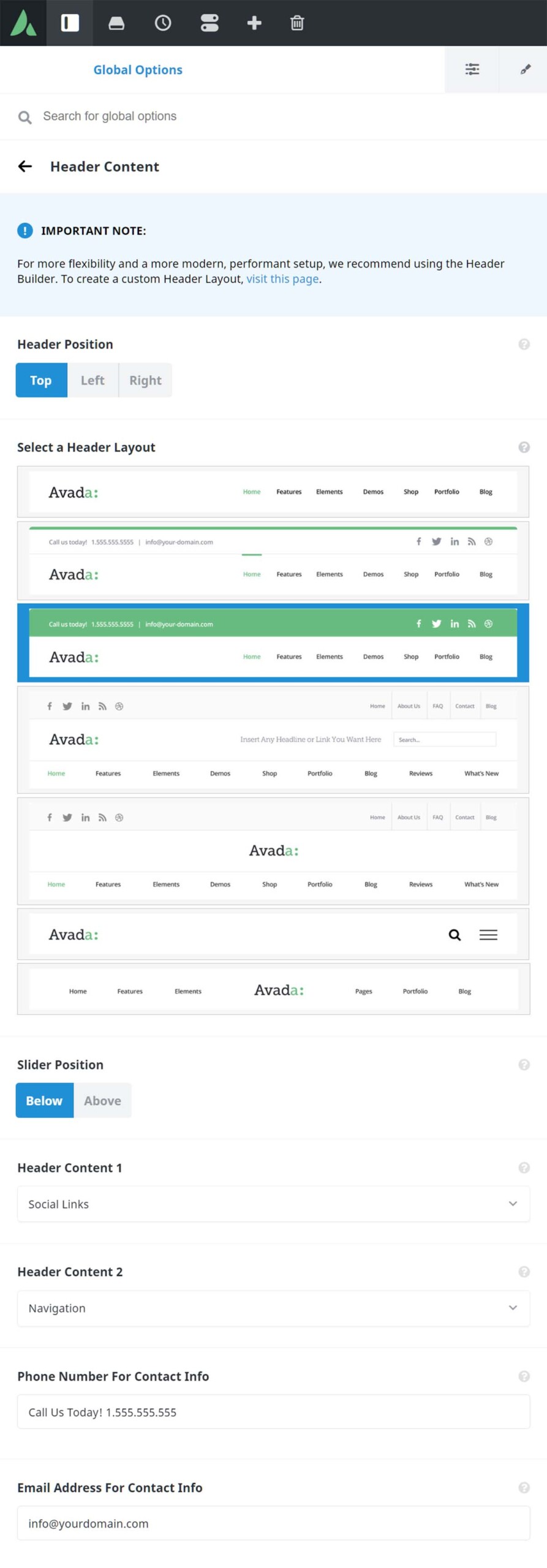
Avada offers many header layouts to suit your site. You can select from options like classic, modern, or minimal. Each layout changes the look of your header. To choose a layout, go to the Avada options panel. Pick the layout you like best. This choice affects the design and style.
You can change header styles easily. Adjust colors, fonts, and sizes in the settings. These options help make your header unique. Try different styles to see what fits. This helps match your site’s theme. Styles can be changed anytime.
Header content includes logos and menus. You can update logos by uploading new images. Change menu links in the menu settings. This makes sure visitors find what they need. Always check the header after updates. Ensure it looks great and works well.
Using The Header Builder
The Avada theme has a Header Builder. This tool helps you make a unique header. You can see different tools on the left side. Each tool does something special. Play with them. Experimenting helps learn faster. Try each tool. See what changes it makes.
Click on the elements tab in the Header Builder. You can find various elements like logos, menus, and buttons. Drag an element to the header area. It’s like moving blocks. Put them where you want. Arrange them to look nice. Make sure they fit well.
After adding elements, click on each one. A settings box will appear. Change the settings to match your style. You can adjust size, color, and more. Make sure the text is clear. Change the font if needed. Keep checking your work. It should look good on all devices.
Incorporating Custom Code
To change the header, you may need custom CSS. Open your WordPress dashboard. Go to “Appearance” and click “Customize”. Select the “Additional CSS” section. Enter your CSS code. For example, to change the header color, use header { background-color: #yourcolor; }. Click “Publish” to save changes. Check your site to see the new look. Try different colors and styles. Make sure to preview before publishing.
JavaScript can make your header interactive. Go to the WordPress dashboard. Find the “Appearance” section. Click on “Customize”. Go to “Additional CSS” and scroll down. Insert your JavaScript code here. Use simple scripts to start. For example, to create a scrolling effect, use basic JS code. Always test your code. Make sure it works. Click “Publish” to apply changes. Refresh your site and see the effect. Try small changes first.
Responsive Design Considerations
The header must look good on all devices. Make sure it is mobile-friendly. Adjust the size for small screens. Use flexible layouts and images. Test the header on phones and tablets. Check if buttons are easy to tap. Keep text readable. Avoid using too many elements in the header.
Test the header on different devices. Use a phone, tablet, and computer. Check how it looks and works. Make sure it is easy to use. Ensure all features are visible. Adjust settings if needed. Test on both Android and iOS. Look for any issues that might appear. Fix problems quickly for a smooth experience.

Credit: www.youtube.com
Saving And Publishing Changes
Changing the header in the Avada WordPress theme is simple. Access the Avada Theme Options. Make your desired changes to the header design. Save and publish these changes to see them live on your site instantly.
Previewing The Header
Before saving, check your header looks right. Use the preview feature in Avada. This shows what your header will look like. If it looks good, move to the next step. If it needs changes, go back and edit.
Saving Customizations
Once happy with the header, save your work. Click the save button to keep the changes. This ensures the header design is stored. Make sure to save often. This prevents losing your work.
Publishing The Updated Header
After saving, publish the new header. Click the publish button to make it live. This updates your site with the new header. Check your website to see the changes. Ensure everything looks perfect.
Troubleshooting Common Issues
Some users face issues with the header settings. Sometimes, the header does not update. Other times, it might look misaligned. These problems can be due to plugin conflicts or theme updates.
First, check if any plugins are causing trouble. Disable all plugins and see if the header works. If it does, enable plugins one by one to find the bad one. Ensure your theme and WordPress are up-to-date. An outdated theme can cause issues.
If problems persist, try resetting the header settings. Go to the theme options and select default settings. This can often fix alignment issues. If all else fails, contact support for help.
Credit: avada.com
Frequently Asked Questions
How Do I Access Avada’s Header Settings?
Access the header settings by navigating to Avada’s dashboard. Click on ‘Theme Options’ and select ‘Header. ‘ Here, you can customize header layouts, styles, and content. Explore various options to suit your design needs. Ensure you save changes after adjustments for them to reflect on your site.
Can I Use A Custom Logo In Avada?
Yes, you can upload a custom logo in Avada. Go to ‘Theme Options,’ then ‘Logo. ‘ Upload your desired logo and adjust its size and position. This allows for brand personalization and enhances your site’s visual identity. Remember to save changes to see the updated logo on your site.
How Do I Change Header Color In Avada?
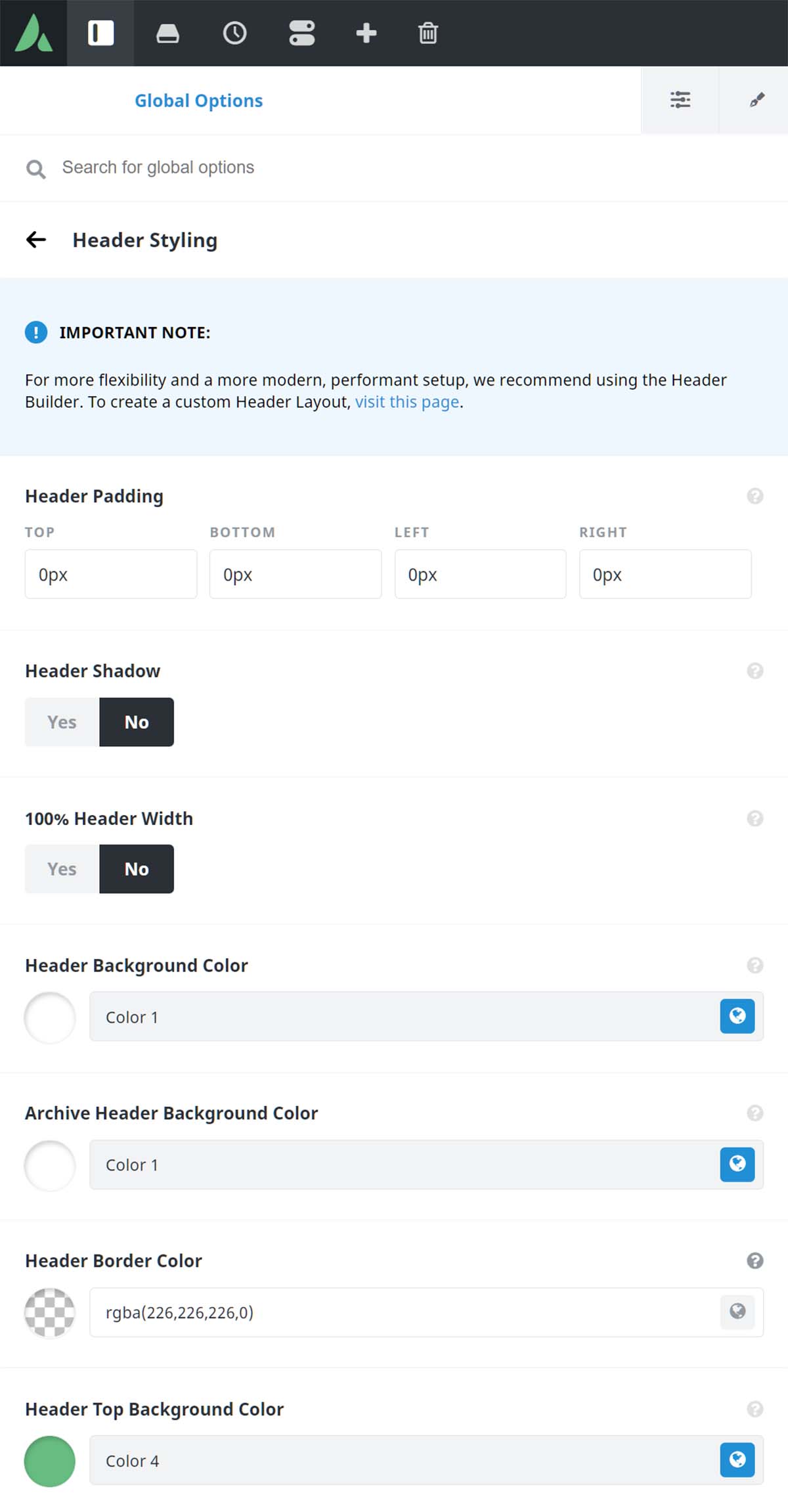
To change the header color, navigate to ‘Theme Options’ in Avada. Select ‘Header’ and choose ‘Header Styling. ‘ Here, you can modify colors to match your design preferences. Experiment with different color combinations for a unique look. Ensure changes are saved to apply the new colors.
Is It Possible To Add A Widget To Avada Header?
Yes, Avada allows adding widgets to the header. Go to ‘Theme Options,’ select ‘Header,’ and click ‘Header Content. ‘ Choose ‘Widget Area’ and add your preferred widgets. This enhances functionality and user interaction. Save changes to make sure the widgets appear in your header.
Conclusion
Changing the header in Avada is simple with these steps. Follow the guide to customize your theme easily. Enjoy exploring different styles and designs. Make your website unique and appealing. A personalized header boosts your site’s look. Remember, practice makes perfect.
Experiment with various options. Soon, you’ll master header changes without stress. Keep learning and trying new things. Your website deserves a fresh, engaging look. Happy designing!


