
Are you tired of seeing the same old font on your WordPress site? Changing fonts can transform your website’s look and feel, making it more engaging and professional.
Imagine your visitors staying longer and interacting more just because of a simple font change. You deserve a website that reflects your style and vision perfectly. But how do you switch up the font without getting tangled in complicated coding?
Don’t worry, you’re not alone. This guide will show you step-by-step how to change the font on your WordPress theme easily and effectively. Get ready to give your site a fresh new vibe that captivates and holds attention! Stay with us, and you’ll have the tools you need to make your website truly stand out.
Choosing The Right Font
Fonts can change how your site looks and feels. They can make text easy or hard to read. Choose a font that matches your site’s theme. Make sure it’s easy to read. Some fonts look good on a screen but not on paper. Think about where your visitors will read. Online or offline?
Font size is also important. Small text can be hard for some to read. Big text can make a site look funny. Find the right balance.
Some fonts are popular and used often. Arial is simple and clear. Times New Roman is classic and formal. Comic Sans is fun but not for all sites. Try different fonts to see what fits best. Find a style that matches your content.
Credit: wpdatatables.com
Accessing The Theme Editor
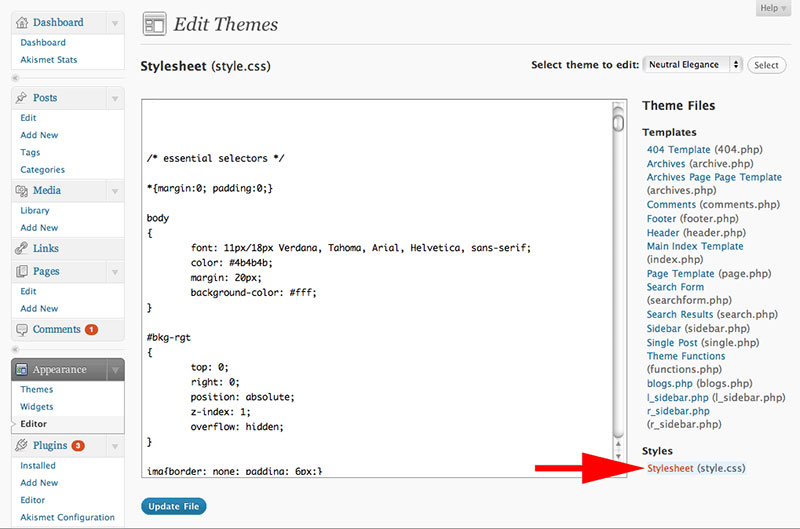
Start at the WordPress dashboard. It’s the main control center. Find the menu on the left. Look for Appearance. Click it. A list will show up. Choose Theme Editor. That’s where changes happen.
The Theme Editor has many files. Look for style.css. This file controls fonts. Click it to open. Now, you can see the code. Make changes to the font here. Save after editing. Changes appear on your site.
Using Customizer For Font Changes
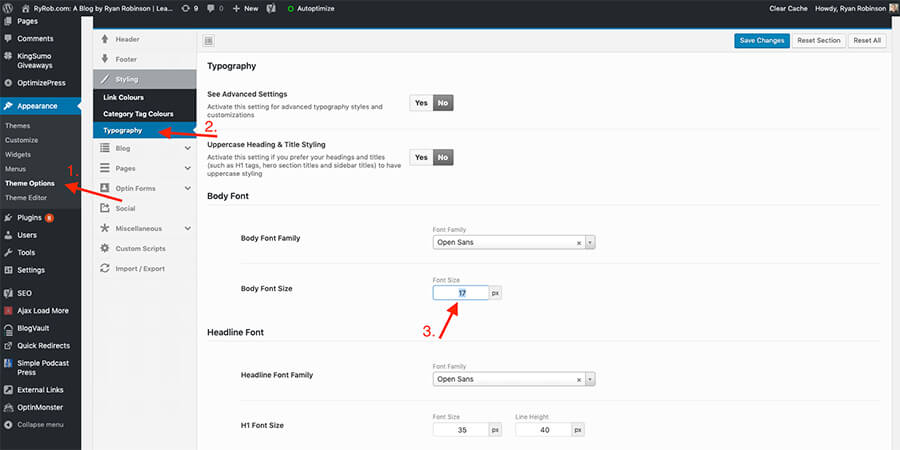
Open your WordPress dashboard. Look for the Appearance option. Click on it. Then, click on Customize. This opens the Customizer. Here, find the Typography section. It’s where you change fonts.
After selecting a font, look at the preview. The Customizer shows changes instantly. Check if it looks good. Try different fonts. See what fits your style. Remember to save your changes. Click Publish to make it live.
Credit: www.ryrob.com
Installing A Font Plugin
Choosing the right plugin is key. Some plugins are well-known. Easy Google Fonts is a popular choice. It is simple and effective. Use Any Font is another option. It lets you add your own fonts. Fontsy offers many fonts to explore. Each plugin has unique features. Look at reviews before deciding.
Start by logging into your WordPress dashboard. Go to the Plugins section. Click on Add New. Search for your chosen font plugin. Click Install Now on the plugin page. After installation, hit Activate. Go to the plugin settings. You can now pick and apply new fonts. Save your changes to see results.
Custom Css For Font Customization
Custom CSS changes the look of your website. CSS stands for Cascading Style Sheets. It controls how things appear. You can change fonts, colors, and sizes. Learning CSS basics helps you make your site unique.
Find the CSS editor in your WordPress dashboard. It’s usually under Appearance. You can add new styles here. This makes your site different.
To add a new font, you need to write CSS code. First, choose a font from Google Fonts or another site. Copy the font URL provided. Next, paste it into the CSS editor. Add the font family name to your code. This changes your text style.
Example code:
body {
    font-family: 'YourFontName', sans-serif;
}
Credit: themeisle.com
Google Fonts Integration
Google Fonts offer many choices. Start by visiting their website. Look for a font that fits your style. You can see how it looks right away. Once decided, click on the font. Then, you will see options to use it. Remember to choose fonts that are easy to read. This helps your website visitors.
You can embed Google Fonts in your WordPress theme. Copy the provided code. This code is for the font you selected. Next, go to your WordPress dashboard. Find the section for custom codes or theme settings. Paste the code there. Now, update your changes. Your new font should appear on your site. Make sure to check how it looks on different devices. This ensures everyone can see it well.
Testing Font Compatibility
Cross-browser testing is important for fonts. Some fonts may not work on all browsers. Check your font in Chrome, Firefox, and Safari. See if it looks the same. Some fonts can look different. This can confuse users.
Next, check for responsive design. Your font should look good on phones and tablets. Resize the browser window. Watch how the font changes. It should stay clear and readable. If it does not, you may need a different font.
Troubleshooting Common Issues
Changing the font on your WordPress theme can enhance its look. Navigate to the theme settings, find typography options, and select your preferred font style. Check for compatibility issues to ensure the new font displays correctly across devices.
Font Not Displaying
Sometimes, the new font won’t show up. This happens for a few reasons. Check if the font file is uploaded correctly. Wrong file paths can cause this issue. Also, ensure the font is compatible with your theme. Not all fonts work well with every theme.
Browser caching can also hide changes. Clear your cache to see updates. Another step is checking your theme’s CSS. Conflicting styles can stop fonts from showing. Make sure your CSS is correct.
Resolving Conflicts
Conflicts arise between plugins and themes. These conflicts affect font display. Disable plugins one by one. This helps find the problem. Update your theme and plugins regularly. Updates fix bugs causing issues.
Child themes can help resolve conflicts. Use a child theme for custom changes. This prevents future problems. Backup your site before making changes. Always ensure your website is safe.
Best Practices For Font Use
Changing the font on your WordPress theme can improve your site’s appearance. Choose readable fonts to enhance user experience. Adjust font size and spacing for better readability.
Maintaining Readability
Fonts should be easy to read. Choose clear and simple fonts. Readers find it hard to read fancy fonts. Use sizes that are not too small. Small fonts strain eyes. Big fonts are better but not too big. Aim for a font size that is just right. Proper spacing between lines helps too. Good spacing makes reading easy.
Consistent Branding
Branding needs consistent fonts. Use the same font everywhere. Readers remember your brand by its look. Fonts should match your brand style. Pick fonts that fit your brand voice. A serious brand might use simple fonts. Fun brands use playful fonts. Consistency builds trust with readers. They recognize your brand by its font.
Frequently Asked Questions
How Can I Change My WordPress Font?
To change your WordPress font, access the theme customizer. Navigate to Appearance > Customize, then select Typography. Here, you can choose from available fonts or add custom ones using plugins like Google Fonts Typography. Save changes to apply the new font.
Which Plugin Helps Change WordPress Fonts?
Use the Easy Google Fonts plugin to change WordPress fonts easily. It integrates with the theme customizer, allowing you to choose from Google Fonts. This plugin is user-friendly and doesn’t require coding skills. Simply install, activate, and customize your typography settings.
Can I Use Custom Fonts In WordPress?
Yes, you can use custom fonts in WordPress. Upload font files using the Custom Fonts plugin or add code to your theme’s functions. php file. Ensure the font is compatible with your theme. Custom fonts can enhance design and improve user experience.
Do All WordPress Themes Support Font Changes?
Not all WordPress themes support direct font changes. Some themes may require custom CSS or a child theme. Check your theme’s documentation or use plugins for easy font customization. Choosing a flexible theme can simplify typography adjustments.
Conclusion
Changing your WordPress theme font is easier than it seems. Follow steps carefully for a fresh look. Fonts enhance readability and style. Experiment with different fonts to find the best fit. Remember, fonts impact how visitors perceive your site. Keep your site’s purpose in mind when choosing fonts.
Enjoy the creative process. Your site’s design reflects your brand. Updating fonts can refresh your site’s appearance. Don’t hesitate to explore and make changes. A small font change can make a big difference. Your WordPress site deserves a unique look.
Happy customizing!


