
Are you tired of the same old look of your WordPress theme? Changing the font can give your website a fresh, unique feel that matches your brand’s personality.
Imagine your content standing out with a new, elegant typeface that captivates and engages your readers. Whether you want to make your blog posts more readable or give your business site a professional touch, tweaking the font can make all the difference.
In this guide, I’ll show you how to effortlessly change the font of your WordPress theme. It’s easier than you think and could be the key to transforming your website into a more appealing and memorable experience for your visitors. Ready to revamp your site’s style? Let’s dive in!
Credit: www.elegantthemes.com
Choosing A New Font
Finding the right font is crucial. It helps your readers understand better. A font style can change the look of your site. It should be clear and easy to read. Try not to use fancy fonts. They can be hard to read. Simple fonts are often the best choice. Readability is key when picking a font. It should fit the theme of your site. Fonts like Arial or Helvetica are good choices. They are simple and clean. Test different fonts on your site. See which one looks best. Your font should match your brand’s style. Keep it consistent across all pages.
Considering readability is very important. A good font size is also needed. Small fonts are hard to read. A larger font size is easier on the eyes. Color is another factor. Dark text on a light background is best. Avoid light text on a dark background. It can be hard to read. Remember, the goal is to make your content easy to read. Choose a font that your audience will love.
Credit: www.inmotionhosting.com
Accessing Theme Customizer
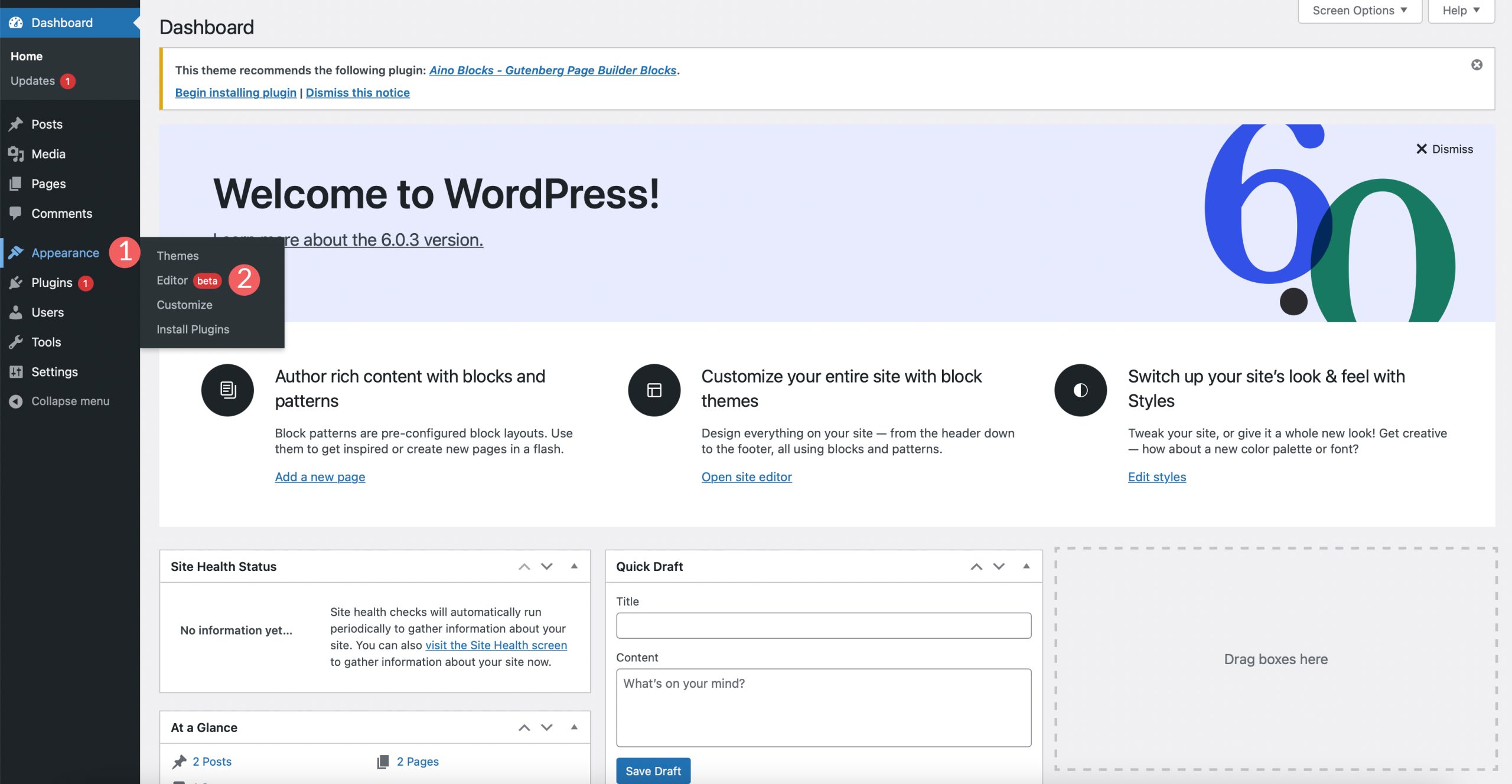
Navigating WordPress Dashboard is simple. First, log into your WordPress account. Look for the Dashboard on the left side. This is your control center. You can manage your site from here. Find the Appearance option. Click on it. A dropdown menu will appear.
Locating the Customize Option is the next step. In the dropdown menu, find the Customize option. Click on it. This will open the Theme Customizer. The customizer lets you change your site’s look. Fonts are part of this. You can choose new fonts here.
Using Additional Css
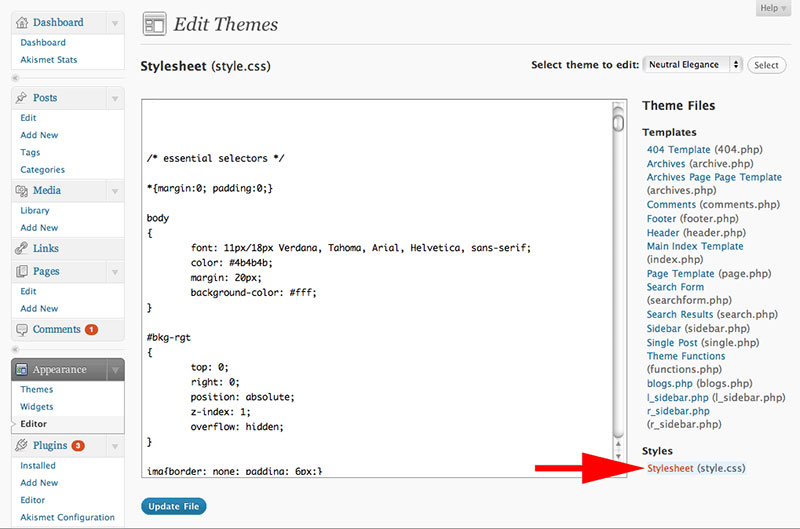
CSS helps in styling web pages. It controls how text looks. Fonts, colors, and sizes are set with CSS. Understanding CSS is easy. Selectors are used to pick HTML elements. Properties change how elements look. For example, to change font, use the font-family property.
Common font families are Arial, Times New Roman, and Verdana. CSS is powerful. It makes sites look good. Learning CSS basics is helpful. It makes font changing easy.
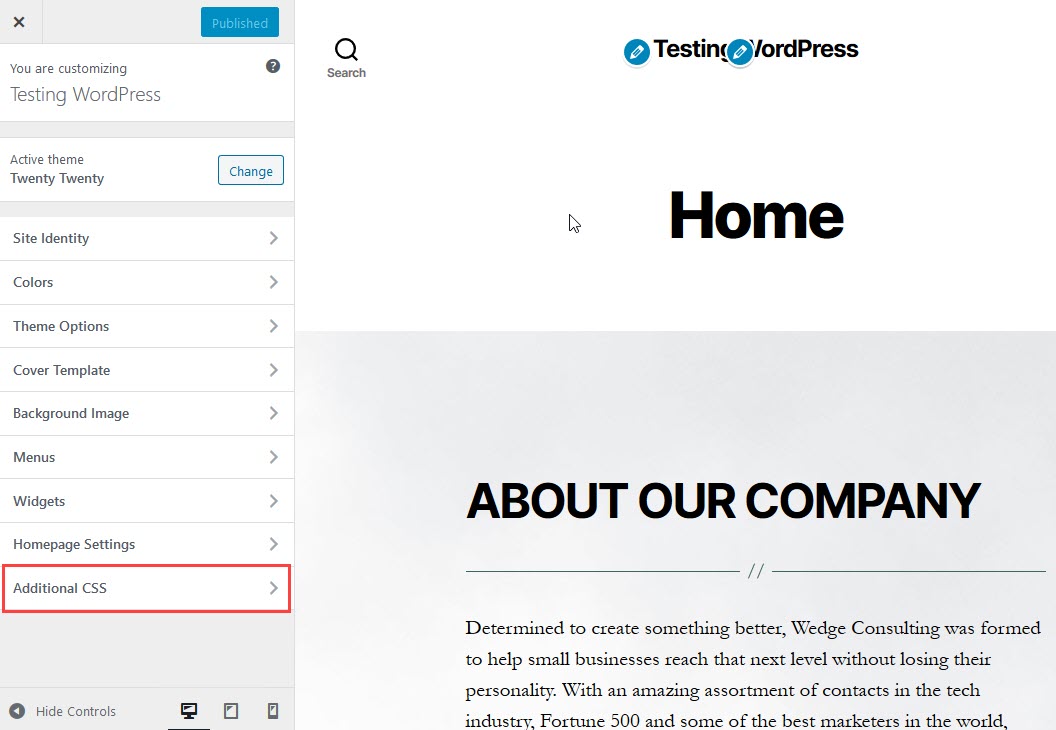
First, go to your WordPress dashboard. Click on Appearance and then Customize. Find the Additional CSS option. Here, add your CSS code.
To change fonts, type this code: body { font-family: 'Arial', sans-serif; }. Replace
‘Arial’ with your desired font. After adding the code, click Publish. Your new font will now
appear.
Make sure your font is web-safe. This ensures it shows correctly. Use Google Fonts for more options. They offer many free fonts.
Installing A Font Plugin
Finding the right plugin is easy. Start by searching in the plugin store. Many font plugins are available. Each has unique features. Choose one that suits your needs. Look at ratings and reviews. This helps in selecting the best one. Remember, the plugin should be compatible with your theme.
Go to your WordPress dashboard. Click on “Plugins” and then “Add New”. Search for the chosen plugin. Click “Install Now” to download it. Wait for the installation to finish. Then click “Activate”. The plugin is now ready to use. Check your settings to ensure it works correctly.
Integrating Google Fonts
Google Fonts offers many styles. You can find fonts that suit your website. Choose fonts that match your brand. Visit the Google Fonts website. Use the search bar to find fonts. Preview fonts before choosing. Look for fonts with good readability. Fonts should be easy for kids to read.
Embedding Google Fonts is easy. Copy the font link provided. Paste it in your theme’s header. Use CSS to apply the font. Add the font name to your stylesheet. Fonts should appear on your website. Check if the font displays correctly. Make sure text is readable. Adjust font size if needed.
Testing The New Font
Changing a theme’s font in WordPress enhances your site’s appearance. Navigate to the WordPress dashboard. Select “Appearance,” then “Customize. ” Choose “Typography” to explore font options. Adjust settings, preview changes, and save. This simple process improves readability and style.
Previewing Changes
Look at your website’s new font on different devices. This helps see if the font looks good everywhere. Check the text size and style. Make sure it’s easy to read. Use the WordPress Customizer for a quick view. Changes can be made easily if needed. Previewing is important before going live. It saves time and helps catch mistakes early.
Ensuring Compatibility
Ensure the new font works with all browsers. Some fonts might not show correctly on every browser. Test on Chrome, Firefox, and others. Check mobile devices too. This ensures everyone sees the same font. Make sure the font is legible and clear. Good fonts make the site look nice and professional. Compatibility is key for a smooth user experience.
Troubleshooting Font Issues
Changing the font of a WordPress theme can solve font issues. Navigate to the WordPress dashboard, select “Appearance,” then “Customize. ” Find the “Typography” or “Fonts” section and choose your preferred font. Save changes to update your theme’s appearance.
Common Font Problems
Fonts might not appear correctly on WordPress. Themes have default settings. Sometimes, these settings clash with custom fonts. You may notice size or style issues. Fonts may look different on mobile devices. This can confuse visitors.
Another problem is browser compatibility. Fonts may not work in all browsers. Some browsers interpret fonts differently. This can affect the look of your website. It’s important to test fonts in various browsers.
Seeking Support
Help is available online. Many forums discuss font problems. You can ask for advice from experts. It’s helpful to contact theme support. They can offer solutions for font issues. You can also find guides on WordPress forums. These guides explain steps to fix fonts. Sometimes, hiring a developer is necessary. They can resolve complex font problems.
Credit: wpdatatables.com
Frequently Asked Questions
How Do I Change Font In WordPress Theme?
To change the font in a WordPress theme, access your dashboard. Navigate to Appearance > Customize. Look for the Typography or Fonts section. Select your preferred font from the available options. Save changes to see the new font applied across your site.
Can I Use Google Fonts In WordPress?
Yes, you can use Google Fonts in WordPress. Install a plugin like Easy Google Fonts. Choose fonts from the Google Fonts library. Customize font settings in the WordPress Customizer. Save your changes to apply the new fonts to your theme.
How Do I Add Custom Fonts To WordPress?
Add custom fonts to WordPress via a plugin or manually. Use a plugin like Custom Fonts. Upload font files and configure settings. Alternatively, add fonts via the theme’s CSS files. Ensure compatibility with browsers for best results.
Are Font Changes In WordPress Theme Seo Friendly?
Font changes in WordPress themes can be SEO friendly. Ensure readability and compatibility with devices. Use web-safe fonts or Google Fonts. Properly configure font size and line spacing. Enhanced user experience can positively impact SEO.
Conclusion
Changing a theme’s font on WordPress is simple and rewarding. First, select the best font for your site. Next, customize the font settings. Use the WordPress Customizer or a plugin. Make sure the font aligns with your brand. Better readability improves user experience.
Consistent font style looks professional. Always preview changes before saving. Ensure mobile compatibility too. Fonts can transform your site’s appearance. Experiment and find what works best. A well-chosen font enhances your website’s appeal. Keep your audience engaged and happy. Happy styling!


