
Are you looking to give your WordPress site a fresh look with a new favicon? Changing the favicon in the Simple Theme for WordPress is a quick way to update your site’s appearance and boost its branding.
A well-designed favicon not only makes your website stand out in browser tabs but also enhances your brand’s recall value. Imagine your website visitors recognizing your brand instantly just by glancing at the tiny icon on their tabs or bookmarks.
This small change can make a big difference in how people perceive your site. Don’t worry if you’re not a tech wizard; we’ve broken down the steps in a way that’s easy to follow, ensuring you can make this change effortlessly. Stick around, and you’ll be surprised how straightforward this process can be!
What Is A Favicon?
A favicon is a small icon for your website. It appears in the browser tab. It also shows in bookmarks. A favicon helps people find your site quickly. It is often a logo or a simple image. This icon is very tiny, usually 16×16 pixels.
Creating a favicon is simple. Many tools are available online. You can create one for free. Just upload an image. The tool will make it the right size. A favicon should be easy to recognize. Keep it simple and clear. This helps people remember your site.
Importance Of A Favicon
A favicon is a small picture on browser tabs. It helps users recognize your site quickly. This icon is shown next to your site’s name. It makes your site look professional. It’s also a part of your branding. People remember your site better with a favicon. It helps in building trust with visitors. They see your favicon and feel safe. So, never ignore the favicon.
Accessing The WordPress Dashboard
Start by logging into your WordPress account. Use your username and password. Once inside, look for the dashboard. It’s where you manage your site. Find the left-hand menu. Click on Appearance to see more options. Choose the Customize button from the list. This opens the theme editor. It’s simple and easy to use.
In the editor, look for Site Identity. It holds the favicon option. The favicon is a tiny icon for browsers. Click on it to upload your new favicon. Use a square image. Recommended size is 512×512 pixels. After uploading, save your changes. Check your site. The new favicon should appear. If not, refresh your browser. Now, your site looks unique with its new icon.
Navigating To Theme Settings
Start by logging into your WordPress dashboard. Find the Appearance tab on the left side. Click on it. A menu will open. Choose Customize from the list. Now, you are in the Theme Customizer. Look for the Site Identity option. It is usually near the top. Click on it. You will see the Favicon or Site Icon option there.
Upload your new favicon here. It should be a square image. Suggested size is 512×512 pixels. Once uploaded, you can preview it. If it looks good, click Publish. Your new favicon is now live. It’s easy and quick. Enjoy your new look!
Locating The Favicon Option
First, open your WordPress dashboard. This is where you manage your site. Look for the “Appearance” section. It’s usually on the left side. Click on “Customize”. This opens the theme customizer. Here, you can change how your site looks. Find the “Site Identity” option. This is where you can change the favicon. The favicon is a small icon. It shows up in the browser tab. It’s important for your site’s identity. You will see an option to upload a new favicon. Click on it and choose your new icon. Make sure it’s a square image. It should be 512×512 pixels for best results.
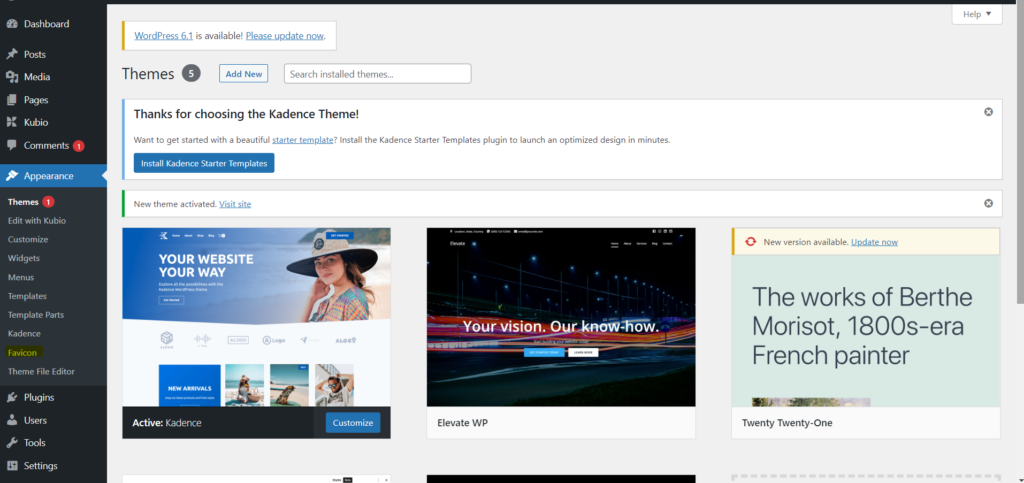
Credit: kubiobuilder.com
Uploading A New Favicon
Change your WordPress site’s favicon in the Simple Theme by going to the Appearance menu. Upload your new favicon under the Site Identity section. Save changes to see your updated icon on the browser tab.
Choosing The Right File Format
Favicons often use the .ico format. This format works well with browsers. Sometimes, .png and .jpg formats are acceptable. Always check your theme’s requirements. Some themes prefer specific formats. .svg files can also be used. They are scalable and keep quality. Pick the format that fits your needs best.
Optimal Favicon Dimensions
The best size for a favicon is 16×16 pixels. This size works on most browsers. Larger sizes like 32×32 or 48×48 pixels can be used. They provide better clarity. Ensure your image is square. Rectangular images may not look good. Keep your design simple. Complex images may lose detail.
Saving Changes
Click the Save Changes button. This button is usually at the top or bottom. Wait for the page to reload. Once the page reloads, check your site. Look at the top of your browser. See if your new favicon appears.
Refresh your page. This might be necessary to view your new favicon. Sometimes changes take a while to show. If it doesn’t work, clear your browser cache. Clearing cache helps in seeing new changes.
Ask someone to check from their device. If they see the favicon, it’s working. This ensures the change is successful. Always keep your favicon simple. Simple designs load faster.
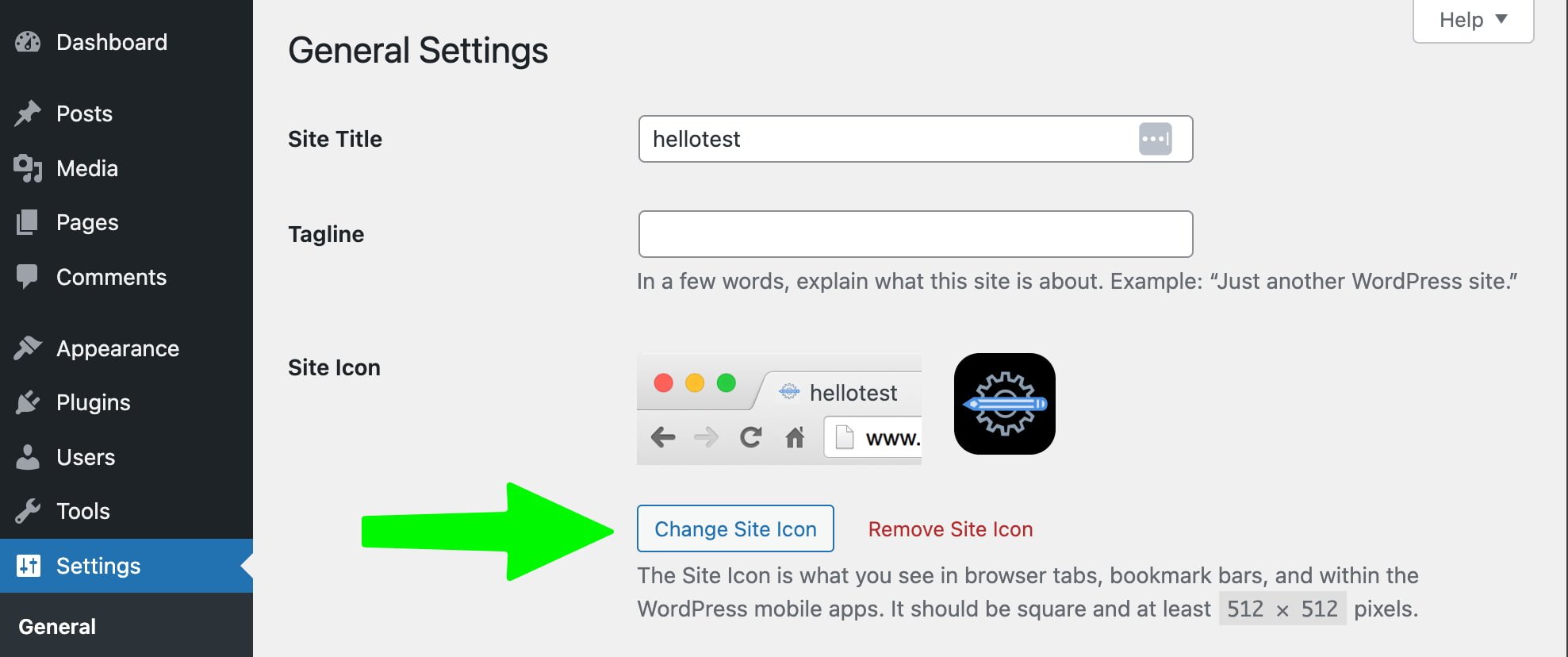
Credit: yoast.com
Clearing Browser Cache
Clearing your browser cache is a key step. It helps refresh your website. Browsers save old data. This makes websites load faster. But, it can cause issues if you change the favicon. You might see the old icon. To fix this, clear the cache. This will show the new favicon.
Find the browser settings. Look for the privacy or history tab. Choose “Clear Browsing Data”. Make sure to tick “Cached Images and Files”. Click “Clear Data”. Now, your browser will load the updated favicon.
Verifying Favicon Update
First, open your website in a browser. This helps check the favicon. Look at the top of the browser tab. Do you see your new favicon? If not, try refreshing the page. Sometimes changes take time to show.
Another way is to clear your browser cache. Old files might hide your new favicon. Find the settings in your browser. Then, choose to clear cache. Open your site again. Check the favicon one more time.
If the new icon still doesn’t show, it might be an upload error. Go back to the WordPress dashboard. Ensure you uploaded the correct favicon file. Check the file size and format. Common formats are PNG or ICO.
Troubleshooting Common Issues
Changing the favicon in Simple Theme for WordPress can be tricky. Start by accessing the WordPress dashboard, then navigate to “Appearance” and select “Customize. ” Find the “Site Identity” section to upload your new favicon image. Save changes to update the favicon successfully.
Favicon Not Displaying
The favicon may not show up due to cache issues. Clearing the browser cache can help. Sometimes, the favicon file isn’t in the right directory. Check if the file is in the wp-content/uploads folder. Ensure the file name is correct. File names should not have spaces or special symbols.
Another reason could be incorrect file format. Use .ico, .png, or .jpg formats. Verify the favicon’s URL in the theme settings. The URL must be correct and complete. You can also try re-uploading the favicon. Occasionally, a theme conflict may cause problems. Switching to a default theme can help identify the issue.
File Upload Errors
File upload errors happen due to permission issues. Check file permissions on your server. They should be set to 755 or 775. File size can also be a problem. Ensure files are within the upload limit. Large files may not upload. Compress images to reduce size.
The file name matters too. Avoid using spaces or special characters. Use simple names. Check for server space. A full server will block uploads. Contact your hosting provider if needed. Sometimes, the issue is with the browser. Switching browsers can resolve upload errors.
Best Practices For Favicon Design
A favicon is a small icon on your browser tab. It helps users find your site easily. Use simple and clear designs for your favicon. Complex images are hard to see in small sizes. Bold colors make your favicon stand out. Avoid using too many colors. Keep it to two or three. This makes it easier to recognize.
Use a square shape for your favicon. A size of 16×16 pixels is common. It should look good in both light and dark modes. Test your favicon on different devices. Make sure it looks clear and sharp. Avoid words or letters in your favicon. They can be hard to read.
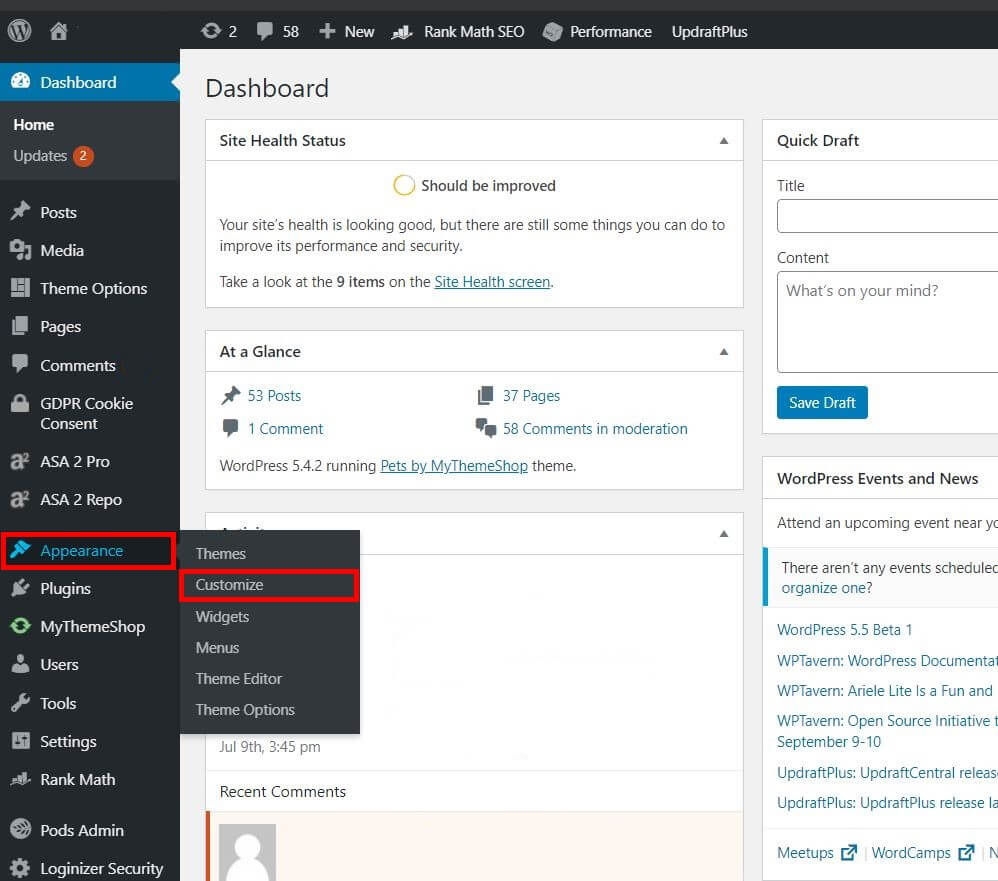
Credit: www.ionos.com
Frequently Asked Questions
How Do I Update My Favicon In WordPress?
To update your favicon in WordPress, first log in to your dashboard. Navigate to “Appearance,” then select “Customize. ” Under “Site Identity,” you’ll find the option to upload a new favicon. Choose your desired image and save the changes. The new favicon will now appear across your website.
Where Is The Favicon Settings In Simple Theme?
In the Simple Theme, the favicon settings are located under “Appearance” in your WordPress dashboard. Click on “Customize,” then “Site Identity. ” Here, you’ll find an option to upload or change your favicon. Follow the prompts to upload your preferred image and save the changes.
Can I Change Favicon Without Coding?
Yes, you can change the favicon without any coding. WordPress provides a user-friendly interface to update the favicon via the “Customize” option under “Appearance. ” Simply upload your desired image in the “Site Identity” section and save. No coding knowledge is required for this process.
What Image Size Is Ideal For Favicon?
The ideal size for a favicon is 512×512 pixels. WordPress recommends this size to ensure the favicon displays correctly across various devices and browsers. A square image format is preferred. Ensure the image is clear and recognizable at smaller sizes, as favicons are often reduced to 16×16 pixels in browsers.
Conclusion
Changing the favicon in Simple Theme for WordPress is easy. Follow these steps and your site will look fresh. A new favicon boosts your site’s identity. It stands out in browser tabs and bookmarks. Be sure to choose a clear and unique image.
This small change makes a big impact on user experience. Visitors notice details like favicons. Keep your site updated with little tweaks like this. Regular updates keep your site engaging. Now your WordPress site will look professional. Enjoy your updated look and keep exploring new features.
Happy blogging!


