
Are you looking to customize your WordPress site without losing changes during updates? Changing the CSS in a child theme is your go-to solution.
It’s a straightforward process that gives you the freedom to tweak your website’s design while keeping the core functionality intact. Imagine tailoring your site exactly to your vision, all while ensuring that updates won’t undo your hard work. In this guide, you’ll learn how to easily modify CSS in a child theme, empowering you to create a unique, personalized web presence.
Dive in to discover the secrets that web developers use to effortlessly maintain and enhance their sites. Let’s unlock the potential of your WordPress theme together!
Understanding Child Themes
A child theme is a theme that inherits from another theme, the parent theme. It’s like a little helper for the main theme. You can change the look and feel without touching the main theme’s files. This is important because updates to the parent theme won’t erase your changes. Your website remains safe and stylish.
Purpose And Benefits
Child themes allow easy customization without losing changes. They are great for learning how WordPress themes work. You can experiment without fear of breaking the main theme. They help in keeping your website updated and secure. Child themes make your site unique and personalized.
Creating A Child Theme
First, make a new folder in the theme directory. Give it a name related to the parent theme. Next, create a style.css file in this folder. This file should contain special information about your child theme. Add an import line to connect with the parent theme. Finally, activate your child theme from the WordPress admin panel. Now, you’re all set to start customizing!

Credit: wpastra.com
Locating The Stylesheet
The style.css file is important. It holds all the design rules for your WordPress theme. Look in your theme folder. Inside, there is a file named style.css. This is what you need. You can open it with a text editor. Once open, you can see the CSS rules inside.
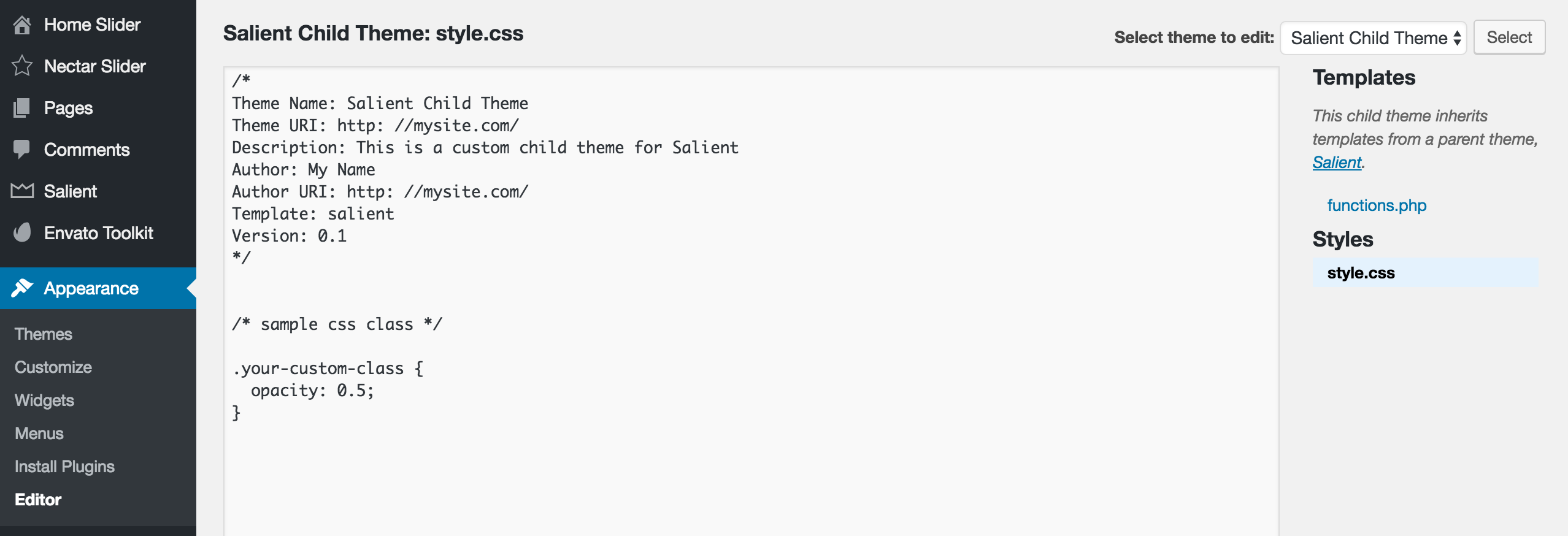
The WordPress Admin Panel is a helpful tool. Go to your dashboard. Click on Appearance, then Theme Editor. You will find the style.css file there. This file is editable directly from the panel. Make changes carefully. Always save before you close. You can see the changes live on your site. It’s simple and effective.
Making Css Changes
Begin with small changes to your CSS. Open your WordPress dashboard. Go to Appearance and then Theme Editor. Choose the child theme’s style.css file. You can change text color, font size, or background color. Start by adding new CSS rules. Use simple selectors like body or p. Save changes and see the effects on your site.
For more complex changes, use media queries for responsive design. This makes your site look good on all devices. You can also add CSS animations for effects. Use pseudo-classes like :hover for interactive elements. Always back up your CSS before making big changes. This keeps your site safe.

Credit: jetpack.com
Testing Your Changes
Use browser tools to check your CSS changes. Open your website on a browser. Right-click and select “Inspect”. This tool shows your site’s HTML and CSS. You can view and test your changes here. Make sure your new CSS looks good. If something breaks, you can fix it quickly. Testing helps ensure your site looks great. It is a simple and effective method.
Websites look different on phones and computers. Try your site on a phone, tablet, and laptop. Check how the CSS works everywhere. Some elements might shift or look odd. Adjust them so they look nice on all screens. This ensures a good experience for everyone. Always test on multiple devices. It helps catch small issues.
Troubleshooting Common Issues
Changing CSS in a WordPress child theme can solve design issues. Edit the style. css file to customize appearance. Always save changes and refresh to see updates.
Overriding Parent Theme Styles
Changing CSS in a child theme helps customize your site. It’s important to override parent theme styles correctly. First, locate the parent theme’s CSS file. Then, create a new CSS file in the child theme. Use selectors to target elements you want to change. Add your new styles to this file. Always check if styles apply correctly.
Sometimes, parent styles can be stubborn. Use the !important rule in CSS to force changes. But don’t use it too much. It can make future changes harder. Check your site’s appearance after each change. This ensures the new styles work as intended.
Dealing With Caching Problems
Caching can prevent new styles from showing. Clear your browser cache often. Some WordPress plugins also have cache settings. Check if a caching plugin is active. Clear the cache through the plugin’s settings. This helps see changes faster.
Sometimes, changes don’t appear immediately. Refresh the page or use a different browser. These actions can show new styles. Keep testing until the styles appear as desired. Caching issues can be tricky. Patience and testing help solve them.
Credit: themenectar.com
Best Practices For Css In Child Themes
Keeping CSS tidy helps in easy troubleshooting. Use comments to label sections. Group related styles together. This makes the code easier to read. It’s also good to use a consistent naming pattern. Choose simple and clear names. This will help in finding specific styles quickly.
Regular updates ensure your site stays secure and functional. Check for new CSS techniques. They can improve site performance. Also, remove unused styles. This keeps the file size small. A smaller file loads faster.
Frequently Asked Questions
How Do I Locate The Child Theme’s Css File?
To locate a child theme’s CSS file, navigate to your WordPress dashboard. Then, go to Appearance > Theme Editor. In the right panel, find and click on the style. css file. This file contains all the CSS for your child theme.
Can I Edit Css Directly In WordPress?
Yes, you can edit CSS directly in WordPress. Navigate to Appearance > Customize in your dashboard. Then, click on Additional CSS. Here, you can add or modify CSS rules to customize your site’s appearance.
What Is The Purpose Of A Child Theme?
A child theme allows you to make changes to your site without altering the parent theme. This ensures that your customizations are safe from updates. It provides flexibility to experiment and modify while preserving the original theme’s design and functionality.
How Do I Override Parent Theme Css In WordPress?
To override parent theme CSS, add your custom styles in the child theme’s style. css file. Ensure your styles are loaded after the parent theme’s styles. Use specific selectors or !important to prioritize your custom styles over the parent theme’s.
Conclusion
Changing CSS in a child theme on WordPress is quite simple. First, ensure you have a child theme set up. This prevents changes from being lost during updates. Use a text editor to modify the CSS file. Always preview changes to see how they affect your site.
This process helps in personalizing your website’s appearance. Remember, patience is key. Small tweaks can make a big difference. With practice, you’ll get better. Always back up your work. This keeps your site safe. Happy customizing!


