
Are you tired of the same old look of your WordPress site? Changing the color theme can give it a fresh, new feel.
Whether you want to reflect your brand’s personality or simply fancy a change, altering the color scheme can make a huge difference. Imagine capturing your visitors’ attention with a stunning palette that speaks directly to them. It’s easier than you think, and you don’t need to be a tech wizard to pull it off.
In this guide, we’ll walk you through the simple steps to change your WordPress theme color, so your website can shine with the vibrancy it deserves. Ready to transform your site into something that truly represents you? Let’s dive in!

Credit: qodeinteractive.com
Choosing The Right Theme
Your brand colors are very important. They tell your brand story. First, decide what colors you like. Think about colors that match your brand. Use colors that are easy to see. Colors that stand out. They should make your website look good. Make sure the colors are not too bright. Bright colors can hurt eyes. Use colors that people enjoy seeing. Colors that make them feel good.
Users want to find things easily. Colors can help with this. Choose colors that guide users. Colors that show where to click. Make your site easy to read. Use light colors for the background. Dark colors for text. This helps users read better. They will stay longer on your site. Good colors make users happy. They will come back again.
Accessing Theme Customizer
Change your WordPress theme color through the Theme Customizer. Navigate to Appearance, then select Customize. Find the Colors section to adjust your theme’s color scheme easily.
Navigating To The Appearance Menu
Find the Appearance menu on the left side of your WordPress dashboard. Click on it to see different options. This menu helps you change your website’s look. It’s easy to find. Just look for a paintbrush icon.
Using The Customize Option
Click on Customize under the Appearance menu. This opens the Theme Customizer. Here, you can change colors and fonts. You can also upload logos and change layouts. It shows a live preview of your site. Make sure to save your changes.
Changing Theme Colors
The Color Picker Tool is your friend. Open your WordPress dashboard. Go to the Appearance section. Click on Customize. You will see the option for Colors. Click on it. A color picker will appear. Choose a color you like. It’s easy to use. You can also see changes instantly. Try different shades. Find what looks best.
You can change colors for specific elements. Like headers, links, and backgrounds. Go back to the Customize section. Click on Additional CSS. This lets you add custom styles. You can target elements by their class. Use simple CSS rules. For example, use color: blue; for text. Or background-color: yellow; for backgrounds. This helps make your site unique.
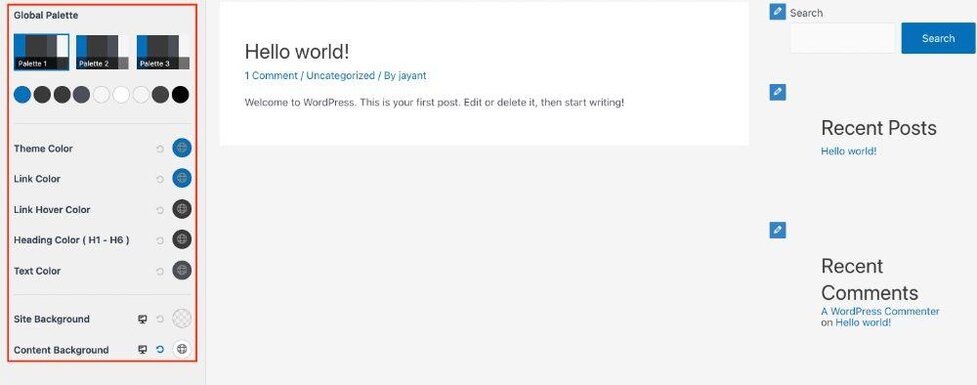
Credit: wpastra.com
Utilizing Custom Css
To change the theme color, first open your WordPress dashboard. Find the Appearance tab on the left side. Click on it. Next, select Customize. This opens the customization panel. Look for Additional CSS. Click to open it. Here, you can add your own CSS code. This helps to modify the theme look.
Use simple CSS code to change colors. To change background color, type:
            body {
                background-color: #yourcolorcode;
            }
Replace #yourcolorcode with your color choice. Use color names or hex codes. For text color, use:
            p {
                color: #yourcolorcode;
            }
Save changes to apply them. Now, your theme will show new colors. It’s simple and quick.
Exploring Theme Options Panel
Find the Theme Options panel in your WordPress dashboard. It’s usually under Appearance. Click on Theme Options to open it. This panel lets you change theme settings.
Choose the Color Settings tab in the Theme Options panel. Here, you can change theme colors. Pick new colors for different elements like headers and backgrounds. Click Save to keep your changes. The changes will show on your site.
Using Plugins For Color Change
Changing your WordPress theme’s color is simple with plugins. These tools allow easy adjustments without coding. Customize your site’s look effortlessly, enhancing user experience and design appeal.
Selecting Suitable Plugins
Changing the theme color in WordPress is fun. Many plugins can help. Choose one that is easy to use. Check if it has good reviews. Good reviews mean users like it. Look for plugins with high ratings. High ratings are a good sign. Make sure it is compatible with your theme. Compatibility is important. It ensures the plugin works well. Most plugins are free. Some have paid features. Choose what you need.
Installing And Activating Plugins
Install plugins in the WordPress dashboard. Go to Plugins and click Add New. Search for the plugin name. Click Install to start. Wait for it to finish. Then click Activate. Activation makes the plugin work. Now you can change colors. Follow the plugin instructions. It is simple and quick. Kids can do it too!
Previewing And Publishing Changes
Every page must match the new color theme. Look at each page carefully. Make sure that all text is easy to read. Colors should not clash. Check buttons and links too. They should fit the theme. Make sure that the new colors look good together.
Save your changes often. This keeps your work safe. After checking, publish the changes. Click the publish button. Your new theme will be live. Friends can see your new design now. Enjoy your fresh look!

Credit: doc.seatheme.net
Frequently Asked Questions
How Do I Change Theme Color In WordPress?
To change your theme color in WordPress, navigate to Appearance > Customize. Look for the Colors option or similar settings. Depending on your theme, you can select and modify primary and secondary colors to match your desired palette.
Can I Use Custom Colors In WordPress Themes?
Yes, you can use custom colors in WordPress themes. Navigate to Appearance > Customize and choose the Colors section. Many themes allow you to input hex codes for precise color customization, enabling you to match your brand identity or personal style.
Are Plugins Needed For Changing Theme Colors?
Plugins are usually not needed for changing theme colors. Most modern WordPress themes offer built-in customization options. However, if your theme lacks color settings, consider using a plugin like Customizer or Advanced Color Options for extended functionality.
Why Can’t I See Color Options In My Theme?
If you can’t see color options, your theme might not support color customization. Check your theme documentation or consider switching to a more flexible theme. Alternatively, use a plugin to add color customization features to your existing theme.
Conclusion
Changing your WordPress theme color is simple and rewarding. Follow the steps and customize your site easily. Start by accessing the WordPress dashboard. Navigate to the Appearance section. Select Customize, then Colors. Choose your desired color. Preview changes before saving.
This ensures your site looks just right. Adjust colors to reflect your brand or style. Don’t forget to save changes. Refresh your site to see the new look. Enjoy the fresh appearance of your WordPress site. A small change can make a big impact.
Happy customizing!


