
Are you tired of the same old look of your WordPress site? Changing the color of your WordPress theme can give your website a fresh, new appearance that captivates visitors and reflects your brand’s personality.
Whether you’re aiming for a sleek, modern vibe or a vibrant and playful atmosphere, adjusting your site’s color scheme can make all the difference. Imagine the impact of a new color palette that perfectly aligns with your brand’s message and style.
Not only can it enhance the aesthetic appeal of your site, but it can also influence the mood and behavior of your visitors. Colors have a powerful psychological effect, and the right choice can engage your audience and encourage them to stay longer. We’ll guide you through the simple steps to change the color of your WordPress theme. You’ll discover how easy it is to customize your site’s look and feel, ensuring it stands out in the crowded digital landscape. So, if you’re ready to transform your website and unlock its full potential, keep reading!
Choosing A Color Scheme
Colors can change how we feel. Blue can calm us down. Red can make us feel excited. Green often means growth or health. Colors can speak without words. They are very powerful. Choosing the right color is important. It tells people how to feel. If you want people to feel happy, use bright colors. For a calm feeling, choose soft colors.
Colors can show what your brand is about. They make your brand special. A fast food place might use red and yellow. These colors can make people feel hungry. A spa might use green and blue. These colors feel calm and fresh. Always think about your brand’s message. Match the colors with what your brand means.

Credit: doc.seatheme.net
Using The WordPress Customizer
Open your WordPress dashboard. Look for Appearance on the left. Click on it. Now choose Customize. The Customizer will open. You can see your site preview. Options are on the left.
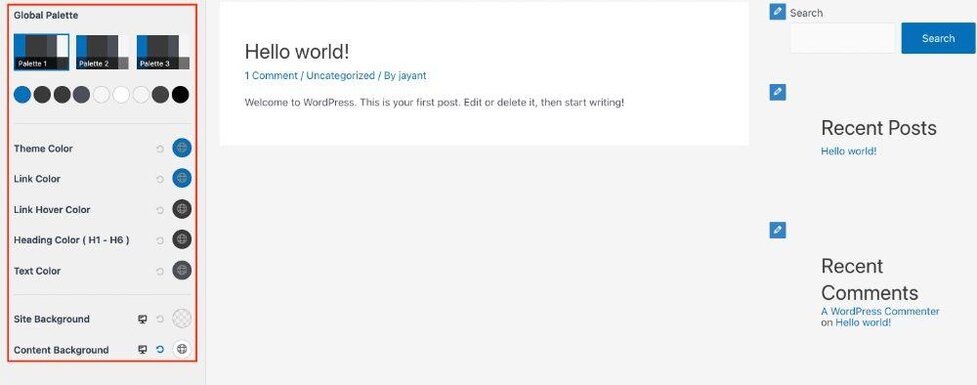
Find the Colors option. Click on it. You will see different color choices. Pick the color you like. Click on it to change. Watch your site change in the preview. You can choose more colors. Make your site look nice. When happy, click Publish. Your changes will be live.
Editing Css For Custom Colors
To change colors, find the right CSS selectors. These selectors control the look of your theme. Open your browser’s developer tools. Use the inspect tool to see elements on the page. Hover over parts of your site. You’ll see the CSS selectors in a small box. Write down these selectors. They will guide you in making changes.
After finding the selectors, open your WordPress admin panel. Go to Appearance and then Customize. Click on Additional CSS. Here, you can add your custom styles. Use the selectors you wrote down. Add new color codes next to them. Save your changes. Refresh your site. Check if the new colors appear. Repeat if needed for other parts.
Utilizing Theme Options
Many WordPress themes have built-in settings. These settings make changing colors easy. Start by going to the WordPress Dashboard. Click on “Appearance” then “Customize.” Look for the “Colors” or “Theme Options” tab. Here, you can find color choices. Choose a color that you like. The theme will show a preview. Check if it looks good. Save the changes when you are happy.
Theme options might have more features. You might see a color picker. This tool helps you select any color. Some themes allow custom CSS. You can add special codes to change colors. Make sure to save your work. Refresh your site to see the new look. It’s that easy to make your site unique.
Installing A Color Plugin
Plugins are tools that help change your theme colors. You need to find the right plugin for your needs. There are many plugins available. Some are free; others cost money. Choose one that fits your budget and goals.
Read reviews before choosing a plugin. Check the ratings. See if people like using it. It should be easy to use. You want a plugin that works well. Make sure it supports your theme. Look for updates and support.
After installing, go to settings. Find the color options. Choose colors you like. Save changes when you finish. Check your site to see the new colors. Adjust if needed. Keep your design simple and clean. Avoid too many colors.
Testing And Tweaking
Always preview your changes before saving them. It’s important to see how your theme looks with the new colors. This helps you decide if the colors fit your style. WordPress offers a live preview feature. Use it to check your theme’s new look. Make sure the text is still easy to read. Different screen sizes can show colors differently. Test on a phone and a computer. This ensures everything looks good everywhere.
Everyone should be able to read your site easily. Use colors that are easy to see. Bright colors can make text hard to read. Choose colors that have a good contrast. This helps people with vision problems. Check your color choices using accessibility tools. These tools show if your colors are easy to see. Make sure links and buttons stand out. This helps users find important parts of your site.
Applying Changes Across Devices
Changing your WordPress theme color can be fun. But it must work on all devices. Mobile users are many today. So, your theme should look good on phones too. Use responsive design. It helps your site fit any screen size. Check that buttons are easy to click. Text should be easy to read. Test your site on different phones. This helps you see how it looks. Making sure everything is clear and neat helps your visitors. They will stay longer on your site.
Different browsers show colors differently. Your theme should look the same everywhere. Use tools to test your site on various browsers. This includes Chrome, Firefox, and Safari. Look for any issues or errors. Fix them to ensure a smooth experience. Consistent look builds trust with your visitors. It shows you care about their visit.
Credit: wpastra.com

Credit: qodeinteractive.com
Frequently Asked Questions
How Can I Change My WordPress Theme Color?
To change your WordPress theme color, navigate to your WordPress dashboard. Select “Appearance” and then “Customize. ” Here, you can find options to modify your theme’s colors. Adjust the color settings to suit your preference and remember to save changes before exiting the customizer.
What Tools Help In Changing Theme Colors?
WordPress offers built-in tools for color customization. Use the “Customizer” under “Appearance” for easy changes. Additionally, some themes provide advanced options for more detailed color adjustments. Plugins like “Yellow Pencil” can also assist in customizing theme colors effectively.
Can I Change Colors Without Coding Skills?
Yes, you can change colors without coding skills. WordPress’s “Customizer” allows easy color adjustments with a user-friendly interface. Simply select colors from the palette and preview changes live. This feature makes theme color customization accessible to everyone.
Do Plugins Help In Theme Color Customization?
Yes, plugins can enhance theme color customization. Plugins like “Yellow Pencil” or “CSS Hero” offer advanced options. These tools provide intuitive interfaces for adjusting colors without needing coding knowledge. They can help you achieve a more personalized look for your WordPress site.
Conclusion
Changing your WordPress theme color is simple. Start by exploring the theme settings. Find the color options and choose shades you like. Preview the changes before saving. Experiment with different colors. Ensure text remains readable. You can also use custom CSS for advanced changes.
Remember, a good color scheme enhances user experience. It reflects your brand and style. Stay consistent with your branding. Keep experimenting and learning. Your WordPress theme is customizable. Adjust colors until you find the perfect fit. Enjoy your new vibrant website look.
Your site now shines with personality.


