
Are you tired of the same old look of your WordPress site? A simple change of color can breathe new life into your website and make it more appealing to your visitors.
Whether you’re looking to reflect your brand’s personality or just want a fresh new look, changing your theme’s color can have a big impact. The good news is, you don’t need to be a tech wizard to do this. With a few simple steps, you can customize your site to match your vision perfectly.
You’ll discover how easy it is to change the color of your WordPress theme, unlocking a world of creativity and engagement for your audience. Dive in and transform your site into a vibrant and captivating space!
Understanding WordPress Themes
WordPress themes decide how your site looks. They control the design and style. Themes can be changed easily. You can find many themes on the WordPress site. Each theme has different colors and layouts. Changing a theme’s color can make your site unique. It’s fun to try new colors. You can choose colors you like. Bright colors can make your site look lively. Soft colors can make it look calm. Always pick colors that match your content. This makes your site look nice and clear.

Credit: qodeinteractive.com
Choosing The Right Theme
Think about your website goals. Do you want it to look professional or fun? Different themes can help. Consider color schemes that match your brand. Do you need customization options? Some themes offer more choices. Make a list of features you want. Check if the theme supports mobile devices. A theme should look good on phones and tablets. Responsive design is important. Your theme should be easy to use. You don’t want to spend hours figuring it out. Look for themes with good reviews. People share their experiences online. This helps you decide. Don’t rush. Take your time to choose wisely.
Visit the WordPress theme directory. There are many options. Use filters to narrow choices. Pick themes based on your list. Check theme demos. See how they look in action. Pay attention to layout and style. Does it fit your vision? Look at theme ratings. Higher stars mean happier users. Read user comments. They share pros and cons. Free themes can be great. Some offer premium features for a price. Compare features. Some themes may offer better support. Good support can save time. Make sure the theme is updated regularly. This ensures safety and new features.
Using The WordPress Customizer
Go to your WordPress dashboard. Find the Appearance menu. Click on it. A drop-down will appear. Choose Customize from the list. This opens the WordPress Customizer. It allows you to change theme settings. You can preview changes live. It’s easy and fun to use.
Look for the Colors option in the Customizer. Click on it to open. You will see color choices. Select a color you like. Changes will show in real-time. If you like it, save changes. You can always go back and try new colors. Experiment to find what suits your style best.
Changing Colors Via Customizer
Easily change the color of your WordPress theme using the Customizer tool. Navigate to the Appearance section, select Customize, and find the Colors option. Adjust the color scheme to match your branding or personal preference seamlessly.
Locating Color Settings
Find the Customizer in your WordPress dashboard. Look for Appearance on the left side. Click on it. Then, select Customize. A new page will open. This is the Customizer page. You can see different options here. Find the Colors option. It might be named differently. Some themes call it Theme Options. Click to open it. You can see various color choices now. These are your color settings.
Applying Color Changes
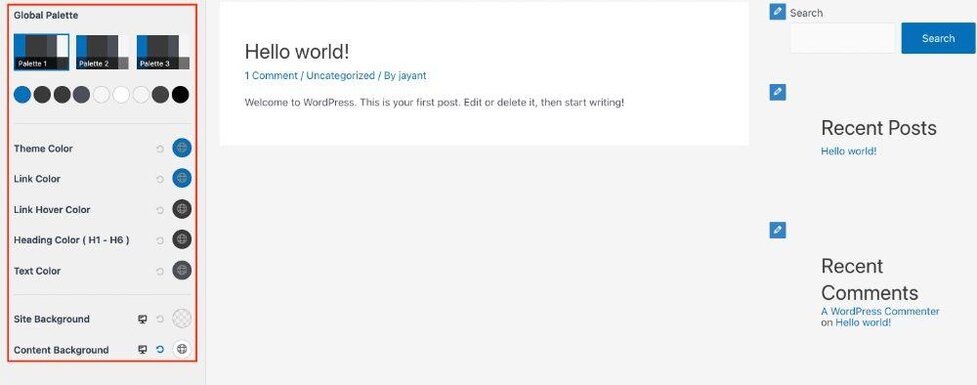
Choose the color you want to change. Click on it. A color picker will appear. Select your desired color. You will see the change instantly. If happy with the color, click Publish. This saves your new color. You can change more colors if you want. Remember, always click Publish after each change. This updates your site with the new colors.
Css Customization
CSS stands for Cascading Style Sheets. It helps make websites look nice. Colors, fonts, and layouts are changed using CSS. Small pieces of code control design elements. These codes are called selectors. They target parts of the webpage. You can change the background, text, and border colors. Use simple color names like red or blue. Hex codes like #FF5733 are also used. Beginners should start with easy changes.
WordPress has a tool called the Additional CSS Panel. It is found in the customization menu. You can add your own CSS code here. First, open the WordPress dashboard. Go to Appearance and click Customize. Then, find the Additional CSS option. Type your CSS code in the box. Click Publish to save changes. This panel is great for quick edits.
Using Page Builder Plugins
Exploring page builder plugins offers a straightforward way to change the color of a WordPress theme. These tools provide easy-to-use options for customizing design elements, ensuring your website reflects your personal style. With intuitive interfaces, altering theme colors becomes a hassle-free task for every user.
Popular Plugins For Customization
Page builders make changing colors easy. Elementor and Beaver Builder are top choices. They help you design your site your way. Both offer many tools for color changes. Elementor has a color picker. It lets you choose any color. Beaver Builder is great for beginners. It has easy-to-use color options. Both plugins have free and paid versions. The free versions have many features. Paid versions offer more advanced tools. Using these plugins is simple. They guide you step by step. You can see changes in real time. This makes designing fun and easy.
Steps To Modify Colors
First, open your page builder plugin. Look for the color settings. You may find it under “Style” or “Design”. Click on it to start. Choose the element you want to change. This could be text or background. Use the color picker to select your new color. Save your changes. Refresh your site to see the new look. If you don’t like it, you can change it again. Play with colors until you are happy. Remember to save your work often. This way, you won’t lose any changes.
Exploring Theme Options Panels
WordPress themes often have a Theme Options Panel. This panel helps in customizing themes. Look for the panel in your WordPress dashboard. It usually has a section called Appearance or Customize. Some themes offer many options. Others may have limited settings. Check what your theme offers. You might find color options there. Explore each section carefully.
To change colors, find the Color Settings in the theme panel. You might see options for background, header, and text colors. Click on the color boxes. A color picker will appear. Choose the color you like. Save changes when done. Sometimes, themes let you preview changes. This helps see how your site looks. If needed, adjust again. Themes may have default colors. You can change them to match your style.

Credit: doc.seatheme.net
Backup And Restore Settings
Easily change your WordPress theme color by accessing the customization settings. Navigate to ‘Appearance,’ then ‘Customize,’ and select ‘Colors. ‘ Adjust the color options to suit your preferences. Save changes to see the new look of your website instantly.
Creating Backups
Before changing colors, create a backup. Backups save your current theme settings. Plugins like UpdraftPlus help in taking backups. They are easy and quick. Save backups on your computer. This way, you have a safe copy. Backup files are helpful when something goes wrong.
Restoring Original Theme Colors
Sometimes, new colors don’t look good. Restore original colors if needed. Go to the theme settings. Find the option to restore defaults. Click it. Your theme will return to its original state. This keeps your site looking clean and neat. Always keep your backup ready. It makes restoring easier.
Testing And Finalizing Changes
Adjusting your WordPress theme’s color involves navigating to the customization panel. Experiment with different hues and preview changes. Finalize your choice by testing across various devices for consistent appearance.
Previewing Changes
Preview your changes before saving. This helps you see what others will see. You can use the preview button in the theme customizer. It lets you check how the new colors look. Make sure the text is easy to read. Colors should match well together. This is important for a good look.
Ensuring Consistency
All pages should have similar colors. This means the header, footer, and buttons should match. Consistency makes your site look nice. It helps users find things easily. Check each page for color mistakes. Fix them if needed. This keeps your website looking good and clean.
Credit: wpastra.com
Frequently Asked Questions
How Do I Change The Color Of A WordPress Theme?
To change a WordPress theme color, go to the WordPress dashboard. Click on “Appearance” then “Customize. ” Select “Colors” and adjust the color settings as desired. Save changes to apply the new colors to your site.
How Do I Change The Color Of My Theme?
To change your theme’s color, navigate to the theme settings in the dashboard. Select “Appearance,” then “Customize. ” Choose “Colors” and pick your desired color scheme. Save changes to apply the new colors to your theme. Ensure to clear cache for immediate effect.
How To Change WordPress Dashboard Theme Color?
Go to your WordPress dashboard. Navigate to “Users” > “Profile. ” Scroll to “Admin Color Scheme” and choose your preferred color. Save changes. The dashboard theme color updates immediately.
How Do I Edit An Existing WordPress Theme?
To edit a WordPress theme, access the Theme Editor in the dashboard. Navigate to Appearance > Theme Editor. Select the file you want to edit, make changes, and save. Always back up your theme files before editing to prevent data loss.
Consider using a child theme for safer modifications.
Conclusion
Changing the color of your WordPress theme is easy. Follow the steps outlined, and your site will look fresh. Customize colors to match your brand or personal style. A new color scheme can enhance user experience. It can also make your site more engaging.
Experiment with different hues and see what works best. Remember, consistency is key to a professional look. Regular updates keep your site looking modern. Enjoy the process of making your website truly yours. Happy customizing!


