
Are you looking to give your WordPress site a personal touch? Changing the code on your WordPress theme might sound intimidating, but it’s simpler than you think.
Imagine transforming your website into a unique masterpiece that perfectly reflects your brand or personal style. With just a few tweaks, you can customize your site’s appearance, functionality, and overall user experience. You don’t need to be a tech wizard to make these changes.
In this guide, you’ll discover how to confidently navigate your WordPress theme’s code. We’ll break down the process into simple steps, ensuring you have the tools to create a website that’s truly yours. Ready to unlock the potential of your WordPress theme? Keep reading to learn how you can make impactful changes with ease!
Choosing The Right Tools
To change a WordPress theme, you need some tools. Start with a text editor like Notepad++ or Sublime Text. These tools help you see and edit code clearly. A web browser is also important. You can use Chrome or Firefox to check your website changes. FTP software like FileZilla is useful too. It helps you move files to your website. These tools are simple yet powerful. They make coding easier.
WordPress themes have many files. Each file has a special job. The style.css file handles the design. It controls colors, fonts, and layout. The index.php file is the main page. It shows content to visitors. There are also header.php and footer.php files. They manage the top and bottom of your site. Knowing these files helps in editing. It makes code changes simple and clear.

Credit: www.youtube.com
Backing Up Your Theme
Backing up your theme is very important. It keeps your work safe. Use a backup plugin to help you. Plugins can copy your theme files. Save these copies to your computer. This way, your theme is safe. You can also use cloud storage. It is a safe place for your backups. Make sure to keep backups in more than one place. This way, you won’t lose your work.
Sometimes, things go wrong. Restoring a backup can fix this. First, find your backup files. Then, upload them to your site. Use your backup plugin to help. Plugins can make restoring easy. Follow the steps in your plugin. Soon, your theme will be back to normal. It’s like fixing a problem with magic!
Accessing Theme Files
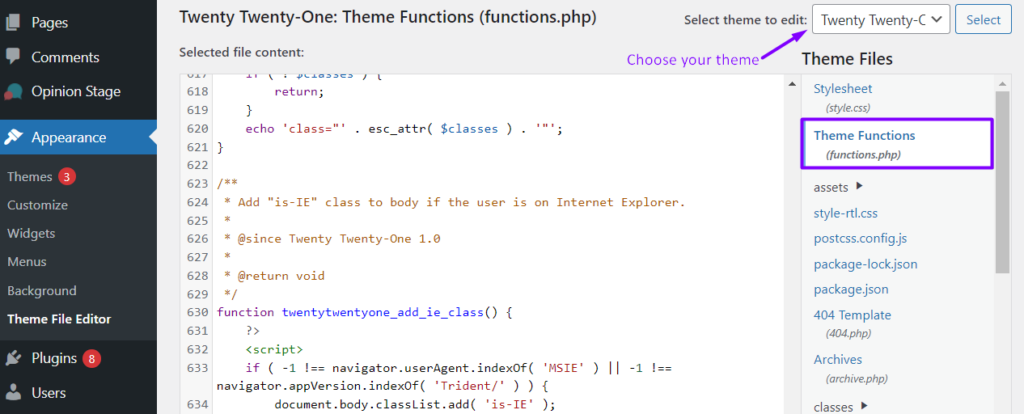
First, log into your WordPress dashboard. Find the Appearance tab on the left menu. Click it to open more options. Choose Theme Editor. This will show you theme files. Be careful when changing files. Wrong changes can break your site. Always backup your files first. This keeps your site safe.
Use FTP to access files directly. You need an FTP client like FileZilla. Connect to your website server. Enter your credentials to log in. Navigate to the wp-content folder. Open the themes folder. Find your theme’s folder here. You can edit files directly. Another option is using a File Manager in your hosting panel. It works like FTP. Remember to save changes and refresh your site.
Editing Theme Files
WordPress themes have many files. Some files are changed more often. The style.css file is for design. It changes colors and fonts. The functions.php file adds new features. It helps with custom tasks. The header.php file is important too. It controls the top part of your site. The footer.php file manages the bottom part.
A child theme is a safe way to edit themes. First, it keeps your changes safe. Updates to the main theme won’t erase your work. Second, it is easy to create. Copy some files and add a new style.css file. Then, you can make changes in the child theme. Your original theme stays the same. This is a good way to learn. You can try things without breaking your site.
Customizing Css
Change your WordPress theme’s look by customizing CSS. Access the theme editor, then find the style. css file. Modify styles to suit your design preferences easily and effectively.
Using Additional Css
WordPress makes it easy to change styles. Use the Additional CSS section. Find it in the theme customizer. This allows changes without altering core files. Avoid issues with updates. Write your own CSS rules here. Check changes in real-time. Experiment with colors and sizes. It’s safe and easy to use.
Inspecting And Modifying Styles
Browsers have a tool called Inspect Element. Right-click on any page part. Choose Inspect. This tool shows the code behind each element. Useful for finding specific CSS rules. See what affects colors, fonts, and layout. Try changing values in the tool itself. This helps visualize changes before applying them. Always remember to copy changes to your CSS file. This keeps them permanent.
Modifying Php Code
Start by opening the functions.php file. This file is in your theme folder. Use a simple text editor to make changes. Always make a backup of this file. This prevents losing your code if something breaks. Be careful with syntax. A small mistake can break your site. Make changes step by step. Check your site after each change to ensure it works. If unsure, consult a tutorial or ask for help.
Custom functions can enhance your WordPress site. Add new features or change existing ones. Begin by writing a simple function. Use the add_action or add_filter hooks to connect your function. Test your function after writing it. Look for errors and fix them. New functions can make your site unique. Learn from simple examples. Over time, you will improve your skills.
Javascript Adjustments
Explore simple JavaScript adjustments to personalize your WordPress theme. Altering the code enhances functionality and design. Follow guidance to safely implement changes without affecting the site’s performance.
Adding Custom Scripts
Use custom scripts to make your website unique. Place the scripts in the right place. Add them in the header or footer of your theme. This ensures they run smoothly.
Always check if the script is safe. Unsafe scripts can harm your site. Test your script on a local server first. This helps to find any errors early.
Handling Conflicts
Conflicts can happen with different scripts. They may not work well together. Use tools like console logs to find the problem.
Always keep a backup of your theme. If something breaks, you can restore it quickly. Update your scripts regularly. This helps in avoiding conflicts in the future.
Credit: www.easywp.com
Testing Changes
After editing the code, ensure all parts work. Check links, buttons, and images. Functionality is key. Broken elements upset users. Test every feature. Make sure they respond well. Proper testing avoids future problems. Small errors can grow big.
Browsers display websites differently. Test changes in popular browsers. Chrome, Firefox, Safari, and Edge are common. Some browsers might show errors. Fix them to ensure smooth navigation. Different devices may need testing too. Tablets and phones vary in display. Consistent appearance is important.
Troubleshooting Issues
Changing code on a WordPress theme involves navigating to the theme editor in your dashboard. Select the theme file you want to edit, make necessary changes, and save. Always back up your files before modifying to prevent losing important data.
Common Errors And Fixes
Editing WordPress themes can lead to common errors. One frequent issue is the white screen of death. This often occurs due to PHP errors. Check the error logs to find the problem. Another error might be missing styles after updates. This can be caused by cache. Clear it to see changes. Plugins can conflict with theme code, causing site crashes. Disable plugins one by one to identify the issue.
Debugging Techniques
Debugging is crucial. Start by enabling WP_DEBUG in the wp-config.php file. This shows errors on the site. Use a child theme for testing changes. This keeps the original theme safe. Inspect element in the browser helps view CSS issues. Use the console for JavaScript errors. Backup your site before making changes. This prevents loss of data. Regularly update themes and plugins. This keeps bugs away.
Finalizing And Deployment
Changing the code on a WordPress theme involves finalizing and deploying updates. Ensure all changes align with your website goals. Then, deploy your modified theme to enhance user experience and site functionality.
Review And Optimize
Check the code carefully. Look for any errors or bugs. Make sure the design looks good. It should work on all devices. Test the site speed. Slow websites can be a problem. Use tools to check load times. Improve images by making them smaller. This helps the site run faster. Check links to ensure they work. Broken links can confuse visitors. Always keep a backup of your original theme.
Deploying To Live Site
Before deploying, make a backup of the live site. This saves the old version. It’s important to avoid losing data. Next, upload the new theme to the server. Use an FTP client for this. After uploading, activate the theme in WordPress. Check the site again. Ensure everything looks right. Test all pages and features. If problems appear, check the theme settings. Make adjustments as needed.

Credit: kinsta.com
Frequently Asked Questions
How Do I Access WordPress Theme Files?
To access WordPress theme files, go to your WordPress dashboard. Navigate to Appearance > Theme Editor. Here, you can view and edit theme files. Alternatively, use an FTP client or cPanel to access files directly on your server. Be cautious while editing; make backups to prevent issues.
Can I Edit Theme Code Without Coding Skills?
Yes, you can use plugins like WPBakery or Elementor to modify theme layouts without coding. These tools provide drag-and-drop interfaces for easy design changes. For deeper customization, basic HTML, CSS, or PHP knowledge is helpful. Always test changes on a staging site first.
What Precautions Should I Take When Editing Code?
Before editing theme code, back up your site to avoid data loss. Use child themes to preserve custom changes during updates. Test modifications on a local or staging environment to prevent breaking your live site. Ensure all changes comply with WordPress coding standards.
How Do I Restore A Previous Theme Version?
To restore a previous theme version, access your WordPress dashboard. Go to Appearance > Themes and select an earlier theme version. Alternatively, if you have a backup, use it to revert changes. Consider using a child theme to maintain custom edits during theme updates.
Conclusion
Changing WordPress theme code is simpler than it seems. Start with basic changes. Progress as you gain confidence. Practice makes perfect. Use the right tools. Backup your site before editing. Mistakes happen. You can fix them easily. Don’t fear experimenting.
Customization brings a personal touch. Your site reflects your vision. Stay updated with new coding practices. Keep learning. Share your experiences with others. Your skills will grow. Enjoy the process. It’s rewarding and satisfying. Coding knowledge empowers you. Your WordPress theme will look unique.
Ready to start coding? Dive in and explore!


