
Struggling to make your WordPress site pop? Sometimes, a simple tweak like changing the background color can transform the entire look and feel of your website.
Imagine capturing your audience’s attention the second they land on your page. You can create an inviting atmosphere or reflect your brand’s personality with just a few clicks. If you’ve ever felt daunted by the thought of diving into WordPress settings, fear not.
This guide will walk you through each step, ensuring you feel confident and empowered to make your site truly yours. Ready to give your website a vibrant new vibe? Keep reading to discover how you can effortlessly change the background color on your WordPress theme.
Choosing The Right Theme
Not all themes are equal. Some themes do not allow easy changes. Check if your theme supports customization. Compatibility is key. Pick a theme with built-in options. This makes changes easy. Read reviews and user comments. They help you know more about the theme.
Many themes have a customization panel. This panel helps change colors. Look for the option in your dashboard. Click on Appearance then Customize. Here, you can change the background color. Some themes have more options than others. Choose a theme with many options. This gives you more control over your site.
Accessing The WordPress Dashboard
To start, open your browser and visit your WordPress site. Look for the login page. Enter your username and password. Click the login button. You’re now in the admin panel. This is where you manage your site.
Find the sidebar on the left. Click on Appearance. Select Customize from the dropdown. This opens the theme customizer. Look for the option that says Background. Choose your new color. Click Save to apply changes. Your site now has a fresh look.
Using The Customizer Tool
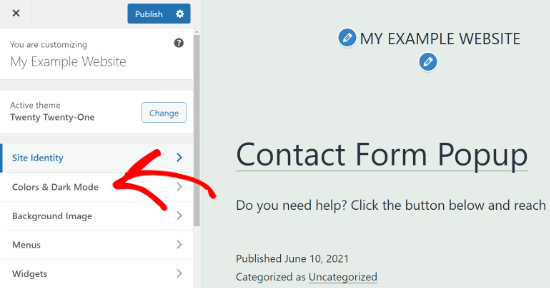
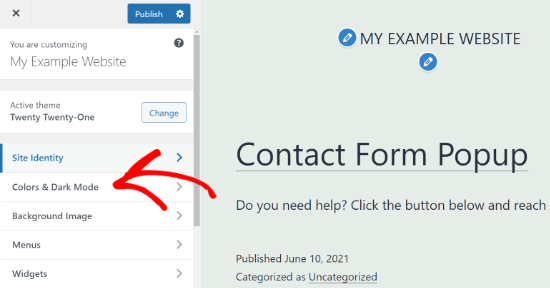
Adjusting the background color on a WordPress theme is simple with the Customizer tool. Navigate to “Appearance” and choose “Customize. ” Select the “Colors” option to find and change the background color, giving your site a fresh look.
Locating The Customizer
The Customizer is a tool in WordPress. It helps you change your site. To find it, go to your WordPress dashboard. Look for the Appearance tab. Click on it. A menu will appear. Choose Customize. Now, the Customizer opens.
Changing Background Color
Inside the Customizer, look for Background. It might be under Colors or Background Image. Click on it. A color picker appears. Choose your new color. You can see the change in real-time. Once happy, click Publish. Your background color is now updated.
Editing Theme Css
Changing your WordPress theme’s background color is simple with CSS editing. Access the theme editor under Appearance in WordPress. Locate the CSS stylesheet and find the background property to adjust the color. Save changes to see the new look instantly.
Understanding Css Basics
CSS is like dressing up your website. It tells your website how to look. Colors, sizes, and fonts are all set by CSS. To change the background color, you need to know a little CSS. Start by finding the line for background color in your theme’s CSS file. It’s often in a file called style.css.
Modifying Background Color Via Css
Open the CSS file in your WordPress theme. Look for the body or main section. You’ll see something like background-color. This is where you change the color. Use a color name like “red” or a hex code like “#ff0000”. Save your changes and check your site. The background should now be the new color.
Utilizing Page Builders
Page builders help change the look of a website. They make it easy to change the background color. There are many page builders to choose from. Popular ones are Elementor, Beaver Builder, and WPBakery. Each builder has its own special features.
Read reviews to find the best one. Some builders are free, but others need payment. Choose a builder that fits your budget and needs. This choice is important for your website’s style.
Open the page builder in your WordPress dashboard. Look for the background settings. You can change the color here. Select the color you like. Some builders let you use a color picker. This tool helps you choose any color. Save your changes after selecting the color.
If you need help, check the builder’s support page. Many have tutorials and guides. These can help you learn more. Enjoy making your website look great!
Credit: www.wpbeginner.com
Installing A Custom Background Plugin
First, go to your WordPress dashboard. Look for the Plugins menu on the left. Click on “Add New”. Here, you can find many plugins.
Use the search bar to find custom background plugins. Choose one that has good reviews. Make sure it’s compatible with your theme.
A suitable plugin should be easy to use. It should not slow down your site. Check the number of active installs. More installs mean more users trust it. Read some reviews. They can help you decide.
Once you find a good plugin, click “Install Now”. After that, click “Activate”. Now, the plugin is ready to use.
Go to the plugin settings page. Here you can change the background color. You can choose from many colors. Some plugins even let you use images.
Make sure to save your changes. This will update your site with the new background. Check your site to see how it looks. You can always go back and change it again.
Troubleshooting Common Issues
Changing the background color on a WordPress theme often requires navigating through the customization options. Users can find the background settings under the “Appearance” menu. Experiment with different colors to match your brand or personal style.
Resolving Color Conflicts
Sometimes, colors clash on your website. This can make text hard to read. Check your theme settings to adjust colors. Use contrasting colors for text and background. This helps in reading. Some plugins can also cause color issues. Disable plugins one by one to find the problem. Always save your work.
Ensuring Compatibility With Updates
WordPress updates can change how your theme looks. Always test updates on a staging site first. This helps you see if colors change. Update your theme regularly. This keeps it working well. If colors change, check the theme settings. Some settings might reset after updates. Back up your site before updating. This saves your work if things go wrong.
Credit: themelooks.com
Best Practices
Colors should match well. Make sure they look good together. This makes your site pretty. Use a color wheel to help. Pick colors that are close or opposite on the wheel. This makes things easy to see. Avoid colors that clash. They can hurt eyes. It’s good to test colors first. This helps you find the best choice.
Check colors on phones and computers. Colors can look different. Make sure they look nice everywhere. Test on different screens. Some screens show colors brighter. Others show them darker. Adjust settings if needed. This helps users see your site clearly. Make sure everything looks good. Always test before showing to others.

Credit: colibriwp.com
Frequently Asked Questions
How Can I Change The Background Color In WordPress?
To change the background color in WordPress, go to your dashboard. Navigate to “Appearance” and select “Customize. ” Choose “Background” and adjust the color using the color picker. Save changes once you’re satisfied with the new color.
Is A Plugin Needed To Change Theme Colors?
No plugin is necessary for changing theme colors. Most WordPress themes offer built-in customization options. Access these through the “Customize” section in your dashboard. Plugins can offer advanced features but are not required for basic color changes.
Can I Change Background Color Without Coding?
Yes, you can change the background color without coding. Use the WordPress Customizer tool for easy adjustments. Navigate to “Appearance” and select “Customize. ” Choose “Background” and pick your preferred color using the visual color picker.
Why Won’t My Background Color Change?
Your background color may not change due to caching issues. Clear your browser cache and reload the page. Ensure you save changes in the Customizer. If the problem persists, check your theme settings or consult your theme documentation.
Conclusion
Changing the background color on WordPress is quite simple. Follow the steps and your site gets a fresh look. Customize colors to match your brand. Keep experimenting for different styles. A unique background enhances user experience. This attracts more visitors.
Makes your site stand out. Remember to preview changes before saving. This ensures everything looks perfect. Now, your WordPress site has a new vibe. Enjoy the refreshed appearance. Keep exploring WordPress for more design options. Your creativity is the limit.
Happy designing!


