
Are you tired of your WordPress theme’s background color? Maybe it’s not quite matching your brand, or perhaps you’re just craving a fresh, new look for your site.
Whatever the reason, changing the background color can make a significant impact. It’s a simple tweak that can breathe new life into your website, making it more engaging and visually appealing to your visitors. But how do you do it without getting lost in complex coding or endless settings?
In this guide, we’ll break down the steps for you, making it easy to customize your WordPress theme. Get ready to transform your website’s appearance and captivate your audience with just a few clicks!
Choosing The Right Theme
Different themes offer different styles. Some themes have bright colors. Others use soft tones. Choose what you like best. Your theme should match your site’s purpose.
It is important to know if a theme allows changes. Not all themes let you change the background color. Check the theme details before choosing. Look for themes that are easy to customize. This will help you make your site unique.
Not every theme is good for changes. Customizable themes let you adjust colors. They also let you change fonts. These features make your site stand out. Be sure the theme supports customization. This is important for a personalized look.
Accessing The WordPress Dashboard
Logging into your account is the first step. Open the browser and visit the WordPress login page. Enter your username and password. Click on the login button. This takes you to the dashboard. The dashboard has many options.
Navigating To Appearance Settings
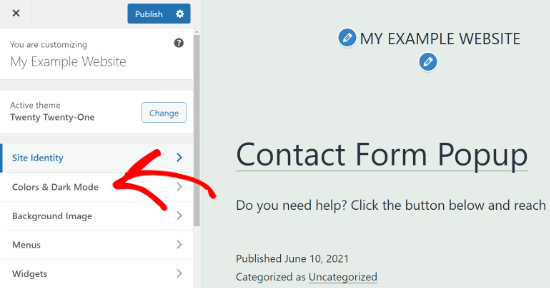
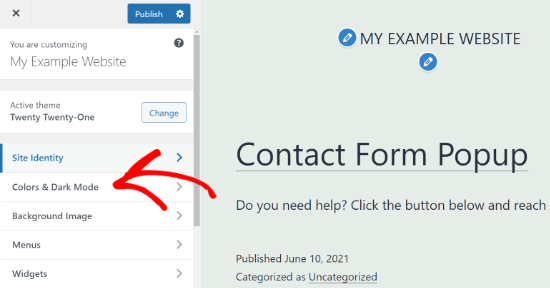
Find the Appearance tab on the left side. Click on it. A menu will appear. Select Customize. This opens the theme settings. Look for the Colors option. Click on it. Change the background color easily. Save your changes. Your website will now have a new look.
Using The Customizer Tool
First, log into your WordPress dashboard. Look at the left side. Find the “Appearance” tab. Click on it. Then, find “Customize”. Click on it too. Now, you are in the Customizer. This tool helps change your site’s look. It’s easy and fun to use. Don’t worry if you are new. You’ll get the hang of it soon.
On the left, see many options. Look for “Background” or “Colors”. These options help change the background color. Click on them. A color picker will appear. Choose a new color you like. Make your site look unique. You can try many colors. Find the perfect match for your theme. Enjoy making your site beautiful!

Credit: colibriwp.com
Css Customization
You can change your WordPress theme color. Custom CSS is the key. Go to your WordPress dashboard. Find the Appearance option. Click on Customize. Look for Additional CSS. Here, you can add your own CSS. Write the code to change the background color. For example, use body { background-color: #ffffff; }. This will set the background to white.
Inspect Element helps find the right CSS code. Right-click on the page. Choose Inspect. A window will appear. Look for the Styles tab. Find the code that affects the background. Copy this code. Paste it in the Additional CSS section in WordPress. Adjust the color as needed.
Plugins For Advanced Customization
Explore plugins for advanced customization to easily change the background color of your WordPress theme. Enhance your site’s appearance without coding skills. Enjoy a personalized look by adjusting colors to match your style.
Exploring Popular Plugins
Many plugins help change your WordPress theme’s background. They offer more than just color changes. Elementor is great for easy design control. It lets you change colors with a few clicks. Beaver Builder is also popular. It provides advanced color options. CSS Hero allows deep customization. You can modify theme colors without coding. Each plugin has unique features. They make theme design simple and fun.
Installing And Activating Plugins
Start by accessing your WordPress dashboard. Find the Plugins section. Click on “Add New“. Search for your chosen plugin. Click Install to begin. Wait for installation to finish. Then, hit Activate to enable the plugin. The plugin is now ready. Use it to change your theme background. Follow the plugin settings for guidance.
Credit: www.wpbeginner.com
Testing Your Changes
Previewing Before Publishing is very important. Look at how your site looks with the new color. Click on the “Preview” button. This shows your site without making it live. It’s like trying on a new shirt before buying it. Make sure you like it before you show the world.
Checking Across Devices helps see how your site looks on phones and tablets. Use the “Responsive Design” tool in your browser. This helps you see if the colors look good on small screens. Your site should look nice everywhere. Bright colors might look different on different screens. Make sure your choices work well.
Troubleshooting Common Issues
Some themes do not allow easy color changes. You might need to use custom CSS.
This can help you change the background color. Look for the Custom CSS section in your theme settings.
Use a simple code like body { background-color: #yourcolor; }.
Always make a backup before making changes. This helps in case something goes wrong.
CSS conflicts can make changes hard. Multiple styles may override your choices.
Check the Inspector tool in your browser. It shows which CSS rules apply.
Try adding !important to your CSS code. This forces the change.
Example: body { background-color: #yourcolor !important; }.
Experiment until the background changes.
Ensuring Accessibility
Color contrast helps people read your site. Dark text on a light background works well. Light text on a dark background is also good. Avoid colors that blend. They make words hard to see. Test your colors online. Many tools check contrast. They tell if your colors are accessible. Choose colors that pass these tests.
A simple design makes a site easy to use. Keep background colors simple. Too many colors confuse visitors. Use colors that match the theme. They should be calming. Bright colors might distract. Soft colors keep focus on content. Think about how colors make people feel. Happy colors work best.
Credit: themelooks.com
Frequently Asked Questions
How Do I Change My WordPress Theme’s Background Color?
To change your WordPress theme’s background color, navigate to ‘Appearance’ in your dashboard. Click ‘Customize’, then ‘Colors’. Here, you can select a new background color from the palette or input a hex code.
Can I Use Css To Change Background Color?
Yes, you can use CSS to change the background color. In your WordPress dashboard, go to ‘Additional CSS’ under ‘Customize’. Add the CSS code: `body { background-color: #yourcolor; }` to apply your desired color.
Will Changing The Background Color Affect My Site’s Performance?
Changing the background color typically doesn’t affect site performance. It’s a simple visual modification that doesn’t impact loading speed. Ensure your theme supports customizations to avoid compatibility issues.
Do All WordPress Themes Allow Background Color Changes?
Not all themes allow background color changes. Some themes have built-in customization options, while others may require additional CSS. Check your theme documentation or settings for customization capabilities.
Conclusion
Changing your WordPress theme’s background color is simple. You can customize your site with just a few steps. Explore the theme options and find the color settings. Use the WordPress Customizer for live preview. Experiment with different shades. Choose colors that suit your style.
Remember, colors affect mood and readability. A well-chosen background enhances user experience. Always save your changes and test the new look. Try different combinations until satisfied. With these tips, your WordPress site will reflect your personality and vision. Happy customizing! Enjoy creating a unique online presence.


