
Have you ever felt that your WordPress theme’s background color just doesn’t match your vision? Maybe it’s too bright, too dull, or simply not your style.
Changing the background color can transform your website’s entire look and feel, making it more inviting and aligned with your brand. Imagine the impact a simple color switch can have on your site’s first impression. Curious about how to make this change without any coding hassle?
You’re in the right place. In this guide, you’ll discover easy steps to customize your WordPress theme’s background color, giving your website a fresh and personalized touch. Dive in, and let’s unlock the potential of your WordPress site together.
Choosing The Right Theme
Check if the theme supports color changes. This feature is often in premium themes. Read the theme details carefully. Look for words like “customizable” and “flexible”. These words mean you can change colors easily. Some themes have restrictions. These may limit what you can change. Compatibility is important. Themes should work well with plugins. Check if your favorite plugins work with the theme. This ensures smooth operation. Reviews can help you decide. Read user feedback. It often highlights limitations.
Theme options are settings you can adjust. Look for a settings panel. Many themes have these panels. The panel helps you change colors. Some themes use the WordPress Customizer. The Customizer is a tool for easy changes. It shows a live preview. You can see changes instantly. This is useful for quick edits. Options vary by theme. Some themes offer more choices. Others have fewer settings. Always explore the theme options fully. This helps you use all features.

Credit: colibriwp.com
Using The WordPress Customizer
First, log in to your WordPress dashboard. Look for the Appearance tab on the left side. Click it. Then, select Customizer. This opens the WordPress Customizer. Here, you can make changes to your theme.
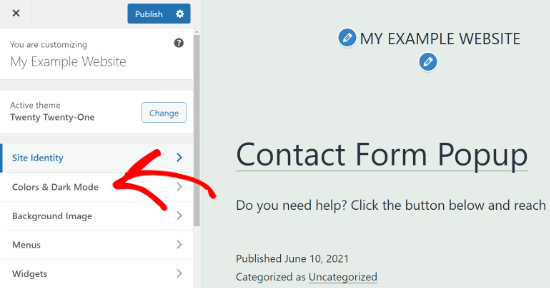
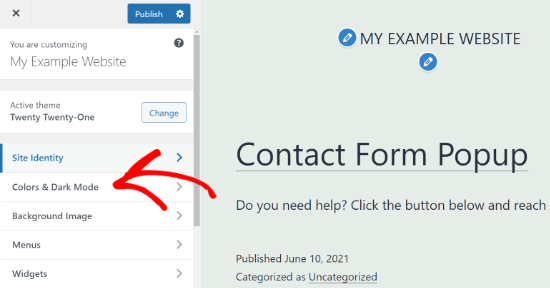
Inside the Customizer, find the Background settings. Look for a tab or section named Background or Colors. This section allows you to change the background color. Click on it to open more options.
Choose a color from the color picker. This tool shows different colors. Click on a color to see it on your site. If you like it, save your changes. Click Publish to apply your new background color.
Editing Css For Background Change
First, log in to your WordPress dashboard. Find the Appearance tab on the left. Click on it, then select Customize. Look for the Additional CSS option. It’s usually at the bottom. This section lets you add custom CSS easily.
Use simple CSS code to change the background. Type body { background-color: #yourcolor; }. Replace #yourcolor with your desired color code. Colors can be in hex or color names. Make sure the code is correct. Any mistake can cause problems.
After adding the code, look at the preview on the right. Check if the background color changes. If it looks good, click the Publish button. This saves your changes. If not, adjust the code. Make sure everything works well before leaving.
Employing A Child Theme
A child theme is like a baby theme. It copies the main theme. First, make a new folder in your WordPress themes directory. Name it with your theme’s name and add “-child” at the end. Inside this folder, create a style.css file. In this file, write the details of your new child theme. Add the parent theme’s name in the “Template” line. Save and close the file. Now you have a child theme!
Open the style.css file you made. Find the code for the background color. It might look like “background-color: #ffffff;”. Change the color code to your favorite. Use a color picker to choose a new color. Save your changes. Your site will now have a new background color.
Visit your WordPress site in a browser. Check the new background. If it’s not showing, clear your browser cache. Refresh the page. Sometimes, changes take a little time. If everything looks good, you did it right! You have changed the background color. Easy, right?
Utilizing Plugins
Many plugins can help change your WordPress theme’s background color. Choose a popular and well-rated plugin. This ensures safety and reliability. Read reviews to know more about user experiences.
Go to your WordPress dashboard. Find the Plugins menu and click Add New. Search for the plugin you selected. Click Install Now to begin. After installation, click Activate to start using the plugin.
Once activated, find the plugin’s settings page. Here, you can choose a new background color. Pick a color you like. Save your changes to apply the new color. Check your site to see the new background.
Credit: www.wpbeginner.com
Troubleshooting Common Issues
Sometimes, a theme has many styles. These styles may conflict. Identify these conflicting styles. Use the browser’s developer tools. This tool helps spot conflicts. Remove or adjust the conflicting code. This makes your changes visible.
Different browsers show colors differently. Test your theme on different browsers. Use Chrome, Firefox, and Safari. Make sure colors look the same. This keeps the design consistent.
Sometimes changes do not show. Clear your browser cache. This helps update the view. Press Ctrl + F5 to refresh. Check the new changes. Now, the new background color should appear.
Best Practices For Background Changes
Keep your background color consistent with your brand. Use colors that match your logo and style. This creates a familiar look for visitors. It also helps in building trust. Consistency in design is key.
Choose a background color that makes text easy to read. Light text on a dark background works well. Dark text on a light background also looks good. The goal is to keep everything clear and visible. This makes your content easy to understand.
Think about how users interact with your site. A good background should not distract them. It should help them focus on the content. A pleasant background color can make visitors stay longer. Consider their experience when choosing colors.
Credit: themelooks.com
Frequently Asked Questions
How Can I Change Theme Background Color Easily?
To change the background color in WordPress, access your theme’s customization options via the dashboard. Navigate to Appearance > Customize > Colors. Here, you can select a new background color. Save changes to update your site instantly. This method requires no coding skills, making it user-friendly.
Can I Change Background Without Coding?
Yes, you can change the background color without coding. Use the WordPress Customizer tool found under Appearance > Customize. Select the Colors option and choose your preferred color. This feature is designed for users without technical skills, ensuring a straightforward process for modifying your theme’s appearance.
Which Plugin Helps In Changing Background Color?
The plugin “Custom Background Changer” is useful for altering background colors. Install it via the WordPress plugin directory. Once activated, it provides easy-to-use options for customizing your theme’s background. This plugin simplifies the process, allowing quick changes without affecting other theme settings.
Does Changing Background Affect Site Speed?
Changing the background color generally does not affect site speed. Background color alterations are handled by CSS, which is lightweight. Ensure your images and other media are optimized to maintain performance. Regularly check your site’s speed using tools like Google PageSpeed Insights for optimal results.
Conclusion
Changing your WordPress theme’s background color can enhance your site’s look. It creates a unique atmosphere that fits your brand. Experiment with colors until you find one that feels right. Use the WordPress customizer for easy adjustments. Don’t forget to check mobile views to ensure consistency.
Keep it simple to maintain readability. A good color choice helps your content stand out. Remember, your website reflects your style. With these steps, your site will look more professional and inviting. Start today and see the difference it makes.


