
Are you looking to give your WordPress site a fresh new look by changing its background color? Whether you’re aiming to enhance your brand identity or simply want a visual refresh, altering the background can make a significant impact on your site’s aesthetics.
But where do you start? You might feel a bit overwhelmed with the options and technical jargon. Don’t worry, though. You’re in the right place. Imagine transforming your website’s vibe in just a few clicks. Sounds appealing, doesn’t it? This guide will show you exactly how to do that, step by step.
No matter your skill level, you’ll find these instructions easy to follow. Stick with us, and you’ll soon discover how a simple change in background color can make your site more engaging and inviting for your visitors. Ready to dive in and give your WordPress theme a new hue? Let’s get started!
Choosing The Right Theme
Picking the best theme is important. Themes control how your site looks. Some themes let you change colors easily. Others might not. Check the theme’s settings before picking. Look for options to change background colors. This makes your site look unique.
Some themes offer color palettes. These palettes help in choosing colors. If a theme does not have this, you might need custom CSS. Choosing themes with many options saves time. Always read the theme reviews. Others might share if it is easy to change colors.
Customizing Via WordPress Dashboard
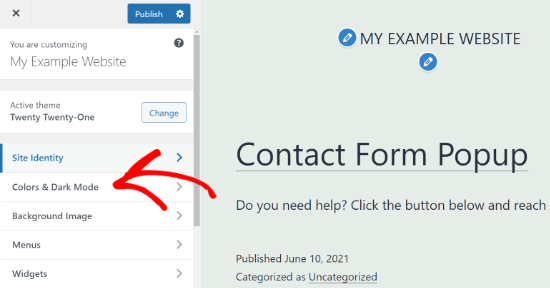
Open your WordPress dashboard. Find the Appearance tab. Click on it. Choose Customize from the menu. This opens the theme customizer. The customizer lets you make changes easily.
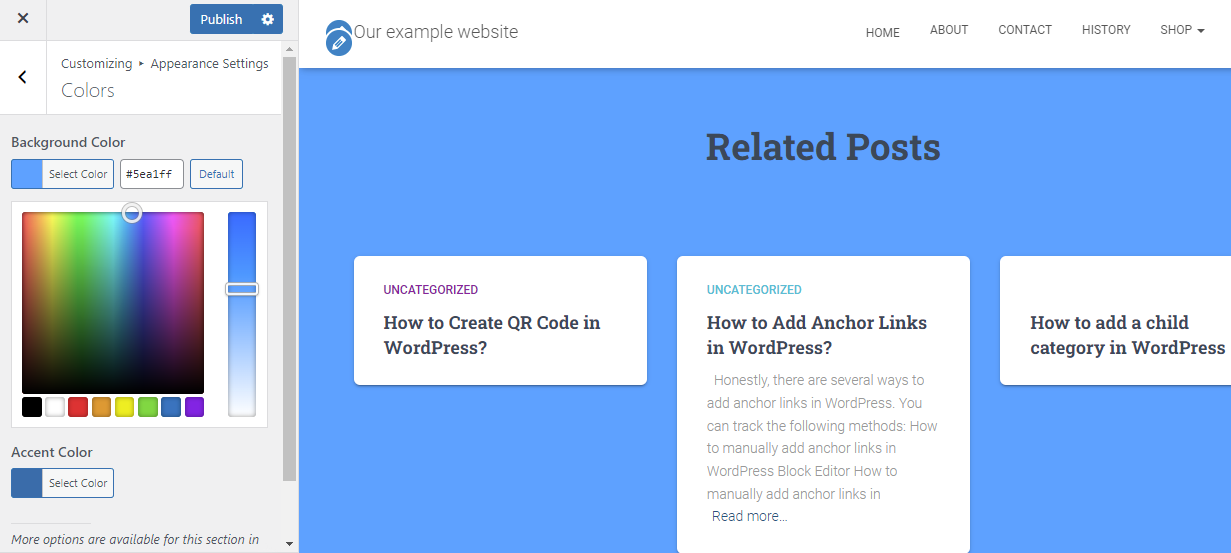
In the customizer, look for Background settings. Click on Colors. Here you can change your theme’s background color. Choose a color you like. Preview it instantly. Save changes when you’re happy.
Using Custom Css
Adjusting the background color in WordPress themes with custom CSS is simple. Locate the “Additional CSS” section under the Customizer. Add code like `body { background-color: #yourcolor; }` to apply your desired color.
Locating Additional Css Section
First, go to your WordPress dashboard. Find the Appearance tab. Click on it. A menu will drop down. Click on Customize. This takes you to the theme customizer. On the left, you will see options. Look for Additional CSS. Click on it. A box will appear. This is where you add your custom CSS.
Writing Custom Css Code
Let’s change the background color. Use this code: body { background-color: #yourcolorcode; }. Replace #yourcolorcode with your desired color code. For example, use #ffffff for white. After typing the code, press Publish. Check your site. The background should change. If not, clear your browser cache. Refresh the page again.
Credit: ltheme.com
Changing Background With Page Builders
Elementor is a popular tool. It helps change your site’s look easily. First, open your page with Elementor. Then, select the section you want to change. On the left panel, find the Style tab. Click it. Here, you can select Background Type. Choose a color you like. Now, your background color is different. It’s that simple!
Beaver Builder is another great option. Start by opening a page with the builder. Click on the section to change. Look for the Advanced tab. Click it. You will see a Background section. Pick a color from the color picker. Now, see how the background changes. Easy and quick!
Editing Theme Files Directly
Editing theme files directly allows you to change the background color in WordPress themes easily. Access the theme editor, locate the CSS file, and adjust the color code to suit your preference. Always back up your files before making changes to ensure safety.
Accessing Theme Editor
Start by logging into your WordPress dashboard. Find the menu on the left side. Click on Appearance. Then, select Theme Editor. A warning might pop up. This warns you about direct edits. Click Proceed to continue.
Modifying Stylesheet
Once you’re in the editor, look for style.css. This is the main stylesheet. You will see lines of code. Scroll down to find body tag. It controls the background color. Change the background-color property. Use a color code like #FF5733. Click Update File to save changes.
Credit: themelooks.com
Plugins For Background Customization
Explore plugins that simplify changing background colors in WordPress themes. These tools allow effortless customization. Add personal flair to your site without coding skills.
Exploring Popular Plugins
Many plugins help change background colors in WordPress. Some popular ones are WPBakery and Elementor. These plugins are easy to use and offer many features. WPBakery allows you to customize colors with a few clicks. Elementor is another great choice with its drag-and-drop feature. It offers various design options and is very user-friendly. WordPress Customizer is built-in and lets you see changes live. All these tools help make your site look unique and colorful.
Installing And Configuring Plugins
First, go to your WordPress dashboard. Look for the Plugins section on the left. Click on “Add New”. Search for your chosen plugin, like WPBakery or Elementor. Click Install and then Activate. Once activated, go to the plugin settings. Adjust the colors to your liking. Save your changes and check your site. The new background color should now appear. Easy and quick setup!
Tips For Choosing Background Colors
Colors can affect how we feel. They can make us happy or calm. Blue feels peaceful. Yellow is cheerful. Red can feel strong or exciting. Choose colors that match your website’s message. Think about your audience. What colors will they like? Picking the right color helps your site feel right.
Your text must be easy to read. Dark text on a light background is best. People with weak sight need clear text. Avoid colors that clash. Test your site on different devices. Make sure everyone can read it. Keep it simple. Focus on what works for all users.

Credit: colibriwp.com
Frequently Asked Questions
How Can I Change Theme Background Color In WordPress?
To change your theme’s background color, navigate to the WordPress Customizer. Under “Appearance,” click “Customize,” then select “Colors. ” Here, you can adjust the background color to your preference. Some themes offer more customization options, so explore settings specific to your theme for additional features.
Can I Use Custom Css For Background Color?
Yes, you can use custom CSS to change the background color. Go to the WordPress Customizer and select “Additional CSS. ” Enter your custom CSS code to modify the background color. This method offers more control and flexibility, especially if your theme doesn’t support color changes directly.
What If My Theme Doesn’t Support Color Changes?
If your theme doesn’t support color changes, consider using a plugin or custom CSS. Plugins like “Simple Custom CSS” allow you to add custom styles to your theme. Alternatively, you can switch to a more customizable theme that provides built-in options for changing background colors.
Are There Plugins For Changing Background Color?
Yes, there are plugins available for changing background colors. Plugins like “WP Backgrounds Lite” or “Customify” offer extensive customization options. These plugins allow you to alter background colors without modifying theme files directly, making it easier to achieve the desired look for your website.
Conclusion
Changing your WordPress theme’s background color is simple. Start by accessing your WordPress dashboard. Navigate to “Appearance” and select “Customize. ” Look for “Background” settings. Choose a new color that complements your site. Preview changes before saving. You don’t need coding skills for this task.
It’s a straightforward process. Adjusting colors can enhance your site’s look. Make sure colors align with your brand. Experiment until you find the perfect shade. Your website’s visuals matter. A pleasing background can attract more visitors. Now, go ahead and personalize your WordPress theme effortlessly.


