
Are you struggling to change the text in your WordPress theme? You’re not alone.
Many WordPress users find themselves scratching their heads when it comes to customizing their site’s appearance. Perhaps you want your website to reflect your brand’s unique voice or maybe you just want it to stand out from the crowd. Whatever the reason, knowing how to tweak the text is crucial.
Imagine the satisfaction of seeing your website perfectly aligned with your vision. This guide will walk you through the process, step-by-step, making it simple and stress-free. Ready to take control of your website’s look and feel? Let’s get started.
Accessing The WordPress Dashboard
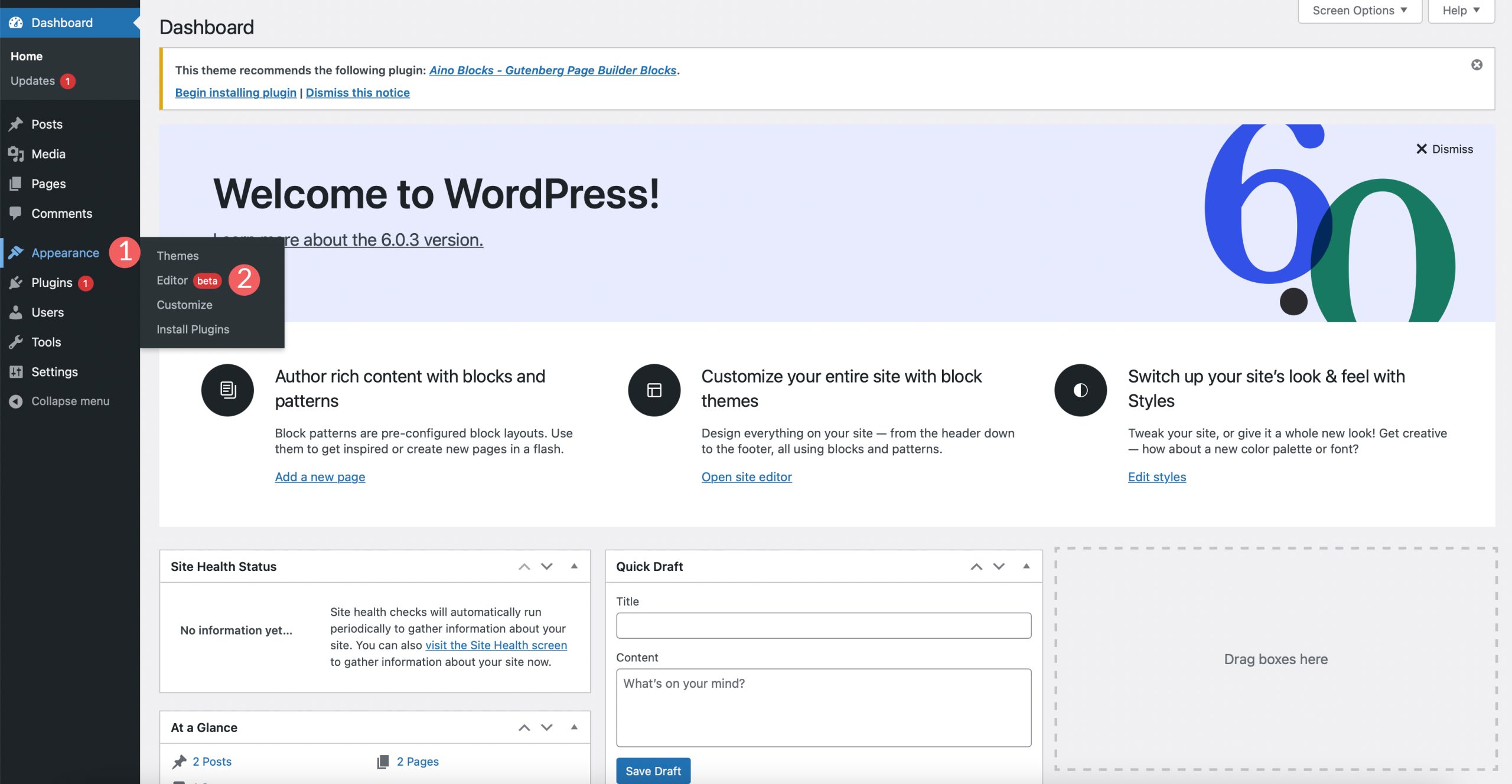
Log into your WordPress site. Use your username and password. Find the WordPress Dashboard. This is your control center. Here, you manage your site. Look for the left-hand menu. It has many options. Click on “Appearance”. This is where theme settings are. You can change text here. Find the option called “Customize”. It’s usually below Appearance. Click on it. A new window will open. This is the Customizer. You can see changes live here. Make sure to save your work. This keeps your changes safe.
Credit: 10web.io
Locating Theme Files
Editing text in a WordPress theme starts with locating theme files. Access the WordPress dashboard, select “Appearance,” then “Theme Editor. ” Navigate through the files to find the correct text.
Theme Editor Overview
The theme editor is inside the WordPress dashboard. It lets you change theme files. You can see file names on the right side. Clicking a file opens it for editing. Make sure to save your changes after editing. You must be careful while editing. Wrong changes can break your site. Backup files before editing. This ensures safety.
Accessing Theme Files Via Ftp
FTP helps access theme files outside WordPress. Use an FTP client like FileZilla. Connect to your site using FTP details. Navigate to the wp-content/themes folder. Find your theme folder there. Open it to see all theme files. You can download files for editing. Upload them back after changes. This method is safe for big changes. Always backup files before starting.
Identifying Text To Change
The Inspect Tool is like a magic magnifying glass. It helps you find text on a webpage. First, right-click on the text you want to change. Then, click “Inspect” from the menu. A new window will pop up. This window shows the HTML code of the page. Look for the text in the code. It will be highlighted. Pay attention to the classes and IDs. They are important for locating the text in theme files. This tool is very helpful for beginners.
Open your WordPress dashboard. Go to Appearance, then click on Theme Editor. Find the file you think has the text. Use the search bar to look for the text. Type the exact words you want to change. If you find it, edit the text and save your changes. Remember to make a backup first. This way, you won’t lose anything important. Always double-check your changes. You want everything to work well.
Credit: www.elegantthemes.com
Editing Text In Theme Files
PHP files control much of the WordPress theme. These files have important code. They make the theme work. To change text, find the correct PHP file. Use a text editor like Notepad or Sublime Text. Open the file and look for the text you want to change. Be careful not to alter the code structure. This can break the theme. Save changes and check your site.
HTML and CSS files help design the theme. HTML files hold the content structure. CSS files add style. To change text, find the correct HTML file. Use a text editor to open it. Change the text you need. In CSS files, you can adjust font size and color. Save your changes. Always check your site after editing.
Using WordPress Customizer
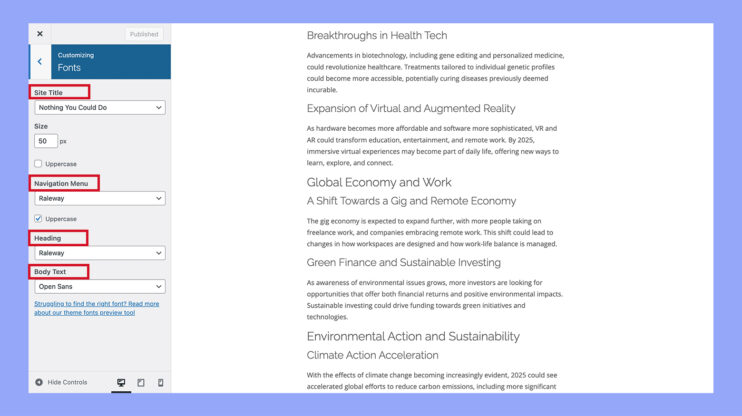
WordPress Customizer is a tool to change theme text. Locate the text widget in the sidebar or footer. Click to edit the text. You can add or remove words. Use the text box to make changes. It is simple and quick. Remember to save changes. This updates your site instantly. Always preview before publishing changes. This helps ensure the text looks right.
Editing Text Widgets
Text widgets are easy to edit. Access them via the dashboard. Find the widget area. Click the edit option. Type in new text. You can format it with bold or italics. Change the font size if needed. Save your work after editing. This ensures your updates go live.
Adjusting Theme Settings
Theme settings control text appearance. Go to the theme options section. Choose the text settings tab. Adjust font styles or sizes. Modify colors for better visibility. Preview the changes. Make sure everything looks good. Save your settings to apply them. Your site gets updated with new text styles.
Utilizing Plugins For Text Changes
Plugins make changing text easy. Text Change Plugins are popular and simple. These plugins allow you to change words in your theme. No coding needed. Just install and activate. Start changing text right away.
Sometimes, text changes need custom code. Custom Code Plugins help here. They provide a way to add your own code. This is useful for unique text changes. Make sure to backup your site first. Mistakes can happen.
Ensuring Compatibility And Backups
Before changing text, make a backup of your site. This is important. It keeps your data safe. Use plugins like UpdraftPlus. These tools help create backups easily. Save these backups on the cloud or your computer. Now, you are ready to start. Always have a backup plan. This saves you from problems later.
Make changes on a test site first. This helps see if they work well. If something breaks, your main site stays safe. Use a plugin to create a staging site. Test all changes carefully. Check all pages to ensure they look good. Once happy, apply changes to your main site.
Troubleshooting Common Issues
Changing text in a WordPress theme often involves accessing the theme editor. Locate the desired file and adjust the code to update the text. Always save changes and preview your site to ensure everything looks correct.
Dealing With Cache Problems
Sometimes changes don’t show up right away. Cache might be the problem. Clearing the cache can help. Start by going to your browser settings. Find the option to clear cache. Click it to clear. Check if changes appear now. If not, look into your WordPress cache plugin. Plugins like W3 Total Cache or WP Super Cache might need clearing. Navigate to the plugin settings. Find the option to clear cache. This should solve the issue.
Fixing Styling Conflicts
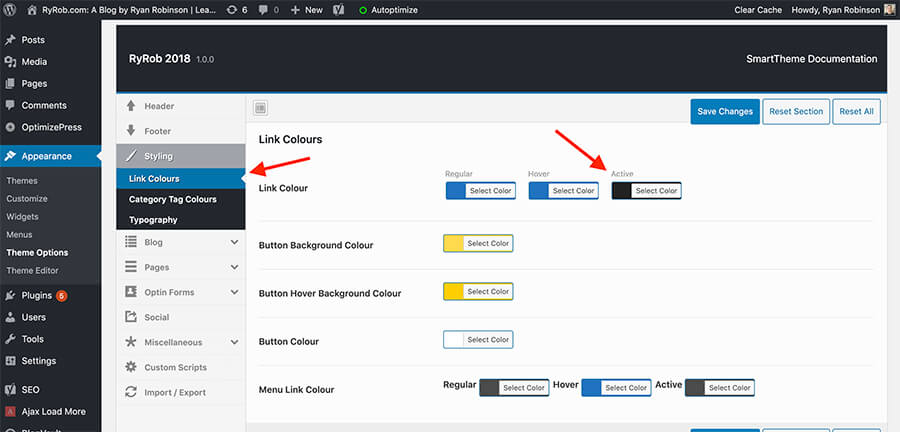
Text styling may look different. Conflicts between theme and plugin styles can cause this. Check your theme’s custom CSS. See if there are rules that might override others. Plugins sometimes add extra styles. Inspect the page using your browser’s developer tools. Look for conflicting CSS rules. Make necessary adjustments in the theme’s customizer. If needed, seek help from WordPress support forums. They can offer guidance.
Credit: www.ryrob.com
Frequently Asked Questions
How Do I Edit Text In WordPress Theme?
To edit text in a WordPress theme, access your WordPress dashboard. Navigate to “Appearance” > “Editor” or “Theme File Editor. ” Find the relevant file, often “header. php” or “footer. php,” and edit the text. Remember to save changes. Always back up your site before making edits.
Can I Change Theme Text Without Coding?
Yes, you can change theme text without coding. Use WordPress Customizer by navigating to “Appearance” > “Customize. ” Some themes offer built-in options to modify text. Alternatively, use plugins like “Loco Translate” to change text strings without directly editing code.
Always ensure compatibility with your theme.
Is It Safe To Modify Theme Text?
Modifying theme text is generally safe if done correctly. Always back up your website before making changes. Use child themes to prevent overwriting changes during updates. Avoid direct edits to core files. If unsure, consider hiring a professional or using plugins designed for safe text modifications.
Do I Need A Plugin To Change Text?
You don’t always need a plugin to change text in a WordPress theme. However, plugins like “Loco Translate” or “Say What? ” Can simplify the process, especially for non-coders. They allow text modifications without editing theme files directly. Ensure any plugin used is compatible with your theme and WordPress version.
Conclusion
Changing text in a WordPress theme is simple with practice. Follow the steps carefully. Use the WordPress dashboard to locate theme files. Editing the right file is crucial. Always keep a backup of your original files. This ensures safety if errors occur.
Experiment with small changes first. Gain confidence with each adjustment. Soon, your site will reflect your unique style. Enjoy the process and watch your skills grow. With patience, you can personalize your WordPress theme effectively. Your website will feel more personal and engaging.
Happy editing!


