
Are you looking to refresh your WordPress website but aren’t sure how to change your theme’s template? You’re not alone.
Many website owners want to keep their site looking modern and up-to-date, but the process can feel overwhelming. The good news is, switching templates in WordPress is easier than you might think. In this guide, we’ll walk you through the steps in a simple, straightforward way.
By the end, you’ll feel confident in giving your website the fresh look it deserves. Stay with us to discover how a few clicks can transform your online presence and enhance user experience. Your website’s makeover is just a scroll away!
Selecting A New Template
Accessing the Dashboard is your first step. Log into your WordPress account. Look for the Dashboard on the left side of the screen. This is where you will find all the options. It helps you manage your site.
Navigating to Appearance is easy. In the Dashboard, look for the Appearance tab. It is usually near the bottom. Click on it. A menu will appear. Here, you can see different options. Choose the Templates or Themes option. This lets you pick a new look for your site.

Credit: www.templatemonster.com
Exploring Available Themes
WordPress has many themes. These themes change how your site looks. The Theme Library is where you find them. It offers themes for all kinds of sites. Each theme has its own style. Some themes are for blogs. Others are for business sites. Choose a theme that fits your needs.
Browse the library and pick a theme. You can see ratings and reviews. This helps you make a choice. Check if the theme is easy to use. Some themes need more work to set up. Make sure the theme works with your plugins.
Preview themes before using them. This shows how they look on your site. Click on a theme to see it. You can view the layout and design. This helps you decide if it’s right. Try different themes. See which one you like best. Themes can be changed later. Don’t worry if you pick the wrong one.
Installing A New Theme
Find the perfect theme for your site. Visit the WordPress theme directory. You can also check third-party sites for themes. Download the theme file. It will be a .zip file. Keep this file ready for the next step.
Go to your WordPress dashboard. Click on Appearance. Then, select Themes. Look for Add New button. After clicking, choose the Upload Theme option. Click Choose File to select the .zip file. Hit Install Now to upload the theme. Wait for the installation to finish. Activate the theme to apply it.
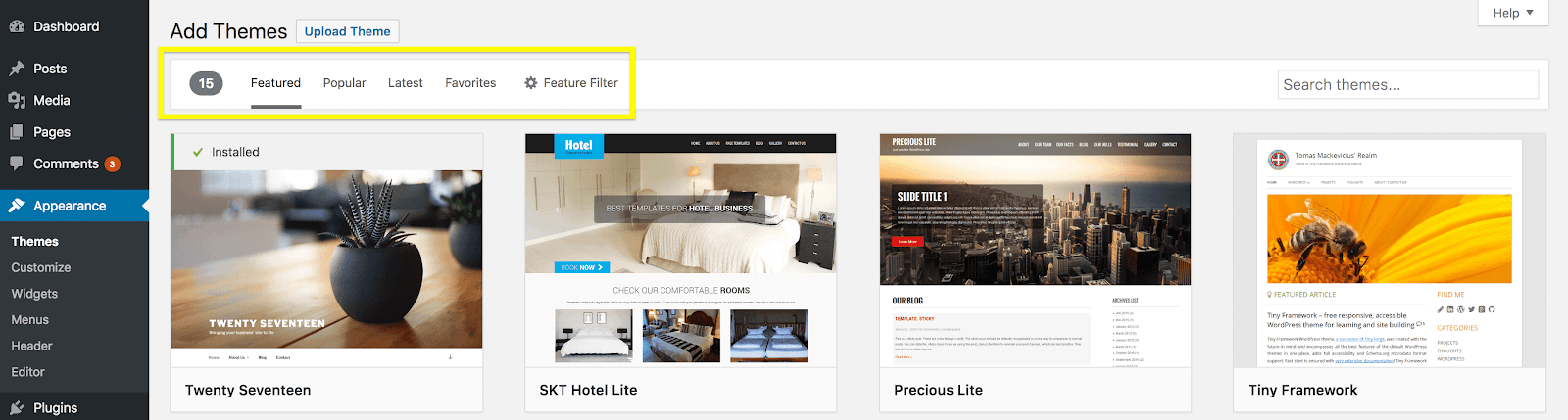
Credit: wpengine.com
Activating Your Theme
Changing your theme is easy. First, go to your WordPress dashboard. Click on Appearance and then Themes. You will see all your installed themes. Pick the one you like. Click on Activate. Your new theme is now live.
Make sure your theme works well. Check if it fits your site’s needs. Look for any errors or problems. Test it on different devices. Make sure it is mobile-friendly. Also, check if it supports your plugins. This will help your site run smoothly.
Customizing The New Template
Layout changes are simple. Use the customizer in WordPress. Pick a layout you like. Click to apply it. Try different styles. Keep your site fresh. Make sure it looks good on phones. Check the preview often. Adjust settings until it fits your needs. Each layout offers unique features. Choose wisely.
Widgets add useful tools. Find them in the dashboard. Drag and drop to place them. Use widgets for social media links. Add search bars for easy access. Widgets can show recent posts. Customize widget settings. Make sure they match your site’s theme. Don’t overdo it; keep it clean. Widgets help visitors find things fast.
Testing And Final Adjustments
Mobile Responsiveness is very important. Always check how your website looks on phones. Click around and see. Does everything fit the screen? Are buttons easy to tap? If things look strange, try a different template. Make sure text is easy to read. Images should resize well. Your site should load quickly. A slow site can annoy visitors.
SEO Considerations are crucial for more visitors. Use keywords that people search for. Place them in titles and descriptions. Add alt text to images. It helps search engines know your content. Make sure links work. Broken links can hurt your site. Keep content clear and simple. This helps in ranking better. Use headings to organize information. Search engines like structured content.
Backup And Restore Options
Plugins make backup tasks easier. They save your website data. Popular plugins include UpdraftPlus and Duplicator. Install these plugins from the WordPress store. Activate them after installation. Set your backup schedule. Choose daily, weekly, or monthly. Save backups to cloud storage like Google Drive. This keeps them safe. Restoring data is easy. Go to the plugin settings. Click on the restore option. Select your backup file. Your website returns to the saved state.
Manual backups need more effort. First, access your website files. Use an FTP client like FileZilla. Download all files to your computer. Next, backup your database. Login to your hosting panel. Use phpMyAdmin to export the database. Save the file. Store both files safely. For restoring, upload files back to the server. Import the database to phpMyAdmin. Your site is back to normal.

Credit: fullsiteediting.com
Frequently Asked Questions
How Do I Change My WordPress Theme Template?
To change your WordPress theme template, navigate to your WordPress dashboard. Go to Appearance and select Themes. Choose the theme you want to activate, then click on Customize. Modify settings as per your preference, and save changes. This process helps tailor your site’s appearance effectively.
Can I Use Multiple Templates In WordPress?
Yes, WordPress allows multiple templates. You can apply different templates to different pages. Use the Page Attributes section while editing a page. Select the desired template from the dropdown menu. This helps create diverse layouts for varied content, enhancing your site’s design flexibility.
What Happens When I Change A Theme?
Changing a theme alters your site’s appearance and layout. Your content remains intact, but styling may differ. Widgets and menus might need adjustments. Always preview before switching to ensure compatibility. Backup your site to prevent data loss. This helps maintain consistency and user experience.
Is Changing Templates Safe For Seo?
Changing templates is generally safe for SEO. Ensure the new template is SEO-optimized, with clean code and fast loading speeds. Retain SEO settings and metadata during the transition. Test page performance post-change to mitigate negative impacts. This ensures your rankings remain unaffected.
Conclusion
Changing your WordPress theme template is straightforward. Follow each step carefully. First, choose a theme that fits your needs. Then, access your WordPress dashboard. Navigate to the ‘Appearance’ section. Click on ‘Themes’ and select ‘Add New. ‘ Preview before activating the new theme.
Ensure all elements display correctly. Regularly update your themes for security. This keeps your site safe and efficient. Experiment with different templates for a fresh look. Enjoy customizing your WordPress site. Happy blogging!


