
Have you ever felt that your WordPress site needs a fresh look? Maybe you want to make it more visually appealing or align it better with your brand.
Changing the theme of your WordPress site can do just that. It’s like giving your website a makeover, and the best part is, you can do it yourself with just a few clicks. Imagine the impact a new theme can have on your visitors.
It can enhance user experience, make your content pop, and even boost your site’s performance. But before you dive in, you might be wondering how to make this change without disrupting your existing content or layout. Don’t worry; you’re in the right place. In this guide, I’ll show you exactly how to change the theme of your WordPress site effortlessly. Whether you’re a seasoned blogger or a newbie, you’ll find these steps easy to follow. Stick around, and you’ll discover how to transform your site into something truly remarkable. Ready to give your website a new life? Let’s get started!
Choosing A New Theme
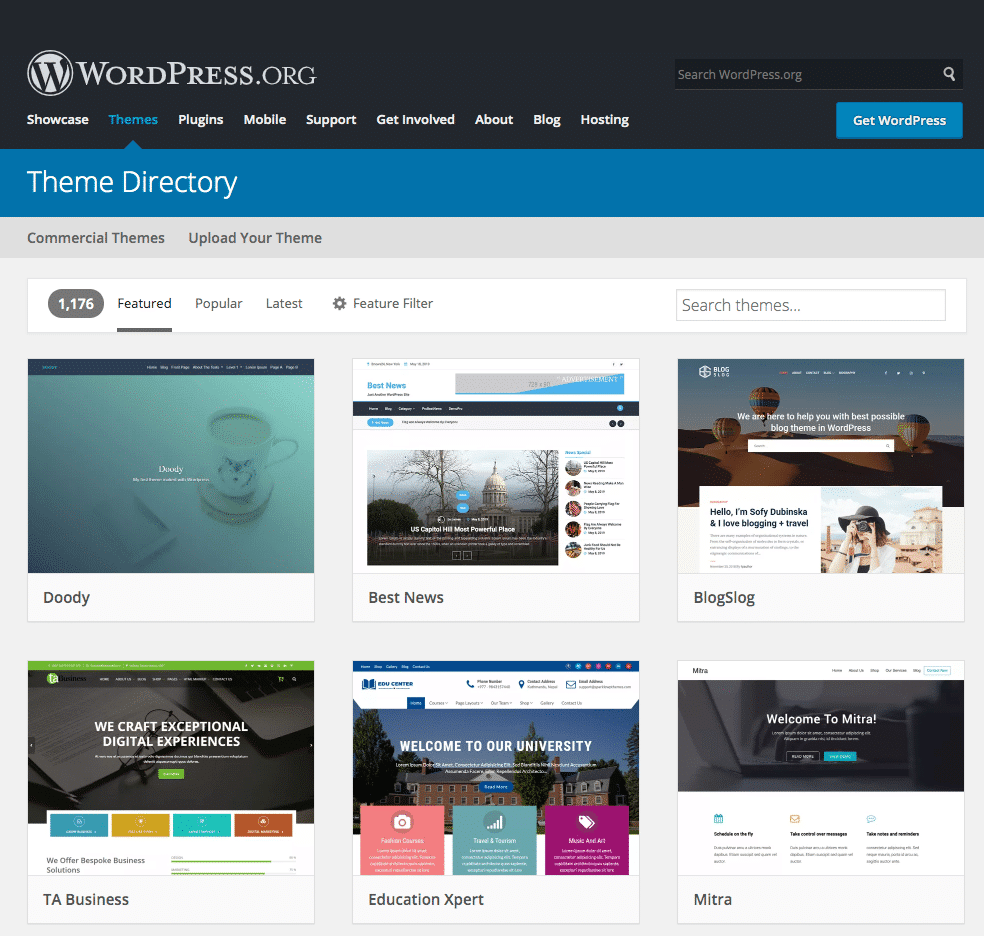
Browsing the WordPress theme library is a great start. There are many free themes. There are also premium themes. Each theme has a unique style. Look at the features of each theme. Some themes are simple. Some are more advanced. Pick a theme that fits your needs. Remember, a good theme is easy to use.
Think about your brand’s look. Does your brand use bright colors? Or maybe softer ones? Choose a theme that matches these colors. Your site should have the same feel as your brand. This makes your brand stronger. It also helps people recognize your site quickly.
A responsive theme works on all devices. Phones, tablets, and computers. It should look good everywhere. Test the theme on different devices. This ensures your site works well for everyone. A responsive site keeps visitors happy. Happy visitors stay longer on your site.

Credit: jetpack.com
Installing A WordPress Theme
Access the WordPress Dashboard by logging into your site. Find the dashboard on the left side. Look for the “Appearance” option. Click on it.
Next, navigate to the Themes Section. You will see many themes. Choose the one you like. Or, click “Add New” to see more themes.
If you have a theme file, upload or select a theme. Click on “Upload Theme.” Choose the file from your computer. Wait for the upload to finish.
After uploading, find the theme and click “Activate”. Your site’s look will change. Make sure you like it. You can always change it again.
Activating The Theme
Before changing a theme, use the preview feature. This allows you to see how your site will look. Click on the theme you want. Then, click “Live Preview”. You will see a preview of your site. Check if everything looks good. Make sure your menus and widgets are okay. If you like it, you can activate it.
To activate a theme, go to your WordPress dashboard. Find the theme you want to use. Click on “Activate”. Your site will now use the new theme. Make sure to check your site. Look for any changes in layout or design. Adjust settings if needed. Your new theme is now live.
Customizing Your Theme
Colors and fonts can change how your site looks. Pick colors that match your brand. Use fonts that are easy to read. Choose font size and style wisely. Make sure it fits with your theme.
Adjusting layout settings helps organize your site. You can change the number of columns. Set header and footer sizes. Make your site neat and tidy. Keep it easy for visitors to find things.
Custom widgets add special features. They can show social media links. Display recent posts or comments. Widgets help make your site unique. Try different ones to see what works best.
Testing The New Theme
Make sure your site looks good on phones. Many people use phones to visit sites. Click around and see if all buttons work. Look at images. Check if they fit well on small screens. Text should be easy to read. Fix any issues before going live.
Open your site on different browsers. Use Chrome, Firefox, and Safari. Each browser can show your site differently. Make sure everything looks the same. Check menus and links. All should work properly. If not, adjust your theme settings.
Speed is important. Slow sites lose visitors fast. Use tools to test site speed. Check load times for each page. Make sure images load quickly. Optimize them if needed. A fast site keeps people happy.

Credit: www.wpzoom.com
Troubleshooting Common Issues
Broken links can make visitors unhappy. Check each link on your site. Use tools like Broken Link Checker. Fix broken links by updating or removing them. This helps your site work better.
Layout problems can confuse users. Check your site on different devices. Make sure everything looks neat. Adjust your theme settings if needed. This keeps your site looking good.
Plugin conflicts may cause trouble. Deactivate plugins one by one. This helps find the problem. Once found, update or replace the plugin. This keeps your site running smoothly.
Backing Up Your Site
Backup plugins are important for your site. They save your site’s data. Choose one that suits your needs. Some popular ones are UpdraftPlus and BackupBuddy. They are easy to use. They help you keep your site safe.
Choose A Backup Plugin
Pick a plugin with good reviews. Check if it is free or paid. Free plugins are good for small sites. Paid plugins have more features. They work well for big sites.
Schedule Regular Backups
Make sure to set a schedule for backups. Daily backups are best. Weekly backups are also good. Scheduled backups save time. They make sure you don’t lose data.
Credit: kinsta.com
Frequently Asked Questions
How Do I Change My WordPress Theme?
To change your WordPress theme, log in to your dashboard. Navigate to “Appearance” and select “Themes. ” Browse available themes or upload a new one. Activate your chosen theme by clicking “Activate. ” Ensure it’s compatible with your plugins and content.
Always preview changes before finalizing to maintain your site’s aesthetics.
Can I Switch WordPress Themes Without Losing Content?
Yes, you can change themes without losing content. Your posts, pages, and media remain intact. However, theme-specific settings and widgets might reset. Always back up your site before switching themes. Check your site’s layout after the change to ensure everything displays correctly.
Adjust settings as needed for a seamless transition.
Is It Safe To Change WordPress Themes?
Changing themes is generally safe, but take precautions. Backup your site before switching to prevent data loss. Verify theme compatibility with your plugins and WordPress version. Test the new theme on a staging site first. After changing, review your site thoroughly to ensure everything functions as expected.
How Often Should I Change My WordPress Theme?
Change your WordPress theme based on your site’s needs. Updates and rebranding might necessitate a change. However, frequent changes can confuse users and affect SEO. Choose a versatile theme that can adapt over time. Regularly update your theme to maintain security and performance without needing frequent changes.
Conclusion
Changing your WordPress theme is simple and rewarding. Follow the steps carefully. Choose a theme that suits your site’s purpose. Preview before activating to ensure it looks right. Always back up your site before making changes. This prevents data loss.
Themes can impact site speed and SEO. Pick a lightweight theme for better performance. Remember, you can always switch back if needed. Explore different themes to find what works best. Updating your site’s look can attract more visitors. A fresh design keeps your content engaging.
Happy theming on WordPress!


